A team without a shared calendar often feels like a room full of clocks set to different times. Meetings overlap, time off gets missed, and project dates slip through cracks that didn’t need to exist.
That’s why I build a shared team calendar as one of the first systems in Google Workspace. When I do it right, everyone can see the same rhythm, know who owns what, and stop asking, “Are you free then?” Here’s the clean way I set it up in Google Calendar in 2026, including permissions, team sharing, org-wide visibility, and the fixes I use when something goes wrong.
Create the calendar and share it the smart way
I always start with a separate calendar, not someone’s personal one. Personal calendars are private by nature. A team calendar should live where the team can trust it.
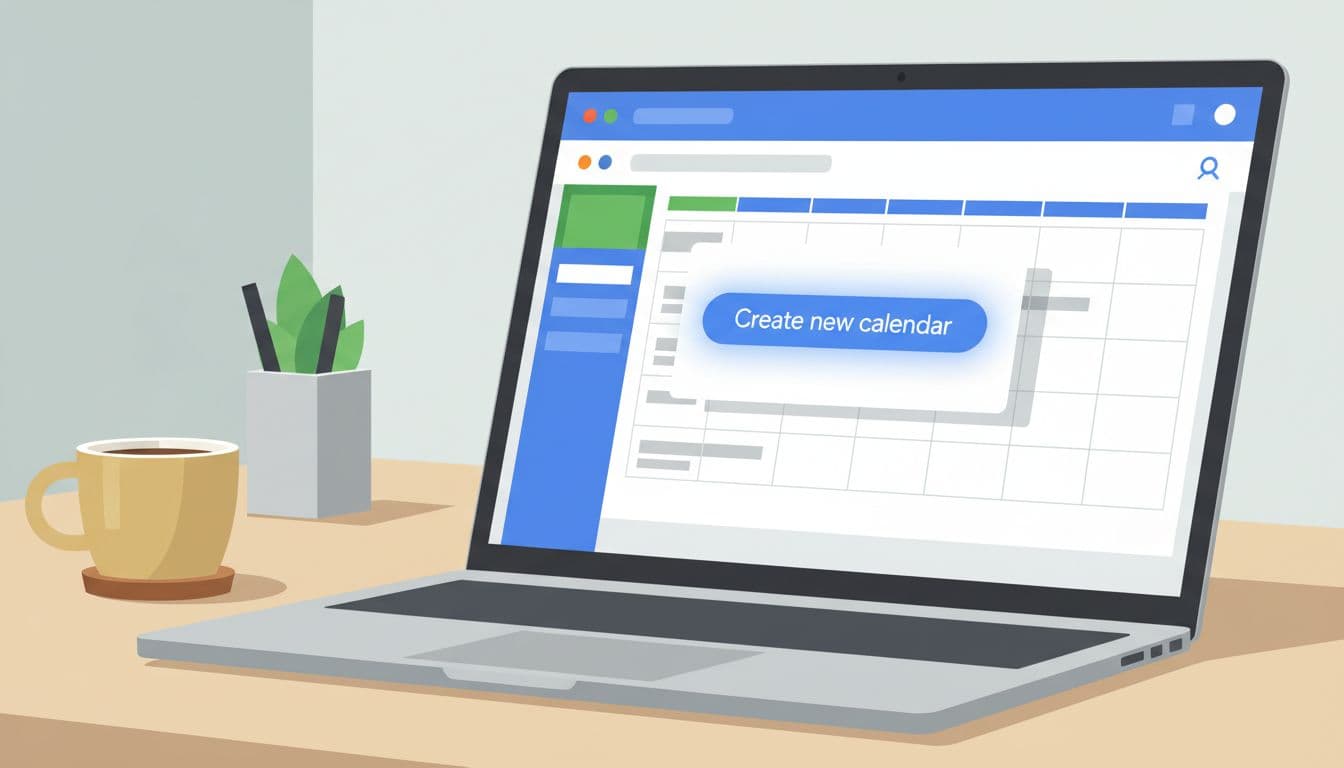
In Google Calendar on the web, I follow these steps:
- Open Google Calendar and go to the left sidebar.
- Next to Other calendars, click the plus icon, then choose Create new calendar.
- Give it a clear name, such as “Marketing Team Calendar” or “Q3 Product Launch.”
- Add a short description, so people know what belongs there.
- Set the right time zone, especially if the team works across regions.
- Save it, then open Settings and sharing for that calendar.
- Under Share with specific people or groups, add the people who need access, or better yet, add a Google Group for the team.
I prefer group-based sharing for departments because it cuts down on cleanup later. When someone joins or leaves, I update the group once instead of editing calendar access by hand. If you want a second view of that setup, this group calendar guide gives a solid example.
After that, I add a few starter events right away. A blank calendar feels abandoned. I usually create recurring team meetings, time-off markers, launch dates, or on-call shifts. Then I ask the team to turn the calendar on in their left sidebar so it stays visible.
One more tip helps a lot: name calendars by purpose, not by person. “Sales Demo Calendar” ages well. “Alex’s Team Calendar” does not.
Set permissions and visibility without losing control
Permissions are where a good calendar either becomes useful or turns into a mess. I treat them like office keys. Not everyone needs the front door, the supply closet, and the alarm code.
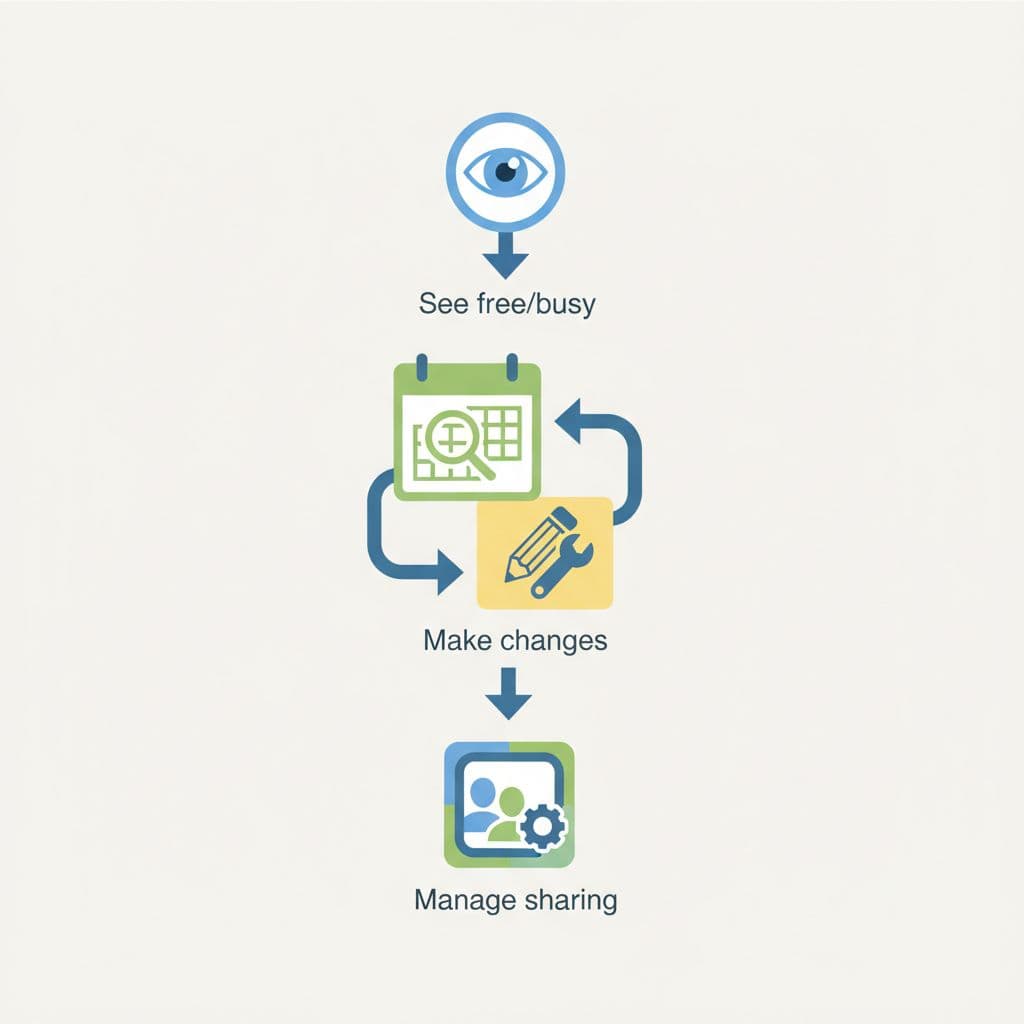
Here’s the quick breakdown I use when assigning access:
| Access level | What people can do | Best use |
|---|---|---|
| See only free/busy | View whether time is blocked, but not titles or notes | Org-wide visibility with privacy |
| See all event details | View titles, times, guests, and notes | Small teams and open schedules |
| Make changes to events | Create, edit, and delete events | Team leads or coordinators |
| Make changes and manage sharing | Full control, including permissions | Calendar owners only |
The last level is powerful, so I keep it tight.
I give full control to one or two people, not ten. Too many owners create quiet chaos.
For company-wide visibility, I go to Access permissions for events and decide whether to make the calendar available to my organization. That setting is useful, but only when the content fits broad viewing. For example, I often choose free/busy for interview schedules or room holds. On the other hand, I choose see all event details for PTO calendars or support rotations, because the team needs context.
If the calendar needs outside viewers, I check external sharing early. Some Google Workspace admins limit what external users can see, or block outside sharing completely. When that happens, the calendar may show only busy blocks, even if I picked a richer permission inside Calendar. This shared Google Calendar overview is helpful if you want more background on advanced sharing patterns.
Use the right calendar for the job
Not every team calendar should work the same way. I match the setup to the kind of work in front of me.
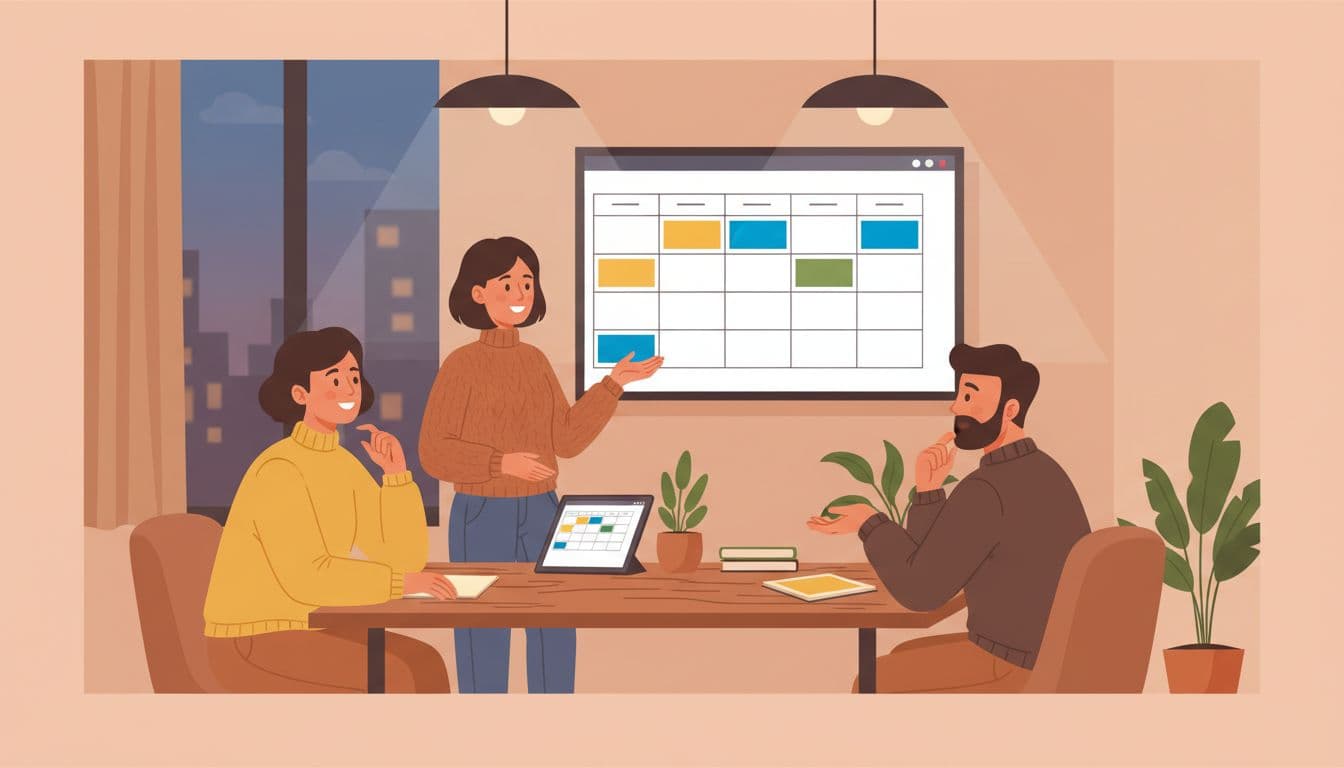
For a small team, I usually keep one calendar for recurring meetings, deadlines, and PTO. Everyone can see details, while the manager or assistant can edit events.
For a department calendar, I share it with a Google Group and keep the naming strict. That calendar may show company events, blackouts, training days, and major deadlines. In many cases, I make it visible across the organization, but only as free/busy.
For a project calendar, I make it temporary and focused. A product launch, audit, migration, or event rollout deserves its own calendar. Then, when the work ends, I hide it instead of cluttering the main team view. If you want another walkthrough, this shared team calendar tutorial covers the basics in a simple way.
Fix the issues that usually pop up
If users can’t see the calendar, I first check the obvious things. They may be signed into the wrong Google account, the calendar may be unchecked in the sidebar, or the share may have gone to an old email alias. I also ask them to open Google Calendar on the web, because it updates faster than mobile.
When permissions look wrong, I clean up overlapping access. Old individual shares, stale group memberships, and copied settings can muddy the water. I remove what’s no longer needed, then test with one user again.
If external guests see less than expected, I don’t blame the calendar first. In many cases, a Workspace admin has limited outside sharing at the domain level. That setting wins.
A simple calendar is easier to trust
A good shared calendar doesn’t need to be fancy. I keep it clear, give the right people the right access, and separate team calendars from project calendars before the clutter starts. Start small, review permissions once a month, and keep ownership tight. When I do that, the calendar stops being another app and starts acting like a reliable map.