Check Your Social Media Post Preview in Someli
A post can look correct in the editor and still appear wrong in the feed. A broken line, cropped image, or incorrect link can reduce results before anyone reads the message. The social media post preview inside Someli gives you a final view...
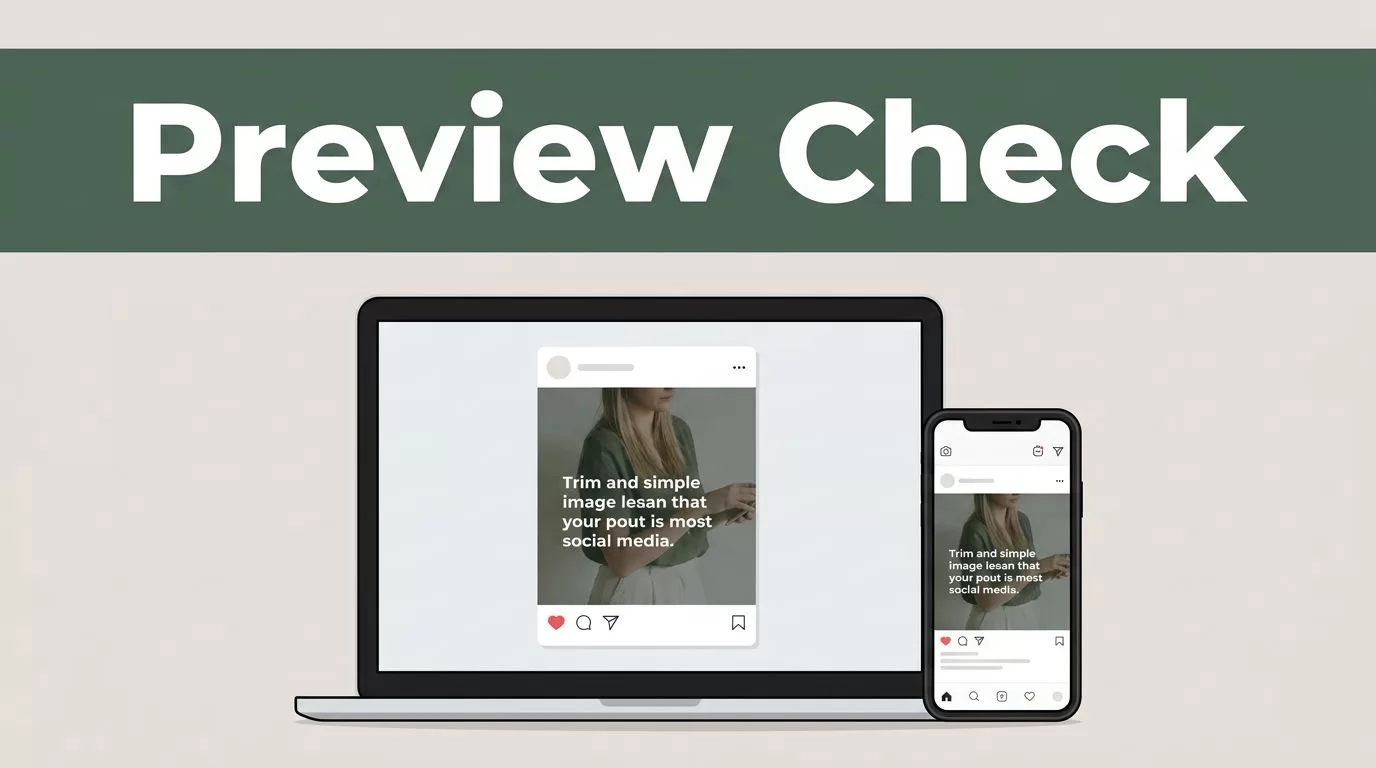
A post can look correct in the editor and still appear wrong in the feed. A broken line, cropped image, or incorrect link can reduce results before anyone reads the message.
The social media post preview inside Someli gives you a final view of the content before scheduling or publishing. Use it to check the copy, layout, media, links, and channel-specific appearance in one review.
Key Takeaways
- Open the draft in Someli and inspect the preview before scheduling.
- Check the first line, spacing, mentions, hashtags, and call to action.
- Review image cropping and media quality on each connected channel.
- Test every link and confirm the correct account, date, time, and time zone.
- Treat the preview as a quality check, not a guarantee of the live feed.
Open the Draft and Review the Social Media Post Preview
Start by selecting the post you need to review in Someli. Open the draft’s post view and move to the preview area available in your workspace. If the post targets several channels, review each channel separately when Someli provides separate previews.
Read the post as a follower would see it. Don’t focus only on the editing field. Look at the first visible lines, paragraph spacing, emojis, hashtags, mentions, and call to action.
The opening line has the most work to do. Some platforms show only part of a long caption before a user expands it. Put the main point early. Remove extra context if the reader must scroll before understanding the post.
Check the following details before you move on:
- Confirm that the copy matches the approved version.
- Read every line for spelling, punctuation, and awkward breaks.
- Check that mentions identify the intended accounts.
- Remove duplicate hashtags or tags that no longer apply.
- Confirm that the call to action tells the reader what to do next.
A preview can expose mistakes that are easy to miss in a content calendar. A sentence may wrap in an unexpected place. An emoji may sit beside the wrong word. A link may push the useful part of the caption below the visible area.
Review the post in the order a reader sees it: opening line, media, caption, link, and call to action.
Check Copy and Formatting Before Scheduling
Copy review should happen inside the preview, not only in a document or approval thread. Someli shows the post in the context where it will appear, so you can assess whether the formatting supports the message.
Look at line breaks first. Short paragraphs are easier to scan on a phone. A caption that looks clean in a wide editor can become a dense block in a narrow feed. Add or remove spacing when the connected platform supports it.
Next, check formatting that may not transfer equally across channels. Some platforms handle emojis, mentions, hashtags, and paragraph breaks differently. Don’t assume that a caption copied across channels will keep the same structure.
Pay close attention to:
- The first sentence and visible caption length
- Paragraph breaks and blank lines
- Hashtag placement
- Mentions and account names
- Emojis and special characters
- Punctuation around links
- Calls to action and campaign language
Avoid making one caption do every job. A post written for LinkedIn may need more context than one written for X. An Instagram caption may depend more on the image and the first few lines. Use the preview to decide whether the message still works on each channel.
If the wording changes by platform, compare the versions before you schedule. Confirm that the correct variation is attached to the correct account. A strong caption on the wrong channel is still a publishing error.
Inspect Images, Videos, and Cropping
Media is often the first thing people notice. Open the visual portion of the social media post preview and check the full frame. Look for missing faces, cut-off product details, unreadable graphics, and empty space that changes the balance of the design.
Review the crop on every platform selected for the post. A square, portrait, or landscape asset may appear differently in each feed. Important subjects should stay away from the edges when the platform may crop the image.
Check text inside graphics at the size a mobile user will see. Small type can become unreadable even when the original file looks sharp. If the graphic contains a price, date, product name, or offer, confirm that the information remains visible in the preview.
For video posts, check the opening frame and the visible crop. The first seconds need to make sense without relying on a later scene. Review whether captions or important visual details are cut off.
Also check the practical file details:
- The correct image or video is attached
- The media matches the approved campaign
- The quality remains clear in the preview
- No unwanted borders or blank areas appear
- Faces, products, and key text remain visible
- The visual matches the caption
Don’t approve a post because the file name looks correct. Compare the actual image with the campaign version. A replaced asset can carry an old logo, outdated offer, or incorrect product image.
Test Links and Preview Cards
Links need a separate review. Click or copy the destination URL from the post workflow and test it in a private browser window. Confirm that it loads correctly and reaches the intended page.
Check the destination on a mobile device or narrow browser window. A page that works on a desktop may have a broken menu, slow load time, or missing form on mobile. Confirm that the headline, offer, and call to action on the landing page match the post.
If the link includes tracking parameters, review them before publishing. The URL should contain the correct campaign values and should not include temporary test data. Keep the link readable when the platform displays it directly in the caption.
Some channels may show a link preview card with an image and title. Review those elements when they appear in Someli. Look for an old image, missing title, incorrect description, or a page that returns an error.
A social media post preview can’t replace a live link test. It can show how the post is assembled, but the destination still needs to be opened separately.
Complete the Final Pre-Publish Check
Run one final review after making edits. Preview changes can affect line breaks, media order, and the visible call to action. Don’t rely on an earlier check if you changed the caption or asset.
Confirm the selected social accounts and remove any channel that shouldn’t receive the post. Check the scheduled date, time, and time zone. A correct post published at the wrong time still creates an avoidable problem.
If your team uses an approval process, make sure the version in Someli matches the approved version. Check the status before scheduling. Keep the review focused on the exact draft that will publish.
Use this order for the final pass:
- Read the preview from top to bottom.
- Check the image or video crop.
- Test the link and landing page.
- Confirm the account, date, time, and time zone.
- Schedule or publish only after the draft passes each check.
The last preview review should confirm the final version, not the version you intended to create.
Conclusion
A social media post preview in Someli gives you a practical control point before content reaches the audience. Use it to inspect copy, formatting, media, cropping, links, and platform-specific presentation.
The editor helps you build the post. The preview helps you catch publishing mistakes. Take that final step before scheduling, and each channel receives content that is ready for its actual feed.
