How To Install The Speechify Extension For Read Aloud
I scan long reports on my screen each morning. My eyes tire fast. Words blur after ten minutes. That’s why I grab the Speechify extension. It turns text into clear speech. Now I listen while I walk or cook. You save time too. Let me w...

I scan long reports on my screen each morning. My eyes tire fast. Words blur after ten minutes. That’s why I grab the Speechify extension. It turns text into clear speech. Now I listen while I walk or cook. You save time too. Let me walk you through my exact setup.
Why the Speechify Extension Fits My Workflow
Busy days demand quick tools. I handle emails, docs, and articles nonstop. Reading slows me down. Speechify changes that. It reads webpages, PDFs, and Google Docs aloud. Voices sound natural, not robotic.
I first tried it during a project crunch. A 20-page PDF waited. Instead of straining, I clicked play. The app spoke at 3x speed. I finished in half the time. Premium voices add flair, like celebrity options. Free tier works fine for basics.
Productivity jumps because I multitask. Listen to research while checking metrics. Eyes rest. Retention improves too. Studies back this; audio aids focus for many. I stick with it daily.
Installing the Speechify Extension on Chrome
Chrome holds my main browser spot. Setup takes under two minutes. I avoid guest mode; it blocks installs.
Here’s my step-by-step:
- Open the Chrome Web Store. Search “Speechify — Text to Speech.”
- Click Add to Chrome on the official page.
- A popup lists permissions. It needs access to read pages and tabs. Approve with Add extension.
- Spot the blue icon with white audio waves in your toolbar. Pin it if crowded.

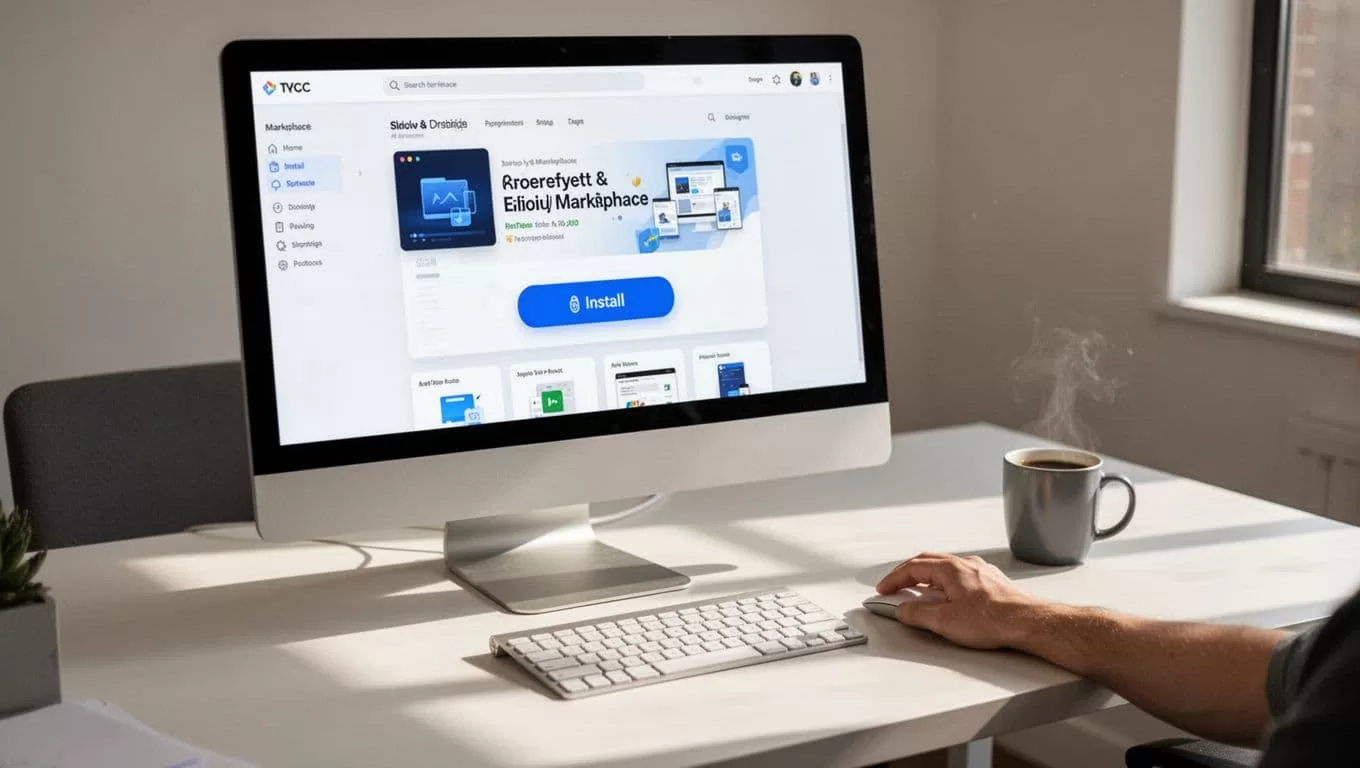
Permissions seem broad at first. They let Speechify grab text from sites. No data leaves without consent. I grant them because results pay off.
Quick Installs for Edge, Firefox, and Safari
Edge mirrors Chrome. Visit the Microsoft Edge Add-ons store. Search Speechify. Hit Get and confirm. Icon appears top right.
Firefox users head to addons.mozilla.org. Type “Speechify.” Click Add to Firefox. Permissions match Chrome: tab and page access. Restart if needed.
Safari lags a bit. Apple approves slower. Check the Mac App Store or Speechify site for updates. As of April 2026, it works via System Settings > Extensions. Drag the file or use their guide.
Processes stay simple across browsers. Test on a sample page right after.
Setting Up Your Speechify Account After Install
The icon blinks post-install. Click it. Pick Continue with Google or enter email and password.
Next, select uses: work, study, or drive. Check multiples. Free gives standard voices and speeds. Upgrade unlocks 4.5x playback and stars like Snoop Dogg.
I chose work and study. Account syncs speeds and voices. Log out? It prompts re-sign-in. Google ties easiest for me.
Putting the Speechify Extension to Work
Usage feels instant. Load any page or PDF. Click the icon. Play button starts speech. Controls pop: speed slider, voice picker, pause.
Highlight text first for spots. Or let it scan whole pages. I crank speed to 3x for emails. Slow to 1x for complex reports.
It handles Google Docs smooth. Open one, click play. No copy-paste hassle. PDFs open in browser; same flow.
Troubleshooting Common Speechify Extension Issues
Glitches happen. I fix most quick.
Extension missing? Check chrome://extensions/. Search Speechify. Enable and pin. Refresh browser.
No sound? Refresh page. Ensure volume up. Test on plain text site. Incompatible elements block some; skip them.
Sign-in fails? Clear cache or try incognito. Reset password at speechify.com. Match exact email.

For voice glitches, restart browser. Updates roll monthly; check store. Free limits hit? Voices downgrade till reset.
Speechify Boosts My Daily Output
The Speechify extension transformed my routine. Install once, gain hours weekly. Eyes thank you. Start on Chrome today. Test a long article. Notice the shift? Share your wins below.

