Deploy A Hyperfocus Reading App From Speechify
Staring at walls of dense text until your eyes burn and your attention shatters is not a sustainable way to process information. When your workload includes heavy research papers, lengthy reports, and technical documentation, traditional si...
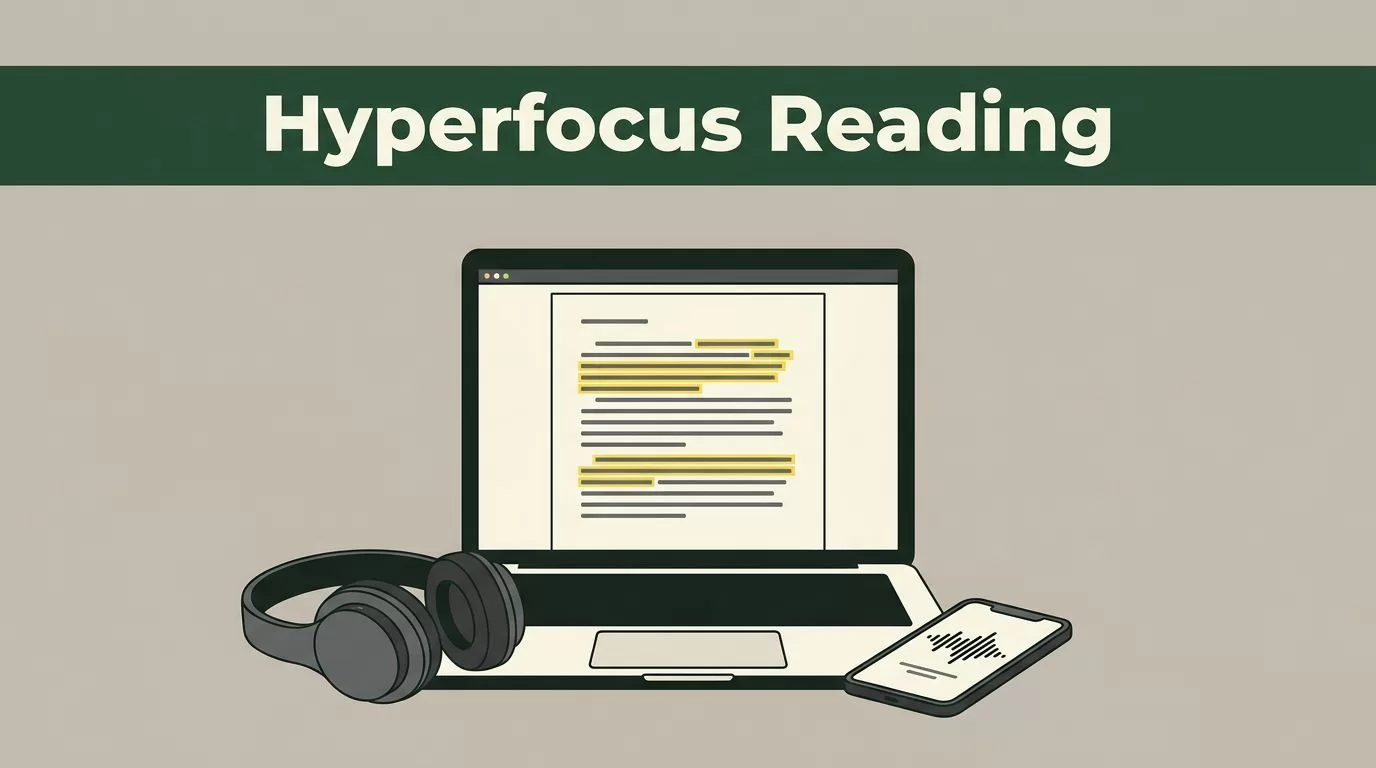
Staring at walls of dense text until your eyes burn and your attention shatters is not a sustainable way to process information. When your workload includes heavy research papers, lengthy reports, and technical documentation, traditional silent reading often leads to severe mental fatigue and declining comprehension. You need a reliable method to bypass visual exhaustion and absorb complex data streams without losing focus. That is where you configure the Speechify Hyperfocus app to turn your reading backlog into an efficient auditory workflow.
Key Takeaways
- Turn static documents, PDFs, and web articles into spoken audio streams to bypass visual fatigue during long study or work blocks.
- Organize your digital reading queue into dedicated project folders to maintain focus and eliminate unnecessary context switching.
- Scale your listening speed gradually from baseline rates up to faster pacing while locking in synchronized text highlighting for maximum retention.
- Export highlights, notes, and AI-generated summaries directly into your core reference manager or writing workspace to streamline your output.
Understanding the Hyperfocus Reading Workflow
Speechify operates as a comprehensive voice workspace rather than a basic text reader, giving you a centralized hub for listening, summarizing, and organizing content [4]. The platform converts digital documents, PDFs, emails, and web articles into natural-sounding audio streams across iOS, Android, Mac, web browsers, and Chrome extensions [2, 3, 5]. For a deeper look at the core text-to-speech engine and voice options, review Speechify’s official platform guide.
When you struggle with distractions or cognitive overload, shifting from visual scanning to auditory processing reduces the friction of dense material. You can listen to reports while walking or handling administrative tasks, reclaiming hours from your daily schedule [1, 3]. The system uses advanced natural voices across dozens of languages, ensuring your listening experience remains clear even when you accelerate playback [2].
Setting Up Your Reading Workflow
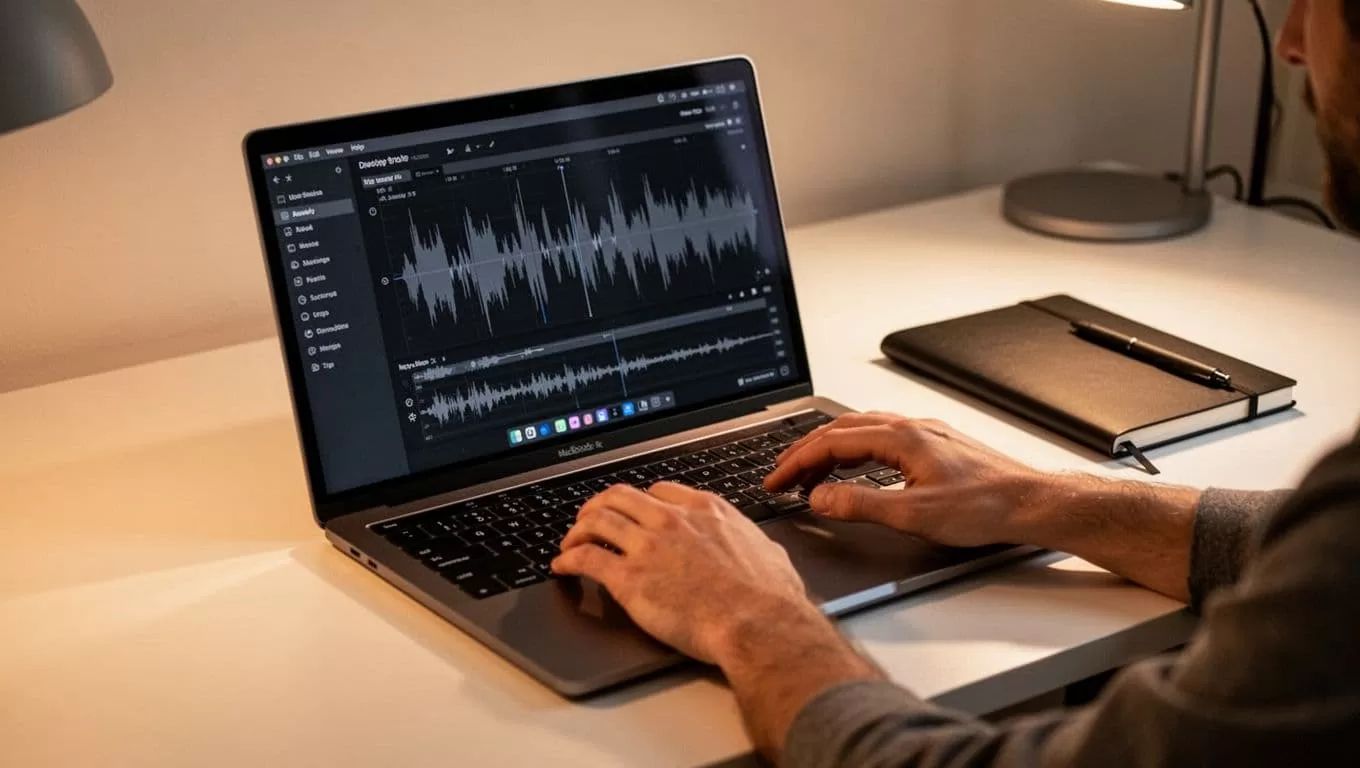
Photo by ready made
To begin your deployment, access the browser-based platform at the web app dashboard or install the application on your mobile device [2, 15]. When you sign in for the first time, select a default voice model that matches your listening preferences and complete your profile setup [9].
Organize your reading queue by creating dedicated folders for each project, client, or research theme [15]. Structuring your files prevents the mental friction of hunting for documents across an unorganized library. Import your first batch of files using these direct ingestion paths:
- File uploads: Drag and drop PDFs, EPUBs, or text documents directly from your local drive into the web library.
- Cloud integrations: Sync files directly from Google Drive, Dropbox, OneDrive, or educational platforms like Canvas [15].
- Web scraping: Paste any online article link into the import tool to instantly strip away clutter and generate a clean audio track.
- OCR scanning: Use the mobile app camera to capture physical book pages or printed reports and convert them into readable text [5].
For additional context on how platform accessibility features support readers with diverse learning needs, explore the detailed analysis in this Speechify review and accessibility breakdown.
Configuring Voice and Playback Settings for Maximum Comprehension
Audio speed means nothing if your retention drops to zero. Jumping straight to four hundred words per minute creates cognitive friction and turns the audio stream into unintelligible noise. You must calibrate your settings to match the complexity of your material.
Start your initial listening sessions at a normal baseline speed to anchor your comprehension [15]. Once you feel comfortable, bump the playback rate upward by small increments during your daily reading blocks [15]. Enable synchronized text highlighting in your application settings so your eyes track along with the spoken words, which reinforces retention when you encounter unfamiliar terminology or dense theoretical arguments.
| Content Type | Recommended Playback Speed | Comprehension Strategy |
|---|---|---|
| News summaries and emails | 2.0x to 3.0x | Skim quickly for broad facts and action items |
| Standard research papers | 1.5x to 2.0x | Keep synchronized highlighting enabled and pause for quick mental recaps |
| Dense technical or legal text | 1.0x to 1.25x | Slow down playback and take manual margin notes |
As your auditory processing adapts to faster pacing, you will notice the urge to pronounce words internally start to fade. Always dial back your speed when you encounter complex analytical arguments that require absolute retention.
Integrating AI Summaries and Note-Taking
Listening to large volumes of text requires active capture tools so your insights don’t disappear into thin air. Use the platform’s built-in summarization features to generate concise chapter overviews before you dive into a full-length report [4].
When you spot a critical passage or striking piece of evidence, use the bookmarking tool to flag the exact timestamp and text block for later citation [15]. You can also use the Chrome extension to read web pages, meeting notes, and Google Docs directly in your browser while extracting key takeaways [2]. Export your highlighted quotes and generated summaries directly into your primary writing workspace or reference manager to streamline your research workflow [4].
Troubleshooting Common Setup Frustrations
Even streamlined tools encounter occasional friction during daily use. If your imported PDF sounds disjointed or skips across sections, check whether the document contains complex multi-column layouts that confuse the processing parser. Convert messy scans into clean text formats before hitting play to ensure smooth sentence progression.
If you experience audio stuttering or cross-device syncing delays, verify your internet connection and log out and back into your account to refresh token validation. For browser extension issues on Google Docs or web articles, clear your browser cache and ensure permissions are active for the specific domain you are reading.
Final Thoughts
Processing heavy scholarly literature and operational reports does not require endless hours of eye strain and silent rereading. By combining text-to-speech audio streams, synchronized visual tracking, and multi-device syncing, you remove physical reading bottlenecks from your daily pipeline [2, 5, 15]. Set up your library folders today, adjust your playback speed, and tackle your reading queue with a structured auditory workflow.
