Run A Proofreading Audio Tool On Speechify
Catching typos and awkward phrasing requires more than a casual read. When your eyes scan the same paragraphs multiple times, your brain fills in missing words automatically. You read what you meant to write instead of what is actually on t...
Catching typos and awkward phrasing requires more than a casual read. When your eyes scan the same paragraphs multiple times, your brain fills in missing words automatically. You read what you meant to write instead of what is actually on the page. Shifting from visual scanning to an auditory review forces your brain to process every single clause in sequence. You hear clunky transitions, repetitive verbs, and dangling modifiers that slip past visual proofreading. Running Speechify text-to-speech features gives you a reliable way to catch structural flaws before publishing. Let us look at how to set up your workflow and run an effective audio review session.
Key Takeaways
- Pair audio playback with synchronized word highlighting to keep your attention locked on the material.
- Organize research materials into dedicated digital folders to prevent constant context switching during study blocks.
- Increase your playback speed gradually from normal pacing up to higher multipliers as your auditory processing adapts.
- Export highlighted quotes and notes directly into your writing workspace or reference manager to simplify essay preparation.
Setting Up Your Text for Audio Review
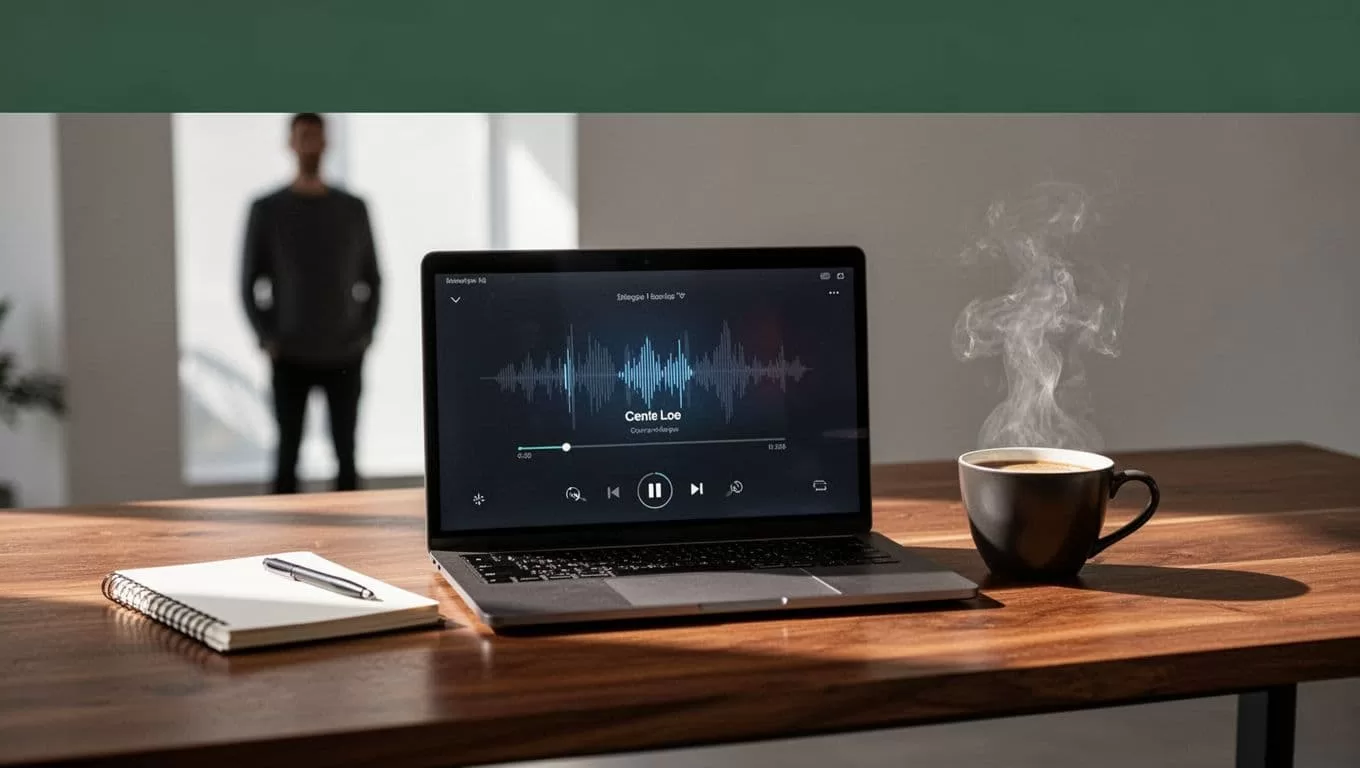
Before you hit play, you need to load your document into the correct workspace. Open the web app or mobile application and import your file directly. The platform supports standard file formats, including PDF documents, Word files, EPUBs, and raw text files. You can also paste copied text into the add-text box if you are reviewing a short email or an excerpt from a blog post. Organizing your documents into project folders prevents clutter and keeps your active writing queue clean.
Once your file is loaded, configure your voice settings for optimal listening comfort. Click the voice icon in the application interface to browse the available voice catalog. Select a natural-sounding voice model that fits your preference, whether you want standard professional narration or a distinct voice style. A jarring voice model creates cognitive friction and breaks your focus during a long review session. Take a moment to verify that your document paragraphs flow in the correct sequence before starting playback. Multi-column PDFs or messy scans can occasionally scramble sentence order if the parser misreads the layout. Clean up any formatting errors in your source document so the audio output reads smoothly from start to finish.
Adjusting Playback Speed and Active Listening
Listening to synthesized speech requires a different cognitive effort than silent reading. When you accelerate playback beyond normal limits, your brain needs an adaptive window to catch up with the faster auditory pacing. Start your review sessions at a standard baseline speed to establish initial comprehension. Scale your playback speed upward gradually as your auditory processing adapts to the cadence.
Match your playback speed to the actual density of the content rather than chasing vanity words-per-minute metrics. Dense technical documents and legal contracts require slower pacing so you can process exact clauses. Industry news summaries and casual drafts allow for faster skimming multipliers. If you notice your mind wandering or find yourself missing key arguments, dial the speed back down for a session.
Enable synchronized text highlighting in your application settings view before you start listening. Seeing words underlined while you speak or listen reinforces retention, especially when reviewing unfamiliar terminology or dense theoretical arguments. Your eyes follow the visual text anchor while your ears process the incoming audio stream. This dual sensory input keeps your attention locked onto the source material and prevents the mental drifting that ruins standard editing passes.
Making Revisions While Listening
Audio proofreading works best when you treat the playback session as an active editing phase rather than passive entertainment. Keep a dedicated editing window open alongside your audio player. As the voice reads your paragraphs aloud, listen for awkward phrasing, run-on sentences, and unexpected pauses. A mechanical pause in the middle of a sentence usually indicates a missing comma or a poorly structured clause.
Edit your text directly in your document editor the moment you spot an error. Pause the playback, rewrite the clunky sentence, and resume listening to check the updated flow. Speechify also allows you to make direct edits or remove unnecessary filler words while moving through your workflow. If a specific section sounds confusing or overly dense, flag that passage using the bookmarking tool. Bookmarks let you jump back quickly to re-evaluate complicated paragraphs during your final polish phase.
When you encounter a striking piece of evidence or a key argument, use the note-taking and summarization features to capture the insight. Export your highlighted quotes and notes directly into your reference manager or writing workspace. This direct export path bridges the gap between listening to your draft and making final structural improvements.
Conducting a Final Visual Check
Text-to-speech tools are powerful engines for catching cadence issues, but they do not replace a traditional visual review. Once your audio proofreading pass is complete, switch back to a silent visual check to catch remaining visual errors. Run through your text one final time to check spelling, punctuation marks, and formatting consistency. Automated audio players will glide right past misspelled homophones like their versus there because the pronunciation sounds identical. Your eyes must catch those spelling discrepancies during the final pass.
Check your heading hierarchy, paragraph lengths, and hyperlink anchors to ensure everything looks polished on the final page. Combining an auditory review with a targeted visual check gives you a robust quality control process. You eliminate awkward phrasing through listening while catching mechanical spelling errors through reading.
Conclusion
Running an audio proofreading session transforms how you catch writing errors and structural flaws. By combining speech playback, synchronized visual tracking, and active in-app editing, you remove blind spots from your editing routine. Set up your workspace folders today, adjust your playback speed to match your material, and run your next draft through an audio review to catch the mistakes your eyes missed.
