Download The Ultimate Reading App From Speechify
Heavy reading lists and dense document queues slow down productivity for students, researchers, and busy professionals alike. When you have dozens of articles, research papers, or reports to review each week, silent reading often leads to e...
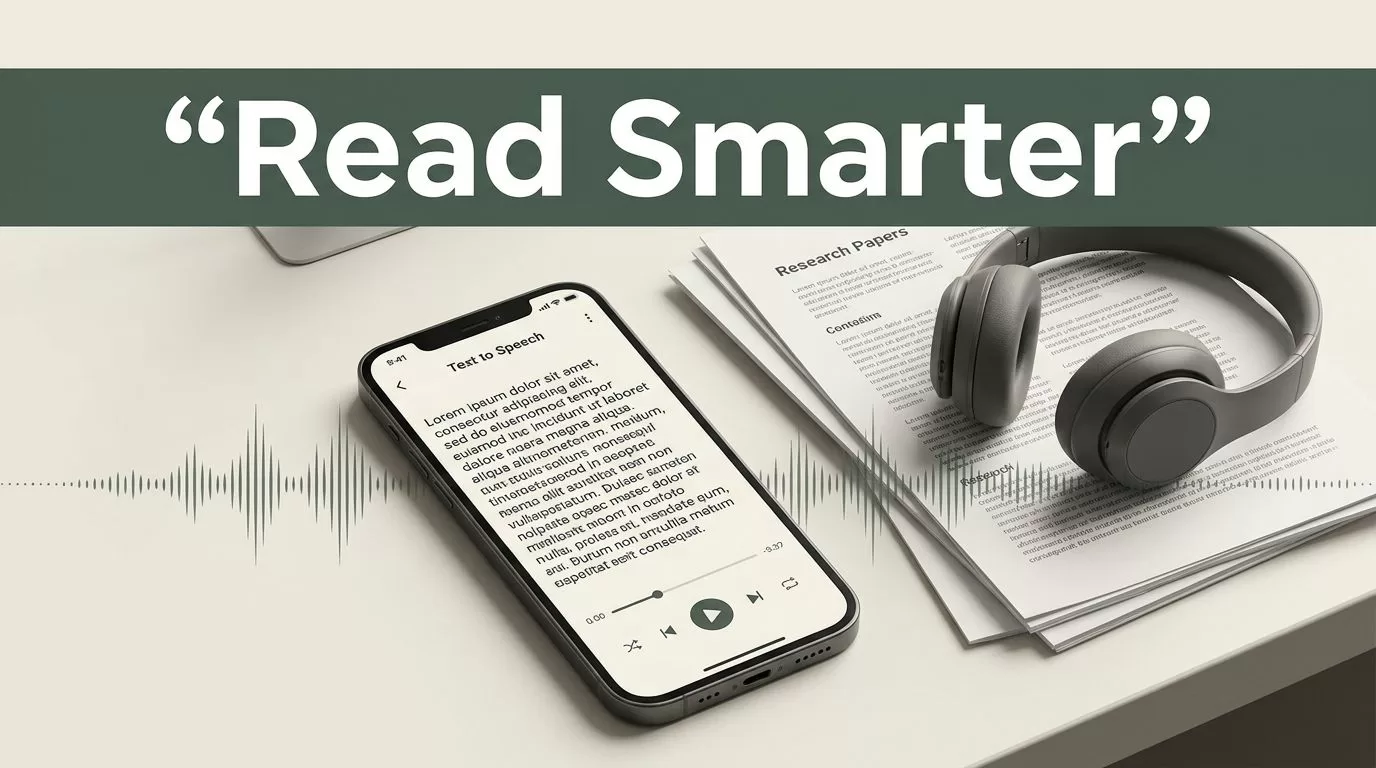
Heavy reading lists and dense document queues slow down productivity for students, researchers, and busy professionals alike. When you have dozens of articles, research papers, or reports to review each week, silent reading often leads to eye strain and mental fatigue. Converting written text into natural-sounding speech solves this bottleneck by letting you listen to your materials on any device. The Speechify reading app bridges that gap by offering high-quality text-to-speech conversion, synchronized visual tracking, and multi-device syncing.
Evaluating software tools like this requires a clear look at setup requirements, pricing plans, and everyday usability. Whether you manage a heavy academic workload or need to clear operational memos during your commute, understanding how to configure your audio workflow changes how you process information. Let’s look at how you can download the application, set up your workspace, and optimize your listening routine for maximum comprehension.
Key Takeaways
- Pair text-to-speech audio playback with synchronized word highlighting to keep your attention locked on the material.
- Organize research materials into dedicated digital folders to prevent constant context switching during study blocks.
- Increase your playback speed gradually over time instead of jumping straight to maximum velocity.
- Use built-in bookmarking and summary features to streamline note-taking and reference management for essays or reports.
Platform Availability and Download Steps
Getting started with your new listening workflow takes less than two minutes across your daily devices. The platform operates natively across mobile and desktop environments, ensuring your document queue stays synchronized wherever you go.

Photo by ready made
For mobile devices, open your device application store and search for the software. Tap install to download the application to your smartphone or tablet. If you prefer reviewing articles directly in your browser while conducting research, you can install the official browser extension for desktop use. Once the installation finishes, sign in with your account credentials to sync your personal document library across all connected devices.
Organizing your files into folders by project name keeps your research queue structured and prevents context switching during study sessions. Import your PDFs, ePub files, or web links directly into your workspace so you can queue them up for continuous listening during commutes or lab work. Clean preparation turns downtime into productive processing hours.
Configuring Your Playback and Voice Settings
Default audio settings rarely match your personal comprehension style. Configuring your playback and voice settings for optimal comprehension requires selecting a natural-sounding voice model that matches your preference. You want a voice that sounds clear and conversational rather than robotic or grating on your ears.
Adjust your playback speed gradually rather than jumping straight to maximum velocity on day one. Start at normal speed for the first few minutes to check comprehension, then scale upward as your auditory processing adapts to faster pacing. Match your speed settings to the complexity of the material rather than chasing high words-per-minute metrics.
| Material Type | Recommended Speed | Primary Focus |
|---|---|---|
| Industry News | 1.5x to 2.0x | Quick intake and broad skimming |
| Research Papers | 1.25x to 1.5x | Comprehending background facts |
| Legal Contracts | 1.0x to 1.25x | Close attention to exact clauses |
Keep your playback settings calibrated to the actual density of the content. Dense technical architecture documents and legal contracts require slower pacing than casual narrative articles or industry news overviews.
Maintaining Focus With Synchronized Highlighting
Audio playback pushes forward continuously unless you actively pause or skip backward. That forward momentum creates a specific risk for distracted readers, as it is easy to zone out during a long discussion of complex topics. You prevent comprehension loss by combining listening routines with active annotation tools.
Enable synchronized text highlighting in your application settings view so words underline automatically as the software speaks them. Seeing words underlined while you listen reinforces retention, especially when reviewing unfamiliar terminology or dense theoretical arguments. Your eyes follow the text anchor while your ears process the cadence, creating a dual sensory input loop that keeps your attention locked onto the source material.
When you spot a critical passage or striking piece of evidence, use the bookmarking tool to flag the exact timestamp and text block for later citation. If you notice your mind wandering or find yourself missing key arguments, dial your playback speed back down for a session. Maintain realistic expectations about material density and adjust your pace whenever comprehension dips.
Evaluating Free Versus Premium Access
Choosing the right subscription tier depends entirely on your daily reading volume and workflow requirements. The platform offers a free limited tier alongside paid subscription options for heavy users. To see current tier breakdowns and feature comparisons, you can review the Speechify pricing details for free and premium plans.
The free tier provides basic listening capabilities and standard voice selections, which works well if you only listen to a few short articles each week. Premium access unlocks hundreds of natural-sounding HD voices, advanced speed multipliers, offline listening modes, and cloud syncing across all your devices. Annual and monthly billing options vary slightly depending on whether you sign up through web checkout or mobile app stores, so check renewal terms carefully before completing your purchase. For a deeper look at feature differences, check out this comparison of Speechify free versus premium options.
Frequently Asked Questions
What platforms are compatible with the software? The application runs across iOS, Android, macOS, and web browsers via dedicated extensions, keeping your reading queue synchronized across all your devices.
How does text-to-speech support accessibility needs? Assistive audio playback reduces physical eye strain for readers with dyslexia, ADHD, or visual impairments by combining auditory narration with synchronized visual word tracking.
Can I use the app without an internet connection? Premium subscribers can download documents and voice files directly to their devices for offline listening during flights or commutes.
What is the difference between free and premium access? The free tier offers basic voices and standard features, while premium access unlocks advanced high-definition voices, faster speed caps, AI summaries, and multi-device cloud syncing.
Final Thoughts
Processing scholarly literature and operational reports does not require endless hours of silent reading and eye strain. By downloading the official application, organizing your research folders, and configuring synchronized text highlighting, you turn passive downtime into productive review windows. Start your setup today by loading your first document into your workspace and adjusting your playback speed for maximum retention.
