How to Adjust Audio Reading Speed Easily On Speechify
Listening to documents at a fixed pace slows down your daily review queue. Whether you’re clearing a backlog of industry research or listening to lengthy technical notes, locking into the default playback speed wastes valuable time. W...
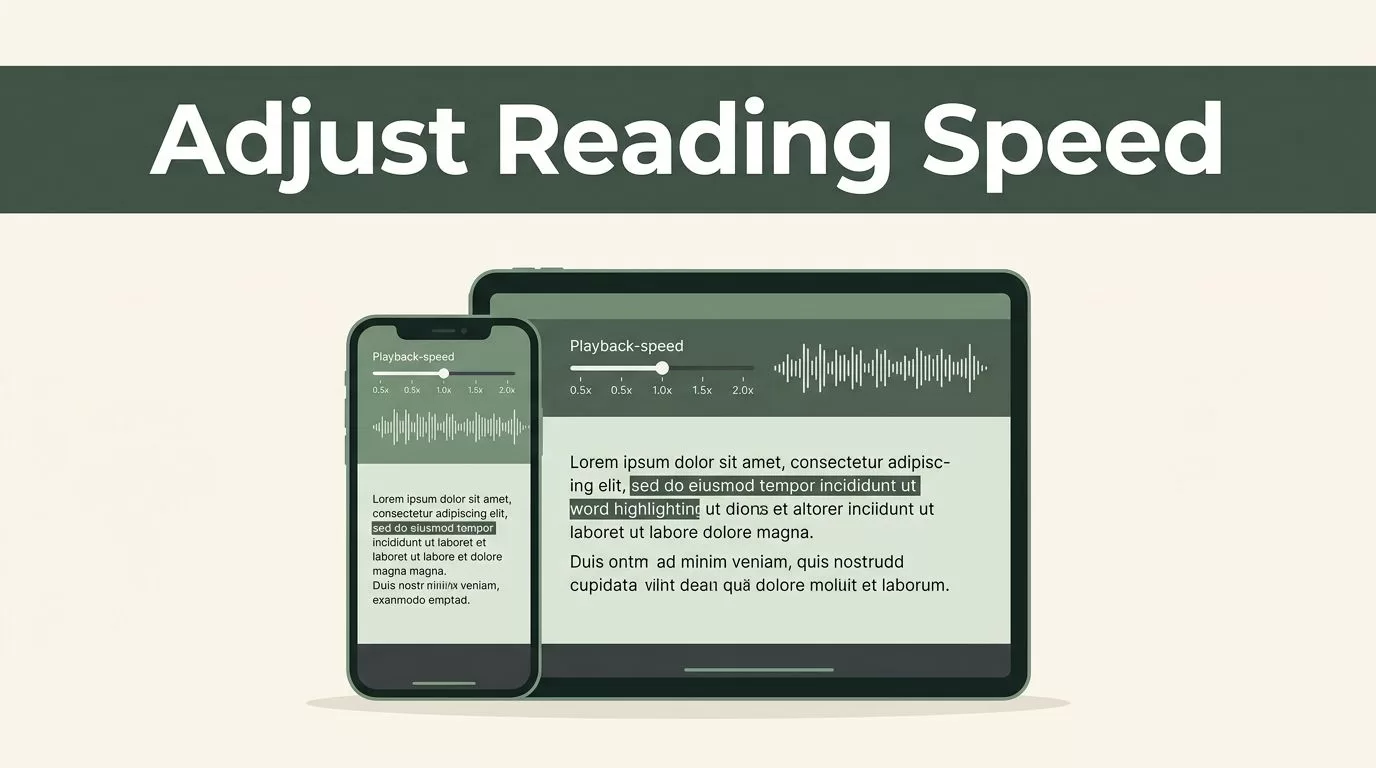
Listening to documents at a fixed pace slows down your daily review queue. Whether you’re clearing a backlog of industry research or listening to lengthy technical notes, locking into the default playback speed wastes valuable time. When your auditory processing adapts to faster pacing, you need a frictionless way to modify your listening tempo without digging through complex menus. Adjusting your Speechify reading speed allows you to scale through dense text efficiently while protecting your comprehension.
Let’s look at the exact steps needed to configure your audio playback speed across different devices, along with practical tips to keep your comprehension sharp as the cadence increases.
Key Takeaways
- Open your document in the player interface and use the playback speed slider to choose settings ranging from 0.5x to 4.5x.
- Pair higher playback speeds with synchronized word highlighting to keep your attention locked on the material.
- Scale your reading tempo gradually over several sessions rather than jumping straight to maximum speeds.
- Check platform-specific controls since the web app, browser extension, and mobile applications handle settings layout differently.
Changing Audio Speed in the Web App and Browser Extension
The desktop environment offers the fastest route to fine-tuning your listening workflow. When you use the web dashboard, your playback controls sit right inside the main player bar at the bottom of the screen.
Start by opening the file or article you want to listen to in your library. Click on the speed indicator or settings button located near the play and pause cluster. A slider interface will pop up, letting you drag your reading speed anywhere from 0.5x up to 4.5x. For a deeper look at how the web platform handles document management and playback configurations, see this Speechify web app guide.
If you rely on the browser extension for daily article reading, the workflow is just as direct. Click the Speechify extension icon in your browser toolbar while viewing a webpage. Locate the speed option near the play button, and use the slider or plus and minus controls to dial in your preferred words per minute.
Adjusting Playback Speed on Mobile Devices
Mobile listening happens on the go, so knowing where to tap when your hands are busy matters. On iOS and Android applications, the audio controls adapt to smaller screen proportions.
Tap open your document in the mobile app reader. Look toward the bottom right corner of the playback screen where the current speed multiplier appears. Tapping that indicator opens a dedicated adjustment menu. Slide the marker left or right to set your exact target speed. If the main interface feels cramped or hard to tap, open the primary menu using the three dots in the corner to access your listening preferences. For platform-specific steps and mobile navigation tips, consult this Speechify Android app guide.
Maintaining Comprehension at Higher Speeds
Jumping straight from normal speed to four times playback speed destroys your retention. Your brain needs an anchor to process compressed audio streams without losing track of core arguments.
Enable synchronized text highlighting in your application settings before you scale up your pacing. Seeing words underline on screen as the voice speaks them keeps your eyes tracking smoothly. This dual sensory input bridges the gap between auditory processing and visual focus. If you want a structured approach to building your reading stamina and retention habits, review these Stanford Speechify tips and tricks for academic efficiency.
Start your daily session at a modest multiplier, such as 1.2x or 1.5x, and scale upward only when your mind stops wandering. Matching your speed settings to the actual complexity of the material prevents burnout. Dense technical documents require slower pacing than narrative articles or standard industry news updates.
Conclusion
Controlling your playback speed transforms a standard text-to-speech utility into a high-performance productivity tool. By locating the speed slider on your preferred device and scaling your listening tempo step by step, you reclaim hours from heavy reading lists. Lock in your word highlighting, start with a comfortable baseline, and let automated audio pacing clear your daily queue efficiently.
