Scan Text to Audio Quickly With Speechify
Printed pages are still a bottleneck when you need information quickly. Speechify can scan text with your phone camera, recognize the words, and read them aloud within seconds. The workflow is different for a physical page and an existing P...
Printed pages are still a bottleneck when you need information quickly. Speechify can scan text with your phone camera, recognize the words, and read them aloud within seconds.
The workflow is different for a physical page and an existing PDF. Use the mobile app for camera-based OCR. Use file uploads, cloud imports, or browser tools for digital content. The right process depends on where your text is stored.
Key Takeaways
- Speechify’s Android and iOS apps can scan physical pages, worksheets, notes, and images into spoken audio.
- Good lighting, flat pages, tight cropping, and text review improve OCR results.
- PDFs, images, articles, web pages, and cloud files use a digital import workflow instead of camera scanning.
- Playback speed, active highlighting, and voice selection help students, professionals, and readers with dyslexia or visual impairments.
- Check plan limits before you depend on advanced voices, faster playback, or audio downloads.
Choose the Right Speechify Workflow
Start by identifying your source. This prevents a common mistake: trying to use a camera scan when the text already exists as a digital file.
Physical text includes book pages, printed reports, worksheets, receipts, and handwritten notes. Speechify uses Optical Character Recognition, or OCR, to identify letters in a photo. It then converts the recognized text into speech.
Digital text includes PDFs, screenshots, articles, web pages, and documents stored in cloud services. You can usually upload or import these files directly. You don’t need to photograph a laptop screen.
Speechify currently provides OCR scanning through its Android and iOS apps. Its broader text-to-speech tools are also available on Mac, Windows, Chrome, and Edge. Current integrations include Google Drive, Dropbox, OneDrive, Canvas, and Google Docs.
The mobile app is the main choice for scanning printed material. Desktop and browser tools are better for reading research, emails, reports, and web content already stored online.
Speechify supports active text highlighting while audio plays. This lets you see the current sentence as you listen. That combination helps readers who lose their place, process written information slowly, or prefer auditory reinforcement.
If you want to compare other tools before selecting one, PCMag maintains a current text-to-speech apps roundup with options across major platforms.
How to Scan Physical Text to Audio With Speechify
Use the Speechify mobile app when your source is a physical page. The process is short, but the photo quality controls the OCR quality.
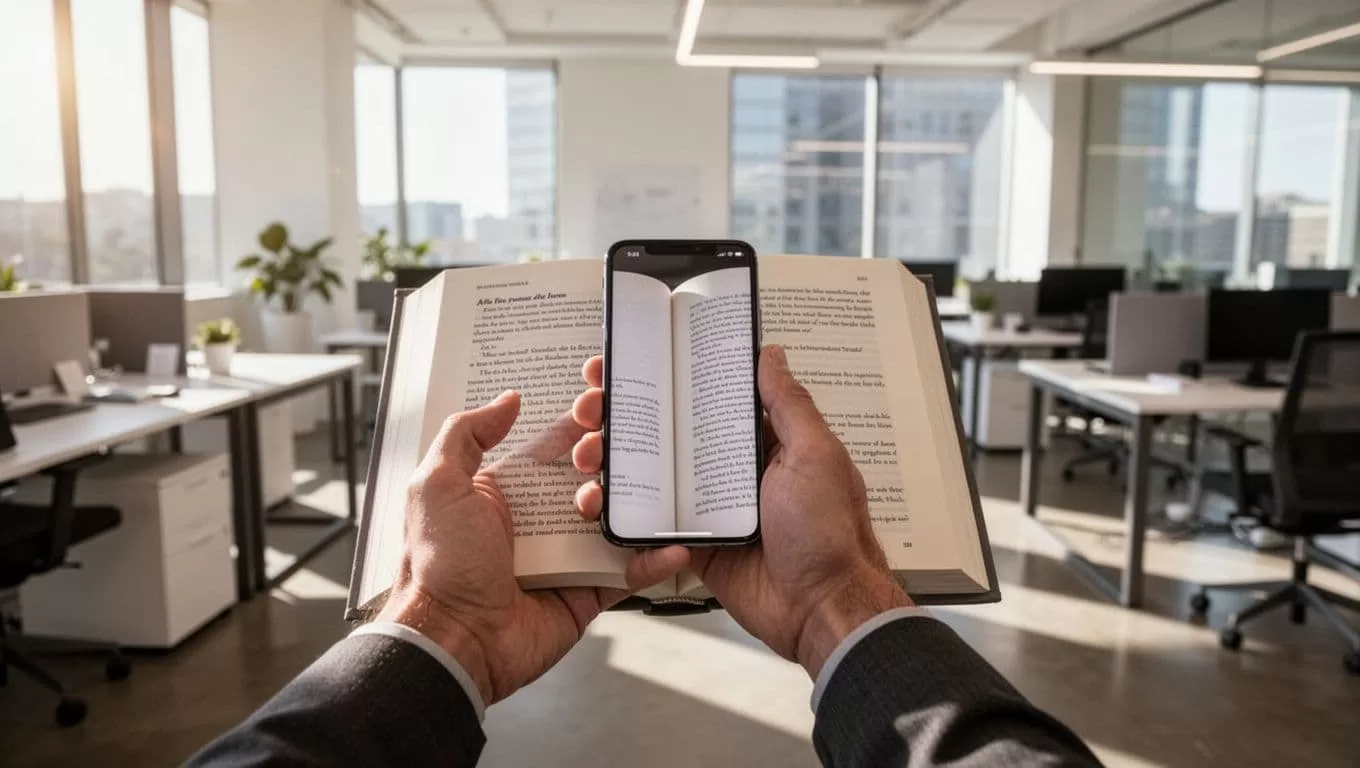
- Open Speechify and select Scan from the Home screen.
- Place the page on a flat surface. Hold your phone above the page and keep the camera parallel to it.
- Capture the page when all text is inside the frame. Avoid cutting off the first or last line.
- Crop the image if Speechify includes the table, desk, or nearby pages.
- Review the recognized text. Correct visible OCR errors before starting playback.
- Select a voice and press play.
Speechify can process printed books, articles, worksheets, screenshots, and some handwritten notes. Handwriting quality varies. Clear block letters usually produce better results than rushed cursive writing.
Physical books often require one page at a time. If you need to process a long document, scan the pages into a multi-page PDF with a document scanner first. Then import the PDF instead of taking separate photos inside Speechify.
The app’s OCR process reads the words in the image. It doesn’t create an accurate audio track when the photo is too dark, blurry, tilted, or blocked by a finger. Fix the image before you blame the voice or playback settings.
Keep the phone stable during capture. A small movement can blur thin letters, punctuation, and numbers. Those errors matter in formulas, legal clauses, medical instructions, and technical documents.
Speechify reads what OCR recognizes. Always review important text before relying on the audio.
Improve OCR Accuracy Before You Start Listening
OCR accuracy depends more on the source image than on the selected voice. A clean photo gives Speechify better data to process.
Use these controls every time you scan:
- Turn on a bright, even light. Avoid shadows from your hand or phone.
- Flatten curled pages before taking the photo.
- Keep the camera lens clean.
- Hold the phone straight above the page.
- Capture one page or one clear section at a time.
- Crop out tables, pictures, margins, and unrelated objects.
- Increase contrast when the paper is gray or the print is faint.
- Review names, numbers, symbols, and headings manually.
Glossy pages create glare. Move the light source or change the phone angle instead of photographing the reflection. For bound books, press near the center fold without covering any lines.
Use a separate scan for dense two-column layouts when the reading order sounds wrong. OCR can identify the words but place columns in an awkward sequence. Cropping each column may produce cleaner audio.
Handwritten notes require extra review. Speechify may recognize them, but recognition depends on letter size, spacing, ink color, and writing style. Don’t use an unverified scan for exam answers, client instructions, or safety procedures.
Run a short test before scanning ten pages. Listen to the first paragraph. Check the order, punctuation, headings, and numbers. If the output is wrong, retake the photo before repeating the same problem across the document.
Convert PDFs, Images, and Web Pages Into Audio
Digital files use a faster import process. Open Speechify on the device where the file is stored, then upload or share the document into the app.
You can work with PDFs, images, books, and articles. Speechify also supports web imports through a pasted link. Browser extensions for Chrome and Edge can read online content without requiring you to copy each paragraph into a separate document.
Cloud storage is useful for teams and students. Import a file from Google Drive, Dropbox, or OneDrive. Education users can also connect content from Canvas or Google Docs when those integrations are available in their account and region.
Use the mobile app when a PDF or image contains scanned pages that need OCR. A text-based PDF already has selectable words, so Speechify can often read it directly. A scanned PDF is different. It contains page images and may need text recognition before the audio works correctly.
The web version may not handle every PDF or image in the same way as the mobile OCR workflow. If a file doesn’t produce readable text in your browser, open the Speechify mobile app and use its import or scan option.
Clean the file before uploading. Remove blank pages, duplicate scans, and unrelated appendices. Split a large document into logical sections if you need to find information quickly later.
Speechify’s current voice library includes more than 200 AI voices across more than 60 languages. Playback can reach up to 4.5 times normal speed, depending on the plan and feature access. Start at a comfortable pace, then increase speed after you understand the speaker’s pronunciation.
Audio export can be useful when you need offline listening or want to move a file to another approved device. Download availability and file controls can depend on your Speechify plan.
Build a Reliable Listening Workflow
Speed isn’t the only measure of a useful text-to-audio setup. The audio must remain understandable, searchable, and easy to resume.
Start with the document structure. Scan or import one chapter, report section, or assignment at a time. Give each file a clear name. This prevents a long audio queue from becoming difficult to manage.
Use active highlighting when you need to follow the page visually. It can help with concentration and line tracking. Readers with dyslexia may also benefit from hearing a sentence while seeing the same words highlighted.
Students can listen to assigned readings while reviewing printed pages. Professionals can listen to reports during routine tasks, but sensitive business documents should be handled under the company’s approved privacy rules.
Choose a voice that matches the material. A steady voice works well for technical reports. A more expressive voice can make general reading less tiring. Don’t choose a fast voice if names, figures, or instructions require close attention.
Test speed in small steps. Moving directly to the maximum setting can reduce comprehension. A moderate increase often saves time without turning the audio into noise.
For important documents, compare the audio against the original text. Check quotations, decimal points, percentages, passwords, file names, and legal terms. OCR mistakes can sound natural enough to escape notice.
Text-to-speech can improve access to written information, but it doesn’t remove the need for document controls. A guide for text-to-speech support for special-needs students covers common classroom use cases and accessibility considerations.
Check Platform, Plan, and Privacy Limits
Use Android or iOS when you need to scan a physical page with a camera. Use Mac, Windows, Chrome, or Edge when you mainly read digital content. Confirm the current app version before deploying Speechify across a team because menus and integrations can change.
Free access may include fewer voices and slower playback than paid plans. Advanced controls, faster speeds, and audio downloads may also depend on subscription level. Check these limits before building Speechify into a study program or internal process.
Treat uploaded material as business data when it contains customer records, contracts, financial information, or private employee details. Review your company’s rules before sending those files to any third-party service.
Speechify isn’t the only option for digital reading. Apple users can also evaluate Speech Central’s voice reader app when device-specific controls or a different reading workflow matter.
Conclusion
Speechify can scan text to audio quickly when you use the right input method. Photograph physical pages with the mobile app. Import PDFs, images, web pages, and cloud files when the text already exists digitally.
Good lighting, flat pages, accurate cropping, and OCR review prevent most avoidable errors. Once the text is correct, voice selection, playback speed, and active highlighting make the audio easier to use for study, work, and accessible reading.
