How to Read Selected Text Only Using Speechify
Staring at walls of dense text until your eyes burn and your attention shatters is not a sustainable way to process information. When your workload includes heavy research papers, lengthy reports, and technical documentation, traditional si...
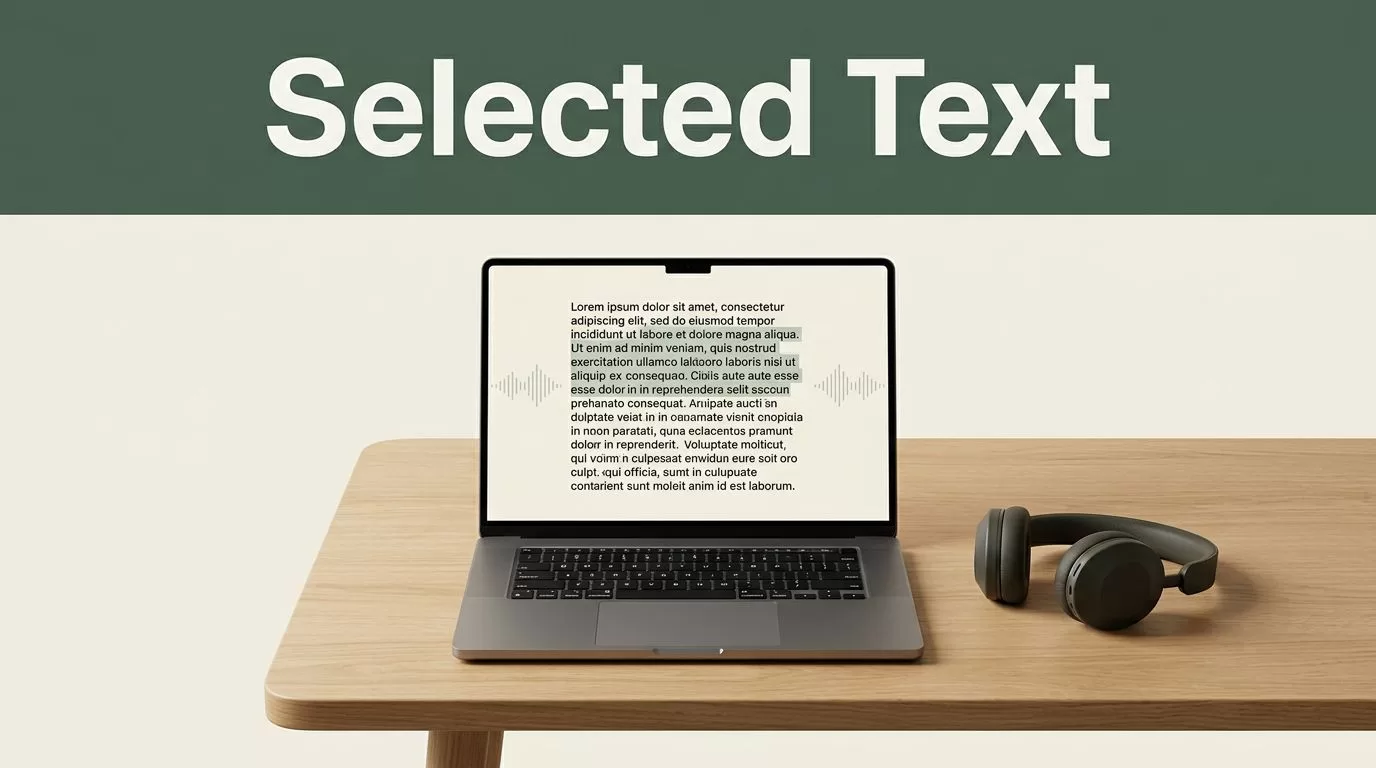
Staring at walls of dense text until your eyes burn and your attention shatters is not a sustainable way to process information. When your workload includes heavy research papers, lengthy reports, and technical documentation, traditional silent reading often leads to severe mental fatigue and declining comprehension. You need a reliable method to bypass visual exhaustion and absorb complex data streams without losing focus. That is where you configure Speechify selected text features to turn your reading backlog into an efficient auditory workflow.
Key Takeaways
- Pair text-to-speech audio playback with synchronized word highlighting to keep your attention locked on the material.
- Highlight specific paragraphs or browser text blocks on desktop using extension shortcuts instead of listening to entire documents.
- Organize research materials into dedicated digital folders to prevent constant context switching during study blocks.
- Scale your listening speed gradually from baseline rates up to faster pacing while locking in synchronized text highlighting for maximum retention.
- Export highlights, notes, and summaries directly into your writing workspace or reference manager to streamline your research pipeline.
Setting Up the Browser Extension for Highlighted Reading
Reading an entire webpage when you only need one specific section wastes time. You can target your listening sessions by isolating the exact paragraphs that matter to your project. When working inside a web browser, your first move is installing the extension and pinning it for instant access. Click the puzzle piece icon to the right of your address bar, find the extension in your list, and click the pushpin icon to lock it in place.
Once pinned, the workflow for reading specific passages takes seconds. Highlight the text you want to hear using your cursor. Right-click the highlighted selection and choose the read-aloud option from your context menu, or trigger your custom keyboard shortcut. For a deeper look at browser extension capabilities and navigation controls, check out this guide on how to use text reader extensions.
If the default shortcut keys don’t match your workflow, you can change them easily. Open the extension settings by clicking the gear icon inside the plugin menu, navigate to keyboard shortcuts, and assign a combination that feels natural for your hands. Many users set quick triggers like Alt+A to start playback and Alt+Q to pause when dealing with targeted paragraphs.
Mastering Desktop and Mobile Workflows
Workflow requirements change depending on the device on your desk. On desktop computers, your primary advantage is operating system integration and browser control. If you use a Mac, macOS includes built-in accessibility features where you can press a default shortcut like Option and Escape after highlighting text to hear it spoken aloud.
When you switch to mobile devices, the interaction model shifts away from instant browser highlighting. Android and iOS apps rely on document import and file sharing rather than live page selection. You can upload PDFs, connect your cloud storage accounts like Google Drive or Dropbox, or paste web links directly into the app dashboard. For more details on configuring your library across different operating systems, review this comprehensive Speechify Android app guide.
| Platform | Primary Input Method | Best Use Case |
|---|---|---|
| Chrome Extension | Highlight cursor selection or right-click | Quick web research and skimming articles |
| Mac / Windows App | Direct document upload or pasted text | Long-form reports and PDF study blocks |
| Mobile App | Cloud sync, file import, and OCR scan | On-the-go listening during commutes |
Organizing your files into folders by project name keeps your research queue structured and prevents context switching during study sessions. When you need to capture physical text from printed books or handwritten notes, use the built-in scan feature to convert images into readable audio streams via optical character recognition.
Maintaining Focus With Synchronized Highlighting
Audio playback pushes forward continuously unless you actively pause or skip backward. That forward momentum creates a specific risk for distracted readers, as it is easy to zone out during a long discussion of complex topics. You prevent comprehension loss by combining listening routines with active annotation tools.
Enable synchronized text highlighting in your application settings view so words underline automatically as the software speaks them. Seeing words underlined while you listen reinforces retention, especially when reviewing unfamiliar terminology or dense theoretical arguments. Your eyes follow the text anchor while your ears process the cadence, creating a dual sensory input loop that keeps your attention locked onto the source material.
When you spot a critical passage or striking piece of evidence, use the bookmarking tool to flag the exact timestamp and text block for later citation. If you notice your mind wandering or find yourself missing key arguments, dial your playback speed back down for a session. Maintain realistic expectations about material density, because dense legal contracts or technical architecture docs require slower playback than industry news or narrative articles.
Conclusion
Isolating specific passages for auditory review transforms how you process heavy research materials and technical documentation. By pairing targeted browser selections with synchronized visual tracking and structured file organization, you eliminate the friction of reading unmanaged walls of text. Audit your current reading volume, test your setup with a single article today, and tackle your backlog with a more efficient operational routine.
