Summarize Text to Audio With Speechify
Long documents are easier to understand when you can listen to the main points instead of reading every line. Speechify now combines AI summaries with natural-sounding text-to-speech, so you can turn articles, PDFs, and study material into...

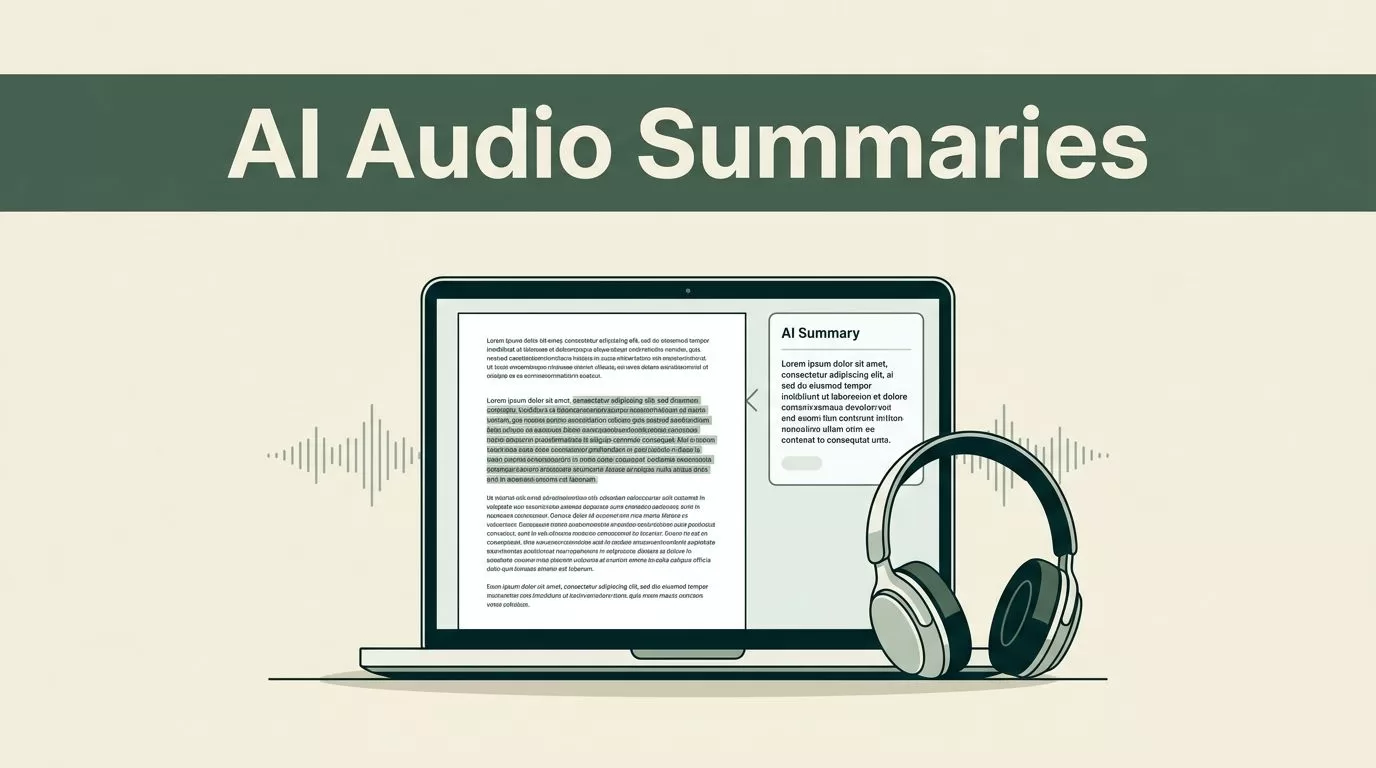
Long documents are easier to understand when you can listen to the main points instead of reading every line. Speechify now combines AI summaries with natural-sounding text-to-speech, so you can turn articles, PDFs, and study material into spoken briefings.
The workflow is practical. Add your content, choose the section and summary length, generate the recap, then listen while Speechify highlights the source text. The steps differ slightly across web, mobile, and Chrome, so start with the platform you use most.
Key Takeaways
- Speechify AI Summaries can create spoken summaries from documents, articles, and selected chapters.
- You can choose a concise paragraph or detailed bullet-point format before generating audio.
- The web app, mobile apps, and Chrome extension support different parts of the workflow.
- AI-generated summaries need review before you use them for academic, legal, medical, or professional decisions.
- Premium is required for AI Summaries and some advanced audio features as of July 2026.
What Speechify Text to Audio Actually Does
The Speechify text to audio workflow has two separate parts. First, AI Summaries reduce the source material to its main ideas. Speechify then reads that shorter version aloud with its text-to-speech engine.
This differs from normal text-to-speech. A standard reader speaks every sentence in a document. Speechify can create a shorter audio briefing first, which helps when you need the main argument, key facts, or chapter structure.
The feature works with articles and uploaded documents on web, iOS, and Android. You can choose a concise paragraph for a quick overview or detailed bullet points when you need more coverage. Page ranges and individual chapters can also be selected, so you don’t need to summarize an entire 200-page file at once.
Speechify supports common reading workflows for PDFs, articles, emails, and web pages. The official Speechify text-to-speech app also includes document reading, AI features, and voice-based assistance.
The result is useful for pre-reading and review. A student can listen to a chapter summary before studying the full material. A manager can review a report during a commute. An accessibility-focused reader can reduce the visual effort required to process dense pages.

How to Summarize Text to Audio on the Speechify Web App
The web app is the best starting point when your source material is stored on a computer. It gives you more screen space for checking the original document and reviewing the generated summary.
Follow these steps:
- Open Speechify in your browser and add the article or document you want to process. PDF uploads are supported, and documents can be read aloud inside the web app.
- Open the file in the Speechify reader. Check that the pages loaded correctly before creating a summary.
- Select the AI icon in the top toolbar. This opens the summary controls.
- Choose a summary length. Select a concise paragraph for a fast briefing or detailed bullet points for a fuller review.
- Set a page range or choose a chapter when you only need part of the document.
- Generate the summary and start playback. Speechify reads the result aloud and highlights the related text on screen.
Use page ranges for reports, textbooks, and research papers. A summary of pages 1 through 10 may provide useful context, while the full document could mix the introduction with technical appendices. Chapter-level summaries are also useful when a book has clear sections.
You can change the voice and playback speed after generating the audio. Speed controls help when you are reviewing familiar material. A slower pace works better for new technical terms, formulas, or information that you need to retain.
Speechify also includes an AI Recap feature. On the web, the recap control appears at the bottom of the screen and can summarize recently read content after you move through several pages. Use it when you return to a document after a break and need to recover the thread quickly.
Keep the original document open while listening. The summary is a navigation tool, not a replacement for the source.
Use Speechify AI Summaries on iPhone and Android
The mobile workflow is useful when your reading happens on a phone or tablet. Install the app, open the article or document, and use the AI controls inside the reader.
Android users can find the Speechify app on Google Play. iPhone and iPad users can install Speechify through Apple’s App Store.
Once the file is open, select the AI icon in the reader toolbar. Choose the summary format and limit the range if necessary. Generate the result, then press play to hear the spoken summary.
The app highlights text during playback. This gives you two options. You can listen without watching the screen, or follow the highlighted source while checking how the summary relates to the original passage.
On iOS, the AI Recap control appears in the upper-left toolbar. It can summarize content you recently read, which is useful for lecture notes, assigned chapters, and long articles. Android controls may move slightly as the app changes, but the process remains the same: open the content, select the AI feature, set the scope, and play the result.
Mobile users should prepare files before starting a session. Rename documents clearly and remove duplicate versions. If you upload several readings with similar names, selecting the wrong file can waste more time than the summary saves.
Speechify can also scan physical pages and screenshots through its OCR 4.0 feature. Speechify reports up to 99.8% accuracy for this system, including support for complex layouts. Review scanned text before summarizing it, especially when the page contains tables, footnotes, or unusual formatting.


Summarize Web Pages With the Speechify Chrome Extension
The Chrome extension removes the need to copy web content into another tool. Open the page you want to understand, launch Speechify from the browser, and use its side panel.
The current extension places AI Summaries in the browser side panel. This lets you summarize a web page without leaving the source. It is useful for news articles, product documentation, company reports, and online research.
Use this workflow:
- Open the target page in Chrome.
- Select the Speechify extension from the browser toolbar.
- Open the side panel and choose the AI summary option.
- Select the available summary length or ask a question about the page.
- Play the spoken result and keep the source tab available for verification.
The Voice AI Assistant can answer questions such as “What is this article about?” and return a spoken response. This is useful when you need a fast orientation before deciding whether the full page deserves your attention.
The extension is also a practical option for professionals who read inside browser-based systems. You can review policy pages, customer research, technical documentation, or competitor articles without creating a separate document workflow.
Watch for source quality. A web page may include navigation, advertising, comments, or repeated content. If the summary sounds incomplete, switch to a cleaner source or upload the original PDF instead.
Pick the Right Audio Format for Study and Work
A spoken paragraph works well when you need speed. Detailed bullet points work better when you need to retain several facts, steps, or arguments. Choose the format based on the job, not personal preference.
Speechify also supports AI Podcasts for selected workflows. This feature converts written material into podcast-style audio formats, including lecture, debate, storytelling, and neutral podcast styles. As of July 2026, AI Podcasts are available on iOS for Premium users, while web and Android availability is still being expanded.
AI Quizzes support study and test preparation. Speechify can generate verbal questions from summaries or chapters, which gives students a way to test recall after listening. A summary tells you what the source says. A quiz checks whether you remember it.
For normal reading, adjust speed, voice, and highlighting. Keep one voice for a project if you want consistent listening across several files. Change the speed only after you understand the speaker’s pronunciation of names, acronyms, and technical language.
Premium is required for AI Summaries, voice cloning, and advanced speed controls. Current pricing starts at $29 per month or $139 per year, although Speechify can change plan prices and feature access. Check the account screen before purchasing.
Premium users can download up to 60 minutes of audio as an MP3 for offline playback. This is useful when you need to listen without a stable connection, but check the export limit before preparing a long document.
Check AI Summaries Before You Rely on Them
AI summaries can omit details, simplify technical claims, or misunderstand a sentence. Always compare important statements with the original source.
This check matters most for academic, legal, medical, financial, and professional material. Don’t use a spoken summary as the only basis for a legal decision, medical choice, research conclusion, or client recommendation.
Use a simple review process:
- Listen to the summary once to understand the structure.
- Mark the claims that affect your decision.
- Search for each claim in the original document.
- Check numbers, names, dates, qualifications, and exceptions.
- Read the full source before publishing, submitting, or approving the result.
Pay close attention to tables and footnotes. AI systems may describe the surrounding text correctly while missing a condition buried in a table. Scanned documents need the same review because OCR errors can change names, figures, and symbols.
Privacy also matters when you upload company files. Review your organization’s rules before sending contracts, internal reports, customer records, or confidential research to an AI service. Use approved accounts and remove sensitive material when the workflow doesn’t require it.
An independent Speechify review for authors provides additional context on its voices and supported file formats. Use third-party reviews for practical impressions, but confirm current pricing and features inside Speechify before deployment.
Conclusion
Speechify can turn long written material into spoken summaries across web, mobile, and Chrome. The strongest workflow is simple: select the right pages, choose the summary format, listen to the result, and check important claims against the source.
Use short summaries for orientation and detailed summaries for review. Treat the audio as a faster way to process information, not as a substitute for source verification. Speechify text to audio works best when speed and accuracy are used together.

