Speechify Windows Text to Speech: Setup Guide
Reading long documents on a Windows PC can turn a simple task into hours of screen time. Speechify Windows text to speech lets you listen to PDFs, Word files, web pages, and other written content instead. The important detail is product cho...
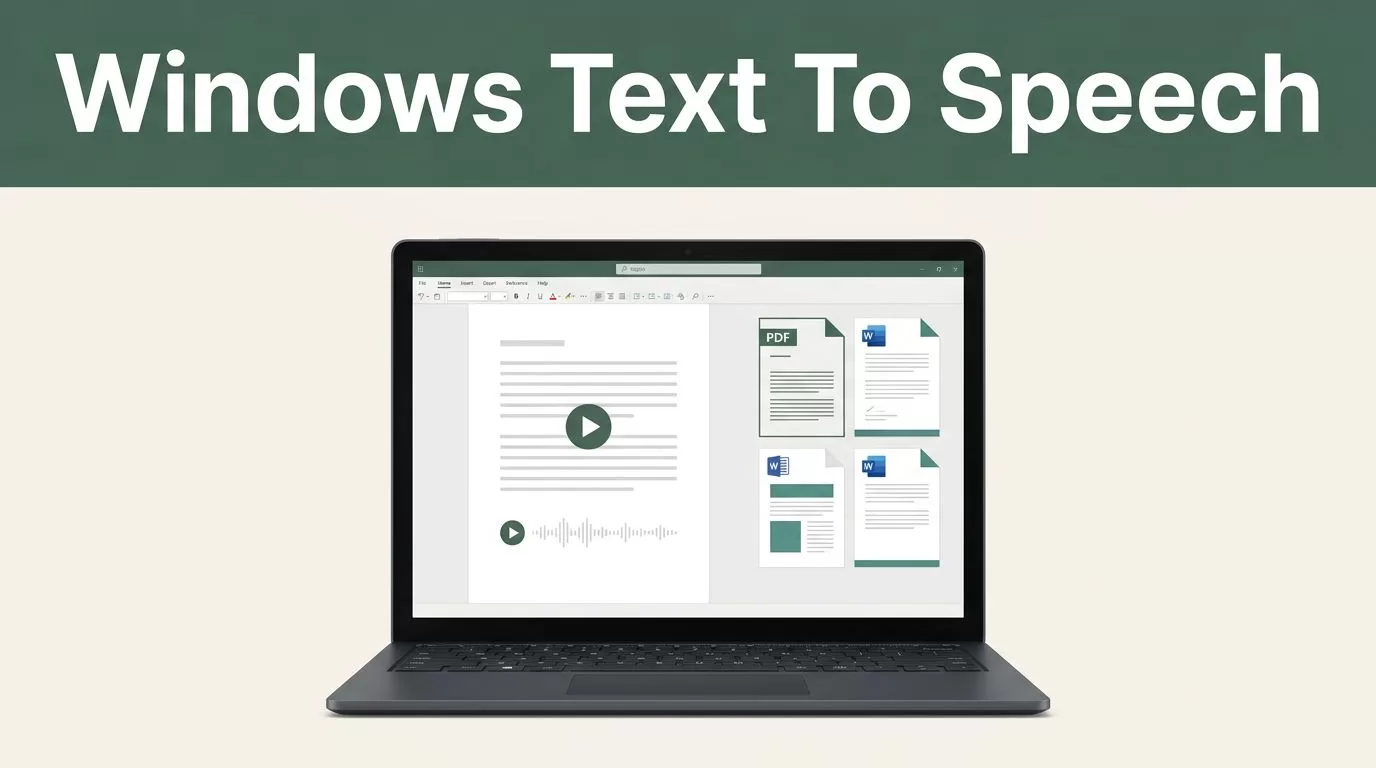
Reading long documents on a Windows PC can turn a simple task into hours of screen time. Speechify Windows text to speech lets you listen to PDFs, Word files, web pages, and other written content instead.
The important detail is product choice. Speechify now offers a native Windows app, plus browser-based access and a Chrome extension. Each option fits a different workflow. Use the steps below to install the right version, import documents, configure playback, and fix common Windows issues.
Key Takeaways
- Speechify offers a native Windows app for x64 and Arm64 devices.
- You can install it with an
.exefile or through the Microsoft Store. - The Chrome extension reads web pages, Google Docs, and browser-based PDFs.
- The app supports PDFs, Word documents, EPUB files, plain text, URLs, and pasted content.
- Audio output, document extraction, and browser permissions cause most setup problems.
What Speechify Windows Text to Speech Includes
Speechify on Windows is more than a web page with a play button. The native app gives you a central library for reading material and lets you continue across supported devices with the same account.
Speechify’s current Windows offering supports both x64 and Arm64 Windows devices. You can download the installer from Speechify or install the app through the Microsoft Store. This is a native Windows application, not a repackaged shortcut to the web version.
The app reads several common formats:
- PDF files
- Microsoft Word files, including
.docand.docx - EPUB books
- Plain text
- Pasted text
- Web pages and URLs
After importing content, choose a voice and set the reading speed. Speechify provides AI and natural voice options across multiple languages and accents. Playback includes word-by-word highlighting, which helps you follow the text while listening.
You can also skip forward or backward by sentence or paragraph. Bookmarks let you return to a specific location later. Your library and reading progress sync when you sign in with the same account on supported platforms.
Speechify also includes voice typing on Windows. You can dictate into many apps and text fields, then let the software convert speech into written text with punctuation. Speechify promotes this feature as a way to write up to five times faster, but your result will depend on your microphone, speaking style, and editing needs.
The app also supports on-device Voice AI processing. That option can process supported tasks locally instead of sending them to a remote server. Review the current privacy settings before deploying it across a business or handling confidential documents.
Windows has its own built-in text-to-speech controls. Older instructions often point users to Control Panel and Ease of Access, as shown in Speechify’s guide to Windows 8.1 text to speech. Those controls configure Windows voices. They don’t install Speechify or provide the same document library and playback features.
How to Install Speechify on a Windows PC
Start with the native app if you regularly read local files. It gives you better control over imported documents than switching between browser tabs.
Use this installation process:
- Open the official Speechify Windows download page or search for Speechify in the Microsoft Store.
- Download the Windows installer, or select the Store installation option.
- If you downloaded an
.exefile, open it from your Downloads folder. - Follow the installation prompts and allow Windows to run the installer.
- Launch Speechify after installation finishes.
- Sign in with your email, Google account, or Apple account.
- Select the plus sign or Import option to add your first document.

A free account is available. Premium pricing is listed at $29 per month or $139 per year in the current product information. Prices and offers can change, so confirm the amount on the checkout page before purchasing.
The first launch is the right time to check your Windows audio device. Play a short sample before importing a large library. This separates an installation problem from a document or voice problem.
Choose a clear account policy if you’re setting up Speechify for a company. Employees should use the approved company account structure rather than creating disconnected personal libraries. Confirm how documents are stored and synced before uploading internal material.
If the Windows installer won’t open, download it again from the official source. A damaged download can fail before the setup window appears. Windows security software can also block an installer, so review the notification and verify that the file came from Speechify before allowing it.
Choose Between the Windows App, Web App, and Chrome Extension
The native app isn’t the only way to use Speechify on Windows. Your content location should determine the version you install.
The Windows app is the best fit for local files. Use it for research papers, training manuals, ebooks, contracts, and other documents stored on your PC. It also provides the main library, bookmarks, playback controls, and voice typing features.
The web app works inside a browser. It avoids local installation and can help when you use a locked-down work computer. You can review Speechify’s web app text-to-speech guide for browser-based reading and document handling.
The Chrome extension is designed for content already open in Google Chrome. It can detect readable text on web pages, articles, blogs, Google Docs, and web-based PDFs. You can also highlight text, right-click, and select Speechify to read only that section.
Install the extension through the Chrome Web Store. Search for Speechify, select Add to Chrome, then pin the extension with Chrome’s puzzle-piece menu. Use the same Speechify account if you want library and progress synchronization.
Browser access has limits. A Chrome extension may need permission to access a page before it can detect text. For local PDFs opened directly in Chrome, Chrome may also require permission to access file URLs. If that creates friction, import the PDF into the Windows app instead.
The web app and extension work well for temporary reading. The native app is more practical when your team processes the same document types every day. Microsoft Edge’s Read Aloud feature and Windows accessibility tools are usable alternatives for basic browser reading, but they aren’t replacements for Speechify’s library and cross-device workflow.
Mac users can use a separate desktop version. If your work moves between Windows and macOS, Speechify’s Mac app guide covers that platform’s setup.
Build a Reliable Reading Workflow
Installation is only the first step. A consistent workflow prevents your library from becoming a storage folder with no structure.
Create a small process for every document:
- Import the file into Speechify.
- Confirm that the title and text were extracted correctly.
- Select a voice that is clear at your preferred speed.
- Start at a slower speed for technical material.
- Increase playback speed after you adjust to the voice.
- Bookmark the last useful location before closing the app.
Speechify can read text quickly, but speed isn’t the main performance measure. Use a slower setting for contracts, code documentation, and study material. Use a faster setting for routine emails, familiar articles, and review passes.
Word highlighting helps students and accessibility-focused users connect the spoken words with the written page. It can reduce the effort required to track a paragraph, especially during long reading sessions.
For professional teams, keep source files organized before importing them. Use consistent names such as Q3-Sales-Report.docx or Employee-Handbook-2026.pdf. This makes the Speechify library easier to search and reduces duplicate uploads.
A scanned PDF may contain images instead of selectable text. Speechify can’t read text that the file doesn’t expose as characters. Run the document through an OCR process first, then import the searchable version.
Use voice typing when dictation fits the task. Speak in complete phrases and review names, numbers, and technical terms before sending the result. Voice typing reduces keystrokes, but it doesn’t remove the need for proofreading.
Your progress can sync across the Windows app, Chrome, iOS, and Android when you use the same account. Check the account address before troubleshooting missing documents. Many sync problems come from signing into one device with Google and another with a different email address.
Troubleshoot Common Speechify Windows Problems
Most Windows issues fall into five areas: installation, account access, sound output, document import, and browser permissions.
The installer fails. Confirm that your device uses a supported x64 or Arm64 architecture. Remove the failed installer, download a fresh copy, and try the Microsoft Store version if the standalone file continues to fail. Restart Windows before running the installer again.
The app opens but you can’t sign in. Check your internet connection and verify the account method you used. If you created the account with Google, choose Google sign-in instead of entering the same address manually. A browser window may open during authentication, so allow it to return control to Speechify.
Speechify is silent. Open Windows Sound settings and confirm the correct output device. Check the app volume in Windows Volume Mixer, then test headphones and speakers separately. Bluetooth devices can connect without becoming the active output, so select them manually.
The imported document is empty or incomplete. Confirm the file opens normally outside Speechify. Try importing it again, or paste a short section of text into the app. Password-protected files, damaged documents, and scanned PDFs can prevent normal text extraction.
The Chrome extension doesn’t read a page. Refresh the page after installing the extension. Pin Speechify to the toolbar and check its site access permissions. On pages with restricted content, highlight a short passage and use the right-click Speechify option. If the page still fails, copy the text into the web app or import a downloaded document into the Windows app.
Playback stops unexpectedly. Test another voice and a shorter document. Update the app or browser, then restart it. If the problem affects only one file, the file structure is more likely to be the cause than the Windows installation.
Choosing Speechify for Your Windows Workflow
Speechify is a strong fit when you need regular access to spoken documents, adjustable voices, and synchronized reading progress. It is useful for students reviewing research, professionals checking reports, and users who need an alternative to prolonged screen reading.
The native Windows app is the right starting point for local document work. The Chrome extension is faster for web pages. The web app is practical when installation is restricted.
Premium makes more sense when you need advanced voices, frequent reading, or regular access to paid features. A free account is enough to test account sync, basic imports, and the general workflow before you commit.
Don’t select a plan before testing your actual files. Import a PDF, Word document, and web page. Check extraction quality, audio output, voice clarity, and playback controls on the Windows device your team will use.
Conclusion
Speechify Windows text to speech is now available through a native app, not only through a browser. Install the Windows version for local documents, use Chrome for web content, and keep the web app available for restricted computers.
Test sign-in, document extraction, audio output, and browser permissions during setup. Once those four points work, Speechify becomes a practical reading and dictation tool for everyday Windows workflows.
