How I Track Client Work in Toggl Track Without Losing Billable Hours
As of April 2026, I still see the same problem everywhere. Client work slips away when I trust memory. A quick call here, a revision there, and half an hour disappears. Toggl Track solves that only when I use it with a clear routine. I keep...
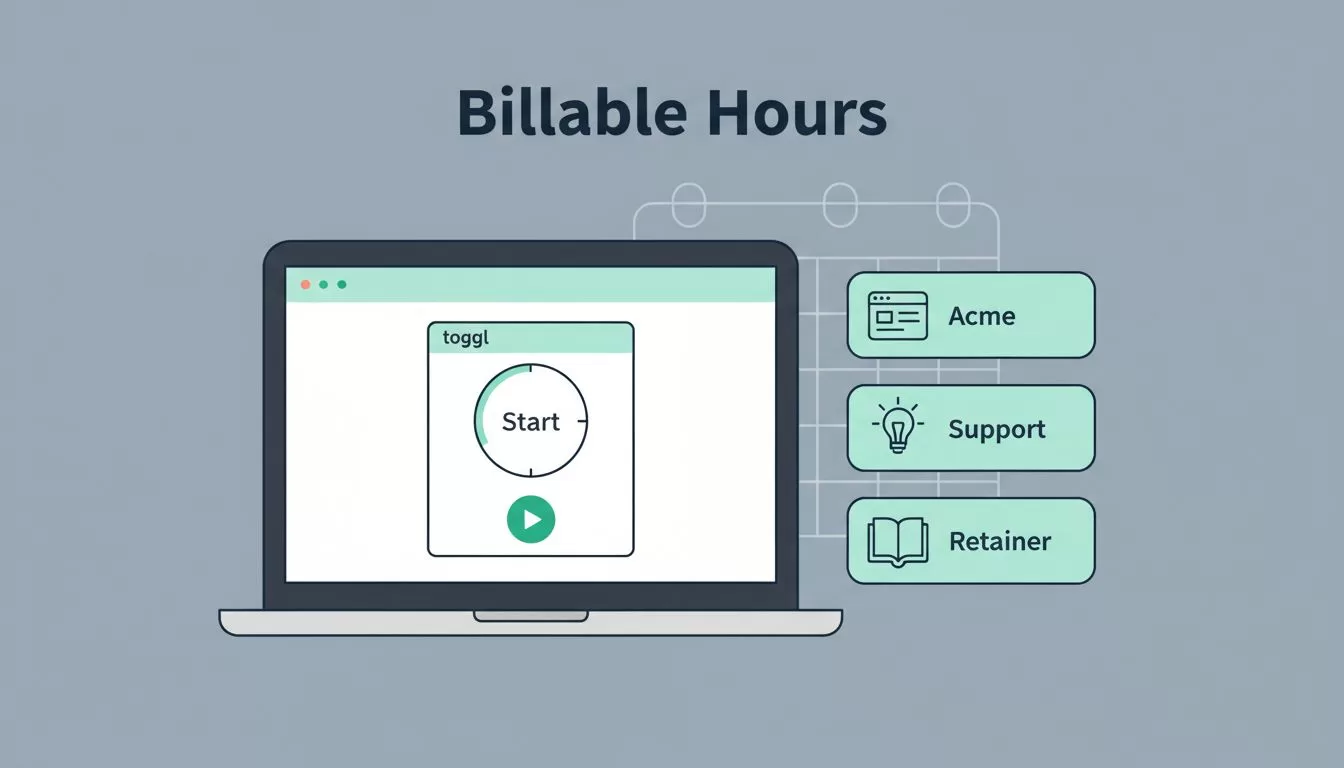
As of April 2026, I still see the same problem everywhere. Client work slips away when I trust memory.
A quick call here, a revision there, and half an hour disappears. Toggl Track solves that only when I use it with a clear routine. I keep clients, projects, and billable time organized the same way every week, so invoice day feels calm instead of messy.
I set up clients and projects before I start the clock
I never begin with a blank timer. First, I create the client, then I set up the project, and then I decide what belongs there.
That sounds simple, but it saves me later. If I name projects well, I can tell at a glance whether time belongs to a retainer, a one-off job, or internal admin. For a freelancer, that might mean “Acme Website Redesign” and “Acme Monthly Support.” For a small agency, it might mean a client name with separate projects for design, copy, and ad work.
I also keep rates clear. If a client has one price for strategy and another for implementation, I separate those right away. Some team controls, deeper reporting, and advanced permissions sit on paid plans, so I check the current plan details before I build a process around them.
The result is cleaner data. When I open Toggl Track client work later, I know exactly where each minute belongs.
My fastest workflow on web, desktop, and mobile
I use the same habit across devices. That matters more than the device itself.

On my desktop, I keep Toggl Track open while I work. In the browser, I use the extension when I live inside tabs. On my phone, I add entries after a client call or a site visit.
My routine is short:
- I pick the client and project first.
- I start the timer before I get deep into the task.
- I add a short note, like “proposal edits” or “kickoff call.”
- I mark the entry billable or non-billable before I move on.
If I miss the moment, I add the entry manually later. Toggl’s own time entry help page is a good refresher when I want the exact steps.
The best time log is the one I make before I forget the details.
That habit works well for consultants too. A 20-minute advice call can vanish fast. A timer entry catches it while it still feels fresh.
I keep billable time clean so invoicing stays easy
Billable time only helps when I separate it from everything else. I treat admin work, internal meetings, and client delivery as different lanes.
For example, I might mark discovery calls, design work, and revision rounds as billable. Then I keep admin tasks, sales follow-ups, and internal planning separate. That one choice makes reporting much easier later.
I also use notes to add context. “Homepage copy draft” helps more than “writing.” “Client call” helps less than “Q2 launch planning for pricing page.” Short notes protect me when I review the week.
Toggl Track’s reporting pages are built for this kind of cleanup. I use them to check whether tracked time matches the work I promised. Toggl’s billable hours guide is useful when I want a plain explanation of how rates and invoicing fit together.

For a freelancer, this keeps scope creep visible. For a small agency, it helps separate client work from overhead. Either way, billable time stays easier to defend.
I check reports before I send an invoice
Reports are where the story becomes clear. I use them to spot gaps, overages, and weak points before money leaves the table.
If one client suddenly takes more hours than expected, I want to know early. If a project has lots of unbilled time, I want to fix it before the month closes. Paid plans tend to add richer team reporting, workload views, and forecast-style tools, but I don’t assume every feature is on every plan. I check what’s included before I promise a client a specific report.
I like looking at time by client, project, and person. That view tells me where work is piling up. It also shows whether a project is eating more time than the fee can support.
This is where tracking turns into decision-making. If one account keeps running hot, I can raise the rate, tighten scope, or move tasks around. If a consultant is booking too much prep time, I can price future work more honestly.
The mistakes I avoid every week
I see the same time-tracking mistakes again and again, and I still work hard to dodge them.
- I don’t wait until Friday to rebuild the week from memory.
- I don’t leave client or project fields blank.
- I don’t mix billable delivery with internal admin.
- I don’t trust a single total without checking the entries behind it.
Mobile tracking helps when I’m away from my desk, but it only works if I use it fast. I keep the phone app on hand for travel, site visits, and calls that run long.

The biggest fix is simple. I record time while the work is still fresh, not after it has blurred together.
A cleaner record when invoice day arrives
Toggl Track client work stays manageable when I give every minute a home. That means one client, one project, clear billable settings, and notes that make sense later.
When I keep the habit small, it sticks. Then reports feel useful, invoices feel honest, and I spend less time guessing where the week went.
