How I Track Website Changes With Visualping
If I need to know when a page changes, I do not sit there refreshing it all day. I set up Visualping and let the alerts watch for me. That works for competitor prices, policy edits, job posts, product restocks, and content updates. As of Ap...


If I need to know when a page changes, I do not sit there refreshing it all day. I set up Visualping and let the alerts watch for me. That works for competitor prices, policy edits, job posts, product restocks, and content updates. As of April 2026, Visualping also includes AI summaries and team alert options, but I still check the latest plan details before I build anything around it.
The trick is simple. I only monitor the parts that matter, then I let the tool tell me when something shifts. That saves time, and it keeps me from treating every tiny page tweak like a fire alarm.
Setting Up My First Visualping Monitor
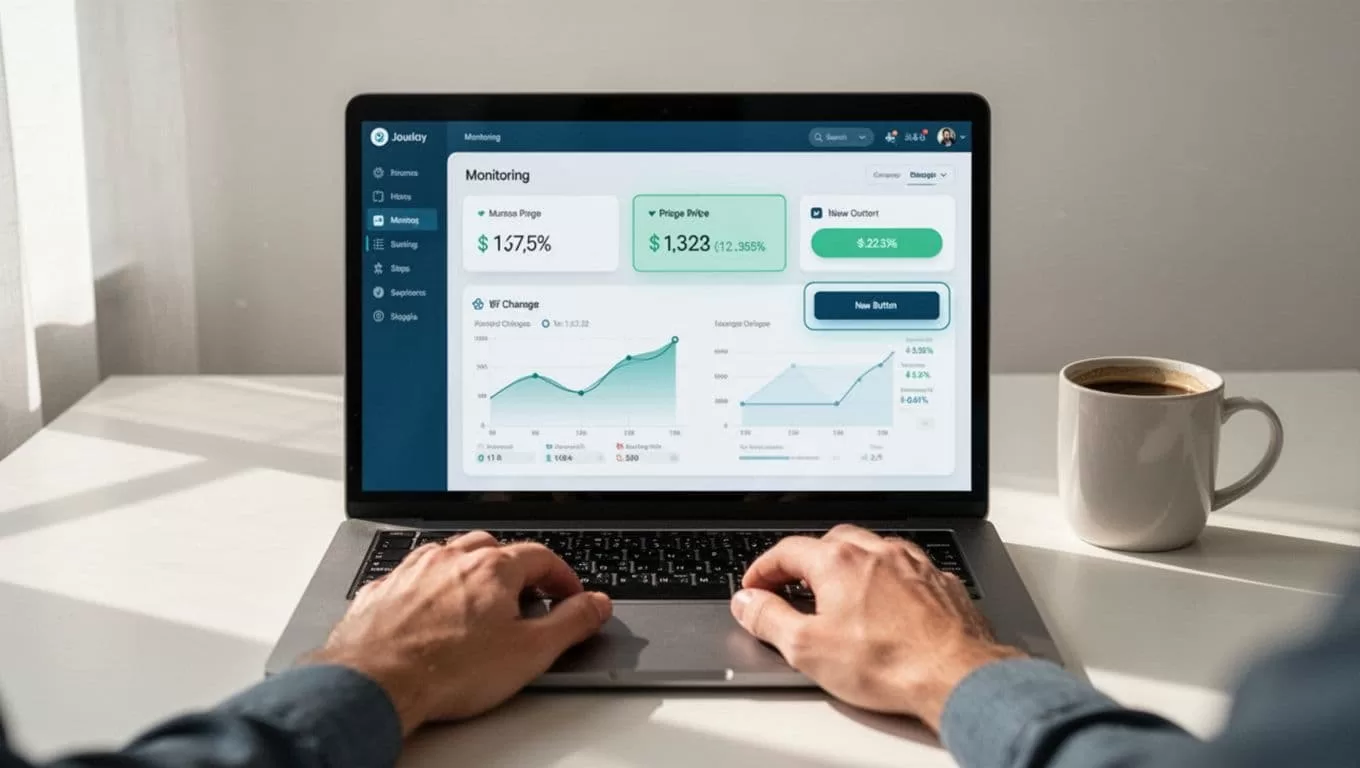
I start with the page I want to watch, then I paste the URL into Visualping. The setup flow is close to the one in Visualping’s own how to monitor website changes guide and its basic monitoring job help article, so I use those when I want the official path.
From there, I make five quick choices:
- I choose the page area to watch. Full page works for simple pages, but I usually pick a smaller section.
- I set how often Visualping checks the page. Free use is fine for light monitoring, while paid plans can check much more often.
- I decide how I want alerts sent. Email is enough for me at first. Teams often need Slack, Teams, webhooks, or API access.
- I save the monitor and wait for the first scan.
- I review the first alert, because that tells me if I picked the right area.
I get better alerts when I watch one box or one paragraph, not an entire homepage.
I also start with the most obvious signal first, then narrow later if I need to. That keeps the setup clean and makes the first alert easier to read.
As of April 2026, Visualping offers a free plan and paid tiers with more checks and team features, but prices and limits can change. I always confirm the latest details before I scale up.

The Pages I Watch First
When I track website changes, I usually start with pages that move money or time.
- Competitor pricing pages help me spot discount shifts fast.
- Job listings tell me when a role opens, closes, or changes location.
- Product pages show restocks, new bundles, and out-of-stock updates.
- Policy pages flag terms, refund rules, and compliance edits.
- Blog or release-note pages show new content before I miss it.
- Landing pages tell me when a headline, offer, or CTA changes.
That mix covers most business use cases. A sales team cares about competitor moves. An operations team cares about policy pages. A product team wants to know when availability changes. I use the same monitor style for all of them, but I keep each page focused on one job.
When a competitor tweaks a headline, I want to know if they changed the offer or the framing. A small wording shift can hide a price move, a shipping rule, or a new bundle. Visualping catches that before I waste time comparing screenshots by hand.
When I need more than a screenshot, I compare Visualping with no-code website monitoring with Browse AI. Visualping is great when I want a clear visual alert. Browse AI makes more sense when I need structured data and workflows.


How I Keep Alerts Useful Instead of Noisy
Visualping is only helpful if I trust the alerts. So I try to cut noise at the source.
First, I narrow the watched area. A single price block is better than a full product page. Second, I use the alert to confirm change, then I decide if the change matters. Visualping’s AI summaries help here, because they give me a fast read on what changed and whether it looks important.
I also split monitors by purpose. One monitor tracks price. Another tracks copy. Another tracks policy text. That way, I can see why something fired without guessing.
I keep frequency tied to the business need. Daily checks are fine for slow pages. Faster checks make sense for restocks, ticket drops, or high-value competitor pages. If I need shared alerts, I use team tools. Slack or Teams works well when more than one person needs to react. For larger setups, bulk uploads and shared workspaces save time, and paid plans can shorten check intervals.
I also write down what normal looks like before I start. That makes false positives easier to spot, especially when banners, dates, or promo strips change on a schedule.
Visualping’s AI web monitoring walkthrough is useful when I want to use prompts or refine what counts as a real change. That is handy when I care about one sentence, one field, or one image, not the whole page.
When I Use Visualping, and When I Reach for Another Tool
Visualping is best when I want speed, clarity, and a visual record. I can see the old page and the new page side by side. That matters when a customer-facing page changes and I need proof, not guesses.
When I want to extract data across many pages, I look at no-code website monitoring with Browse AI. When I am watching landing pages during a redesign or experiment, I also keep visual website editing for faster experiments nearby, because monitoring and testing solve different problems. One tells me what changed. The other tells me what works.
For me, that split is the whole point. Visualping handles the alert. Other tools handle the workflow after the alert lands. That keeps my stack smaller and my response faster.
Track the page that matters, not the whole internet. That’s the habit that saves me the most time. I still check pages by hand sometimes, but I do it less often now, and only when I need to confirm a detail.
A good Visualping setup is small, focused, and tied to a real business task. When I build it that way, the alerts stay useful, and the noise drops fast.
A good alert feels boring in the best way. It arrives, tells the truth, and lets me move on.

