Transistor.fm Subtitles: Add Keyword Highlighting Correctly
A transcript makes a podcast episode searchable. Keyword highlighting makes it easier to scan. These features are related, but they aren’t the same thing inside Transistor.fm. As of July 2026, Transistor’s documented episode wor...

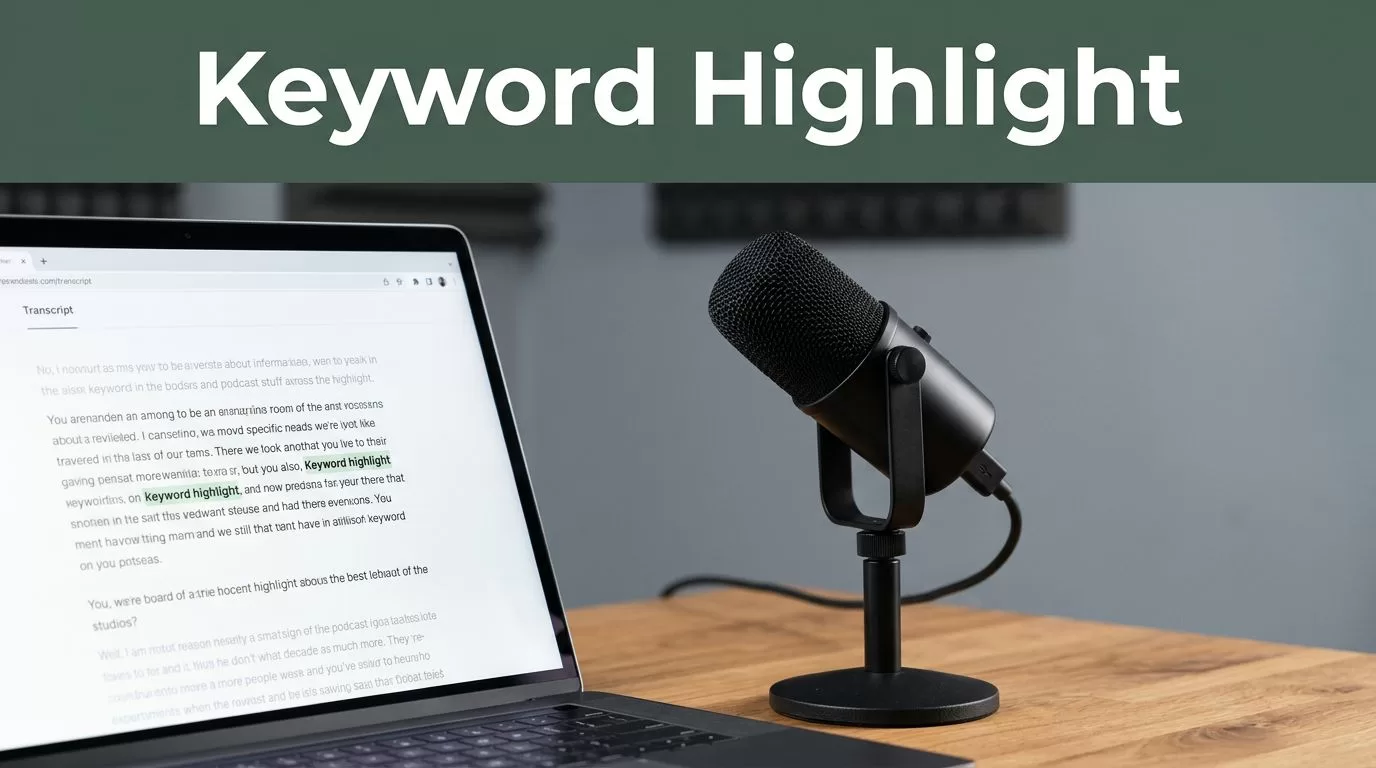
A transcript makes a podcast episode searchable. Keyword highlighting makes it easier to scan. These features are related, but they aren’t the same thing inside Transistor.fm.
As of July 2026, Transistor’s documented episode workflow includes transcripts, but it doesn’t expose a native setting called “Keyword Highlighting” for subtitles. You can add and manage a transcript in Transistor. Visual word highlighting requires a separate subtitle player or a custom website setup.
Key Takeaways
- Transistor uses transcripts for readable episode text, not traditional subtitle tracks.
- Subtitles and captions require timed files such as WebVTT or SRT.
- Transistor.fm doesn’t provide a verified native toggle for highlighting selected subtitle keywords.
- Add the transcript in Transistor, then use an external player if you need synced keyword highlights.
- Always test the published episode page, not only the dashboard preview.
Understand the Difference Between Transcripts, Subtitles, and Captions
A transcript is a written version of the spoken audio. It usually appears on an episode page as readable text. It doesn’t need timestamps for every sentence or word.
Subtitles are timed text. They display during playback and stay aligned with the audio. Common subtitle formats include .vtt and .srt. WebVTT is designed for timed text tracks in web browsers, as described in the W3C WebVTT specification.
Captions are also timed text, but they usually include more information for people who can’t hear the audio. That can include speaker names, music, laughter, or other meaningful sounds. In casual software discussions, people often use “subtitles” and “captions” interchangeably. They have different accessibility purposes.
Transistor’s transcript feature is not automatically a subtitle track. It doesn’t create the word-by-word timing required for active subtitle highlighting. A transcript can contain important terms, but plain text alone won’t highlight those terms as the episode plays.
A transcript helps people read and search an episode. A subtitle file follows playback. Keyword highlighting needs a player that supports both timing and styling.
This distinction prevents a common setup error. Adding bold text to a transcript won’t create synchronized highlights. Uploading an SRT file won’t help if the player doesn’t support custom styling.
Add a Transcript to a Transistor Episode
Start in the Transistor dashboard. Open Episodes, select the episode, and choose the edit control. Look for the Transcript field or transcript option in the episode editor.
Your account may show transcript generation if the feature is available for your plan. You can also paste a prepared transcript when the editor provides that option. Review the text before saving it. Automatic transcripts often need corrections for names, acronyms, product terms, and technical language.
Use this workflow:
- Open the correct episode under Episodes.
- Find the Transcript area in the episode editor.
- Add the generated or reviewed transcript.
- Save or update the episode.
- Open the public episode page and confirm that the transcript appears.
Transistor’s support documentation is the right place to check account-specific transcript instructions and current interface changes. Dashboard labels can change, and transcript availability can depend on your account configuration.
Clean the transcript before you publish it. Correct speaker names. Fix brand names such as HubSpot, Shopify, or WordPress. Remove repeated words only when they make the text difficult to scan. Keep the spoken meaning intact.
Choose terms that help readers find useful parts of the episode. Good candidates include product names, people, locations, acronyms, and recurring subjects. Keep spelling consistent. If the episode mentions “customer relationship management” and “CRM”, decide whether both terms need highlighting.
Transistor may display a readable transcript on the published episode page, but that doesn’t mean the page will highlight terms as the audio plays. Check the result before promising that behavior to listeners.
Create Keyword Highlights Outside Transistor
When you need actual subtitle highlighting, create a timed subtitle file outside Transistor. A subtitle editor or video platform can generate timestamps from the audio. Export the result as WebVTT when the destination player supports it.
A basic WebVTT file contains timed cues. Each cue has a start time, an end time, and the text shown during that interval. The timing controls when the text appears. It doesn’t automatically tell the player which words to highlight.
Keyword highlighting needs another layer. The player must support one or more of these functions:
- Word-level timing that tracks the current spoken word.
- Custom cue markup, such as WebVTT classes.
- CSS styling for selected words.
- JavaScript that updates the active word during playback.
The standard HTML video element can load a text track, but the visual result depends on the player and browser. Read the MDN WebVTT API guide before building a custom implementation.
You also need a place to host and display the subtitle player. That could be a video version of the episode on YouTube, a third-party podcast page, or your own website. Transistor can remain the audio host and transcript source, but the external player controls the subtitle experience.
Don’t paste WebVTT markup into the Transistor transcript field. The transcript field is for episode text. It isn’t a code editor or a guaranteed subtitle renderer. A file that works in a video player may appear as unformatted text or be removed when placed in the wrong field.
For a clean result, highlight only terms that help navigation. Product names, key concepts, and important names are useful. Highlighting every repeated word makes the page harder to scan. Use the same capitalization and spelling across the transcript, subtitle file, and episode page.
Check the Published Episode Page
Testing the dashboard preview isn’t enough. Publish or update the episode, then open the public episode URL in a private browser window.
Confirm that the transcript is visible. Search for one or two target terms. If you use an external subtitle player, start playback in the middle of the episode and check whether the text appears at the correct time.
Test the player on both desktop and mobile. Use the keyboard to start, pause, and seek through the audio. Check that highlighted text has enough color contrast and doesn’t depend on color alone. A bold style or underline can help users identify the active term.
If the transcript appears but the words don’t highlight, the transcript probably works. The player lacks word-level timing or keyword styling. If subtitles appear at the wrong time, fix the WebVTT timestamps. If no transcript appears, return to the episode editor and confirm that the transcript was saved to the correct episode.
Conclusion
Transistor.fm supports the transcript part of the workflow, but it doesn’t provide a verified native switch for keyword highlighting in subtitles. Add a reviewed transcript through the episode editor, then use a separate timed subtitle player when active word highlighting is required.
Keep the roles separate. Transistor stores and publishes the episode content. The subtitle player controls timing, styling, and keyword highlights. Test both on the published episode page before sharing the episode with listeners.

