How I Run UI Testing Automation on Twin.so
A UI test that only passes on a perfect day is a shaky test. When I set up Twin.so UI testing, I want the browser to act like a careful user, not a script that falls apart the moment a button shifts. That means I start small. I pick one val...
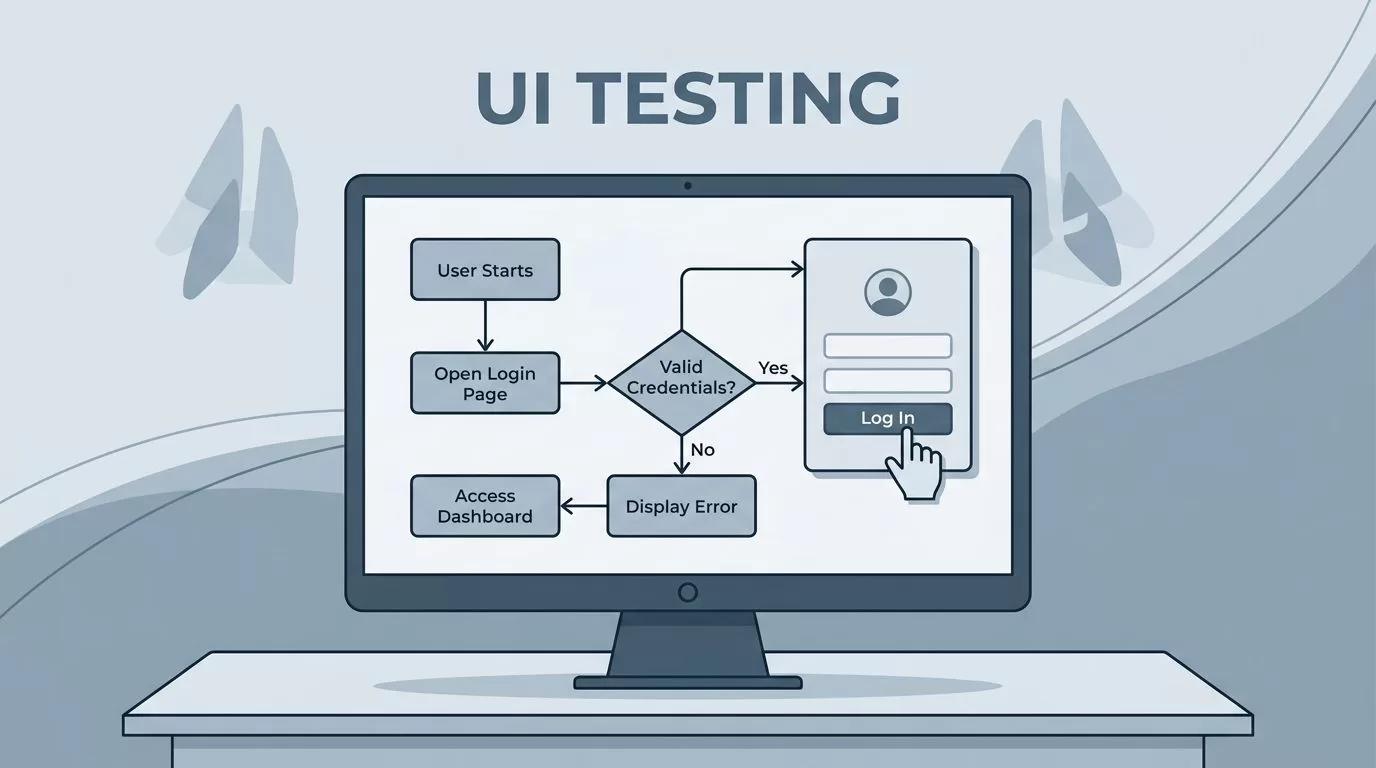
A UI test that only passes on a perfect day is a shaky test. When I set up Twin.so UI testing, I want the browser to act like a careful user, not a script that falls apart the moment a button shifts.
That means I start small. I pick one valuable flow, prepare clean test data, and define what success looks like before I run anything. If a test cannot tell me what changed, it only adds noise.
I start with the user flow that matters most
I never begin with the fanciest page in the app. I start with the path that causes real pain when it breaks. For most teams, that means login, signup, search, checkout, or a form submit that drives revenue.
If I already have launch pages or variation-heavy flows, I treat them with the same discipline I use in my no-code AB testing guide. Repeated browser checks work best when the journey is narrow and the result is easy to confirm.
Here is how I choose the first test:
| Flow | Why I automate it first |
|---|---|
| Login or account access | A broken sign-in blocks everything else |
| Search, filter, and detail pages | These are common paths with many clicks |
| Checkout or form submission | These flows connect directly to revenue or leads |
| Settings updates | Small UI bugs here often hide until users complain |
I also decide what I do not test yet. Side panels, low-traffic modals, and one-off marketing pages can wait. A small suite gives me cleaner signals and shorter runs.
The best first test is the one that answers a clear business question. If it fails, I should know what work stopped. If it passes, I should trust that the core path still works.
I prepare Twin.so for a clean browser run
Twin.so works best when I give it a clear target and clean conditions. It is an AI agent builder, so I treat it like a browser helper that can click, type, navigate, read tables, and work through login-protected pages. I do not bury it in vague instructions.

Before I write the test, I set up a few basics:
- A dedicated test account with safe permissions
- Seeded data that I can reuse without manual cleanup
- Stable URLs for the page or flow I want to check
- A clear browser environment with no extra extensions
- A known success signal, such as a heading, message, or URL change
I also avoid mixing test data with live customer records. That keeps failures easy to read and makes reruns safer. If the app uses heavy JavaScript, I give Twin a little more room to wait for the page to settle.
My instructions stay simple. I name the page, the action, and the outcome. For example, I might say, “Open the customer portal, sign in with the test user, add one item to the cart, and confirm the checkout button becomes active.” That is easier to follow than a long wall of detail.
Twin can also run on a schedule or through triggers, so I think about timing early. A nightly browser check is useful, but only after the first run works by hand. I want the flow to be boring before I let it run without me.
I build the first automated test one step at a time
The first version of the test should feel plain and readable. I do not try to automate the entire app in one pass. I write one flow, run it, fix it, then expand it.
I follow this order:
- I describe the task in one sentence.
- I break the flow into visible actions.
- I add one checkpoint after each important step.
- I run it once in the target environment.
- I review the log, screenshots, or browser output before I schedule it.
A good first test usually looks like this: log in, open the right page, complete one action, and confirm the page reacts as expected. That could mean a success banner appears, a row shows up in a table, or a new screen loads with the right heading.
I keep my instructions tied to what a real user sees. Labels, button text, page titles, and visible messages matter more than fragile coordinates. That matters even more on apps that change often. If the UI shifts, the test should still understand the intent.
I also keep each test narrow. One flow, one purpose, one clear pass condition. That keeps reruns fast and failures easier to read. When I want to expand coverage, I copy the structure and change only the path.
That same habit shows up in UI test strategy discussions like NoriSte’s UI testing best practices. The patterns stay simple for a reason, because simple tests break less often.
I validate the UI state, not just the click path
A test that clicks through a page can still miss the bug that matters. I want Twin.so to confirm the page state, not just the path. That means I check what the user sees after each action.
I focus on a few checks every time:
- The right page title or heading appears
- The expected message shows up after submit
- Disabled buttons become enabled at the right moment
- Error text appears in the correct place
- Empty states look the way I expect
- Loading indicators disappear when the page finishes
These checks help me catch problems that a basic click test would miss. A form might submit, but the message could be wrong. A page might open, but the data could be missing. A button might look active while the app still blocks the action.
I also keep an eye on UI state changes that users notice fast. If a banner appears too late, the test should see that. If a redirect lands on the wrong page, the test should stop there. Visual consistency matters, but I still care more about behavior than pixels.
For broader guidance, I keep Perforce BlazeMeter’s UI test automation best practices nearby. The advice is plain and useful: keep tests focused, keep them tied to real flows, and do not test everything through the UI.
If the app has a loading state, I test that too. A spinner that never clears is a failure. A success message that flashes and vanishes is also a failure. Those small details tell me whether the interface feels solid or brittle.
I reduce flaky runs before they waste my time
Flaky tests drain trust fast. One false failure can make a good suite feel useless. I deal with that early, before I let Twin.so run on a schedule.
Most flaky runs come from the same places. The page loads too slowly. The test data changes. The app renders the same element in two different ways. A selector points at the wrong thing. A modal closes a second later than expected.
I handle that with a few habits:
- I wait for visible states, not only fixed time delays
- I use stable labels and unique page elements
- I reset test data after each run
- I keep one test focused on one path
- I review screenshots and logs before I retry
I also avoid building tests around brittle details. If a button label changes often, I look for a stronger marker. If the page uses dynamic content, I wait for the content container instead of the first text node I see.
A fast failure is useful. A random failure is noise.
This is where I stop trusting a test that “usually works.” I want a run that behaves the same way on a busy Monday and a quiet Friday. If the app changes, the test should fail in a way I can understand.
When I need another reference point, I compare my setup with the same patterns I use in fast AB testing tool work, where speed matters but clean validation matters more. The tools can differ, but the habit stays the same.
Conclusion
When I run UI automation on Twin.so, I keep the goal simple. I want real browser actions, clear checkpoints, and failures that tell the truth. That is what makes the suite useful.
The strongest tests are the ones that mirror a real user path and still stay small enough to trust. If I can read the flow in one minute, I can also fix it in one minute when it breaks.
That is the real payoff of Twin.so UI testing. I get a browser check that feels practical, not fragile, and that keeps my team focused on the flows that matter most.
