How I Deployed a Twin.so Virtual Assistant Step by Step
I remember the grind of checking emails every morning and updating sales sheets by hand. It ate hours from my day. Then I tried Twin.so. This platform lets you build AI agents that handle those tasks on their own. No code needed. You descri...
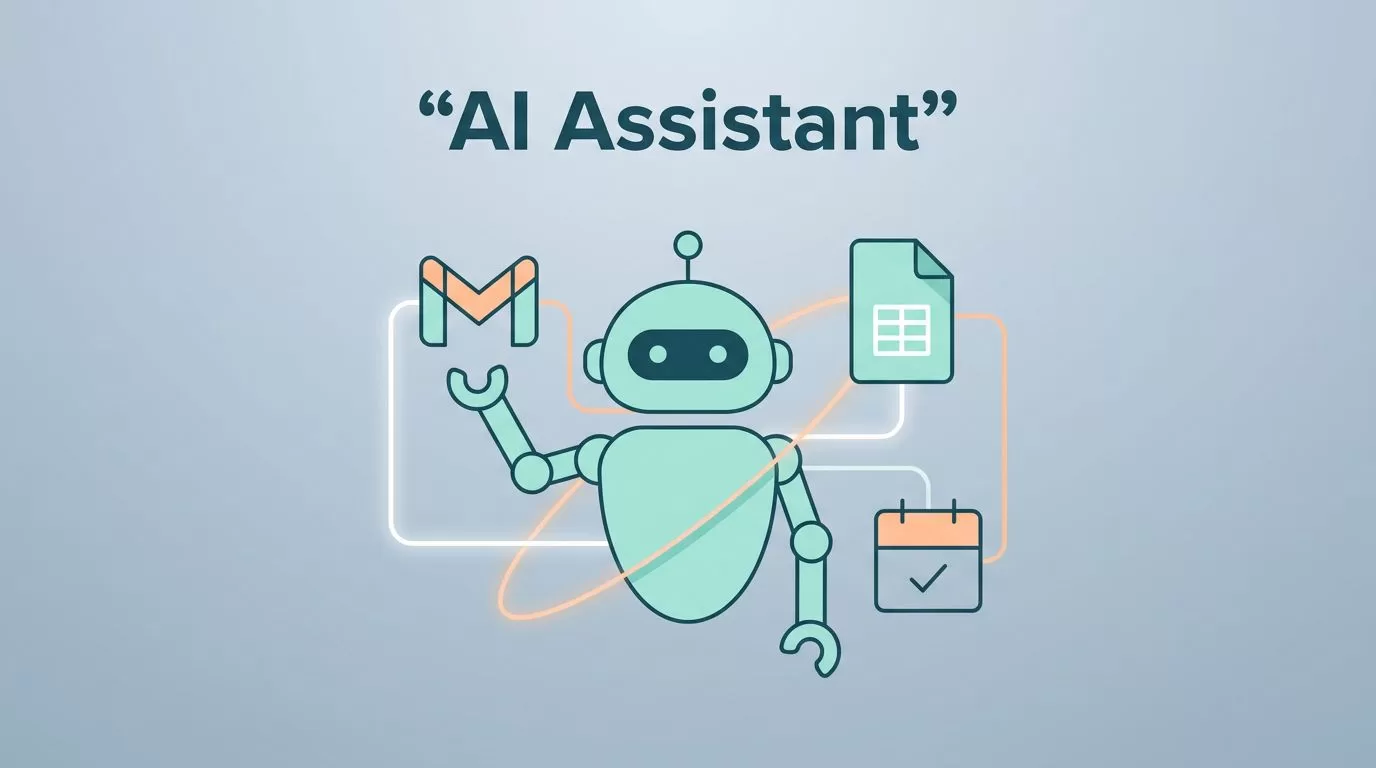
I remember the grind of checking emails every morning and updating sales sheets by hand. It ate hours from my day. Then I tried Twin.so. This platform lets you build AI agents that handle those tasks on their own. No code needed. You describe what you want, and it creates a Twin.so virtual assistant that runs in the cloud.
These agents connect to apps like Gmail or Google Sheets. They trigger on schedules or events. I set one up to scan my inbox for leads and log them automatically. Results appeared in minutes. If you run a business and hate repetitive work, this changes everything.
Let’s walk through how I did it. Follow these steps, and you’ll have your own agent live today.
Setting Up Your Twin.so Account
I started at twin.so and signed up with my email. The process took under two minutes. No credit card upfront. Twin offers a free tier to test agents, then paid plans scale with usage.
Once inside, you land in a workspace. This is your hub for all agents. I named mine “Sales Ops” because I focus on lead tracking. The dashboard shows chats, runs, and schedules at a glance.
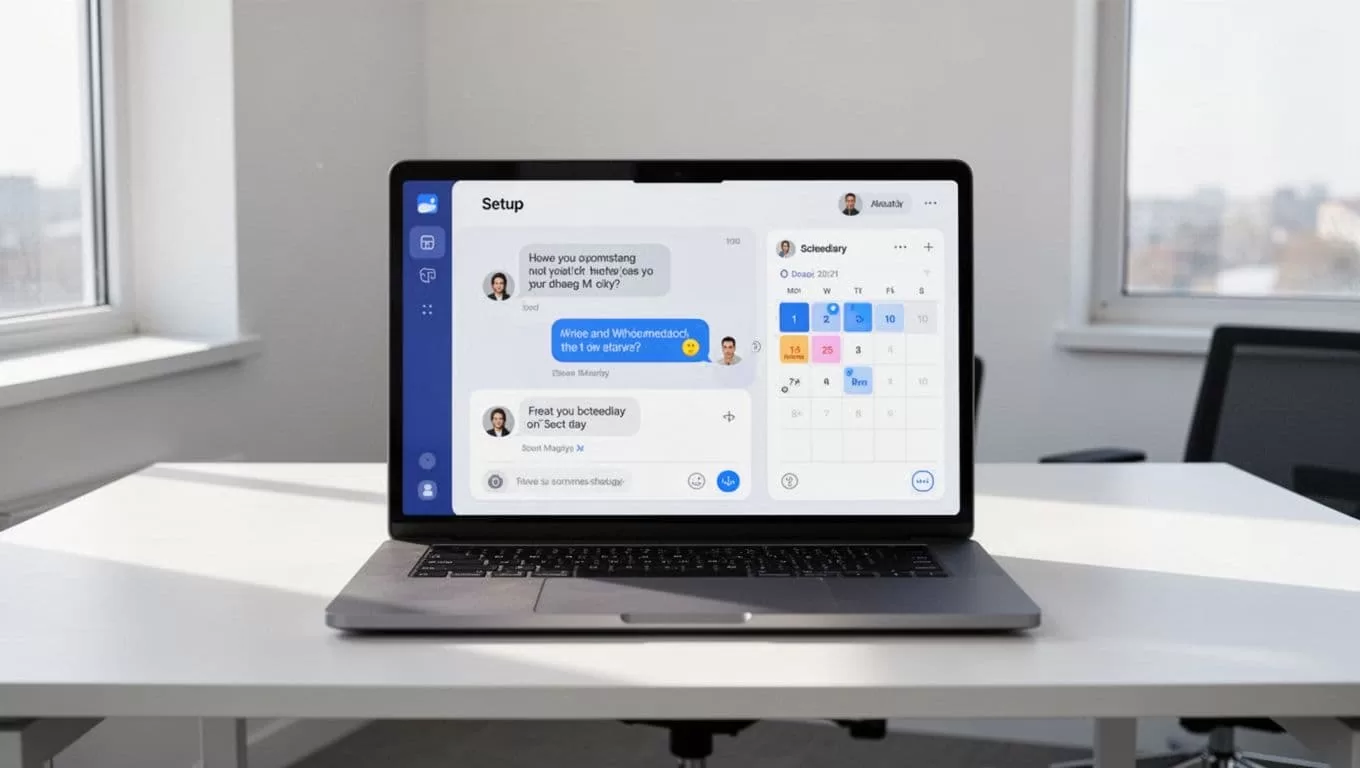
Next, connect accounts. Twin asks for OAuth links to Gmail and Sheets during builds. I clicked “Connect” for each. It handles security, so no keys to copy. For my setup, I linked my business email and a shared spreadsheet.
Key decision here: Pick apps you use daily. Gmail pairs well with Sheets for reports. Slack works for team alerts. Test one connection first to avoid overload.
The Twin documentation explains workspaces clearly. I skimmed it before diving in. UI changes happen, so check there if buttons shift.
Building Your First Twin.so Virtual Assistant
With accounts linked, open the Orchestrator. This chat on the left builds agents. I typed: “Check my Gmail for new leads from forms, extract name and company, add to Google Sheet.”
Twin asked questions. “What domain for leads?” I said “example.com”. “Which sheet tab?” “Leads”. It built the agent in seconds. No prompts or YAML files.
Review the plan. Twin shows steps: login to Gmail, filter emails, parse data, update sheet. Edit if needed, then test. My first run pulled three leads perfectly.
Agents live in your workspace. Name them well, like “Daily Lead Scanner”. Clone for variations later.
For sales teams, I built one that researches calendar contacts. It pulls LinkedIn data and adds notes. Saved me 30 minutes per meeting.
The Orchestrator guide covers tweaks. Use it to refine behaviors.
Pro tip: Be specific in descriptions. Mention tools like “Gmail filter by subject”. Vague instructions lead to extra chats.
Configuring Triggers and Schedules
Agents sit idle without triggers. I set mine to run daily at 9 AM. In the dashboard, select the agent, click “Triggers”, choose “Schedule”.
Pick frequency: daily, weekly. Timezone matters; I set Pacific Time. Test runs confirm it works.
For events, link to webhooks or apps. My lead agent uses email triggers now. New message arrives, it fires.
Developers call via REST API. I integrated one into my CRM for on-demand runs. Docs list endpoints.
| Scenario | Best Trigger | Why It Fits |
|---|---|---|
| Morning reports | Schedule | Runs hands-free every day. |
| New emails | Event | Reacts instantly to inbox. |
| Custom apps | REST API | Ties into your backend. |
This table matches my tests. Schedules cost less than builds. Review the triggers documentation for setups.
Common choice: Start with schedules. They suit most business flows.
Deploying Your First Agent
Deployment is simple. After testing, hit “Deploy”. Choose run mode: one-off or recurring. My agent went live on schedule.
It runs in the cloud. Logs show every step. I watched it grab emails, parse, update sheet. First run finished in 90 seconds.

Costs drop in run mode. Builds use more power; runs are cheap. I check history weekly.
Scale up: Add Slack notifications. “Leads added: 5 today.” Teams love it.
Follow the quickstart guide for your first deploy. It matches this flow.
Avoiding Pitfalls and Quick Fixes
I hit snags early. Agent skipped old emails? Filters were too narrow. Chat in Orchestrator: “Include last 7 days.” Fixed.
OAuth expires? Reconnect in settings. Rare, but check monthly.
Sheet permissions block writes? Share the file with Twin’s service account email. It appears after connect.
High costs? Switch to API-first over browser. Browser scrapes work, but APIs run faster. See tips and tricks.
Mistakes to skip:
- Vague instructions lead to loops.
- Ignore logs; they flag issues.
- Over-connect apps at start.
Troubleshoot via chat. “Why did run fail?” Twin explains. My uptime hit 99% after tweaks.
If you handle social tasks too, check my guide on personal brand automation with Someli. It pairs well with Twin agents.
Conclusion
Twin.so virtual assistants handle grunt work so you focus on growth. I deployed mine to scan leads and update sheets. Now it runs daily without me.
Schedules and triggers make it reliable. Tests catch issues early. Costs stay low in run mode.
Build yours today. Start small, like email checks. Watch time return to your calendar. Your business runs smoother already.
