Use a WordPress Automation Tool Like Twin.so to Reduce Manual Work
WordPress management becomes expensive when every form submission, content update, report, and maintenance check needs a manual handoff. A WordPress automation tool can connect those tasks and move information between your site, CRM, inbox,...

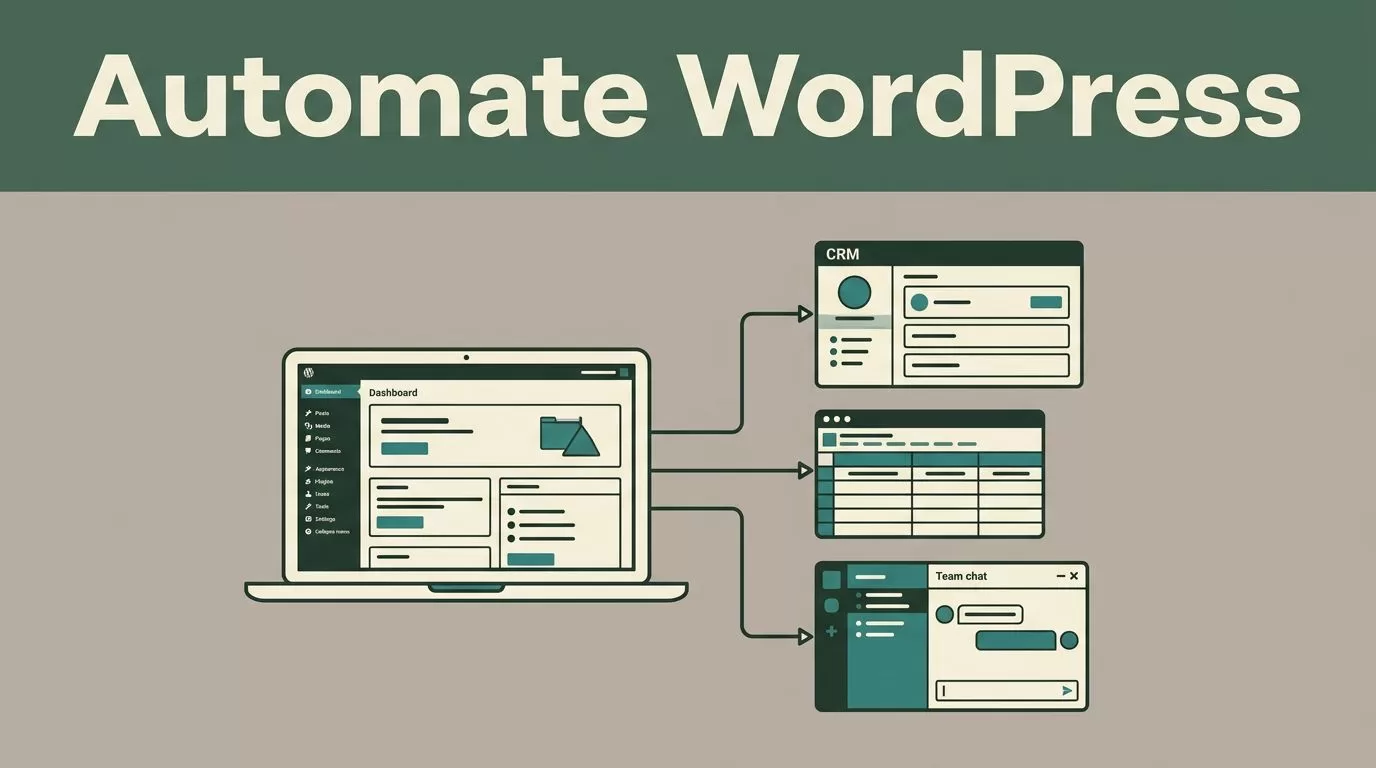
WordPress management becomes expensive when every form submission, content update, report, and maintenance check needs a manual handoff. A WordPress automation tool can connect those tasks and move information between your site, CRM, inbox, spreadsheets, and team chat.
Twin.so can support this work, but you need to understand what it is first. Twin.so is not a WordPress plugin. It is an AI agent platform that can work with WordPress through APIs, webhooks, browser automation, and connected applications. The right setup depends on your site’s tools, access rules, and approval requirements.
Why Use a WordPress Automation Tool?
Most WordPress teams don’t lose time on one large task. They lose it through repeated small actions.
A marketer copies form submissions into a CRM. An operations manager checks whether plugins need updates. A content editor moves article data between a spreadsheet, Google Docs, and WordPress. Someone else prepares a weekly report by opening several dashboards and combining the numbers manually.
These tasks follow repeatable patterns. That makes them good automation candidates.
A WordPress automation tool can watch for an event, perform one or more actions, and send the result to another system. Common triggers include:
- A form submission enters WordPress.
- A post changes to a specific status.
- A webhook receives new data.
- A scheduled time arrives.
- A value changes in a spreadsheet or CRM.
The workflow then performs a defined action. It can create a draft, update a record, send a notification, request missing information, or add data to a report.
The best automation targets have three characteristics:
- They happen often.
- They follow clear rules.
- They don’t require constant judgment.
Don’t automate a process only because it looks repetitive. First define the expected input, the action, the destination, and the failure response. A vague workflow produces vague results.
A useful rule is to match automation speed to process complexity. A simple notification can run immediately. A content workflow that creates customer-facing copy needs slower review and stronger controls. High execution volume doesn’t matter if the output requires rework.
How Twin.so Fits Into WordPress Automation
Twin.so fits best when WordPress is one part of a larger business process.
Its documented platform capabilities include natural-language agent creation, API-based connections, browser automation, scheduled runs, and webhook or event-based triggers. Its browser agent can interact with websites and web applications by navigating pages, entering information, and retrieving data. That gives it access to some systems that don’t offer a usable API.
This distinction matters. A native WordPress automation plugin runs inside WordPress and usually exposes WordPress-specific triggers and actions. Twin.so runs as an external automation layer. It can connect WordPress with other systems when those systems are available through an API or browser workflow.
Before choosing an external agent, compare it with native options. WordPress automation plugins can connect tools such as WooCommerce, Gravity Forms, LearnDash, Mailchimp, and Zapier. This WordPress automation plugin comparison provides examples of plugin-based workflows. Another comparison of WordPress automation plugins covers tools such as WP Webhooks and Uncanny Automator.
Use Twin.so when the process crosses several applications or requires browser access. Use a WordPress plugin when the workflow stays mainly inside WordPress and its plugin ecosystem.
The following table gives a practical starting point.
| Requirement | Better starting point |
|---|---|
| WordPress-only post or user actions | Native WordPress automation plugin |
| Form submission sent to a CRM | Plugin, webhook tool, or external agent |
| Data collected from several web dashboards | Twin.so or another browser-capable agent |
| Scheduled report across WordPress, CRM, and spreadsheets | Twin.so or an API workflow platform |
| Plugin update notifications | WordPress monitoring or maintenance tool |
| Customer-facing content creation | Agent-assisted workflow with human approval |
Twin.so’s broad integration claims should still be tested against your specific applications. Confirm that the required WordPress data is available through the REST API, a webhook, or a reliable browser path. Don’t assume that a general app connection includes every field or permission your workflow needs.

Automate WordPress Content Publishing Without Removing Review
Content publishing is a strong use case because the process usually has defined stages. The risk is also clear: incorrect or unapproved content can reach your website.
Build the workflow around drafts and status changes. Don’t begin with automatic publishing.
A practical workflow looks like this:
- Store topic briefs in a spreadsheet, project system, or document.
- Trigger the agent when a brief receives an approved status.
- Ask the agent to collect the approved source material and required fields.
- Create a draft in WordPress with the title, body, category, excerpt, and featured image instructions.
- Notify the editor in email or team chat.
- Publish only after a human changes the post status.
Twin.so can help with the cross-app work when it can access the source system and WordPress through an API or browser session. The exact fields depend on your WordPress configuration and connected tools.
Set strict output rules for the agent. Define the content type, author, category, slug format, internal linking requirements, and allowed source types. Restrict the agent from changing published posts unless the workflow explicitly permits it.
Use a review queue for anything that includes factual claims, product comparisons, pricing, legal information, or customer-facing promises. AI-generated summaries can misread statistics or omit important context. Compare generated output against the original source before publication.
A useful content workflow also creates an audit record. Store the original brief, generated draft, reviewer, approval time, and publication result. Bookmark failed runs or unusual outputs so the team can inspect the exact step that broke.
Route WordPress Leads to the Right Team
Lead routing removes one of the most common manual handoffs in marketing operations.
The workflow begins when a form submission reaches WordPress. The form plugin may send a webhook, or an automation agent may retrieve the submission through the site or form dashboard. The workflow then validates the data before sending it elsewhere.
Validation should check:
- Required fields are present.
- The email address has a valid format.
- Duplicate submissions are identified.
- Consent fields are recorded.
- The company, location, or product interest matches an allowed value.
After validation, route the lead according to rules your sales team can explain. A product inquiry can go to the relevant sales queue. A support request can go to customer service. A partner inquiry can enter a separate review process.
Twin.so can connect the steps when the form, CRM, inbox, and team chat are available through supported API or browser actions. Keep the business rules outside the agent’s guesswork. Write them as explicit conditions.
For example, a lead with a business email, a company size above your chosen threshold, and a request for a sales call can enter the CRM’s qualified queue. A lead without consent should not enter a marketing sequence.
Add a notification only after the CRM record is created successfully. Otherwise, your team may act on a message while the underlying record is missing.
A lead notification is not proof that lead routing worked. Check that the CRM record, owner, source, and consent data were saved correctly.
Create Maintenance Alerts Instead of Risky Auto-Updates
WordPress maintenance includes plugin updates, theme changes, backups, uptime checks, security events, and performance issues. These areas need careful automation because an incorrect action can break the site.
Use automation for detection and notification first. Let it inspect the WordPress admin, monitoring dashboard, backup system, or security platform on a schedule. Then send a concise report to the responsible person.
A weekly maintenance workflow can check:
- Plugins or themes with pending updates.
- Failed backups.
- New administrator accounts.
- Repeated login failures.
- Broken forms or important page errors.
- Uptime or performance alerts.
- SSL certificate or domain warnings.
A browser-capable agent may be able to retrieve information from dashboards that lack convenient APIs. However, browser automation depends on stable login access, page structure, permissions, and account security. Use a dedicated account with limited privileges. Store credentials in the platform’s approved connection system. Never place passwords inside prompts or plain-text notes.
Don’t allow an AI agent to update production plugins without a testing and rollback process. A safer workflow sends the update list to a human, creates or verifies a backup, and records the final decision.
Connect WordPress Reports to Your Operations Stack
Reporting is another practical use case. Teams often collect WordPress traffic, form submissions, sales activity, and content performance from separate systems.
Set a schedule for the report. Then define the exact data sources, date range, fields, calculations, and destination. The agent can retrieve the data, write a structured summary, and deliver it to a spreadsheet, document, email inbox, or team channel.
Keep the report format stable. Use the same sections each week so changes are easy to spot. Separate raw figures from interpretation. Include the number of sessions, leads, qualified opportunities, published posts, failed workflows, and unresolved errors when those metrics matter to your team.
Review the first few reports manually. Check the date filters, duplicated records, time zones, and source attribution. A polished report can still contain incorrect data if one connector returns partial results.
You can also use a simple folder structure for workflow documentation. Keep agent instructions, field mappings, approval rules, and failure examples grouped by project. This prevents context switching when someone needs to repair or modify the process.

How to Deploy Twin.so With Proper Controls
Start with one workflow. Pick a process that is frequent, measurable, and low risk.
Document the current manual process before building anything. Record the trigger, systems used, fields transferred, expected output, approval points, and common exceptions. This gives you a baseline for testing.
Then configure the automation in stages:
- Connect WordPress and one destination system.
- Test data retrieval without allowing changes.
- Add the action that creates or updates a record.
- Add notifications and error handling.
- Run the workflow with test data.
- Review logs and output fields.
- Move to limited production traffic.
- Measure errors, completion time, and manual corrections.
Use separate speeds for separate tasks. A maintenance alert can run on a fixed schedule. A lead route may need an immediate webhook. A content agent should wait for approval before publication.
Create clear failure paths. If a required field is missing, stop the workflow and report the record. If a connection fails, retry within a limit and notify the owner. If the agent encounters a page layout it doesn’t recognize, don’t let it continue with an uncertain action.
Measure the result using operational metrics:
- Manual minutes saved per run.
- Successful runs.
- Failed runs.
- Duplicate or incorrect records.
- Average time to review.
- Leads routed to the wrong owner.
- Content drafts requiring major revision.
Automation is working when the process becomes more reliable, not only when it runs faster.
Choose the Right WordPress Automation Approach
Twin.so is a good fit for cross-application processes that need API connections, browser access, scheduled agents, or natural-language workflow building. It can help when WordPress is connected to several tools and the process contains exceptions that basic rules can’t handle.
A native WordPress plugin is usually better for simple site-level actions. It can be easier to maintain, easier to inspect, and more closely aligned with WordPress events.
Don’t choose based on the largest integration count. Choose based on the workflow you need to operate. Confirm access methods, permissions, logs, retry behavior, data retention, and human approval controls before deployment.
Conclusion
A WordPress automation tool can reduce repetitive work across publishing, lead routing, maintenance, reporting, and integrations. Twin.so is not a WordPress plugin, but its API, browser automation, schedule, webhook, and agent capabilities can make it useful as an external workflow layer.
Start with one low-risk process. Define its rules, test every field, keep customer-facing actions behind approval, and track failed runs. The strongest automation system is not the one that performs the most actions. It’s the one your team can trust when nobody is watching.

