How I Route Form Responses to Airtable with Zapier
A form submission should not sit in an inbox like a loose receipt. I want it filed, sorted, and ready to use. That is why I rely on a Zapier Airtable integration when I need responses to land in one clean place. The setup is simple once I b...
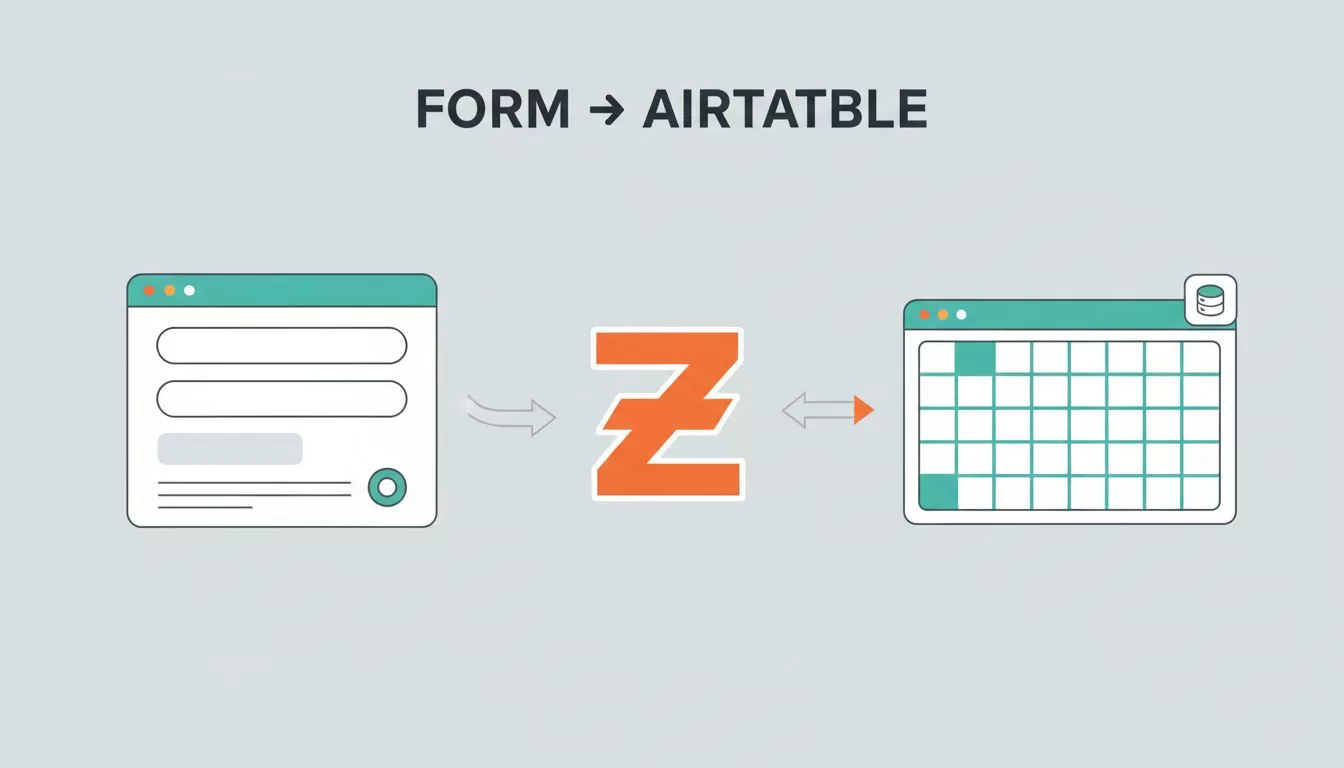
A form submission should not sit in an inbox like a loose receipt. I want it filed, sorted, and ready to use. That is why I rely on a Zapier Airtable integration when I need responses to land in one clean place.
The setup is simple once I break it into pieces. The exact clicks change a bit depending on the form tool, but the logic stays the same. I choose a trigger, send the data to Airtable, map the fields, then test the whole path before I trust it.
Start with a clean Airtable base
I always start in Airtable, not Zapier. That saves me from fixing bad field types later. Before I touch a Zap, I make sure my base already has the right table, the right columns, and the right field types.
If I am collecting leads, I usually create fields for name, email, company, message, source, and submission date. If I know I will sort or filter by status, I add a single-select field too. That small bit of prep keeps the whole setup steady.
Airtable’s own guide on using Zapier to connect with other services is useful when I want to confirm the connection flow. The form app can be Typeform, Jotform, Google Forms, Tally, HubSpot forms, or something else. The trigger name changes, but the path is the same.
I match the Airtable field type before I map anything. If I skip that step, the Zap often breaks later.
Build the Zap in Zapier
I open Zapier and create a new Zap. Then I choose my form app as the trigger and pick the event that means a new submission. In many tools, that event looks like “new response,” “new entry,” or “new submission.”
After that, I connect Airtable as the action app. The action I want is usually Create Record. If I only want certain submissions to enter Airtable, I add a filter step before the action. That keeps spam, test entries, or low-priority responses out of the base.
My usual flow looks like this:
- I pick the form trigger.
- I connect the form account and pull in a sample response.
- I choose Airtable as the action and select the base and table.
- I map each form field to the matching Airtable field.
- I send a test through the Zap before I turn it on.
That last test matters more than most people think. One good sample can save me from a messy inbox later.
Map form answers to the right Airtable columns
This is where most problems show up. A text answer must go into a text field. A date must land in a date field. A dropdown answer must match the Airtable single-select choice exactly.
I check the field names one by one. If my form says “Business Email” and Airtable says “Email Address,” I do not assume Zapier will read my mind. I map it on purpose. Small mismatches create failed runs or strange-looking records.
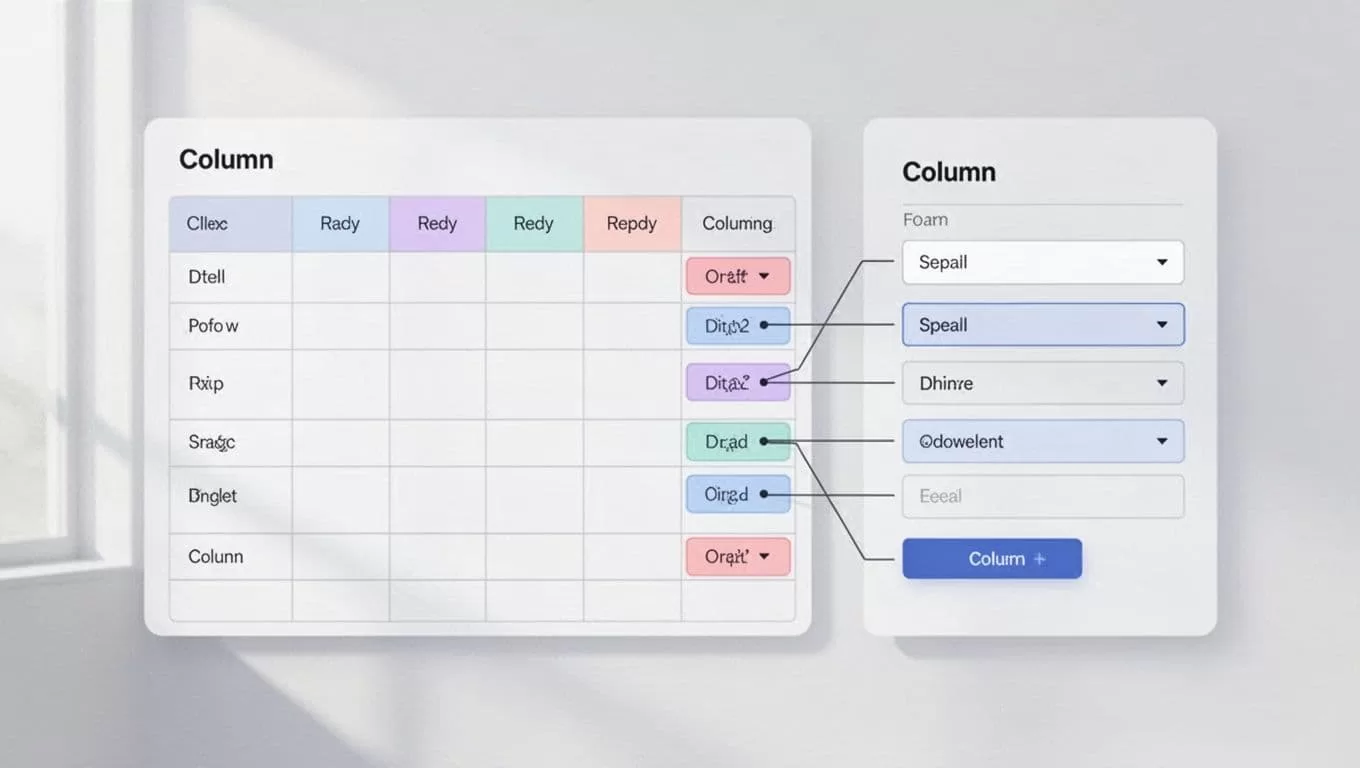
I also watch out for fields Airtable cannot use the way I expect. Formula fields, lookup fields, and rollups are usually for displaying data, not receiving it from a form. If I need those values, I let Airtable calculate them after the record lands.
For more context on the Airtable side, I sometimes keep Airtable’s multi-step record update guide open while I build the Zap. It helps when I want to update an existing record instead of creating a new one.
Test every run before I trust it
I never turn on a form-to-Airtable Zap without a live test. A sample record from Zapier is useful, but a real submission tells the truth. I submit the form myself, then I check the record in Airtable.
If the row appears with the wrong date, I fix the date format. If a select field comes through blank, I compare the form label with the Airtable option. If an attachment fails, I check whether the form tool passes files in a format Airtable can store.
The most common mistakes I see are simple:
- Mismatched field types: text mapped into a date, number, or select field.
- Duplicate records: I create new rows when I should search first.
- Failed runs: a required field is blank or the form app changed its output.
- Wrong table: the Zap writes to a test table, not the live one.
When I need to avoid duplicates, I add a Find Record step before Create Record. If the record exists, I update it instead. Airtable’s multi-step setup is best for this. If the form tool gives me a unique submission ID or email address, I use that as my match point.
I also check Zapier’s task history after the first few runs. If something fails, I fix the field mapping, then I rerun the task. That habit keeps the automation tidy.
When I add extra steps, I keep them small
Once the form data lands in Airtable, I sometimes add one more step. I might send a Slack alert, email a sales rep, or tag the record by source. In April 2026, I can also add Zapier AI steps to clean a note or summarize a message before it reaches Airtable.
If I need richer company data, I sometimes pair the form flow with no-code web scraping tool Browse AI and add those details to the same Airtable record later. That works well when the form gives me a company name, but not much else.
I keep these extras light. The more steps I add, the more places something can fail. A clean form submission should move like water, not crawl through a maze.
A good form-to-Airtable setup gives me one place to work and one record to trust. When I choose the right trigger, match the fields carefully, and test with real data, the Zap becomes boring in the best way. That is what I want from automation, quiet, reliable, and ready when the next form comes in.
