Automate Member Check-Ins Safely With Twin.so
Missed member check-ins create blind spots for community managers and customer success teams. To automate member check-ins can reduce repetitive outreach, but a bot that contacts people without clear consent creates a new support problem. T...

Missed member check-ins create blind spots for community managers and customer success teams. To automate member check-ins can reduce repetitive outreach, but a bot that contacts people without clear consent creates a new support problem.
Twin.so may fit this workflow because it connects agents to tools, websites, triggers, and repeatable tasks. The safe design starts with clear data limits, respectful messaging, controlled automation, and a human path for anything sensitive.
What Twin.so Can and Cannot Do for Member Check-Ins
A member check-in usually has several moving parts. The system identifies who is due for contact, retrieves approved member data, sends a message, records the response, and decides whether follow-up is needed.
Based on Twin’s current product information, Twin.so is a general AI agent automation platform rather than a dedicated membership check-in product. Its product description focuses on agents that work across connected applications, Slack, Gmail, websites, and business systems.
Twin says its agents can use tools, follow triggers, and execute repeatable tasks. The platform also describes browser automation for multi-step website workflows, including authenticated pages and dynamic forms. These capabilities could support a check-in process when your membership platform or CRM doesn’t provide the exact workflow you need.
That distinction matters. Don’t assume Twin.so provides a native member database, built-in consent center, or automatic safeguarding system. Your team must define those controls and verify every connection before sending live messages.
Twin’s no-code automation material explains the general setup model. You describe the result you want, connect the required tools, and configure the agent’s execution rules. The check-in policy still comes from your organization.
| Twin.so capability | Potential check-in use | Control your team must own |
|---|---|---|
| Natural-language agent setup | Describe when a member should be contacted | Review the instructions before activation |
| Scheduled or event-based triggers | Start a check-in after a defined milestone | Set frequency limits and quiet hours |
| Browser automation | Work inside a portal or membership website | Use an approved account with limited access |
| Connected apps and tools | Read status or record an outcome | Send only the minimum required fields |
| Agent and run context | Review completed and failed actions | Keep records only for the required period |
Use Twin.so as an execution layer. Keep membership policy, consent rules, escalation criteria, and retention decisions in your operating process.
How to automate member check-ins with Twin.so
Start with the workflow design before you create an agent. A short written policy prevents vague prompts and uncontrolled actions.
-
Define the check-in event. Choose one clear trigger, such as seven days after onboarding, a scheduled program milestone, or a member-requested follow-up. Avoid triggers based on sensitive behavior unless you have a documented reason and valid permission.
-
Create a minimum data contract. List the fields the agent needs. This may include a member ID, preferred name, approved contact channel, timezone, consent status, last contact date, and assigned team owner. Keep the source data in your membership platform or CRM. Don’t copy an entire member profile into an AI prompt.
-
Write transparent message content. Tell members that the message is automated. State why you’re contacting them, how to stop future messages, and how to reach a person. A simple format works:
Hi, this is an automated check-in from [Community]. How is your membership going? Reply if you’d like help, or reply STOP to pause these messages. A team member will review requests that need personal support.
-
Configure the action sequence. Describe the exact order of operations. The agent should check eligibility, confirm consent, verify the quiet-hour rule, send the approved message, and record the result. Limit the first version to reading data, drafting messages, and recording outcomes. Add sending permissions only after testing.
-
Test with controlled accounts. Use test members and inspect every branch. Test missing consent, duplicate records, invalid contact details, expired logins, opt-out requests, empty responses, and urgent language. Confirm that a failed run doesn’t retry indefinitely or send duplicate messages.
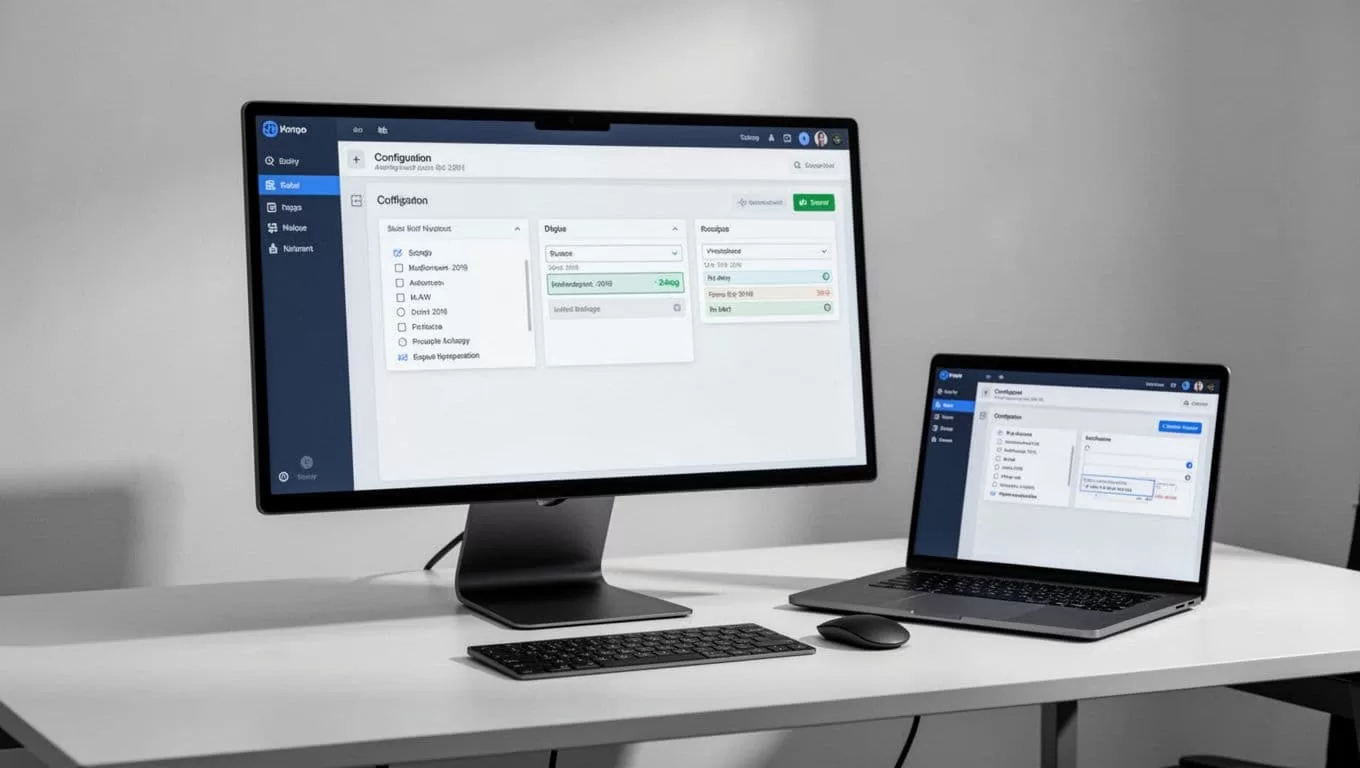
Keep the first deployment in draft or approval mode if Twin.so and the connected tools support that configuration. Review the output for several cycles before allowing automatic sends.
The workflow should also have a stop condition. Once a member opts out, reaches the maximum contact count, or receives human support, the agent must stop contacting that person.
Protect Consent, Privacy, and Member Preferences
Consent isn’t a one-time checkbox. A member may agree to email but reject direct messages. They may accept monthly updates but not weekly check-ins. Store those preferences separately instead of treating consent as a single yes-or-no value.
Before launch, document five points:
- Which channel is approved for the check-in.
- How often the member may receive one.
- Which hours are acceptable in the member’s timezone.
- What information the system stores.
- How the member can opt out or request human support.
Don’t treat silence as approval. A member who doesn’t respond hasn’t confirmed that everything is fine. Set a contact limit, stop after that limit, and avoid escalating the same message across multiple channels without permission.
Privacy controls also need to cover the agent’s access. Use a dedicated service account when possible. Grant access only to the membership records, forms, and communication tools required for the workflow. Keep passwords, API keys, private notes, and unrelated member history out of prompts and message templates.
If a browser workflow requires login access, confirm that the account is authorized to perform the task. Review the website’s terms and your internal security policy. Browser automation can complete steps, but it doesn’t remove your responsibility for access control.
Store the supporting material in a structured workspace. Separate check-in policies, approved templates, escalation rules, and run records by program or membership group. This reduces context switching and gives operators one place to review changes.
Keep the original member response with its timestamp and the action taken. A generated summary can support weekly review, but it shouldn’t replace the source message when a complaint or safety issue needs investigation.
Route Risky Responses to a Human
Automated check-ins should handle routine status collection. They shouldn’t make final decisions about safety, care, disputes, or sensitive support needs.
Create a human-review path before the first live run. Route responses that mention self-harm, threats, abuse, discrimination, medical concerns, legal action, billing disputes, urgent access problems, or a request for accommodation. Also escalate angry, confusing, or incomplete responses when the agent can’t determine the member’s intent.
Treat automated classification as triage, not diagnosis. If the system isn’t confident that a response is routine, send it to a person. Don’t instruct the agent to argue with a member, dismiss a complaint, or promise a resolution that your team hasn’t approved.
The human reviewer needs enough context to act without searching across several systems. Pass the member ID, original response, consent status, trigger that started the check-in, actions already taken, and the assigned owner. Keep the information limited to what the reviewer needs.
Pause further automated outreach when a case enters human review. Duplicate messages can make a sensitive situation worse. The agent can acknowledge receipt with approved language, but it should avoid giving a response deadline unless your team can meet it.
Twin’s operations automation page describes use cases such as ticket triage, tool synchronization, and reporting. Those patterns are relevant to check-ins, but the escalation policy must come from your support operation. Configure the workflow so a human owns the exception.

A useful handoff record answers three questions:
- What did the member say?
- What did the automation do?
- What must the human decide or complete?
That record supports faster review and makes post-incident analysis possible.
Measure Service Quality, Not Message Volume
More automated messages don’t prove that the workflow works. Track whether the right members receive the right message under the right conditions.
Review delivery rate, response rate, opt-out rate, duplicate sends, failed runs, and human escalations. Add the time between escalation and human ownership. Track unresolved cases by age so they don’t disappear inside a completed-run report.
Review results by cohort, channel, and trigger. A high response rate may indicate useful outreach, but it may also reflect messages sent too often. A low response rate may indicate poor timing, a wrong channel, or unclear copy.
Run a weekly sample review during the first month. Compare the agent’s decision with the outcome a trained operator would have chosen. Update the prompt, permissions, or escalation rules when you find a repeated error.
Keep an audit trail for trigger time, consent check, message version, response, action, and reviewer. Delete old records according to your retention policy. Don’t keep personal responses forever because storage is easy.
Conclusion
Twin.so can support automated member check-ins through agents, triggers, connected tools, and browser-based tasks. It shouldn’t be treated as the owner of consent, privacy, or member support policy.
The safest workflow checks permission before every contact, collects limited data, respects channel and frequency preferences, and stops when a human needs to take over. Start with draft actions, test edge cases, and expand access only after the run history matches your operating rules.
Automate the routine. Keep responsibility human.
