Vehicle History Check Automation With Twin.so
A vehicle history check becomes expensive when every VIN waits in a shared inbox. Vehicle history check automation moves that work into a controlled workflow that starts when a vehicle is submitted and ends when the right person receives a...
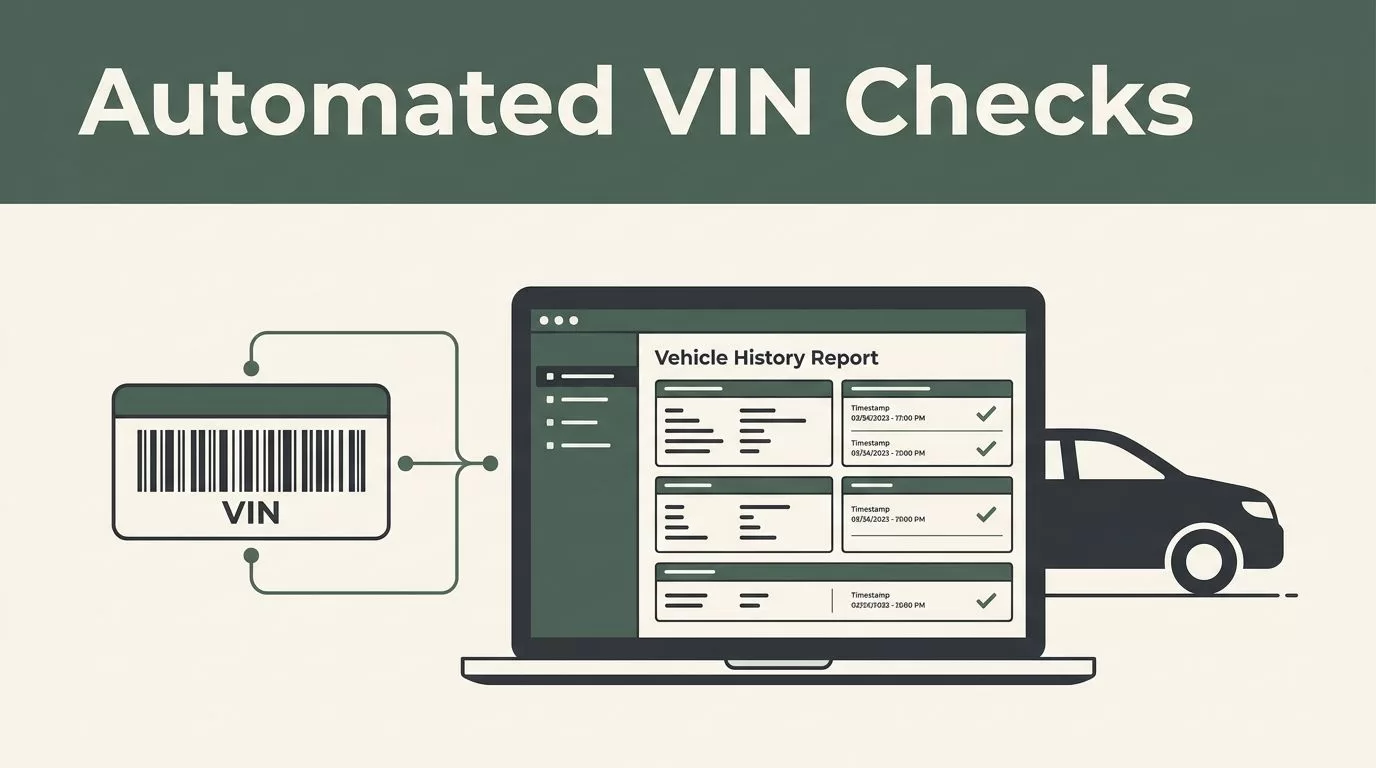
A vehicle history check becomes expensive when every VIN waits in a shared inbox. Vehicle history check automation moves that work into a controlled workflow that starts when a vehicle is submitted and ends when the right person receives a clear result.
Dealerships, fleet teams, marketplaces, lenders, and insurers all face the same process problem. Staff collect VINs, log into provider portals, download reports, copy details into a CRM, and chase exceptions manually. Twin.so can connect those steps into one repeatable process.
The goal isn’t to remove human judgment. The goal is to reserve human attention for records that actually need review.
Why manual vehicle checks create operational delays
A manual history check usually looks simple. An employee receives a VIN, opens a provider website, submits the number, waits for a report, saves the result, and updates another system.
That process breaks down at volume. A team handling a few checks each week can manage the work manually. A dealership group or vehicle marketplace may process hundreds or thousands of submissions across several locations.
Common problems include:
- VINs copied incorrectly between systems.
- Duplicate requests for the same vehicle.
- Reports saved without a consistent naming standard.
- Results sent to the wrong sales or underwriting team.
- Missing records when a provider returns no match.
- Delays caused by portal logins, slow pages, or manual downloads.
- No reliable audit trail showing who requested or reviewed a report.
These problems affect more than administrative efficiency. A delayed history check can hold up a vehicle purchase, listing approval, financing decision, insurance review, or customer response.
You also need to separate the data tasks involved. VIN decoding identifies vehicle details. A history report may contain title events, damage records, odometer entries, registration information, or other provider-specific data. The available fields depend on the source, location, vehicle, and provider agreement.
Resources such as this guide to car database APIs can help your technical team compare the data access methods available before you build a workflow.
Twin.so fits after that evaluation. It can coordinate the process across apps, APIs, spreadsheets, CRMs, and browser-based portals.
What Twin.so adds to vehicle history check automation
Twin.so is an AI workflow and agent platform. You describe the desired outcome, connect the required tools, and configure how the agent should run.
The platform supports manual execution, scheduled runs, and event-style triggers. That gives you several ways to start a vehicle check:
- A staff member submits a VIN through a form.
- A new CRM record triggers a request.
- A spreadsheet row starts a review.
- A webhook sends vehicle data from an inventory or marketplace system.
- A scheduled agent checks a queue for unprocessed vehicles.
Twin.so uses APIs where they are available. Its browser automation can also interact with websites and portals when a suitable API isn’t available. This matters because vehicle data providers don’t all expose the same technical interface.
For example, a workflow could call a history provider through an API. If a required step exists only inside a web portal, the agent may open the site, authenticate through the approved process, submit the VIN, retrieve the result, and continue the workflow.
That browser capability needs controls. You should not treat it as permission to bypass access restrictions, provider terms, CAPTCHA systems, or account security controls. Confirm that every automated action is allowed by the provider.
Twin.so can also use context when a step fails. A workflow may retry a temporary page error, pause when a required field is missing, or route an unusual result to a person. These controls are more useful than a workflow that fails silently after one bad response.

Build a vehicle history check automation workflow
Start with one process. Don’t automate every vehicle operation at once. Choose a high-volume workflow with a clear input, a defined provider, and a known destination for the result.
A practical Twin.so workflow can follow these steps.
1. Capture and validate the VIN
The workflow begins when a user or system submits a vehicle record. Capture the VIN, stock number, source location, requester, and any customer or application reference.
Validate the VIN before sending it to a provider. Check the expected character count, remove spaces, and reject invalid characters. Keep the original submission in the record so staff can compare it with the cleaned value.
You can also use registration documents as an input source. An OCR service such as this vehicle registration OCR API can extract fields before the workflow sends the vehicle data for verification. Treat OCR output as unverified until the VIN passes validation.
2. Check for an existing result
Before creating a new request, search your CRM, database, or shared workspace for a recent report tied to the VIN.
Set a defined reuse period based on your operation and provider rules. A vehicle marketplace may need a fresh check before every listing decision. A fleet team may reuse a result during a short acquisition review. Don’t create duplicate provider charges when an acceptable report already exists.
Store a request ID and timestamp for each check. These fields help you track status and identify duplicate submissions.
3. Submit the history-check request
Twin.so can send the validated VIN to the selected provider or operate the approved provider portal. Pass only the fields required for the request.
The workflow should record the provider response, report URL or file location, status, and timestamp. Use a consistent storage path such as:
/vehicle-history/{year}/{month}/{VIN}/
Avoid placing sensitive customer information in filenames. Keep vehicle identifiers and customer records separate when your privacy policy requires it.
If you use a connector-based workflow, a service such as CarsXE API integration for automation shows how vehicle data requests can connect with downstream notifications and sharing steps.
4. Normalize the result
Providers return different response structures. One may return a PDF. Another may return JSON fields. A third may return a portal page that requires review.
Create a standard internal record with fields such as:
- VIN and stock number.
- Provider name and request timestamp.
- Report status.
- Title or registration warning.
- Damage or loss indicator.
- Odometer inconsistency indicator.
- Open recall or inspection flag, if provided.
- Report file or source link.
- Human review status.
Don’t treat a missing field as a clean result. Use separate values for “clear,” “flagged,” “not found,” and “unable to verify.” That distinction prevents staff from confusing a provider limitation with a positive history result.
5. Route the result
Send completed records to the correct destination. A dealership may update inventory software and notify the sales manager. A lender may attach the report to an application. An insurer may route a flagged vehicle to an adjuster or underwriting queue.
Twin.so can update connected systems and send notifications through the tools your team already uses. The notification should include the vehicle reference, status, report location, and next action.
Don’t send the full report to every recipient by default. Limit access according to the user’s role and the information contained in the report.
Route results and handle exceptions
A reliable workflow needs an exception path before it goes live. Vehicle data is incomplete by nature. Providers can return no records, conflicting fields, unavailable reports, or temporary errors.
Set clear rules for each outcome:
| Workflow outcome | Recommended action |
|---|---|
| Valid report with no configured flags | Store the result and notify the requester |
| Damage, title, or mileage flag | Route to a designated reviewer |
| VIN fails validation | Return it to the submitter for correction |
| No provider match | Mark as unresolved and request a second source or manual check |
| Provider timeout or portal error | Retry within a limit, then create an exception |
| Duplicate request | Link to the existing result and stop the new request |
Use a human review queue for ambiguous results. Automation should not make a purchase, lending, insurance, or listing decision unless your organization has approved that rule and tested it against real records.
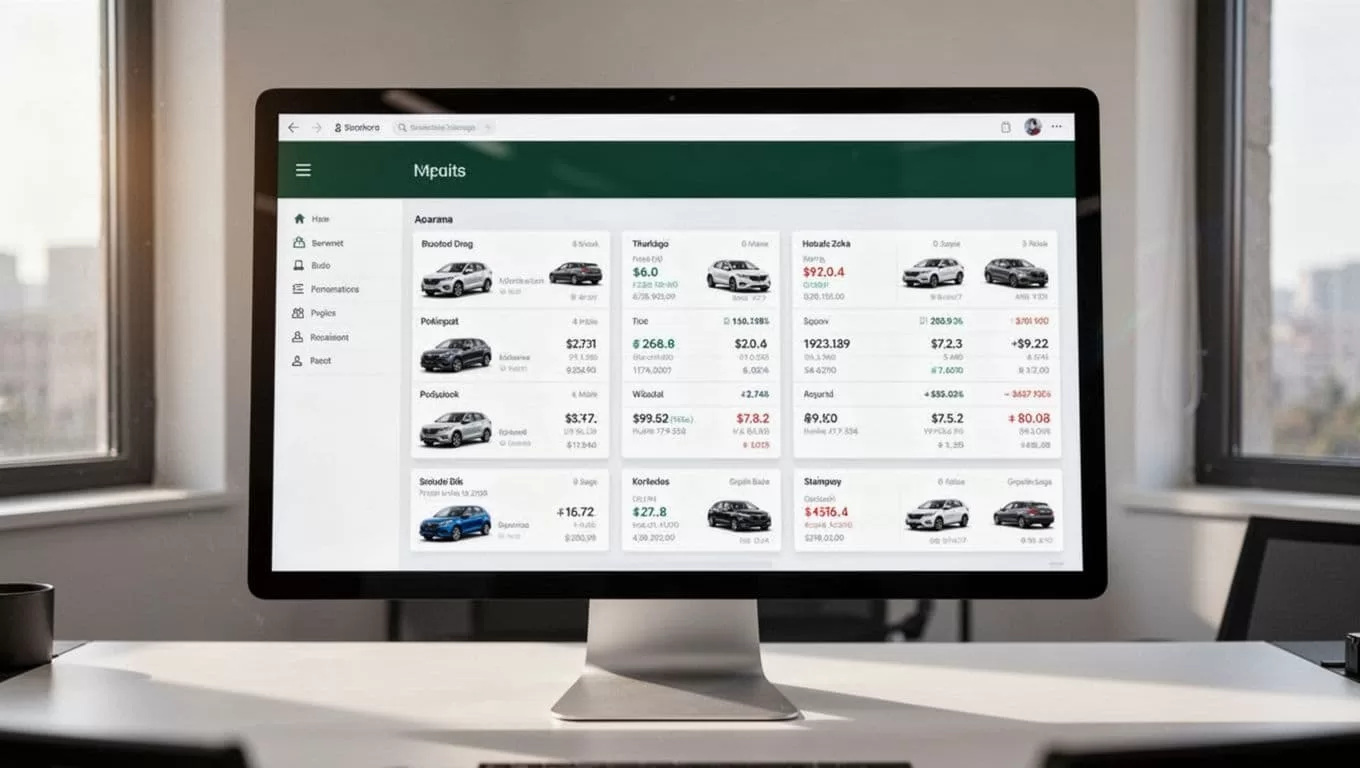
A good exception record explains what happened. Include the failed step, provider response, retry count, affected VIN, and assigned owner. Staff shouldn’t need to inspect every previous action to understand the problem.
A “no data” response is not the same as a clean history. Your workflow must keep those outcomes separate.
Add controls before connecting production data
Vehicle history workflows handle information that may identify a vehicle owner, applicant, customer, or business. Set access rules before your first production run.
Confirm the following with your legal, compliance, and data teams:
- The provider allows automated requests through its API, portal, or integration.
- Your organization has the required account and data-use permissions.
- Your retention period matches business and regulatory requirements.
- Reports are stored in an approved system with role-based access.
- Customer notices and consent requirements are addressed where applicable.
- Regional privacy, consumer reporting, insurance, lending, and motor-vehicle rules are reviewed.
- Audit records capture request time, source, result, reviewer, and final action.
Regional requirements can change the workflow. A lender may have stricter obligations than a dealership. An insurance team may need additional controls for claims and underwriting data. A marketplace operating across countries may need different providers and retention rules by region.
Use test records first. Confirm that the workflow handles invalid VINs, duplicate records, provider downtime, incomplete reports, and notification failures. Keep the first production rollout limited to one team or location.
Measure the workflow after deployment
Track operational results instead of relying on a general feeling that the process is faster.
Useful measures include:
- Average time from VIN submission to completed report.
- Percentage of requests completed without human intervention.
- Duplicate request rate.
- Provider error and timeout rate.
- Exception volume by failure type.
- Average time to resolve flagged records.
- Cost per completed check.
- Percentage of records with complete audit data.
Review the exception queue each week. Repeated failures often point to a validation rule, provider limitation, access problem, or unclear ownership.
You can also adjust the workflow by team. Sales may need a short status notification. Underwriting may need the full normalized record and report attachment. Operations may need a daily summary of unresolved checks.
Keep the workflow modular. Separate input validation, provider requests, result storage, decision rules, and notifications. That structure makes it easier to replace a data source or change a CRM without rebuilding the entire process.
Conclusion
Manual vehicle checks create avoidable delays when every request depends on a person copying data between systems. Vehicle history check automation gives your team a repeatable path for validation, provider requests, result storage, routing, and exception handling.
Twin.so is a practical fit when your process crosses multiple tools or includes browser-based provider portals. Start with one high-volume workflow, verify provider permissions, protect sensitive data, and keep final judgment with the right human reviewers.
A well-built workflow doesn’t hide uncertainty. It records it, routes it, and gives your team a clear next action.
