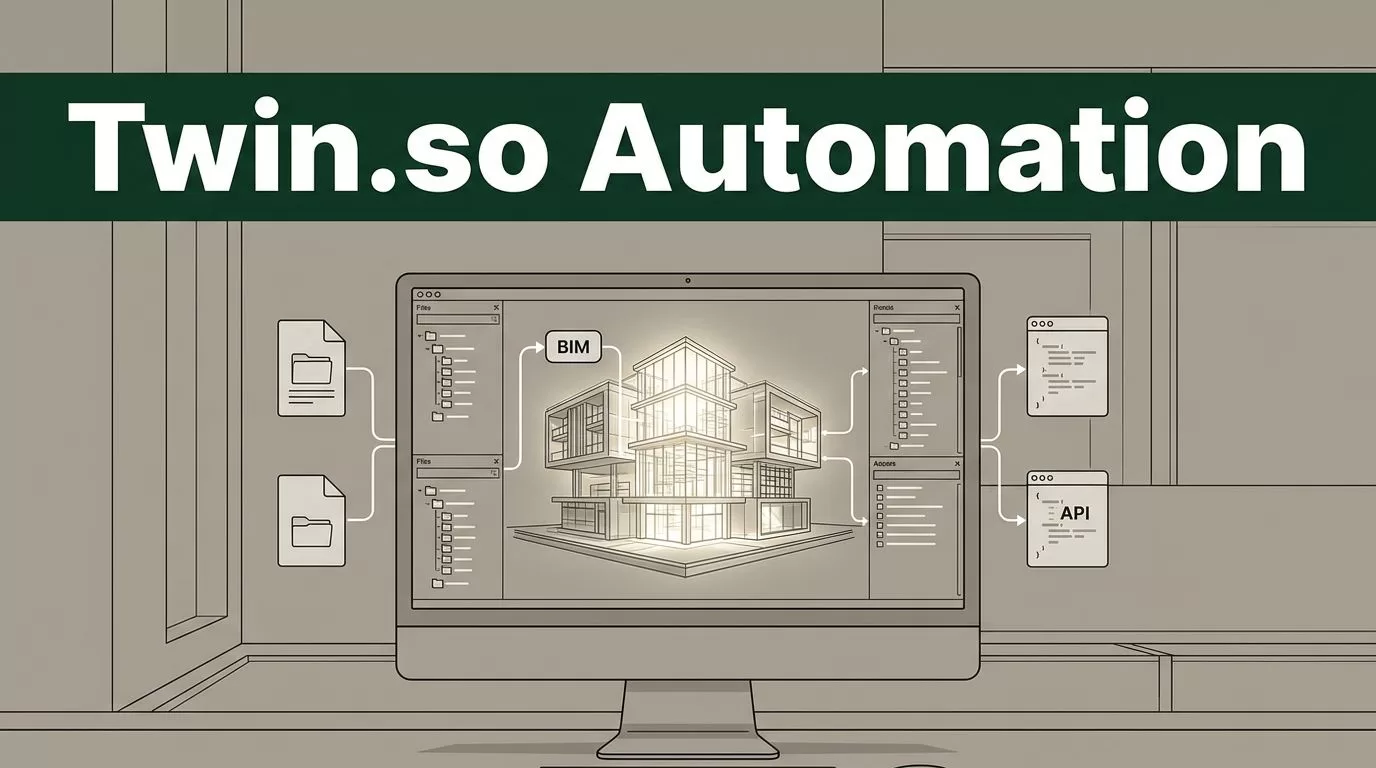
Architecture firms rarely lose time on one difficult BIM action. They lose it on hundreds of small handoffs. That is where architectural software automation with Twin.so can help, if you use it as an operations layer rather than a replacement for Revit or a BIM platform.
Twin.so can coordinate browser and API work across the tools your team already uses. It can collect data, create records, move files, check workflow conditions, and report exceptions. The right deployment starts with one narrow process, clear permissions, and a human approval point.
Architectural software automation with Twin.so
Twin.so is an AI-agent automation platform. It turns a plain-language outcome into an agent that can use connected tools, browse websites, follow instructions, run on schedules, and respond to webhooks. The Twin.so product overview positions the platform around business automation across applications and websites.
That makes it useful for the work around architectural software. It can support project intake, document routing, data collection, status reporting, and coordination between systems. It doesn’t replace a BIM authoring environment.
Current product information doesn’t establish Twin.so as a native Revit, Archicad, Rhino, SketchUp, IFC validation, or clash-detection tool. You should treat direct model editing as unverified until your team tests a supported connector, API, browser workflow, or custom integration.
The distinction matters:
- BIM-native automation changes or checks model data inside a dedicated platform.
- Agent automation moves information between tools and completes repeatable operational tasks.
- Workflow orchestration connects the two, but only when the interfaces and permissions are confirmed.
Don’t confuse Twin.so with BIM-focused products such as BIMcollab Twin, Autodesk Tandem, Bentley iTwin, or Nemetschek dTwin. Those products target model, asset, or digital-twin management. Twin.so targets agent-based work across apps and websites.
Keep geometry operations inside a BIM-native tool. Use Twin.so to manage the inputs, handoffs, approvals, and reporting around that operation.
For background on how AI, automation, and digital twins are being combined in architectural BIM workflows, see this overview of BIM automation and digital twins.
Map the workflow before you build the agent
Start with a process map. Don’t begin by asking an agent to “automate BIM.” That instruction is too broad to test, secure, or measure.
Choose a task that repeats often and has a clear output. Good candidates include project intake, document registers, consultant follow-ups, folder checks, and QA reporting. Avoid starting with model publishing, contract decisions, or irreversible file changes.
Define five parts:
- Trigger: Identify what starts the workflow. This could be a new form, uploaded file, changed status, scheduled time, or webhook.
- Inputs: List the files, fields, links, and records the agent can use.
- Actions: Write each required operation in order. Include where the agent should read, write, search, or notify.
- Decision points: State what happens when data is missing, a file is duplicated, or a system returns an error.
- Output: Define the final record, message, report, task, or exception list.
A useful first workflow might be: “When an approved project package arrives, read the file manifest, compare it with the required naming and revision fields, create a review item for missing data, and notify the BIM manager. Don’t publish or overwrite files without approval.”
That is a practical architectural software automation target. It has a trigger, known inputs, limited actions, and a review gate.
Configure Twin.so for AEC operations
Build the agent around the workflow map. Twin’s agent builder is designed for natural-language instructions, so describe the business result first. Then define the tools, data sources, triggers, and approval rules the agent needs.

Twin can work through APIs and browser automation. An API connection is usually easier to control because it exposes structured records and predictable permissions. Browser automation is useful when a required system has no usable API, but it needs more testing because page layouts, login prompts, and form fields can change.
Set up the deployment in this order:
- Create the agent with one defined outcome.
- Connect only the applications required for that outcome.
- Give the agent the lowest permission level that still allows the task.
- Add a schedule or webhook after the manual test works.
- Set an approval step before publishing, deleting, sending, or overwriting anything.
- Record the agent’s inputs, actions, output, and exceptions.
Twin’s product material says agents can plan tool calls, recover from routine workflow changes, retry failed steps, and surface exceptions. Treat those capabilities as testable behavior, not a reason to remove human review.
Run the first tests with duplicate project data or a sandbox environment. Use three cases: a complete package, a package with missing fields, and a package with an incorrect revision. The agent should produce the expected result for all three.
Check every proposed connector before you design around it. The fact that a platform can automate browser work doesn’t confirm that it can safely edit a Revit model, read a proprietary project database, or publish to your document-management system.
Apply automation to real architectural workflows
Repetitive modeling and model preparation
The safest use of Twin.so around repetitive modeling is model preparation, not uncontrolled geometry creation.
An agent can collect approved room data, check naming fields, compare a schedule with a project register, create model-prep tasks, and pass structured inputs to an approved script. If your firm has a verified Revit API, Dynamo, Grasshopper, or Archicad automation connection, Twin.so may coordinate the surrounding steps. Confirm the integration before promising direct model changes.
For example, an approved room schedule could trigger a workflow that checks room IDs, identifies missing areas, compares the revision against the previous register, and creates a task for the BIM technician. The technician or a dedicated BIM script then handles the model update.
This keeps the agent focused on repeatable data work. It also gives the BIM team a clear review point before geometry changes enter the production model.
Documentation and submittal control
Documentation workflows contain many small checks. An agent can monitor an approved folder, read available file metadata, compare sheet names against a register, and identify missing revisions.
It can also prepare a transmittal draft, collect consultant status updates, create follow-up tasks, and notify the right project contact. If the process requires reading PDF content, test how Twin handles your drawing format, title blocks, multi-column text, and scanned documents.
Don’t allow the agent to approve a drawing based only on a filename. A filename check can confirm that a file is present. It cannot confirm design quality, coordination, code compliance, or the accuracy of a drawing unless a dedicated validation system performs that check.
File management and QA reporting
File management is a strong starting point because the rules are often explicit. You can define approved folder structures, naming conventions, status values, and revision patterns.
A workflow can identify duplicate files, flag missing metadata, compare folder contents with a project register, and return an exception report. If the required API or browser access is available, it can also create tasks in the project system or notify a document controller.

QA automation should focus on checks the agent can actually perform. Useful checks include:
- A required file exists in the expected location.
- A revision field matches the current register.
- A consultant submission includes the required metadata.
- An issue has an owner and due date.
- A review status changed after an approval event.
- A link, record, or upload returned an error.
Twin.so should not report that a model passed clash detection, IFC validation, or design review unless a dedicated tool performed that test and returned a verifiable result.
Control cost, security, and rollout
Measure the workflow before you automate it. Record the average completion time, manual touches, correction time, exception rate, and number of files or records processed each week.
After deployment, compare those figures with the agent’s results. Add failed runs, duplicate actions, approval delays, and cost per successful run. A faster workflow that creates more correction work is not a successful deployment.
Twin uses credits for actions such as building, running, browsing, researching, and generating output. Its current pricing documentation lists these monthly examples:
| Monthly credits | Listed price |
|---|---|
| 2,000 | $20 or EUR 20 |
| 5,000 | $50 or EUR 50 |
| 10,000 | $95 or EUR 95 |
| 20,000 | $189 or EUR 189 |
| 50,000 | $463 or EUR 463 |
Twin also states that new users receive 1,000 credits, while the 14-day trial adds 200 credits per day, up to 3,600 credits across the trial. The documentation gives approximate usage ranges of 15 to 30 credits for a simple automation, 20 to 70 credits for scraping about 100 items, and 100 to 200 credits for a browser session of around 20 steps. Pricing and usage rules can change, so verify the current plan before approval.
The deployment should also follow your firm’s security policy. Don’t place passwords, API keys, or confidential project data inside free-form instructions. Use controlled connections, separate test and production access, and restrict agents from deleting or publishing files without approval.
Count manual correction time in every pilot. Credit usage is only one part of the operating cost.
Start with one workflow and one team. Run it manually beside the agent for several cycles. Review every exception, tighten the instructions, and remove unnecessary permissions. Expand only after the result is predictable.
Conclusion
Twin.so can support architectural software automation when the work crosses applications, websites, forms, files, and project systems. It is not a substitute for BIM authoring, model coordination, or specialist QA software.
Choose a narrow workflow with a measurable output. Use Twin.so for intake, data movement, file checks, notifications, and handoffs. Keep model edits and technical approvals in the tools and teams responsible for them. That division gives AEC firms automation without losing control of the production model.