How I Set Up SPF DKIM and DMARC in Google Workspace
Gmail trusts mail from your domain when three DNS records tell receiving servers the message is real. Those records are Google Workspace SPF DKIM DMARC. Set them up before you touch filters, warm-up tools, or sending volume. The order is si...
Gmail trusts mail from your domain when three DNS records tell receiving servers the message is real. Those records are Google Workspace SPF DKIM DMARC. Set them up before you touch filters, warm-up tools, or sending volume.
The order is simple. Publish one SPF record at your DNS host. Generate a DKIM key in the Admin console and publish the key in DNS. Wait, then add a DMARC policy. This guide covers each record, the order, testing, common errors, and Gmail sender rules. Facts come from the official Google help pages checked in October 2026. Confirm values in your own Admin console before you save anything.
What Each Record Does
| Record | Job | Where you create it |
|---|---|---|
| SPF | Lists the servers allowed to send mail for your domain | TXT record at your DNS host |
| DKIM | Adds a signature to outgoing mail so receivers can verify the message | Key made in Google Admin, TXT record at your DNS host |
| DMARC | Tells receivers what to do when SPF and DKIM checks fail and where to send reports | TXT record at your DNS host |
Google Admin helps you create the DKIM key. The records themselves live at your DNS host. The host may be Cloudflare, GoDaddy, Squarespace, or another registrar.
Gmail Sender Rules in 2026
Google publishes email sender guidelines with requirements since February 1, 2024. Read the summary below and then check the page for updates.
Rules for all senders
- Set up SPF or DKIM for the sending domain.
- Keep valid forward and reverse DNS records for sending domains or IPs.
- Use TLS for email transmission.
- Keep the spam rate in Postmaster Tools below 0.3 percent. Aim for below 0.10 percent.
- Format messages according to RFC 5322.
Extra rules for 5,000 or more messages per day
- Set up SPF, DKIM, and DMARC. A DMARC policy of none is acceptable.
- Align the From domain with the SPF domain or the DKIM domain.
- Support one-click unsubscribe on marketing and subscribed messages and show a clear unsubscribe link in the body.
Small senders gain from the same records. Even a small domain can be spoofed.
Before You Touch DNS
DNS works like the fuse box in an old house. Flip the wrong switch and one room goes dark. Check two things first.
- Find your DNS host. Confirm who controls the domain records and sign in to the panel.
- List every sender. Include Gmail, newsletter tools, CRMs, billing tools, and help desks. Each service sending as your domain needs SPF coverage or its own authenticated custom domain.
Google recommends making sure third party services pass SPF and DKIM before you enable DMARC. The Google authentication overview explains the basics.
Step 1: Set Up SPF
Create a TXT record at the root of your domain. Use the at sign as the host, or leave the host blank if your DNS panel requires. For a subdomain, enter the subdomain name. Each subdomain needs its own SPF record.
When Google Workspace is your only sender, Google gives this value:
v=spf1 include:_spf.google.com ~all
Google recommends the soft fail qualifier ~all. The qualifier tells receivers to mark mail from unlisted senders as spam. Some hosts need the value wrapped in quotes.
Add other senders inside the same record. Google gives the example of adding include:amazonses.com for Amazon SES. Publish one SPF record per hostname and merge all senders into one line. An SPF record can hold up to 10 include tags according to Google.
SPF can take up to 48 hours to start working, according to the Google SPF help page.
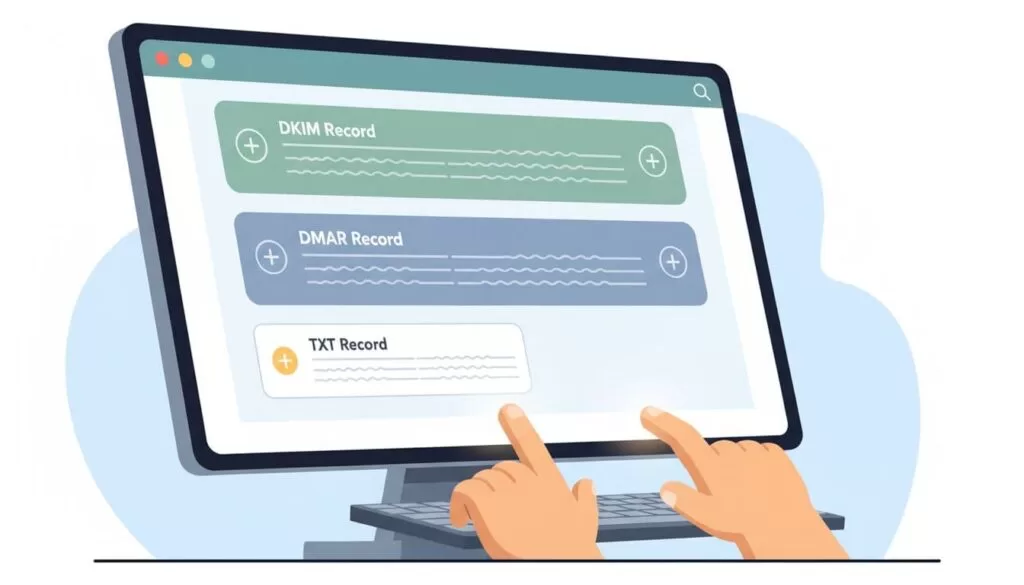
Step 2: Set Up DKIM
DKIM needs the exact key from your Admin console. Do not copy a key from a guide or a sample.
- Sign in to the Admin console as a super administrator.
- Open Menu, Apps, Google Workspace, Gmail, then Authenticate email.
- Select your domain and click Generate new record.
- Choose a 2048 bit key when your provider supports 2048 bit keys. Choose 1024 when your host does not.
- Keep the default selector prefix google unless your domain already uses a DKIM key with the same prefix.
- Copy the DNS host name and the TXT record value. The value starts with v=DKIM1.
- Add the TXT record at your DNS host.
- Return to Authenticate email, select the domain, and click Start authentication.
Do not click Start authentication during key generation. Click the button only after the TXT record is live. Without the last click, Google does not sign outgoing mail. When setup works, the page shows Authenticating email with DKIM.
The DKIM value contains several parts separated by semicolons. Paste the full value exactly as the Admin console shows the value. Some domain providers limit TXT record length, so check the character limit if the key is rejected. Squarespace domains receive the key automatically.
DKIM timing
- After you turn on Gmail, wait 24 to 72 hours before you can get a DKIM key in the Admin console.
- After you add the key to DNS, allow up to 48 hours for authentication to start working.
- The Admin console may show a DNS update message for up to 48 hours. Ignore the message when the key is correct.
Step 3: Set Up DMARC
Wait at least 48 hours after you set up SPF or DKIM. Then add DMARC. You change nothing in the Admin console. You add the record at your domain host.
Create a TXT record with the host _dmarc. The v tag and the p tag must come first. Other tags follow in any order. Separate tags with semicolons.
| Tag | Meaning | Notes from Google |
|---|---|---|
| v | Version | Set to DMARC1 and place first |
| p | Policy | none delivers the message and sends reports. quarantine sends the message to spam. reject rejects the message. |
| rua | Aggregate report address | Prefix with mailto: and separate several addresses with commas |
| pct | Percent of failing mail the policy covers | Range 1 to 100 and default 100 |
| adkim | DKIM alignment | r for relaxed, the default. s for strict. |
| aspf | SPF alignment | r for relaxed, the default. s for strict. |
| sp | Subdomain policy | Subdomains inherit the parent policy when omitted |
Start with p=none. This setting lets you watch reports before you tighten policy. Move to quarantine and then reject over time. Raise pct in steps until the value reaches 100. Gmail does not support the ruf tag.
Pick a good report mailbox
Google recommends a dedicated mailbox or group for reports. Large organizations can receive hundreds or thousands of reports each day. If the report address sits on a different domain, add a record at the other domain. Create the mailbox before you publish the record.
Verify the Setup
Test from three places once the records are live.
- Send a message from Gmail to a Gmail or Google Workspace address. Open the original message and read the Authentication-Results header. Look for SPF pass, DKIM pass, and DMARC pass. Google notes you cannot verify DKIM by emailing yourself.
- Check the DKIM status in the Admin console.
- Run the domain through a free SPF, DKIM, and DMARC checker to catch syntax errors. Google suggests a free online tool after you save the DMARC record.
Senders with volume should also watch Google Postmaster Tools for the spam rate.

Common Errors and Fixes
| Problem | Likely cause | Fix |
|---|---|---|
| SPF fails | Two SPF records or a missing sender | Merge all senders into one record |
| DKIM fails | Record not live, wrong selector, broken key, or authentication not started | Recheck the host name and value and click Start authentication |
| DMARC fails with SPF pass | Return path domain does not align with the From domain | Set a custom return path in the sending tool |
| DMARC fails with DKIM pass | A third party tool signs with its own domain | Set up a custom DKIM domain in the sending tool |
| Record rejected | Smart quotes, stray spaces, or a split TXT value | Paste plain text and follow the host limits |
Bad addresses can also drag results down. Clean your lists with tools focused on email verification for sender reputation when inbox placement stays weak after authentication passes.
A Safe Rollout Plan
- Week one. Publish SPF and DKIM and confirm both pass.
- After 48 hours. Publish DMARC with p=none and a working report mailbox.
- Weeks two to four. Read reports and fix failing senders.
- Month two. Move to quarantine with a low pct value.
- Later. Raise pct to 100 and consider reject when reports stay clean.
Do not rush the move to reject. A forgotten sender can lose real mail.
FAQ
Should I use ~all or -all for Google Workspace SPF?
Google recommends ~all on its SPF help page and does not mention -all. Start with ~all and review your senders before any change.
How long does DKIM take to start working?
Google says allow up to 48 hours after you add the key to DNS. Resend a test message and read the headers.
Do I need DMARC for low volume?
Google requires DMARC for senders of 5,000 or more messages per day to Gmail. Smaller domains still benefit from reports and spoofing protection.
Can I make DKIM work without a DNS host login?
No. The TXT record lives at your DNS host. Ask the domain owner to add the record.
Where do I find the DKIM key?
Open Authenticate email under Gmail in the Admin console and generate the record for your domain.
Does DMARC need changes in the Admin console?
No. Google states you add the DMARC record at your domain host.
Conclusion
Set up Google Workspace SPF DKIM DMARC in the right order and mail feels calmer. Messages land cleaner, spoofing gets harder, and troubleshooting loses the fog. Start DMARC at p=none, verify every record, and tighten policy only after reports make sense. Confirm every value on the official Google pages before you save.
