How I Remove Metadata From Word Files Before Sending
One Word file can carry more than the page shows. If I send it too soon, I may pass along my name, company, comments, tracked edits, and other hidden details without meaning to. That risk grows when I’m sharing drafts, contracts, or c...

One Word file can carry more than the page shows. If I send it too soon, I may pass along my name, company, comments, tracked edits, and other hidden details without meaning to.
That risk grows when I’m sharing drafts, contracts, or client work. I clean the file first, then I check it again, because a document can look finished and still hide old information underneath.
What Word metadata can reveal about your file
When I strip metadata, I’m not chasing one single thing. I’m clearing the small traces that travel with the document.
The main items I look for are:
- Author name and company, which often live in document properties.
- Title, subject, and tags, which can describe the file more than I want.
- Comments and replies, which may expose internal notes.
- Tracked changes, including deletions and insertions.
- Hidden text and markup, which can sit in the file without showing on the page.
- Version history, when the file lives in OneDrive or SharePoint.
Accepting changes and deleting comments helps, but it doesn’t always clear every trace.
Microsoft’s official hidden-data instructions match the process I use. When I want a second reference, I keep this plain-English Document Inspector guide handy.
Remove metadata from Word files on Windows
On Windows, I use the built-in Document Inspector in desktop Word. The path is the same in Microsoft 365, Word 2021, and Word 2019, while older versions may place the command a step deeper in the File menu.
- I save a copy of the file with a new name.
- I open File > Info > Check for Issues > Inspect Document.
- I leave the categories selected that I want Word to scan.
- I click Inspect, then review each result.
- I choose Remove All for anything I don’t want to send.
- I save the cleaned copy, close it, and reopen it to confirm the file stayed clean.
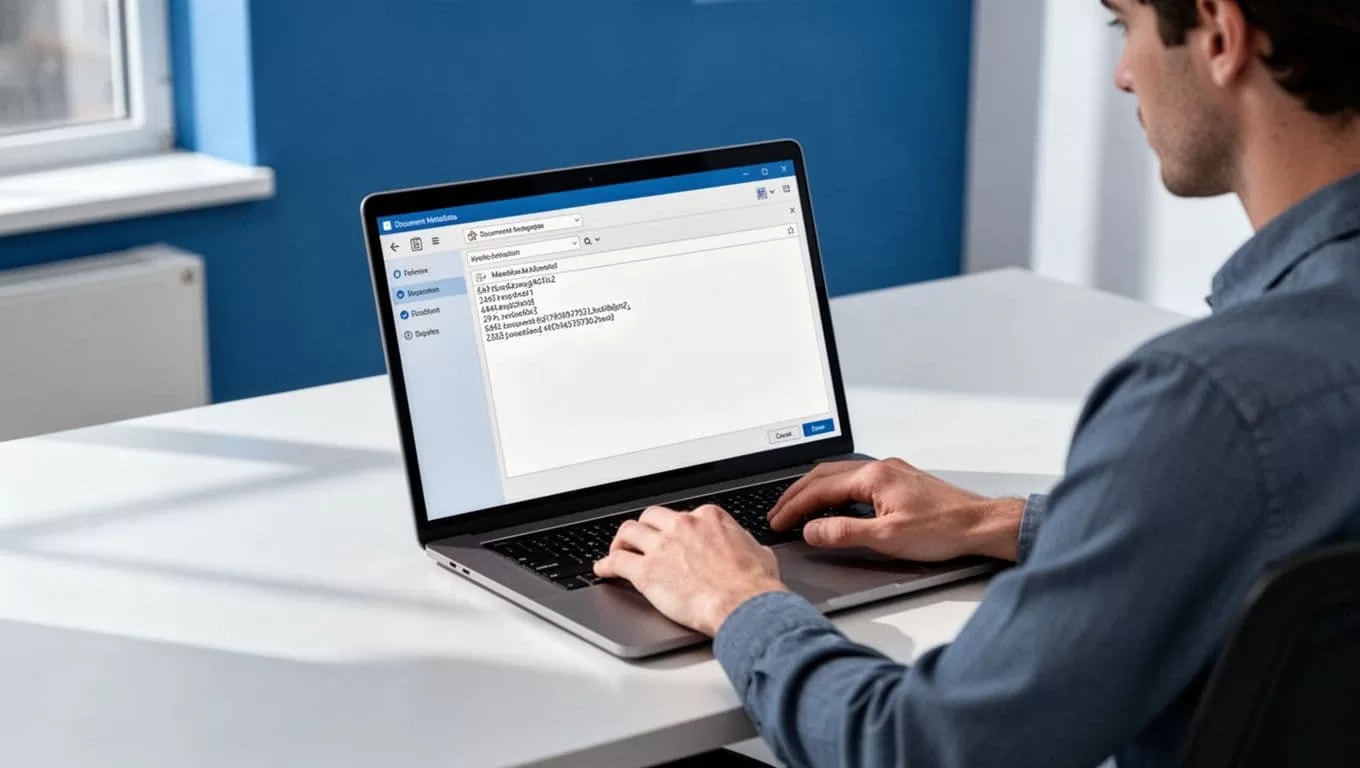
After that, I scan the document one more time. If I still see comments, tracked edits, or hidden text, I repeat the inspection before I share anything.
Clean a Word document on Mac
On Mac, I do the same cleanup in the desktop app. The menu labels can shift a little between Microsoft 365 and older releases, so I focus on the inspection tool itself, not the exact wording.
- I open the file in Word for Mac and save a duplicate first.
- I look under File or Tools for Document Inspector or Inspect Document.
- I run the inspection and let Word list the hidden items it finds.
- I remove the metadata and markup I don’t want to share.
- I save, close, and reopen the file to make sure the clean version is the one I send.
Word on the web doesn’t give me the same control, so I finish this job in the desktop app. That saves time later, especially when a client, partner, or regulator may review the file.
My final check before I send the file
A clean inspection is the start, not the finish. Before I email or upload a Word file, I run through one last pass.

- I confirm the author, company, title, and subject fields are empty or correct.
- I make sure comments, tracked changes, and hidden text are gone.
- I reopen the file and skim it like a stranger would.
- I check OneDrive or SharePoint version history if the file lived there.
- I save the final copy under a clear new name.
- I review the sharing path before I send it, and if I’m moving it through Drive, I also follow Google Drive sharing security best practices.
That last step matters because a cleaned file can still leak through loose sharing settings. I keep the file clean and the access tight.
Send the clean copy, not the draft
When I remove metadata before sending, I lower the chance of a stray name, old comment, or tracked edit slipping out. The process takes a minute, but it protects my work and the people reading it.
I treat the cleaned file as the only version worth sharing. Everything else stays in my draft folder, where it belongs.
