Client files get messy fast when drafts, proofs, and finals all land in the same place. I keep Dropbox client deliverables clean by giving every project the same path, the same naming rule, and the same handoff routine.
That way, I spend less time hunting for files and more time moving work forward. Clients also know where to look, which cuts down on the “Can you send that again?” emails that slow everything down.
Start with one folder tree for every client
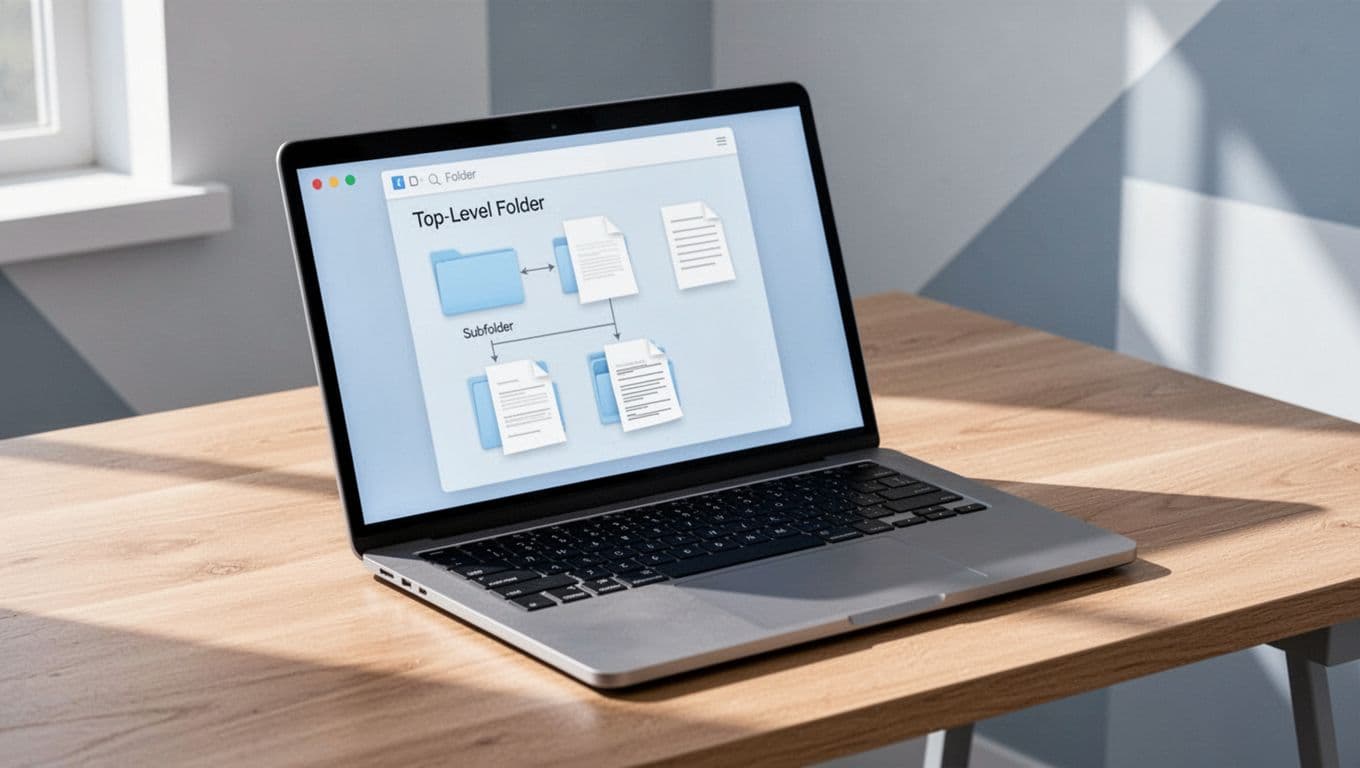
I never build a new structure from scratch for each job. Instead, I use one master folder tree and copy it for every client. That keeps my system easy to learn and easy to repeat.
Dropbox’s own Help article on organizing files and folders matches this approach well. Fewer top-level folders make the whole account easier to scan.
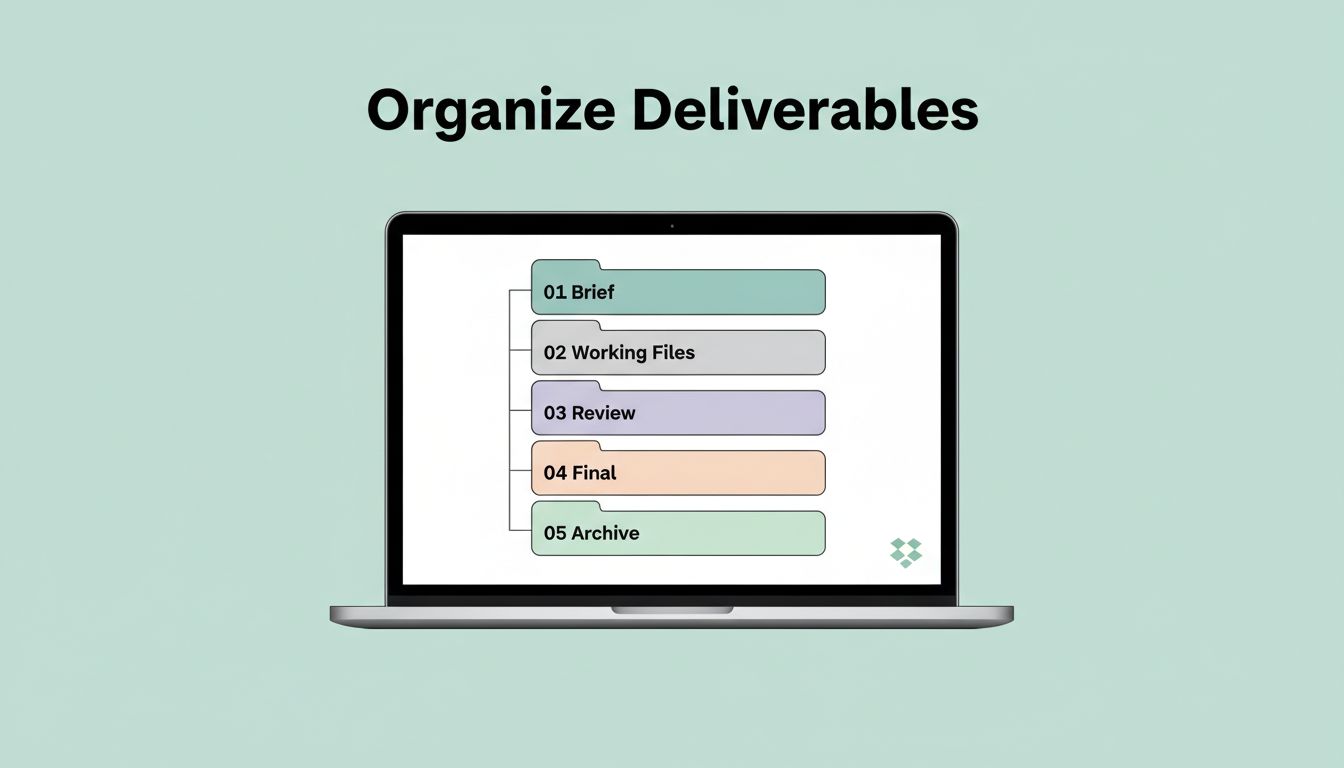
My standard folder tree looks like this:
- Clients
- Acme Co
- 01_Brief
- 02_Working Files
- 03_Review
- 04_Final
- 05_Archive
- Acme Co
The numbering matters. It keeps folders in order, even when Dropbox sorts things alphabetically.
I also keep the folder names boring on purpose. Clear beats clever every time. If I can explain a folder in one sentence, the name works.
Use file names that make version history obvious
A good file name saves me from opening five drafts to find the right one. I keep the same pattern across every client, because consistency beats memory.
My format looks like this: Client_Project_Deliverable_Stage_YYYY-MM-DD.ext
For example, I might save a file as Acme_WebsiteHome_Page_Final_2026-04-14.pdf.
That structure tells me four things at a glance:
- Who the file belongs to
- What the file is
- Where it sits in the process
- When I last touched it
Dropbox’s file organization system guide reinforces this same idea. The goal is to make files easy to track without opening them one by one.
I avoid names like final-final-2 or new version. Those names create confusion and duplicate work. If a file changes, I update the version or the date, then I leave the old copy in the review folder.
Set share permissions before you send a review link
Permissions matter just as much as folders. I keep clients in the review stage, not in the working stage, unless they need to edit files with me.
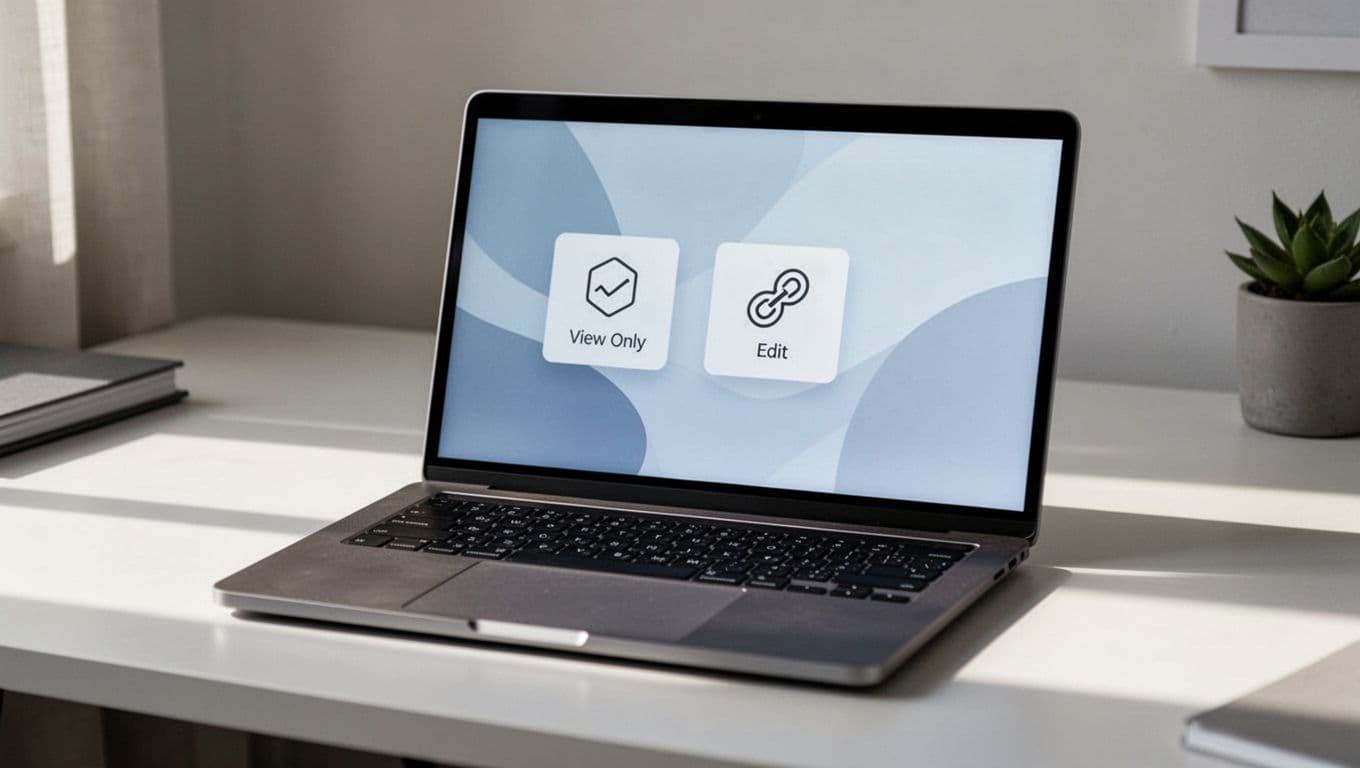
When I share a deliverable folder, I use view-only access for most clients and edit access for my team. That keeps the working files safe while feedback stays easy.
If a client can find one review folder fast, the rest of the handoff gets easier.
For this part, I like Dropbox’s folder sharing guide for teammates and clients. It’s a useful reminder that sharing should be narrow, not noisy.
I also separate review links from final delivery links. Review folders can hold comments, drafts, and side notes. Final folders should hold only approved files. That split keeps clients from opening the wrong file and guessing which one is current.
Make final delivery feel clean, not crowded
My final delivery step is short on purpose. I move approved files into the 04_Final folder, then I add a brief note that explains what changed and where the main file lives.
I like one folder link, one final version, and one clear message. Clients don’t want a scavenger hunt. They want the approved work in one place.
Dropbox’s client portal workflow ideas gave me a useful way to think about that handoff. A client should feel like the project is wrapped, not scattered.
I also keep an archive copy after delivery. That archive holds the final exports, any source files I may need later, and a dated snapshot of the approved package. If a client returns months later, I can rebuild the context in minutes.
Keep multiple clients consistent and reduce duplicates
The easiest way to stay organized across many clients is to copy the same system every time. I use one template folder, then rename it for each new account.
When my team also works in Google Workspace, I mirror the same logic with my Google Workspace shared drives guide. The platform may change, but the folder logic stays the same.
I also keep review files in one place only. If a draft moves into 03_Review, I do not leave another copy in 02_Working Files. That habit cuts duplicate versions and keeps Dropbox search results clean.
For sensitive handoffs, I use the same permission habits I wrote about in configure Drive sharing rules. The tool changes, but the rule stays simple, give people only the access they need.
I also clean old files on a schedule. Once a project closes, I archive the folder, remove stale links, and keep the account ready for the next client. That one habit saves me from folder sprawl later.
The system works because it stays boring
When client deliverables live in one clear Dropbox structure, I spend less time managing files and more time finishing work. The mix that works for me is simple, a fixed folder tree, a strict naming pattern, narrow permissions, and a final delivery folder that never gets cluttered.
That approach also makes clients more comfortable. They know where to look, and I know where everything lives. In Dropbox, that kind of order is worth more than a fancy setup.