How I Create a Client Asset Intake System in Google Drive
A messy client handoff can eat days before the real work even starts. I keep my client asset intake system inside Google Drive because it gives me one place to collect logos, copy, photos, brand guides, and approvals without chasing attachm...

A messy client handoff can eat days before the real work even starts. I keep my client asset intake system inside Google Drive because it gives me one place to collect logos, copy, photos, brand guides, and approvals without chasing attachments across email threads. When the setup is clear, clients send better files and I spend less time sorting junk.
I use a simple structure that works for freelancers, consultants, and small agencies. It keeps the project calm, even when five people are dropping files at once.
Why I keep intake inside Drive
I use Drive because it already sits at the center of most client work. Files, comments, and version history stay together, so I can find the latest logo without playing detective.
If the work belongs to the business, I move it into team-owned files with Shared Drives. That keeps the folder safe if someone leaves or changes roles. For a broader storage plan, I also borrow ideas from Google Workspace file storage strategies.
My rule is simple. One client folder, one upload path, one review path. That is enough for most small teams, and it stops the Drive from turning into a junk drawer.
The folder map I use for every client
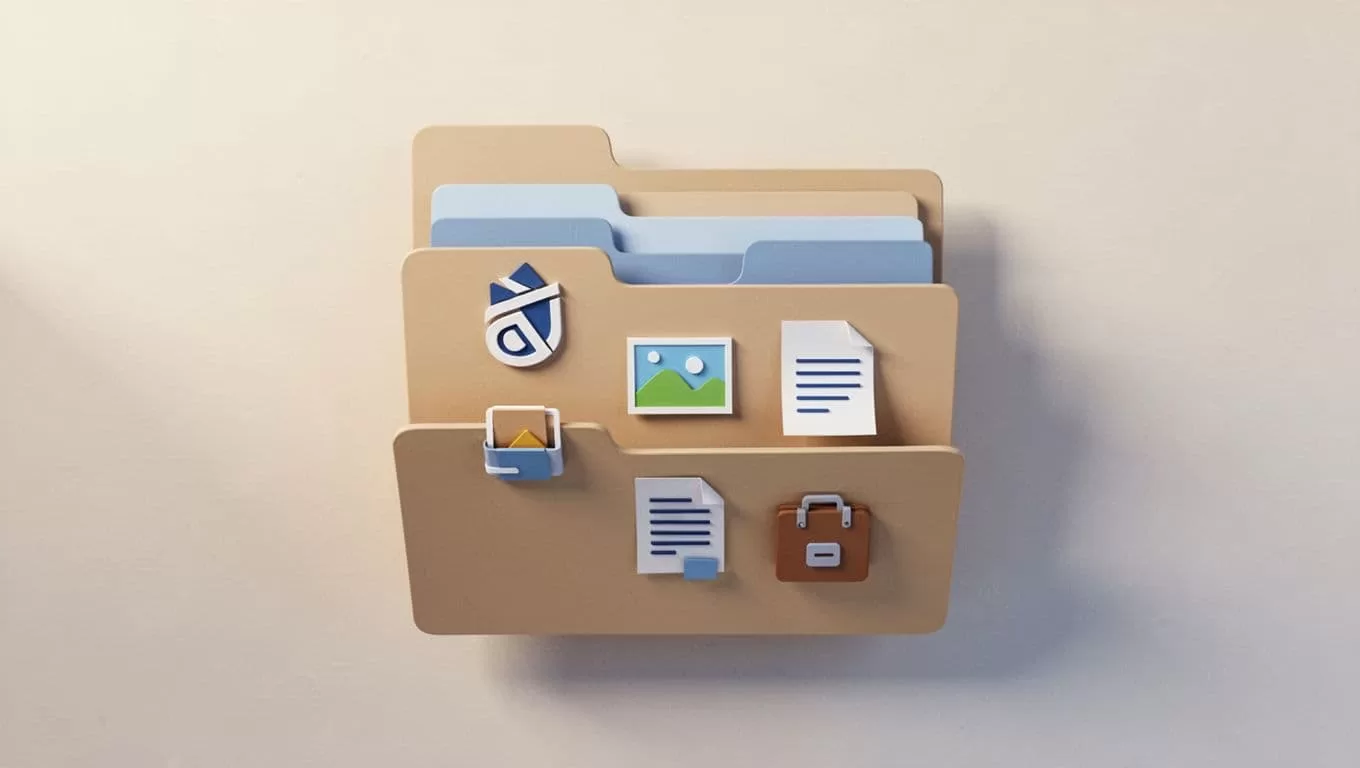
I start with one parent folder named Client Name - Project - 2026. Inside it, I use numbered folders so Drive keeps the order stable. That little trick saves me from hunting through a messy list later.
| Folder | What I store | Example name |
|---|---|---|
| 00_Admin | contract, scope, notes, invoices | 00_Admin_Acme_Website |
| 01_Brand | logos, fonts, brand guide, colors | 01_Brand_Acme |
| 02_Copy | bios, headlines, web copy, briefs | 02_Copy_Acme |
| 03_Images | photos, headshots, product shots | 03_Images_Acme |
| 04_Exports | final approved files | 04_Exports_Acme |
| 99_Archive | old versions, unused assets | 99_Archive_Acme |
The numbering keeps the folders in the same order every time. It also makes the handoff easier for clients who are not used to Drive. When I need a client folder to hold up under heavier file traffic, I think through it the same way I would any Google Workspace file storage setup.
For file names, I use lowercase letters, hyphens, and a date or version tag. A clean example is acme-logo-primary-2026-04-18-v01.svg. That is boring in the best way.
The form I send before files arrive
I rarely ask clients to email assets one by one. Instead, I use a Google Form for the questions and a Drive folder for uploads. That gives me one front door instead of a scatter of random attachments.
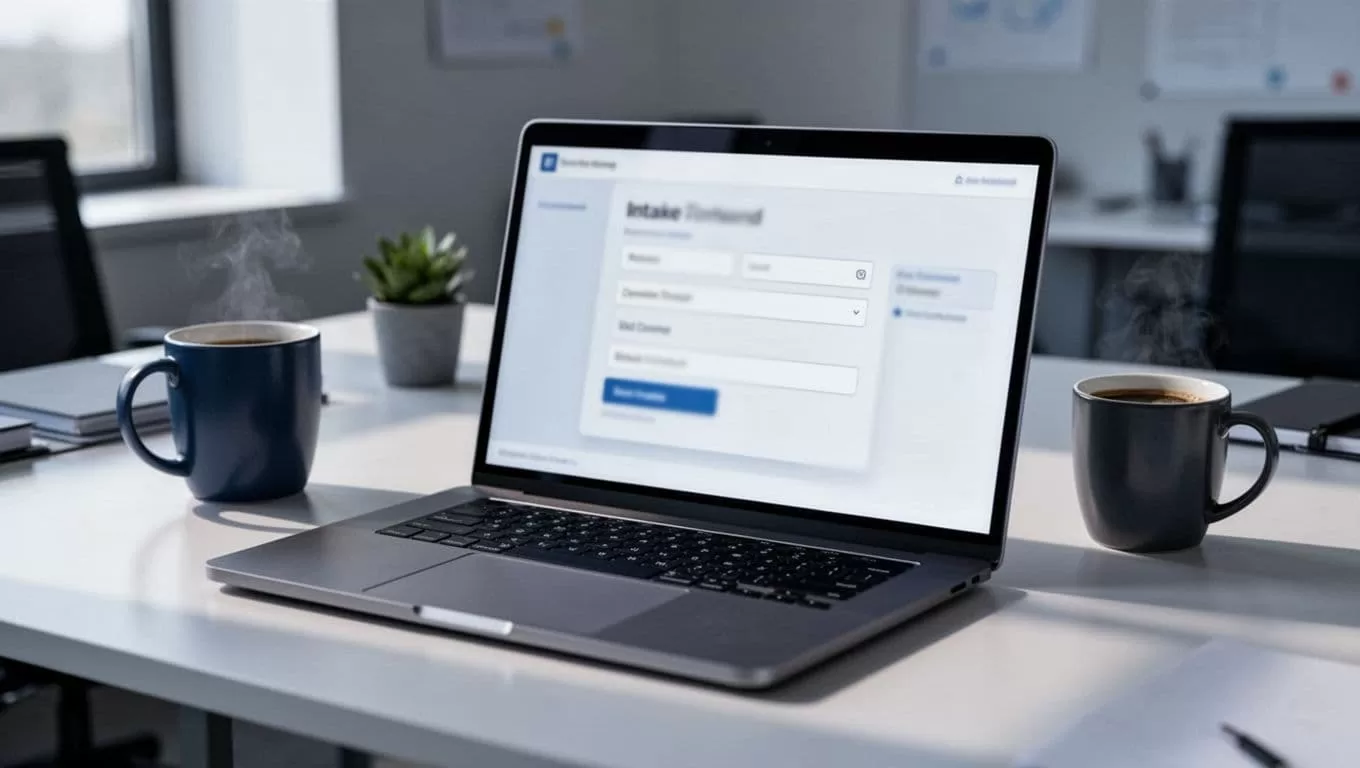
The questions I ask are simple, but they save a lot of back and forth:
- What is the project name?
- Who is the main contact?
- Which assets are ready today?
- Which assets still need to be created?
- Do you have logo files in SVG, PNG, or PDF?
- Are there brand rules, photo sizes, or copy approvals I need to follow?
That question set follows the same logic I see in client intake best practices for law firms. Good intake is really about reducing guesswork. I also like the workflow style used in how to create a client intake form for campaign assets, because it keeps the request focused on what the project needs.
The permission setup that keeps files safe
I think of permissions as a gate, not a maze. I keep the intake folder restricted, then I give each person only the access they need.

For most projects, I use this setup:
- Viewer for people who only need to review final files.
- Commenter for clients who should leave notes.
- Editor only for teammates who need to upload or rename files.
I also keep sensitive folders locked down with Secure document sharing in Google Workspace. Google Drive now lets me block download, print, or copy on sensitive files, and I can set access to expire when the project ends.
If a client can see the intake folder, but not the rest of my Drive, the setup is doing its job.
For internal work, I restrict access to my company domain. For client folders, I share with named email addresses only. That keeps the path narrow and the risk lower.
How I name files and versions
Good naming saves me from opening six files to find the right one. My default pattern is client, asset, date, version, all in one line.
I use names like northstar-logo-main-2026-04-18-v01.png, northstar-about-page-copy-2026-04-18-v03.docx, and northstar-headshots-raw-2026-04-18.zip. When a file gets approved, I move it into 04_Exports and drop the version clutter.
That same discipline shows up in how law firms automatically organize client files in Google Drive. The industry is different, but the rule is the same. Clean labels beat clever ones every time.
The handoff that keeps the system alive
A folder structure only works if someone can repeat it. So I keep the process short and teach it once.
- I create the template folder for the new client.
- I send the form, the upload folder, and a short note about what to send.
- I review incoming files, rename them, and sort them into the right folder.
- I archive the old material and share the final folder with the right people.
When the project needs a few teammates to stay in sync, I keep updates tied to Google Workspace collaboration for remote teams. Comments, files, and decisions stay close together, which saves me from hunting through long message threads.
The result is a system that feels light. Clients know where to send things, and I know where to find them.
A strong intake setup does not look flashy. It looks organized, quiet, and easy to repeat. That is what makes Google Drive work so well for client asset intake, it turns a messy handoff into a clean start.
