How I Source Candidates Faster With Recruit CRM’s Chrome Extension
Good sourcing happens where I already work, inside the browser. When I switch tabs less and copy less, I move faster and lose fewer candidates along the way. A recruiting Chrome extension matters because strong candidates rarely wait inside...
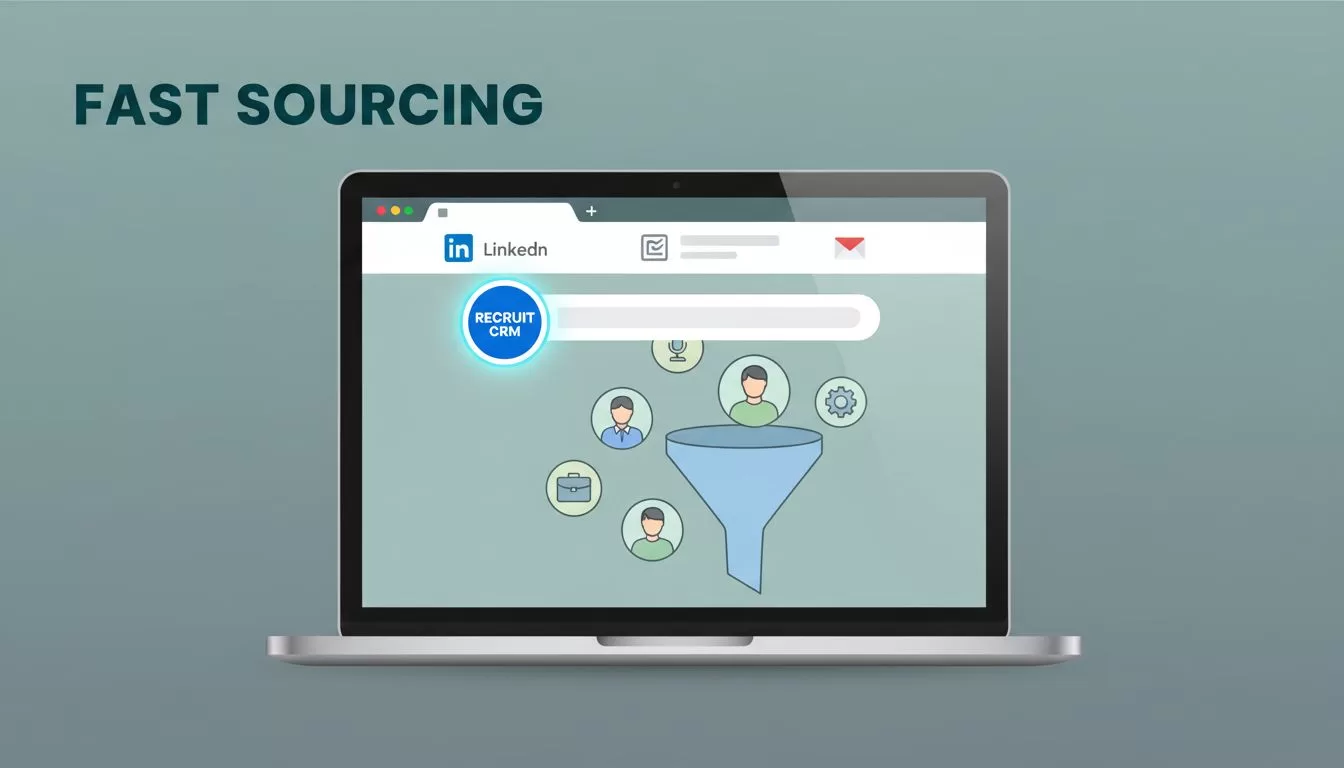
Good sourcing happens where I already work, inside the browser. When I switch tabs less and copy less, I move faster and lose fewer candidates along the way.
A recruiting Chrome extension matters because strong candidates rarely wait inside a clean database row. They show up on LinkedIn, company sites, search results, inbox threads, and contact pages.
That is where Recruit CRM’s extension earns its place. It helps me capture people before the trail goes cold, then move them into a workflow I can trust.
Why I Put the Extension in Front of My Sourcing Day
I use browser-based sourcing because my day starts in the browser anyway. I open LinkedIn, scan a company site, check a referral in Gmail, and compare notes across tabs. Recruit CRM’s sourcing extension fits that flow without making me stop and copy details into another tool.
The extension listed on the Chrome Web Store was updated on April 2, 2026, and that matters to me. I want current support, current behavior, and a tool that keeps pace with my team.
I also like that I can stay close to the candidate while I capture them. The context is still fresh, so I am less likely to miss a title change, a company switch, or a useful note. If I am sourcing on LinkedIn a lot, I keep Recruit CRM’s LinkedIn sourcing tool nearby as a companion guide.

What I Capture in One Click
When I source, I care about more than a name and headline. I want enough detail to move fast, qualify faster, and avoid duplicate work. Recruit CRM’s extension pulls in profile data and sends it into the CRM or ATS without forcing me to rebuild the record by hand.
It also helps that I can save people as candidates, contacts, or companies. That gives me room to work on both direct hire and client-facing searches. The extension supports custom fields too, so I can track the details my team cares about, not just the default ones.
| Sourcing task | What I capture | Why it helps |
|---|---|---|
| LinkedIn profile | Name, title, skills, work history, notes | I save the person while the context is fresh |
| Company page or website | Contact or company details | I keep outreach tied to the right account |
| Gmail or inbox thread | Email history and contact info | I stop retyping the same details |
| Existing record check | Duplicate match alert | I update one record instead of creating two |
The small win here is time. The bigger win is cleaner data. If I can trust the record on day one, I spend less time fixing it later.
If I have to copy a profile twice, the tool has already lost part of its value.
I also notice the difference when I need to source outside LinkedIn. Recruit CRM’s own Chrome sourcing extension guide shows how the extension reaches across Gmail, Outlook, Xing, and more. That matters when a role needs wider search paths than one network can offer.
How I Move Profiles Into Recruit CRM Without Rework
The best part of the extension is what happens after capture. I do not want a strong profile trapped in a browser tab. I want it in my CRM and ATS, ready for outreach, tagging, and pipeline movement.

My workflow usually looks like this:
- I find a profile on LinkedIn, Xing, ZoomInfo, or a web page.
- I click the extension’s R icon and save the record.
- I place the person in the right stage and start follow-up.
That sounds basic, but basic is good when the clock is loud. Recruit CRM’s workflow also benefits from AI resume parsing and candidate matching, so the profile is not just stored, it becomes easier to use. If I want the engagement side to keep moving, I connect this with Recruit CRM candidate engagement so follow-ups do not stall.
I also like that the extension plays well with the rest of the system. Recruit CRM ties into its ATS and CRM setup, and the broader platform connects with many apps through integrations. For a fuller setup view, I often point teams to Recruit CRM setup for agencies. That helps when sourcing is only one piece of a bigger process.
In practice, this means less re-entry and fewer broken handoffs. A sourced candidate becomes a usable record, then a live prospect, then part of a workflow I can track.
What I Check Before I Roll It Out to a Team
Before I ask a team to rely on any sourcing tool, I check the parts that keep the process clean.
- Source coverage: I test the pages my recruiters use most, especially LinkedIn and company sites.
- Duplicate handling: I confirm the extension flags existing records before anyone creates a mess.
- Field mapping: I make sure custom fields line up with the way we qualify candidates.
- Team habits: I look at how fast recruiters adopt it, because the best tool still fails if nobody uses it.
I also pay attention to mobile use, because recruiters do not sit at a desk all day. Recruit CRM says the extension works on desktop and mobile, which helps when I need quick access away from my main screen. When I pair that with the database side, I get a sourcing system that feels easier to maintain.
Conclusion
I source better when the tool stays close to the work. That is the real value of a Chrome extension in recruiting, it lets me capture profiles while I am still looking at them.
Recruit CRM’s extension does that without making me rebuild every record later. It captures, enriches, and moves candidates into a system I can actually use.
When I can turn a live browser profile into a clean CRM record in one move, I spend less time cleaning data and more time speaking with people.
