How I Built an Applicant Tracking Dashboard in Recruit CRM
Running a recruitment agency means juggling endless candidate profiles, client demands, and metrics that slip through the cracks. I remember staring at scattered spreadsheets, wondering why hires took forever. Recruit CRM changed that for m...
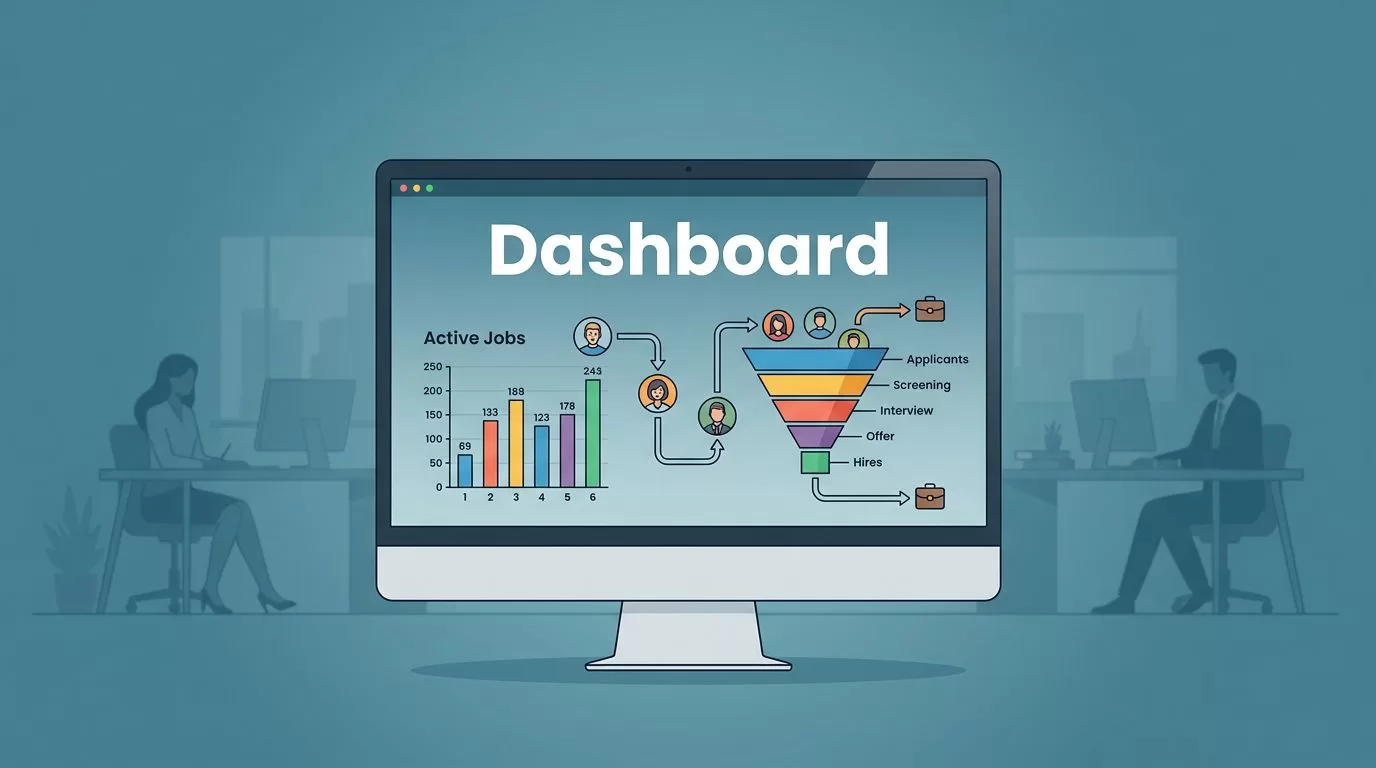
Running a recruitment agency means juggling endless candidate profiles, client demands, and metrics that slip through the cracks. I remember staring at scattered spreadsheets, wondering why hires took forever. Recruit CRM changed that for me. Its tools let me create a central applicant tracking dashboard that spots issues fast.
You face the same chaos: pipelines stall, top sources hide, and recruiters overload. This dashboard pulls it all together. It tracks pipeline health, time-to-hire, source performance, stage conversion, recruiter activity, and open roles in one view. Follow my steps to build yours. You’ll cut guesswork and fill roles quicker.
Pick the Right Metrics for Your Dashboard
Start with metrics that match your agency’s goals. I focus on six core ones in Recruit CRM. They reveal bottlenecks before they hurt placements.
Pipeline health shows candidate flow across stages. Time-to-hire measures days from post to offer. Source performance ranks channels like LinkedIn or referrals. Stage conversion tracks drop-offs, say from screened to interviewed. Recruiter activity logs calls and emails per person. Open roles list unfilled jobs with progress bars.
These numbers guide decisions. For example, if time-to-hire spikes over 30 days, check interview scheduling. Recruit CRM’s analytics pull this data automatically. I set filters for clients or roles to drill down.
Custom dashboards beat generic reports because they fit your workflow.
Check Recruit CRM’s recruitment KPIs guide for more benchmarks. Aim for time-to-hire under 40 days in tech roles.
Set Up Recruit CRM for Dashboard Success
First, log into Recruit CRM. I use the Business plan for unlimited pipelines and AI features. Head to Settings > Pipelines. Create stages like Sourced, Screened, Interviewed, Offered.
Next, enable reporting. Go to Reports > Dashboard. This unlocks widgets for metrics. I linked my Recruit CRM setup to boost placements 30% here, as it covers admin roles too.
Import data if needed. Use the Chrome extension for sourcing. AI parses resumes and tags sources. Now your base is ready.
Test one pipeline. Add sample candidates. Watch metrics update live. This confirms everything flows.
Visualizing Your Dashboard Metrics
Once set up, build the view. I open a new dashboard tab. Drag widgets from the menu.
Add a funnel chart for pipeline health. It stacks candidates by stage. Green for full, red for empty. Time-to-hire appears as a bar graph, averaged per role.

Source performance uses pie charts. Mine shows 40% from referrals. Stage conversion lines plot rates, like 70% from screened to offer.
These visuals pop. I spot a 20% drop in conversions last month. Fixed it by tweaking outreach.
Recruit CRM updates in real time. Refresh shows today’s calls. Perfect for weekly team huddles.
Step-by-Step: Build Your Dashboard in Recruit CRM
Now the hands-on part. I follow these steps every time.
- Click Dashboards > New Dashboard. Name it “Agency Pipeline Overview.”
- Add widgets. Hit + Widget. Select Pipeline Funnel for health.
- Pick metrics. For time-to-hire, choose Average Days. Filter by recruiter or client.
- Customize layout. Drag to resize. Group KPIs: top row for pipelines, bottom for activity.
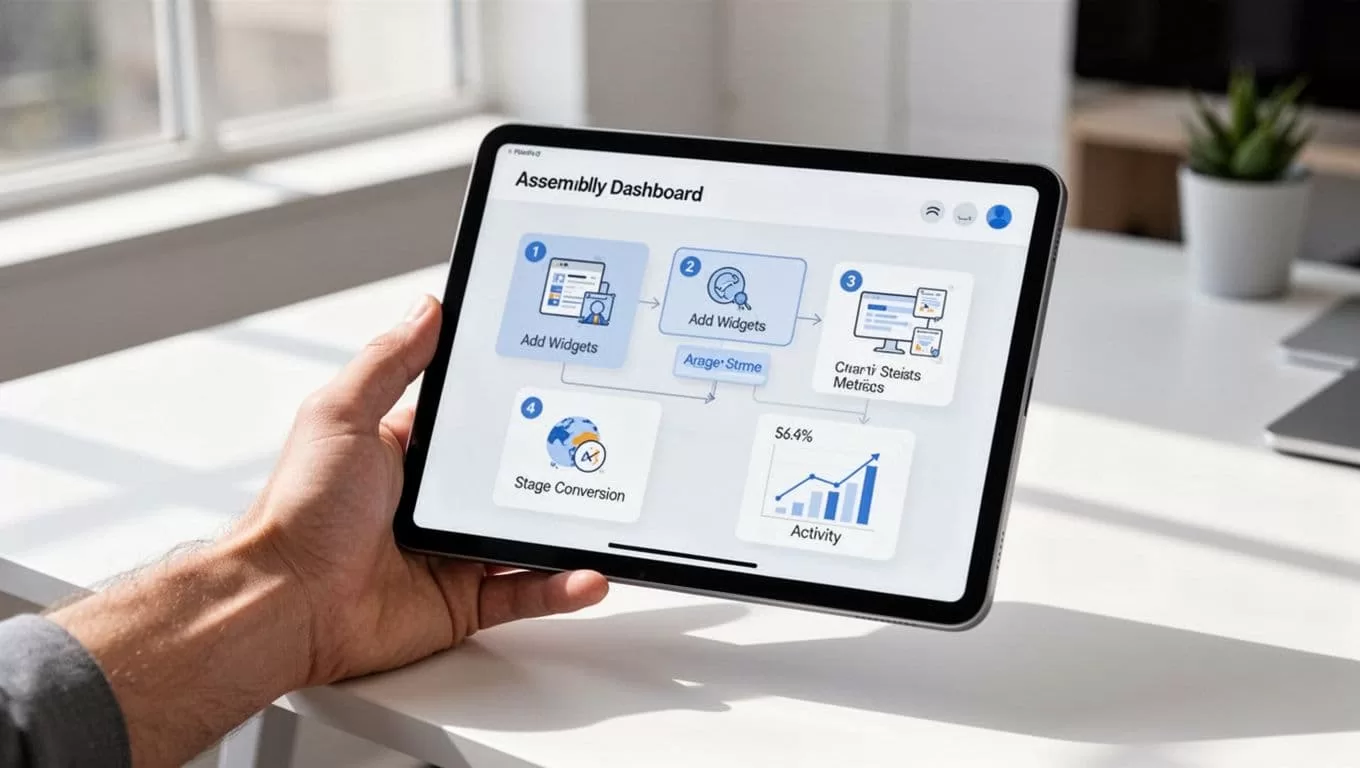
5. Set alerts. Right-click a widget > Alerts. Notify if open roles exceed 10. 6. Save and share. Export to PDF or share links with clients.
Test it. Add a candidate. Watch the funnel shift. Takes five minutes total.
See Recruit CRM’s four-step recruitment dashboard guide for extras.
Track Pipeline Health and Time-to-Hire
Pipeline health lives in Kanban boards. Switch views. Cards show candidates; colors flag stages.
I check daily. If Sourced piles up, sources underperform. Time-to-hire breaks it down: sourcing takes 5 days, interviews 15.
Use forecasts. Recruit CRM predicts fills based on velocity. Mine flagged a sales role delay. I reassigned it.
Filters help. View by recruiter. Balances load before burnout hits.
Analyze Source Performance and Stage Conversion
Sources tell where wins come from. Widget ranks them by hires. Referrals topped my list at 45%.
Stage conversion exposes leaks. A 50% interviewed-to-offer rate? Too low. I added video screens.
Combine them. Low conversion from job boards? Pause posting there. Data proves it.
Recruit CRM reports and dashboard page details widget options.
Monitor Recruiter Performance and Open Roles
Activity logs shine here. Heatmaps show calls per day. My top recruiter hits 50; others lag.
Tie to open roles list. Columns for days open, candidates in play. Sort by urgency.
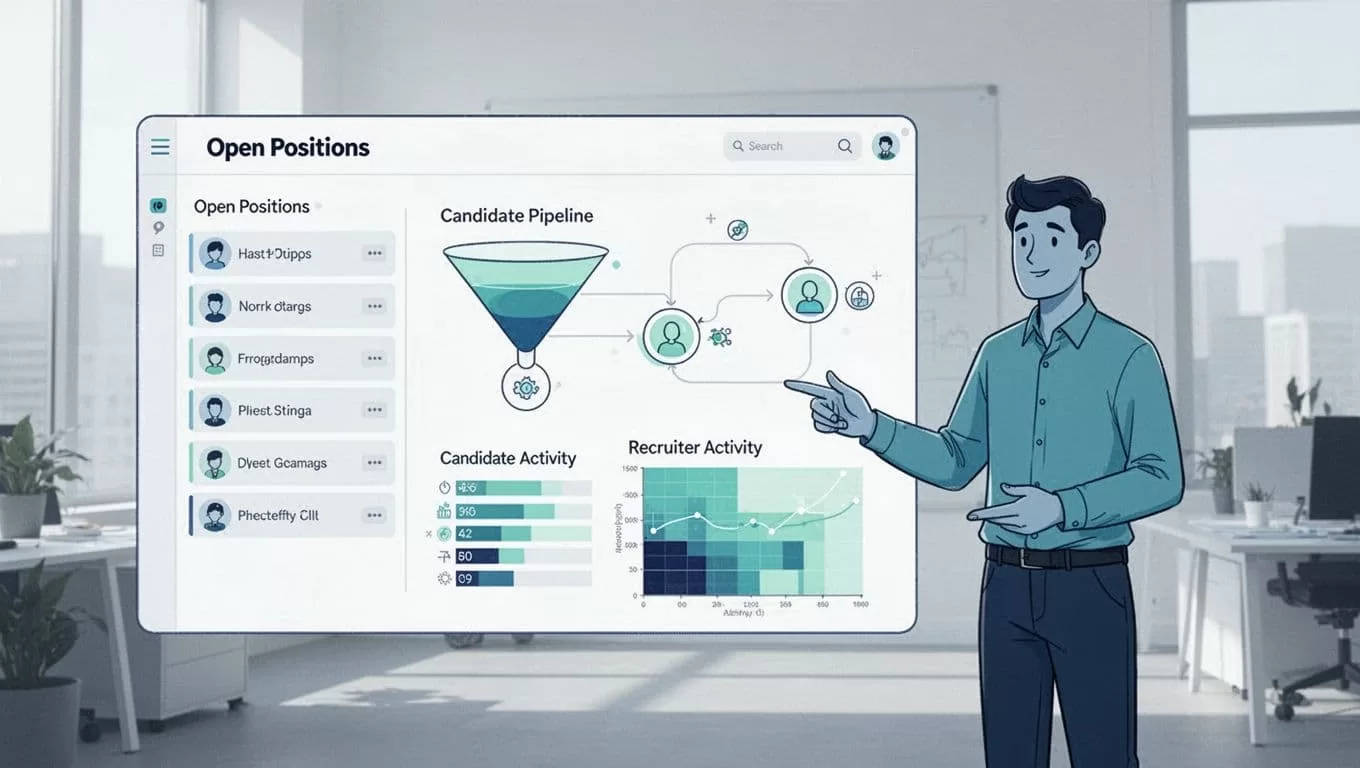
I review weekly. Praise high performers, coach others. Roles fill 25% faster now.
For AI boosts, try Recruit CRM’s advanced analytics.
Key Takeaways
This applicant tracking dashboard transformed my agency. Pipeline health stays balanced, hires speed up, and teams align. Metrics like time-to-hire dropped 15 days for me.
Build yours today. Tweak widgets to fit. Check it daily. You’ll see placements rise.
What metric will you track first?
