If you work with Canadian clients, pay CAD invoices, send money abroad, or just want to hold the Canadian dollar, open a Wise account the usual way feels slow. Traditional banks often want Canadian residency, in-person visits, or a long paper trail.
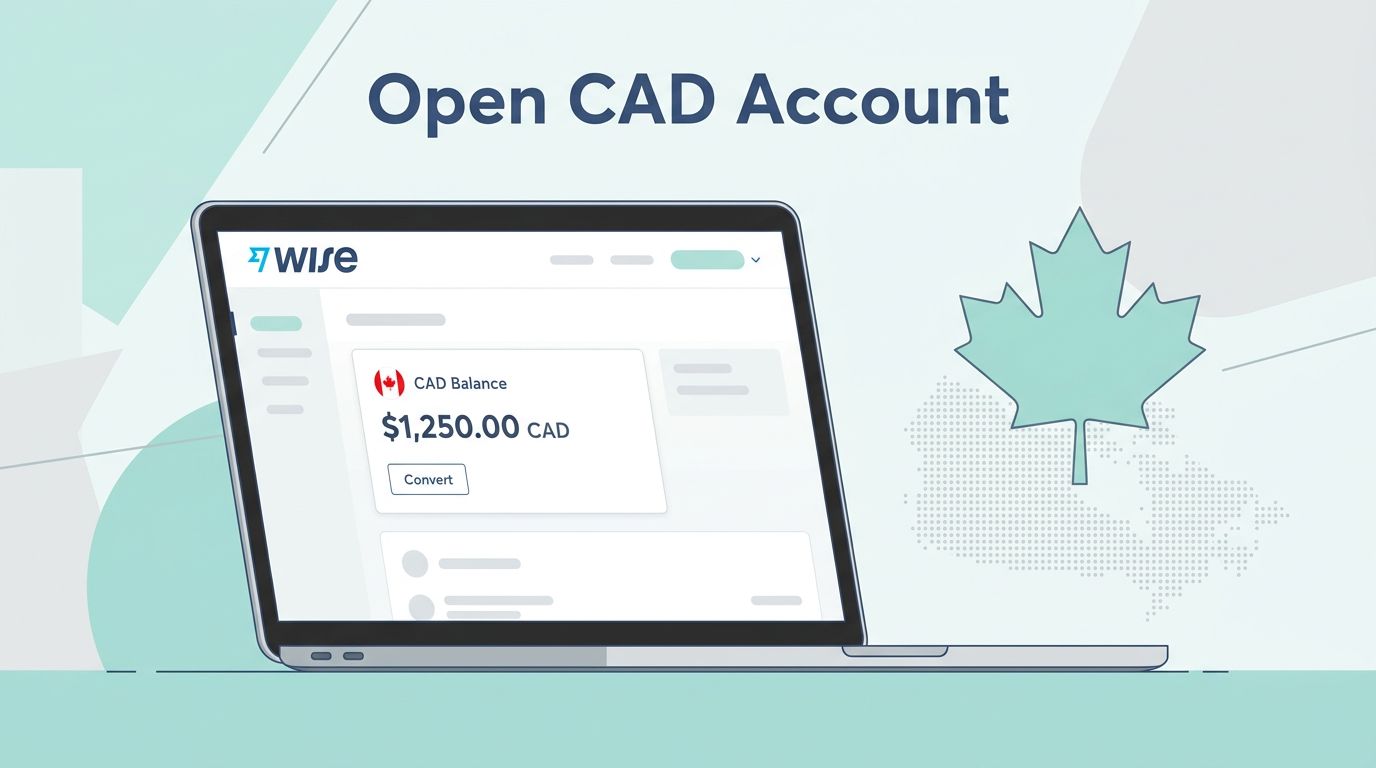
With a Wise CAD account, I can keep CAD in one place, share Canadian payment details (when available in my account), and send CAD out to a Canadian bank when I need to. The key is knowing what Wise is offering, and what it’s not.
Below, I’ll walk through the setup, the exact screens to look for, and the fee checks I always do before hitting “Send.”
What “Wise CAD account” means: balances vs account details
Wise uses two terms that matter because they change how you get paid.
A balance is simply money I hold inside Wise in a specific currency. So a CAD balance means I’m holding Canadian dollars in my Wise account, alongside funds in multiple currencies if I want. Wise supports 40 currencies for this kind of versatility.
Local account details are the details I can share so someone can pay me. Wise explains that CAD local account details let others send me money to receive Canadian dollars using those details, even though it’s not a traditional bank account in my name in the way a big bank works. That distinction matters for compliance and expectations, especially for payroll and business payments. I keep Wise’s own explanation bookmarked: receiving money with CAD account details.
Here’s the practical split I use:
- Holding CAD in Wise: I add CAD as a currency and keep funds in my CAD balance.
- Receiving CAD with Canadian local account details (only if supported for me): I look for CAD local account details inside Wise, then share them with a client or employer.
- Converting and sending CAD to a Canadian bank: I convert (if needed) and send CAD out as a bank transfer.
One more reality check: availability varies by country and profile. Two people can have different features depending on where they live and how their account is verified. When in doubt, I trust what the app shows me today, not what a blog post said last year.
Step-by-step: open Wise, add CAD, and find your Canadian account details
I set this up in under an hour the first time, but verification can take longer depending on documents. Wise has a Canada-focused walkthrough that helps with the flow and expectations: how to open a Wise account in Canada (even if I’m not in Canada, the steps mirror what I see in the app). Follow these steps to open a Wise account efficiently.
1) Create your Wise account (personal account or Wise business account)
I go to Wise.com, choose personal account or Wise business account, then enter my email and basic info. For the Wise business account, provide business registration details during setup.
[Screenshot placeholder: Wise sign-up screen with personal vs business options]
If I’m working with clients, I consider Wise business account, because it separates work money and gives cleaner payment records.
2) Complete identity verification
Next, I follow the prompts for ID verification. Wise typically asks for a government ID, and sometimes proof of address. I use clear photos and match the name on my profile exactly.
[Screenshot placeholder: Verification prompt showing required documents]
If Wise asks extra questions about funds, I answer directly. Vague answers slow things down.
3) Add CAD as a currency balance
Once I’m in, I open the Balances area and tap Add (or Open) a new currency. I select CAD.
[Screenshot placeholder: Balances screen highlighting “Add currency” and CAD selection]
At this point, I can hold CAD even before I receive money into it.
4) Check whether CAD “account details” are available for you
Inside the CAD balance, I look for Account details. If Wise supports it for my profile, I’ll see Canadian receiving details including account number, transit number, and institution number that I can share.
[Screenshot placeholder: CAD balance screen with “Account details” menu item]
Wise’s help center notes that once I have CAD account details, others can pay me using those details, including companies paying invoices or similar transfers: Wise’s CAD account details guidance.
5) Share details carefully (especially for payroll)
When I share my CAD account details, I copy them from the app, then paste them into a message or payment portal. For salary, I ask payroll which rails they use and what fields they need. If the payroll system rejects non-traditional accounts, I switch to invoice payments or another method.
Sending CAD to a Canadian bank: convert, quote, then transfer
Once the Canadian dollar is in my Wise balance, pushing it to Canada is usually straightforward. Still, I treat every transfer like a small pre-flight check.
Convert only if you need to
If I already hold CAD, I don’t need to convert. If my money is in USD or EUR, I use the currency conversion flow in Wise and check the mid-market exchange rate and fee shown on the quote screen. I never rely on “typical” fees because the app shows the real price for that moment.
Send to a Canadian bank account
From the CAD balance, I choose Send to initiate an international money transfer, then pick Bank account as the recipient type for send money abroad. I enter the recipient’s details exactly as their bank provides them. A single wrong digit can mean delays.
Wise supports specific methods like EFT bank transfer and wire transfer for Canadian bank accounts.
If I’m funding Wise from a Canadian bank first (for example, moving CAD in from CIBC), Wise publishes bank-specific guidance like this: sending money from CIBC to Wise. Even when I’m not using CIBC, reading one of these guides helps me understand the payment methods Wise expects.
Fee transparency (what I check every time)
Before I confirm anything, I scan the quote and look for these fee types. Note that Wise provides transparent pricing with no exchange rate markup. This table is my mental checklist:
| Fee type | When it shows up | What I do before confirming |
|---|---|---|
| Conversion fee | When I exchange USD, EUR, etc. into Canadian dollar | I review the in-app quote and mid-market exchange rate shown |
| Transfer fee | When I send Canadian dollar to a bank account | I compare the transfer fee on the send screen across methods |
| Card and ATM fees | When I use the Wise card or withdraw cash | I check the card and withdrawal fee details inside the app |
The takeaway is simple: Wise shows the exact cost before you send, so I treat the quote screen as the source of truth.
Compliance notes, limits, and a few snags I see often
Wise is a financial service, not a traditional bank. That’s not a problem, but it changes how I think about it. While it lacks full banking licenses in some places, Wise protects customer money through safeguarded funds held separately with partner institutions. I don’t use it to “park” large sums long-term without a reason, and I keep good records for accounting.
A few practical points help me avoid delays. Beyond transfers, direct debit and online bill payment offer convenient ways to manage funds:
- Identity checks are normal, and sometimes Wise asks for extra info.
- Limits can apply by currency, country, or transaction type, and they can change.
- Feature availability varies; if I don’t see Wise CAD account details, I can still hold CAD and send CAD, but receiving locally might not be enabled for me. The debit card works reliably where available.
My rule: if a feature matters (like receiving CAD locally), I verify it inside the CAD balance first, before I promise a client any payment method.
For security, I also lock down my Wise login like I would for any tool that touches money. Strong password, device hygiene, and account alerts matter more than people think.
Quick FAQ (CAD on Wise in 2026)
Can I receive a CAD salary into Wise?
If my Wise account shows CAD account details, I can share them with an employer that pays via bank transfer. Some payroll systems have restrictions, so I confirm with payroll before switching to receive money smoothly.
Is Interac e-Transfer supported?
Wise’s CAD receiving help page focuses on receiving via CAD account details and doesn’t clearly confirm Interac e-Transfer support. I check the app’s receive options in my CAD balance, because availability can vary.
How long do CAD transfers take?
Transfer times depend on the route, the banks involved, and compliance checks. Wise usually shows an estimated arrival time before I confirm.
What are the limits for holding or receiving CAD?
Limits for holding or receiving Canadian dollars depend on my country, verification level, and the payment method, with differences between personal accounts and business needs. I look up limits inside Wise for my specific account, because they can change.
Do I need a Canadian address to open a Wise CAD account?
Not always. I can often open Wise and add a CAD balance internationally, but receiving CAD account details is feature-dependent. The app is the final judge.
Conclusion
Opening a Wise CAD account is less like opening a brick-and-mortar bank account and more like setting up a smart wallet with strong rails. I start by adding a CAD balance, then I confirm whether I have CAD account details for receiving money. After that, sending CAD to a Canadian bank becomes a repeatable routine: quote, verify details, send.
If you’re planning to get paid in CAD, don’t guess. Open your Wise CAD account (noting any one-time fee for features like the debit card), check what your CAD balance offers today, and build your payment flow around what you can actually see, including the ease of sending money abroad.