How to Open a Canadian CAD Account with Wise.com (2026)
A Wise CAD account lets you hold Canadian dollars and receive CAD with Canadian bank details. You do not need a branch visit. Wise is not a traditional bank. Wise offers a CAD balance, local account details, and low-cost conversion and tran...
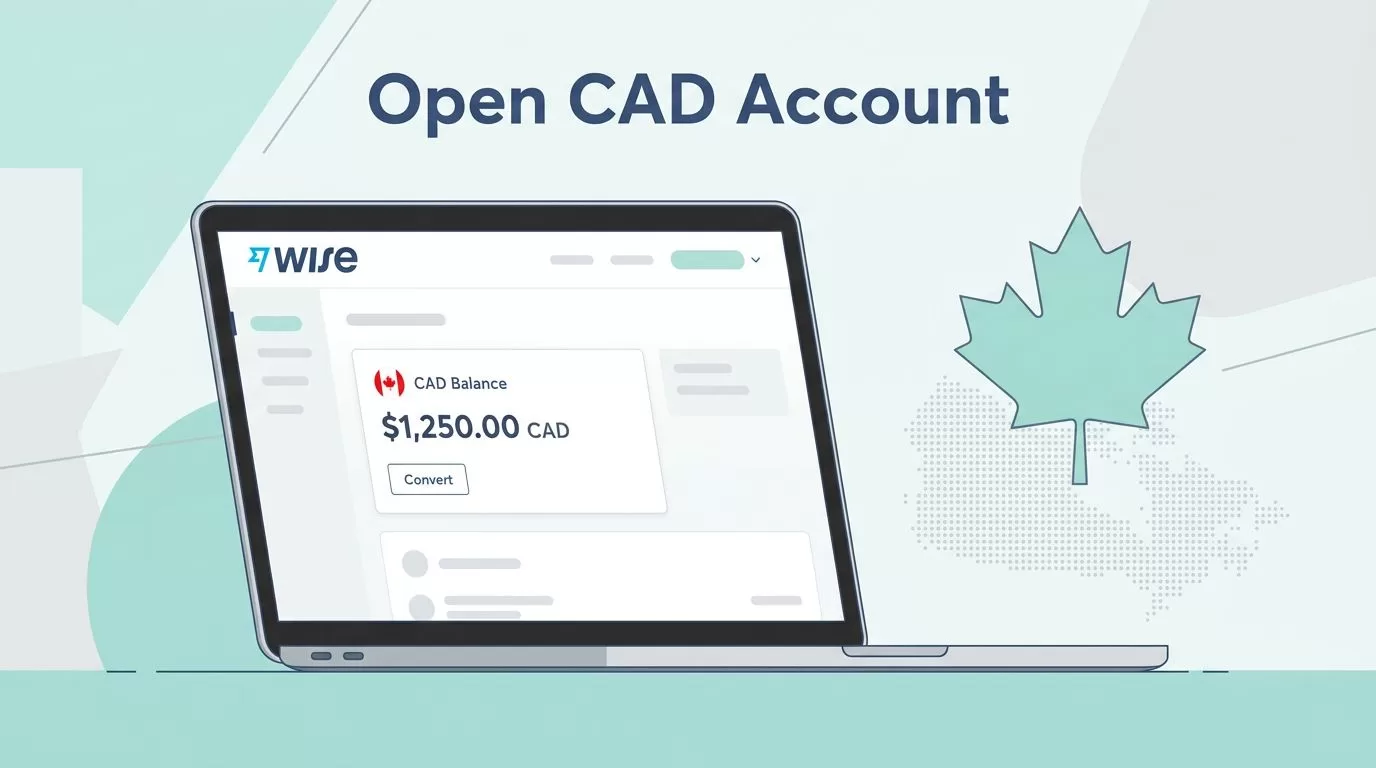
A Wise CAD account lets you hold Canadian dollars and receive CAD with Canadian bank details. You do not need a branch visit. Wise is not a traditional bank. Wise offers a CAD balance, local account details, and low-cost conversion and transfers.
This guide shows how to open the account, find your institution, transit, and account numbers, and send CAD to a Canadian bank. You also get the receiving rules, the fee figures, and the traps to avoid. Wise changes fees and features often. Confirm every number on the official Wise Canada pricing page before you act.
What a Wise CAD account means
Wise uses two terms. The difference changes how you get paid.
- Balance: money you hold inside Wise in one currency. A CAD balance holds Canadian dollars. Wise supports more than 40 currencies for balances.
- Local account details: the numbers a payer uses to send you CAD. Wise lists a name, an institution number, a transit number, and an account number for domestic senders.
Wise states the account is not an actual bank account. The account works similarly for receiving. Read the official help article on receiving money with CAD account details.
Availability varies by country and profile. Two people can see different features. Trust the app screen today, not an old blog post.
Wise CAD account requirements
The Wise Canada guide lists the basics for a personal account. You need a name, a date of birth, a home address, a mobile number, and an email address. You must be over 18.
Accepted ID documents
- A passport.
- A Canadian driving licence.
- A provincial photo ID card.
- A Canadian residency or citizenship card.
Accepted proof of address
- A bank statement.
- A utility bill.
- Vehicle registration.
- A photo driving licence showing your address.
- A government or financial institution document.
Wise states verification typically takes one business day. You receive an email once the account is verified. The guide to opening a Wise account in Canada lists the full steps.
Step by step: open Wise and add CAD
Step 1: Register online
Go to Wise and share your email address and mobile number. Create a password. Choose the country where you live. Pick a personal or a business account.
Step 2: Verify your identity
Upload your ID and confirm your address. Match the name on your profile to your ID exactly. Clear photos with all four corners visible prevent rejections. Answer any extra questions from Wise directly. Vague answers slow the review.
Step 3: Add CAD as a currency
Log in and open the balances area. Choose the option to add a currency. Select CAD. You can hold CAD before any money arrives.
Step 4: Look for CAD account details
Open the CAD balance and look for account details. If Wise supports the feature for your profile, you see the numbers to share. If you see no option, you can still hold CAD and send CAD. Receiving by local details is not enabled for you in such a case.
Step 5: Share the details with care
Copy the numbers from the app. Paste the numbers into the payment portal or message. Check each digit twice. A single wrong digit delays a payment.
How CAD payments reach your Wise account
Wise lists separate rules for domestic and international senders. The table summarizes the help article.
| Sender route | Accepted | Typical timing | Receiving fee |
|---|---|---|---|
| EFT bank transfer in Canada | Yes | A few hours, sometimes up to 4 working days | None |
| Interac Autodeposit in Canada | Yes | A few hours, sometimes up to 4 working days | None |
| Domestic wire or Online Bill Transfer | No, returned | Not applicable | 25 CAD deducted on return |
| International Swift in CAD | Yes, CAD only | Usually 1 working day, up to 5 | Flat fee plus possible correspondent bank fees |
| International payment in another currency | No | Not applicable | Not applicable |
Tell senders to use only EFT or Interac Autodeposit inside Canada. Tell overseas senders to send CAD only. Wise returns domestic wires and Online Bill Transfers and deducts 25 CAD.
Wise also states customers in the UK, Australia, Israel, Canada, and Singapore can hold up to 10 sets of CAD account details. The sets cover the main account, jars, and business groups.
Fees for a Wise CAD account
| Item | Stated cost | Source |
|---|---|---|
| Register a personal account | Free | Wise Canada pricing |
| Receive domestic CAD payments | Free | Wise help article |
| Currency conversion | From 0.19% | Wise Canada pricing |
| USD wire receipt | 6.11 USD per payment | Wise Canada pricing |
| CAD Swift receipt | 6.16 CAD per payment | Wise Canada guide |
| ATM withdrawals | First 100 CAD per month free, then 2.69 CAD plus 2.69% of the amount above 100 CAD | Wise Canada pricing |
| Business account setup | One-time 55 CAD | Wise Canada guide |
Wise lists conversion fees by currency pair. The quote screen shows the real cost before you confirm. Treat the quote as the source of truth. Check the pricing page again before large transfers because Wise updates fees.
Holding CAD and converting later
A CAD balance gives you control over timing. Suppose a Canadian client pays 5,000 CAD. You can hold the 5,000 CAD and wait. You convert only when the exchange rate or your budget suits you. Wise states conversions use the mid-market exchange rate, with a fee shown upfront.
Holding funds in Wise is free according to the pricing page read for this guide. Large balances need extra thought. Wise is not a bank, so the account carries no bank-style deposit guarantee. Read the safeguarding terms on the Wise site before you hold a large sum for a long period.
Personal or business account for CAD income
A personal account suits individuals, travellers, and freelancers with light volume. A business account separates company money and gives cleaner records. The Wise Canada guide states the business account carries a one-time 55 CAD fee. The guide lists local details for over 20 currencies and direct debit as business features.
Provide business registration details during business setup. Confirm the rules for your company type on the Wise Business pages.
Sending CAD to a Canadian bank account
Once you hold CAD, sending money to a Canadian bank is simple. Run a short check each time.
- Open the CAD balance and choose Send.
- Pick bank account as the recipient type.
- Enter the recipient details exactly as the bank provides them.
- Review the fee, the exchange rate, and the estimated arrival time.
- Confirm and pay.
Convert only when needed
If you already hold CAD, you need no conversion. If your money sits in USD or EUR, use the conversion flow. Compare the in-app rate with the mid-market rate shown on the quote screen.
Fund Wise from a Canadian bank
Wise publishes guides for bank transfers into Wise. One example is the guide to sending money from CIBC to Wise. Read the guide for your own bank to learn the payment methods Wise expects.
Using CAD details for salary and invoices
Ask your employer which payment rails the payroll system uses. Some payroll systems reject accounts held outside a traditional bank. If payroll rejects the details, ask for payment by invoice or use another method.
For client invoices, list your name, institution number, transit number, and account number. Add a payment instruction naming EFT or Interac Autodeposit. Run a small test payment before the first large invoice.
Troubleshooting a missing or delayed CAD payment
Work through the checks in order.
- Confirm the sender used EFT or Interac Autodeposit. Domestic wires and Online Bill Transfers come back with a 25 CAD deduction.
- Confirm the sender used your exact name and numbers.
- For overseas payments, confirm the sender sent CAD and not another currency.
- Allow the stated time. Domestic payments can take up to 4 working days. Swift payments can take up to 5 working days.
- Contact Wise support from the app with the payment reference if the delay continues.
Limits, safety, and common problems
Wise is a financial service and not a bank. Account opening is free, but identity checks are normal. Wise may ask for extra information.
- Limits can apply by currency, country, and payment type. Check your own limits inside the app.
- A name mismatch between profile and ID blocks verification.
- Senders in other currencies cannot use CAD details.
- Feature availability can change.
Protect the login like any tool holding money. Use a strong unique password, turn on two-factor authentication, and enable account alerts.
Frequently asked questions
Can I receive a CAD salary into Wise?
If your account shows CAD account details, you can share the details with an employer who pays by EFT. Confirm with payroll first.
Does Wise support Interac Autodeposit?
Yes. The Wise help article lists Interac Autodeposit as an accepted domestic route. Check the receive options in your CAD balance for your profile.
How long do CAD payments take?
Wise states domestic payments usually take a few hours and sometimes up to 4 working days. Swift payments usually take 1 working day and sometimes up to 5.
Do I need a Canadian address?
The Wise guide targets people who live in Canada. Wise also offers CAD details to customers in some other countries. Check availability inside the app.
Is the account free?
Registering a personal account is free. Fees apply to conversions, ATM withdrawals above the free limit, and Swift receipts.
Can I withdraw cash in Canada?
Wise lists 100 CAD per month per account free of charge. Beyond the limit, Wise lists a fee of 2.69 CAD plus 2.69% of the amount above 100 CAD. Confirm the current terms on the pricing page.
Conclusion
Add a CAD balance, then check whether CAD account details appear for your profile. Verify your identity, share the numbers carefully, and test with a small payment. Tell senders to use EFT or Interac Autodeposit and to send CAD only.
Build your payment flow around the features you see in the app today. Confirm every fee and rule on the official Wise pages before you commit.
