How I Set Up Google Workspace Admin Roles for Small Teams
I’ve locked myself out of my own Google Workspace account once. That happened because I was the only super admin in a five-person team. Now, I always set up roles right from the start. Small teams need simple controls that keep things...

I’ve locked myself out of my own Google Workspace account once. That happened because I was the only super admin in a five-person team. Now, I always set up roles right from the start. Small teams need simple controls that keep things secure without extra hassle.
You run a small business or manage an office. You want team members to handle tasks like adding users or resetting passwords. But full admin access scares you. Google Workspace admin roles fix that. They let you assign just the right permissions.
I’ll walk you through my exact steps. You’ll see which roles fit small teams best. Plus, tips to avoid common mistakes.
Start in the Google Admin Console
Log in to your Google Admin Console first. Use a super admin account. Go to admin.google.com. That’s your control center.
I always check my role before changes. Click your profile icon at the top right. Then select “View all my roles.” Confirm you have super admin privileges.
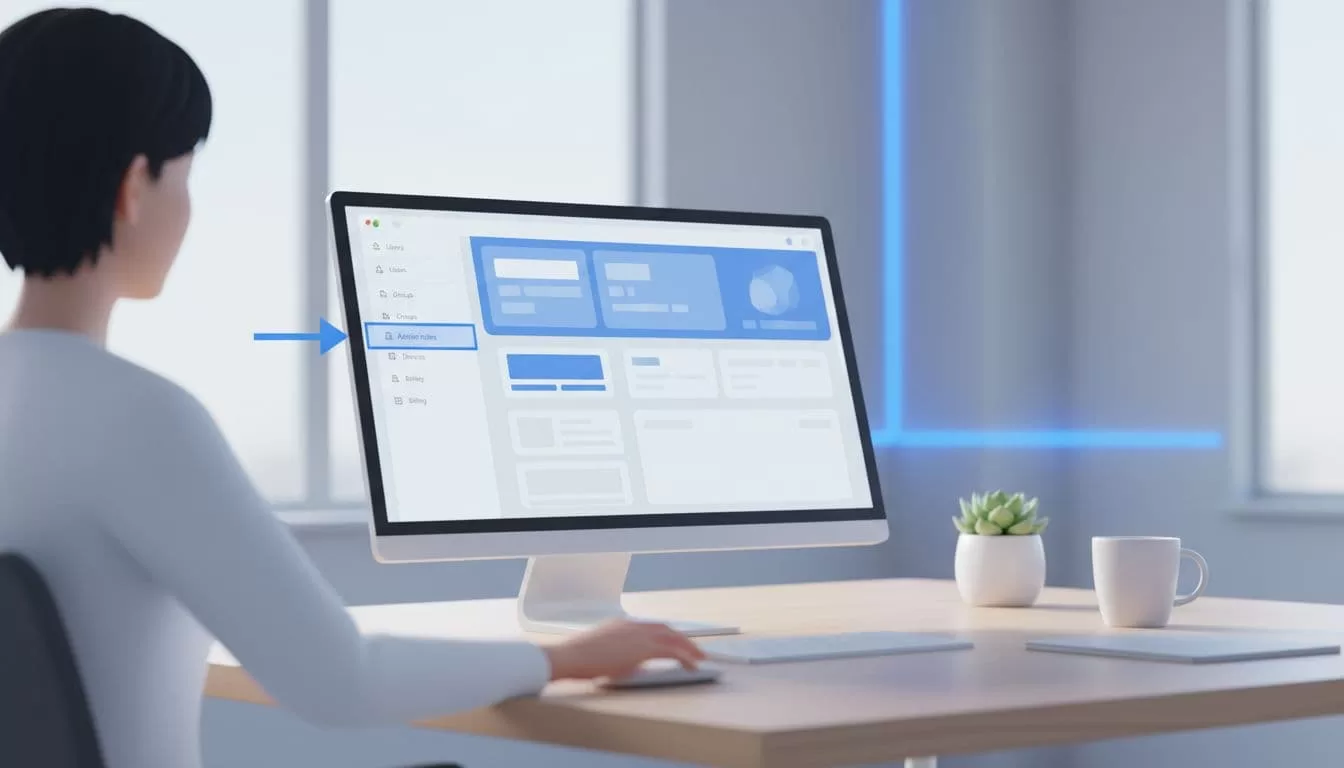
From the homepage, click Directory > Admin roles. Or use the search bar. Type “admin roles.” It takes you straight there. Google updated the console in early 2026. Navigation feels quicker now.
Set up organizational units next, if you haven’t. Small teams often use one main OU. But split by department for growth. For example, create “Sales” and “HR.” This limits role scopes later.
Key Google Workspace Admin Roles for Small Teams
Pre-built roles cover most needs. I pick from these for teams under 20 people. They grant specific privileges. No need for custom ones at first.
Here’s a quick comparison of common roles I use:
| Role | Main Tasks | Best For Small Teams | Risks if Overused |
|---|---|---|---|
| Super Admin | Full access; manage all settings | Owners only (keep to 2 max) | Total control; lockout potential |
| Groups Admin | Create/manage groups and permissions | Office managers handling teams | Group spam if delegated widely |
| User Management Admin | Add/suspend users; reset passwords | HR or IT leads | Accidental deletions |
| Help Desk Admin | Password resets; basic user support | Support staff | Limited scope keeps it safe |
| Services Admin | Manage apps like Gmail, Drive | Tech-savvy deputies | App outages from bad changes |
This table shows why I limit super admins. For details on prebuilt administrator roles, check Google’s help page.
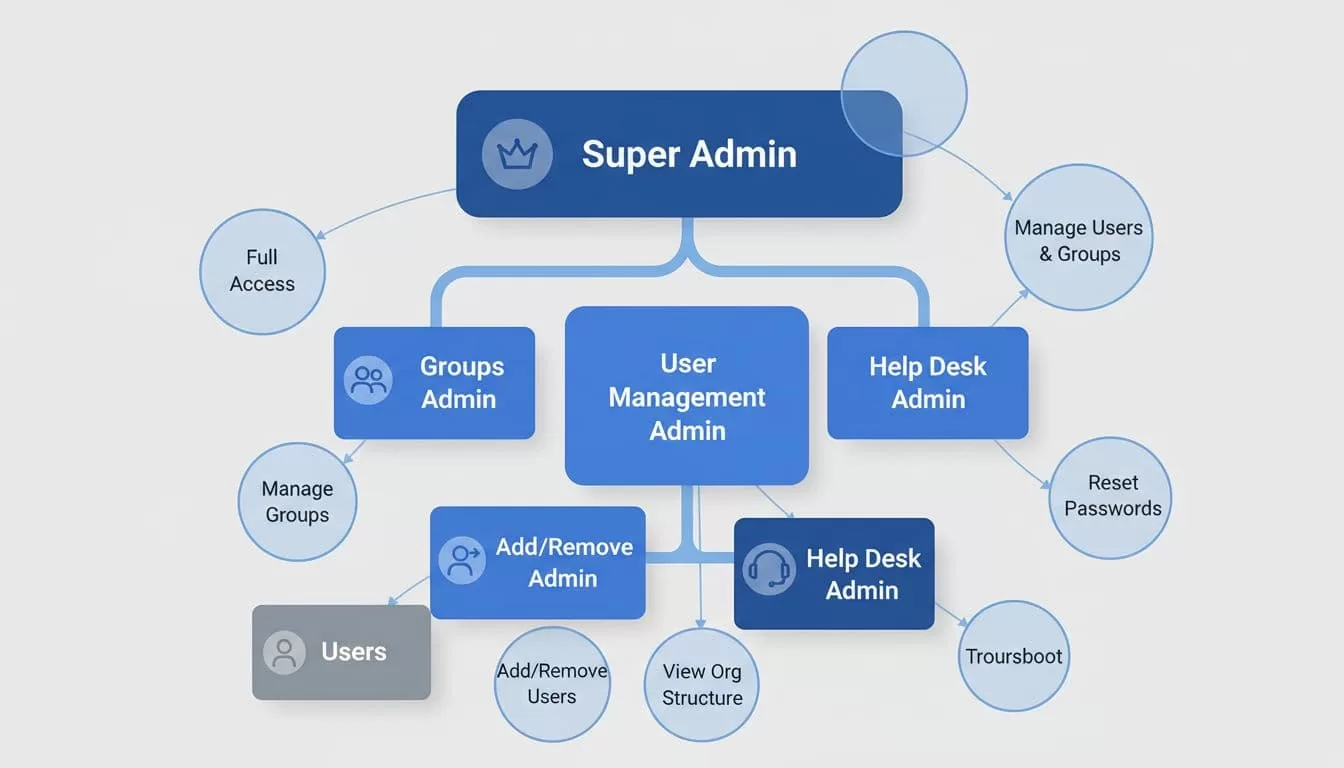
Super admin does everything. But I assign it to myself and one backup. Groups admin handles email lists. User management admin adds new hires. Help desk fixes forgotten passwords. Services admin tweaks Drive sharing.
As of May 2026, no new roles appeared. Google focuses on tighter OU limits. That helps small teams segment access.
Assign Roles Step by Step
Ready to assign? Follow these steps. I do this weekly for growing teams.
First, go to Directory > Admin roles. Pick a role, like Groups Admin. Click “Assign admin role.”
Enter the user’s email. Select the organizational unit. For small teams, use the top-level OU. Click Assign.
The user gets an email notice. They access the console right away. Test it. Have them try a simple task, like creating a group.
To remove a role, go back to the same page. Find the user. Click Delete.
For user-level assignment, try another path. Go to Directory > Users. Click a name. Scroll to Admin roles and security. Add there. This works for quick changes.
I link roles to Google Workspace email aliases for team inboxes. Groups admins often manage those too.
What if pre-built roles don’t fit? Create custom ones. But save that for later.
Pre-Built Roles vs. Custom Ones
Pre-built roles work for 90% of small teams. They’re tested and safe. Custom roles let you mix privileges. For example, give someone password reset plus group management.
I rarely need customs. They add complexity. Google caps you at 750 custom roles organization-wide. Most small teams stay under that easy.
When to use custom? If your office manager needs Drive audits but no user adds. Build a role with just those privileges. See Google’s guide to custom admin roles for steps.
Stick to pre-built first. Test for a month. Then customize if gaps show.
I tie this to secure document sharing settings. Services admins often handle those.
Best Practices I Follow for Small Teams
Keep super admins to two. Pick reliable people. One owner, one deputy.
Delegate narrowly. Don’t make your marketer a user admin. Give help desk only.
Review roles monthly. Go to Admin roles page. Check assignments. Remove old ones.
Use groups for Shared Drives. Limit managers there too. My small team Shared Drives setup pairs well with groups admin roles.
Train new admins. Walk them through the console. Show what not to touch.

Document everything. Note who has what and why. Share in a Google Doc.
For plans, I pick Business Standard. It has stronger admin controls over Starter.
Conclusion
Setting up Google Workspace admin roles saved my team hours and headaches. Start with two super admins. Assign narrow roles like groups or user management. Review often.
Your small team stays secure and efficient. No more single points of failure.
Frequently Asked Questions
How many super admins should a small team have?
Two. One primary, one backup. This avoids lockouts.
Can I assign roles to groups instead of individuals?
No. Roles go to users only. Use groups for email or Drives.
What happens if I delete a role by mistake?
The user loses access instantly. Reassign to fix.
Are there limits on role assignments?
Up to 1000 per OU. Small teams won’t hit that.
How do I audit admin activity?
Check Reports > Audit > Admin log. Run my Google Drive sharing audit monthly.
