How To Audit External Sharing In Google Drive For Small Teams
A loose Google Drive link can travel farther than most teams expect. One old vendor share, one forgotten client folder, and suddenly a private file is sitting in the wrong inbox. I run a Google Drive sharing audit before that happens. For s...
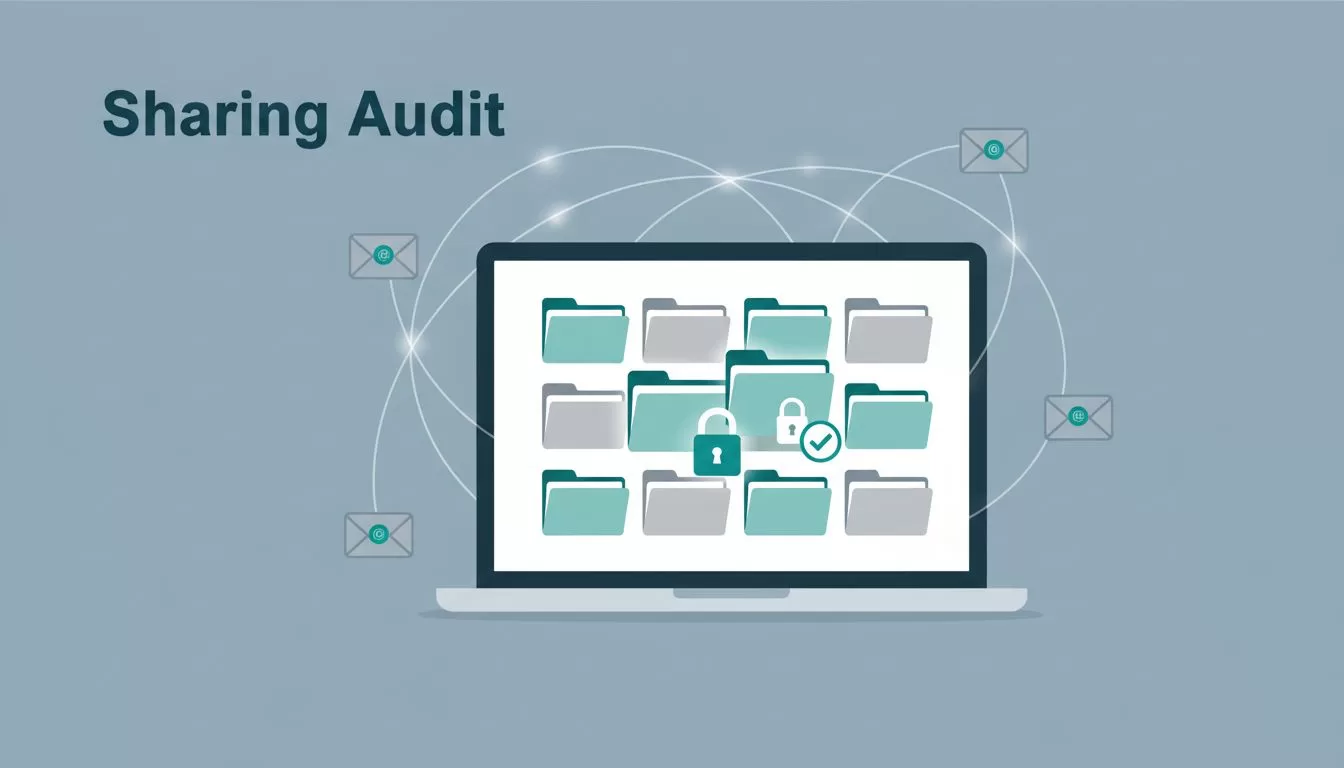
A loose Google Drive link can travel farther than most teams expect. One old vendor share, one forgotten client folder, and suddenly a private file is sitting in the wrong inbox.
I run a Google Drive sharing audit before that happens. For small teams, the goal is simple, find every outside share, check whether it still belongs, and close the gaps that keep growing in the background. If I need the policy side first, I keep secure Google Workspace document sharing open beside me.
Table of contents
- What I count as external sharing
- The admin console checks I run first
- How I read reports without wasting time
- Why Shared Drives need their own review
- My monthly checklist for small teams
- FAQs
What I count as external sharing
I treat any file shared outside my domain as an external share. That includes direct invites to Gmail or client addresses, public links, and old access that no longer fits the job.
A small team usually has three kinds of risk. First, a file gets shared for a project and never cleaned up. Second, someone uses “anyone with the link” because it feels easier. Third, a former contractor still has access long after the work ended.
I don’t wait for a leak. I audit the habits that create one.
That mindset helps because the file itself is rarely the problem. The problem is the path that let it spread. When I need a clean starting point, I use Google Workspace document sharing controls as the policy baseline, then I review the actual shares against it.
The admin console checks I run first
I always start with the rules, because the rules explain the noise in the logs. In the Admin console, I go to Apps > Google Workspace > Drive and Docs > Sharing settings and confirm the defaults match how my team works.
Google’s security investigation tool guide is the main reference I use when I need exact steps. I also check Monitor the health of your Drive settings when I want a fast snapshot of the current setup.
Then I run through this order:
- I check whether external sharing is on for the right org unit, not the whole company by mistake.
- I confirm whether trusted domains are set, and whether they still match current vendors or clients.
- I look at the default link setting, because public links create the biggest mess.
- I review Shared Drive behavior, since team-owned files need their own rules.
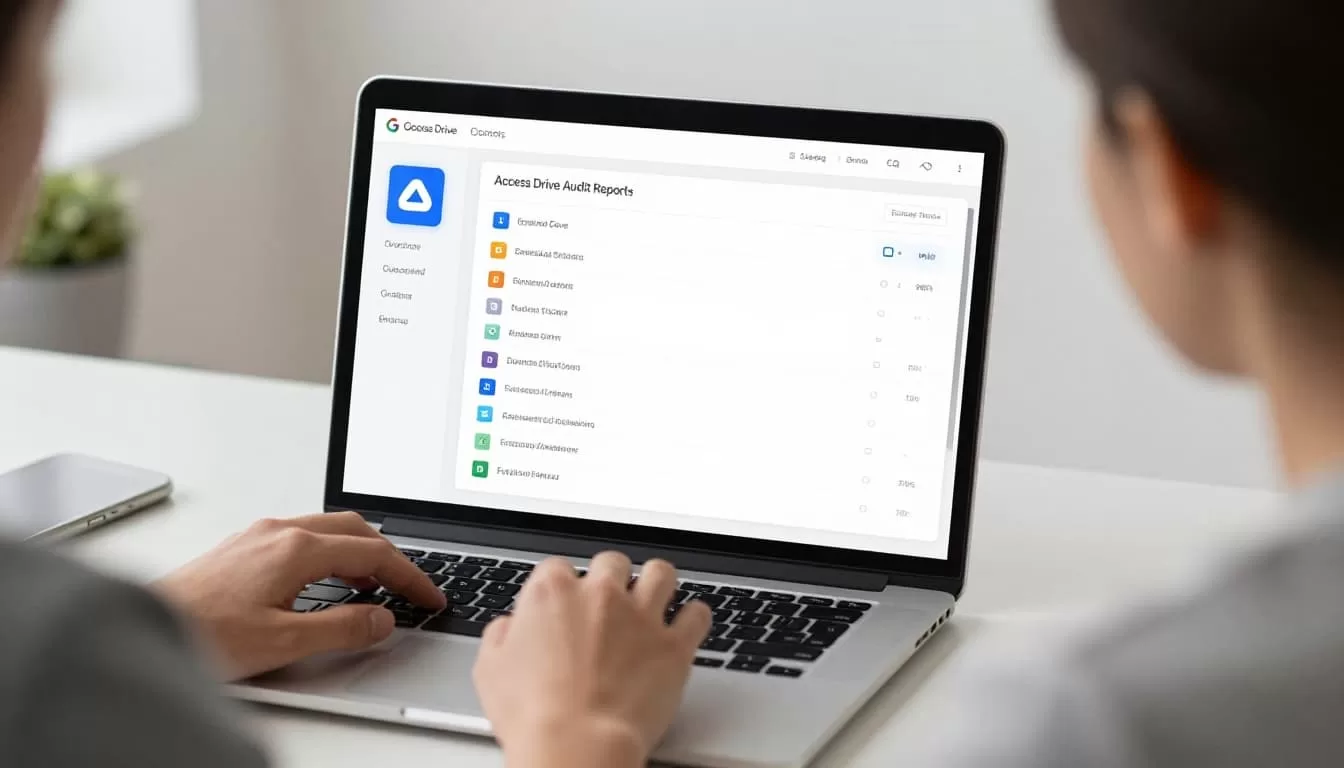
The fastest win is usually a tighter default. If the baseline is loose, every file review takes longer.
How I read reports without wasting time
Once the settings look right, I move to the evidence. The report trail tells me what people actually did, not what they meant to do.
| Place I check | What I look for | What I want to see |
|---|---|---|
| Sharing settings | Default external access and trusted domains | Restricted or tightly limited |
| Investigation tool | Recent shares by user and date | Only approved outside shares |
| File exposure report | Repeated outside domains and hot files | No surprise spikes |
The file exposure report is useful when I want patterns, not just single events. In a small team, patterns matter more than volume. One person may share a lot because they handle clients, but the report should still show a clear reason.
I also narrow the date range. Thirty days is usually enough. Longer windows add noise fast, and noise hides the share I care about.
Why Shared Drives need their own review
Shared Drives are where team ownership becomes useful. Files stay with the business, which helps when someone leaves or changes roles. For that reason, I don’t treat them like a folder mirror.
I review managers first, then members, then any files that still have outside access. If a team stores key work in personal drives, the audit gets messy fast. That’s why I also keep Google Workspace file storage planning in mind while I audit sharing. Ownership and sharing always travel together.
For Shared Drives, I ask three direct questions:
- Who can manage the drive?
- Who outside the team can see files?
- Does this drive still match the work it holds?
When the answer to any of those feels fuzzy, I clean it up right away. A small team doesn’t need many drives. It needs clear ones.
My monthly checklist for small teams
I keep this part short on purpose. If the checklist is too long, nobody uses it.
I review the same points each month:
- I scan for new external users added in the last 30 days.
- I check for files shared with “anyone with the link.”
- I review Shared Drive managers and members.
- I remove access for expired vendors and finished contractors.
- I save a clean report for the next review.
That routine takes less time than a cleanup after a mistake. It also makes permission drift easier to spot. If I find a risky share, I fix the share and then I fix the habit that caused it.
FAQs
How often should I audit external sharing?
For a small team, I like a monthly review. If a client project, vendor handoff, or board packet is active, I check sooner.
What tool do I use first when I suspect a bad share?
I start with the Admin console Investigation tool. It shows who shared what, when they shared it, and whether the share went outside the company.
Should I audit My Drive and Shared Drives together?
I review both, but I don’t mix them up. Shared Drives have team ownership, while My Drive depends more on individual habits. That difference matters when I trace a risky share.
What if a file was shared, then deleted?
I handle the sharing review first, then I check recovery paths if the file still matters. If ownership sits in a Shared Drive, the team usually has a better paper trail.
A good audit is quiet. It doesn’t need drama, because the settings and the logs already tell the story. When I keep the rules tight, check the reports often, and review Shared Drives on their own, external sharing stops feeling random.
That is the real win for small teams. I spend less time chasing mistakes, and more time keeping files where they belong.
