How To Sync Airtable And Google Sheets With Make
Airtable and Google Sheets can feel like twins that don’t speak the same language. When I need them to work together, I want one clean flow, not a pile of copy-paste chores. That’s where Airtable Google Sheets Make setups earn t...

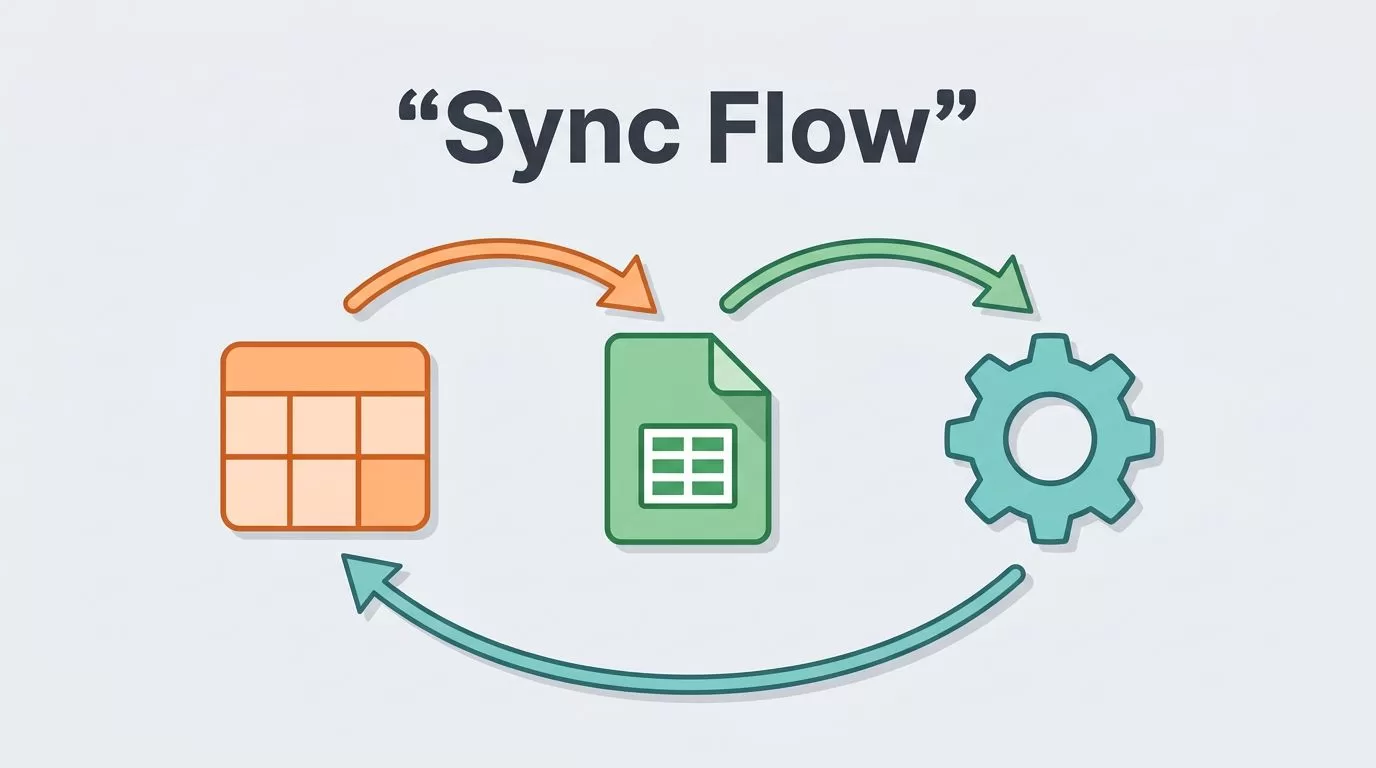
Airtable and Google Sheets can feel like twins that don’t speak the same language. When I need them to work together, I want one clean flow, not a pile of copy-paste chores.
That’s where Airtable Google Sheets Make setups earn their keep. I can move records one way, mirror updates back the other way, and keep the whole thing under control without code.
Pick the direction before you build
I always decide which app owns the data first. That one choice saves me from messy loops later.
| Workflow direction | I use it when | Best trigger | Main risk |
|---|---|---|---|
| Airtable to Google Sheets | I want reporting, dashboards, or a simple export layer | New or updated Airtable record | Duplicate rows |
| Google Sheets to Airtable | I want a form-like intake sheet or quick team edits | New or updated sheet row | Bad updates from manual edits |
If Airtable is the source, I treat Sheets like a reporting mirror. If Sheets is the source, I treat Airtable like the cleaner database.
I like to keep the base structure simple first. If I’m building a CRM, I start with a clear Airtable layout like this freelance CRM Airtable setup. When Sheets is my intake layer, a tight column design matters just as much, which is why I keep my Google Sheets intake workflow nearby as a reference.
For the official integration view, I also keep Make’s Airtable and Google Sheets integration page open.
Build the first scenario in Make


I start with one scenario, one direction, and one small test record. That keeps the setup calm and easy to debug.
Airtable to Google Sheets
- I create a new scenario in Make.
- I add an Airtable module that watches records or reacts to new changes.
- I connect my Airtable account and pick the base and table.
- I add a Google Sheets module that creates a row in the right sheet.
- I map each field carefully, then add a filter so only the right records move through.
For example, I might sync only records where Status = Approved. That keeps drafts and half-finished records out of the sheet.
Google Sheets to Airtable
- I start a second scenario if I need this direction too.
- I add a Google Sheets watch module.
- I choose the sheet and the tab I want to monitor.
- I add an Airtable create or update module.
- I map the sheet columns to Airtable fields, then test with one row.
I prefer two separate scenarios instead of one two-way sync. It’s cleaner, and it’s much easier to fix.
If both apps can edit the same record, I split the work into two one-way scenarios. That keeps the sync from eating its own tail.
Map fields so rows and records stay aligned
Field mapping looks simple until the first odd value breaks a run. I slow down here, because this is where most sync problems start.
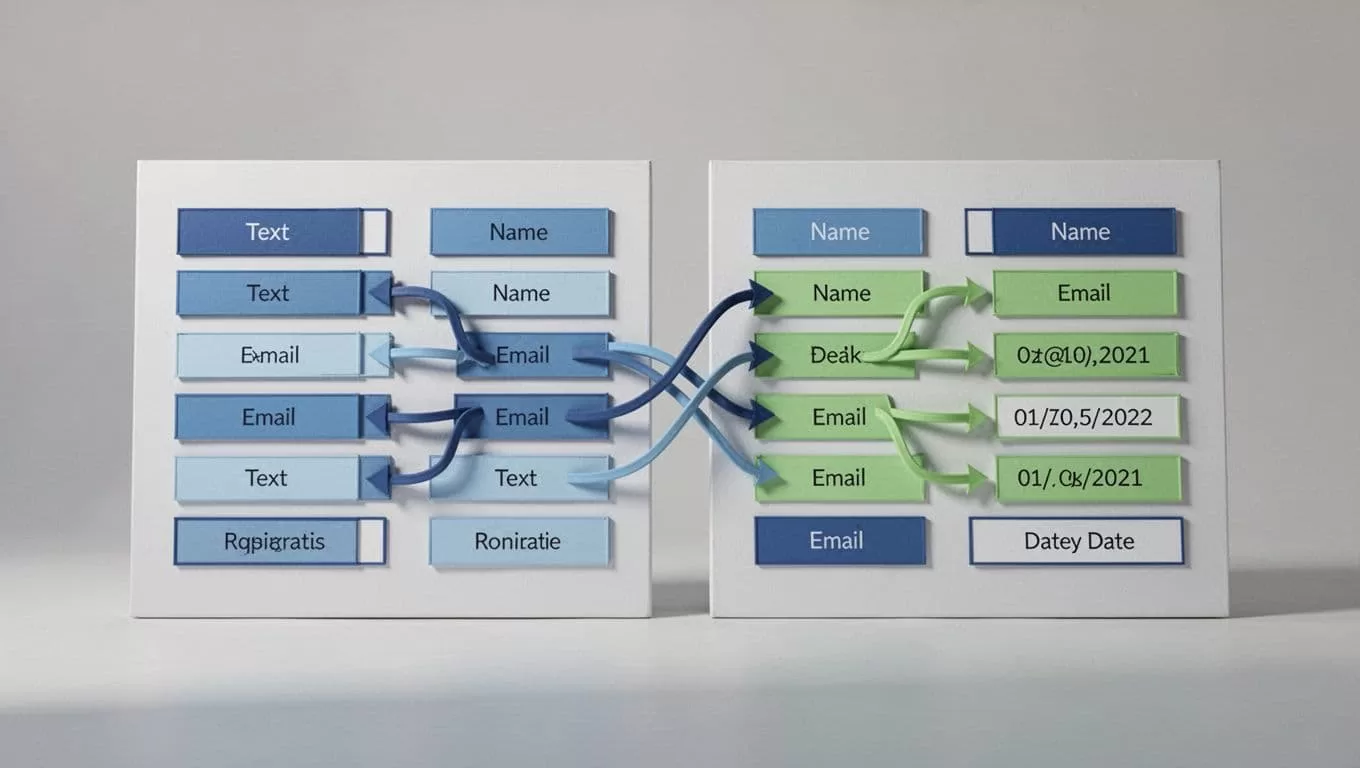
I map by meaning, not by position. Row numbers can change. Meaning usually does not.
| Airtable field | Sheets column | My note |
|---|---|---|
| Record ID | airtable_record_id | Best helper field for updates |
| Name | name | Plain text |
| Great unique key for contacts | ||
| Status | status | Keep values consistent |
| Last modified | last_synced_at | Helps with cleanup and checks |
I almost always add a helper column in Sheets called airtable_record_id. When Airtable creates the row, I write that ID back into the sheet. Later, I can search and update the same row instead of making a copy.
If I need to update Airtable from Sheets, I do the same thing in reverse. I search by a stable key first, often email or an external ID. Then I update the found record.
That approach fits a lot of real-world workflows. A clean Airtable base helps here, and so does a tidy sheet with fewer free-form columns.
Stop duplicates before they start
Duplicates usually show up because the scenario has no memory. I fix that with a few small rules.
First, I use a lookup before I create anything. If a matching record exists, I update it. If no match exists, I create it.
Second, I add a filter that blocks records I already synced. A helper field like Synced = Yes or a non-empty airtable_record_id works well.
Third, I avoid letting people edit helper columns. Those columns are for the scenario, not for the team.
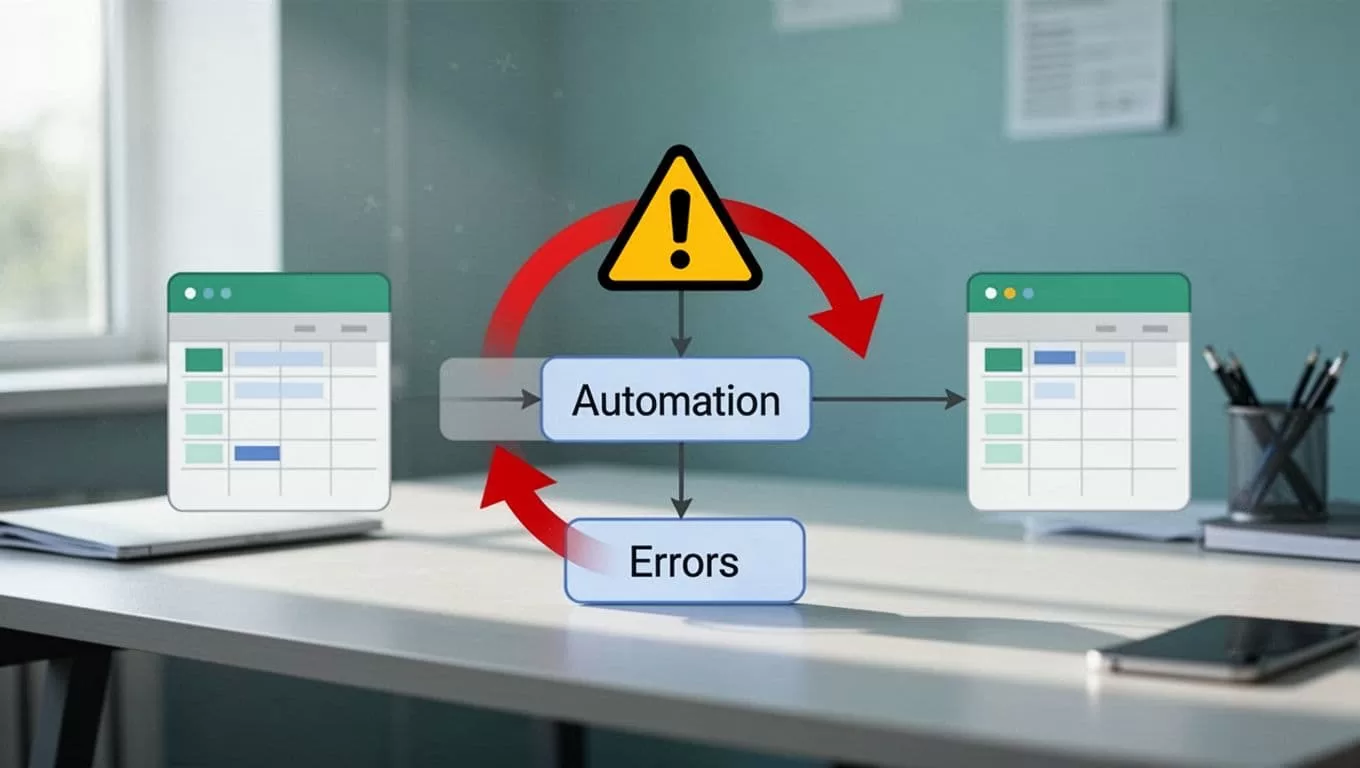
I also watch for common traps. Text values must match exactly. Dates can shift format between apps. Single select values need the same options on both sides. If I rush those, the scenario slows down or fails.
Test, schedule, and handle errors with care
I never turn a scenario on after one perfect test. I run several.
I use Run once with two or three sample records, then I inspect the output bundle. If the data lands in the wrong field, I fix the mapping before I do anything else.
After that, I decide on timing. Instant triggers are great when the module supports them. Scheduled runs are easier to manage, especially with Google Sheets. For beginners, a 15-minute schedule is a safe start.
Error handling matters too. If a module fails, I add an error handler, log the problem, and send myself a notice when needed. That way, one bad row doesn’t kill the whole sync.
I also keep an eye on operations. Make counts each run, so pointless retries can waste quota fast. Small test batches help me catch that early.
Build the sync like a bridge, not a shortcut
When I sync Airtable and Google Sheets with Make, I treat one app as the owner of each field. That keeps the data calm and predictable.
The rest is methodical. I choose one direction, map the fields, add a unique ID, test with real rows, and only then switch the scenario on. Once that’s in place, the spreadsheet stops acting like a copy machine and starts acting like a useful extension of Airtable.

