Animated Subtitles for Transistor.fm with Opus
If you host on Transistor.fm and want animated subtitles, Opus is the fastest free path. The job split is simple. Transistor stores and publishes the show. Opus turns the long file into short clips with moving captions. There is one catch....


If you host on Transistor.fm and want animated subtitles, Opus is the fastest free path. The job split is simple. Transistor stores and publishes the show. Opus turns the long file into short clips with moving captions.
There is one catch. There is no direct integration between the two tools, so the handoff is manual. Once you set up that handoff, one episode can turn into several social clips without a messy editing chain.
Key Takeaways
- Transistor.fm is the source system. It hosts the episode and gives you the file.
- Opus is the repurposing layer. It finds clip-worthy moments and adds animated subtitles.
- There is no native connector. You need to export or upload a file first.
- The free Opus tools are enough for testing clips and basic caption work.
- Better clips start with the hook. Captions help, but the opening line does the heavy lifting.
What Transistor.fm and Opus each do
Transistor is built for hosting, publishing, and analytics. Opus is built for clipping and captioning. That split matters because each tool does one job well.
| Tool | Job in the workflow | What it does not do |
|---|---|---|
| Transistor.fm | Hosts the podcast, publishes episodes, tracks performance | It does not create animated social clips |
| Opus | Finds strong moments, adds subtitles, exports short-form video | It does not replace your podcast host |
That table is the clean mental model. You do not want to edit inside your host. You want a file you can move into a clipping tool, then reuse across TikTok, Reels, Shorts, and LinkedIn.
You need a file, not a feed. Opus starts when the video exists.
If your show is already a video podcast, this is easy. If it is audio only, you need one extra step. Pair the audio with cover art or a simple visual first. A basic MP4 is enough.

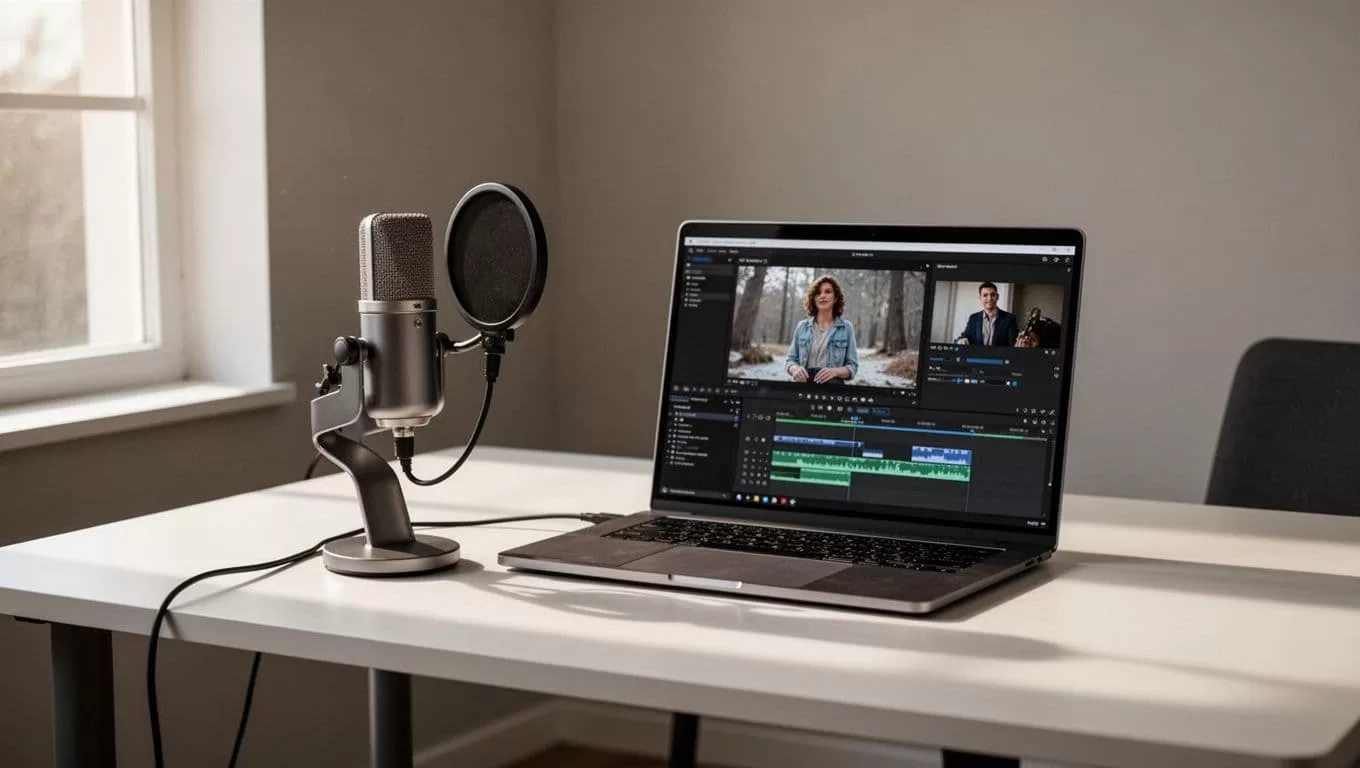
The free workflow for animated subtitles
Start with the simplest path. Export the episode, upload it to Opus, let the tool find the best segment, then tighten the captions. The free tools on Opus are enough for a first pass, and the current product pages show that you can use the subtitle and clip tools without buying a plan first.
- Export the episode from Transistor.
If your show is video-based, grab the full video file. If it is audio only, build a basic video first with the episode art on screen. Opus needs a video file or a supported source to work on. - Open the right Opus entry point.
Use the free podcast clip maker if you want help finding clip ideas from a full episode. Use the OpusClip subtitle generator if you already know the exact segment and only want captions and styling. - Let Opus scan the long file.
Opus looks for strong hooks and high-retention moments. That is useful when your episode runs long and you do not want to scrub through every minute by hand. A clean clip often starts with a sharp question, a clear claim, or a strong contradiction. - Adjust the captions before you export.
Switch to the OpusClip captions tool when you want more control over the moving text. Keep the lines short. Break on meaning, not on character count. A caption should read like speech, not like a paragraph. - Export and check the result on a phone.
Use 9:16 for TikTok, Instagram Reels, and YouTube Shorts. Watch the clip once before posting. If the first sentence feels slow, cut it. If the captions sit too low, move them up.
The free path is enough for testing, but it is not the full product story. The current Opus Pro plan is $29/month, or about $174/year billed annually. It adds 300 credits, AI hook customization, B-roll insertion, social scheduling, XML export to Premiere Pro or DaVinci Resolve, two team seats, and two brand templates. If you post a few clips a month, free can carry you. If you publish at volume, Pro is the cleaner fit.
Make the captions readable on small screens
Animated subtitles only work when they are easy to read in under two seconds. On a phone, that means size, spacing, and timing matter more than style flair. Use the text to guide attention, not to decorate the frame.
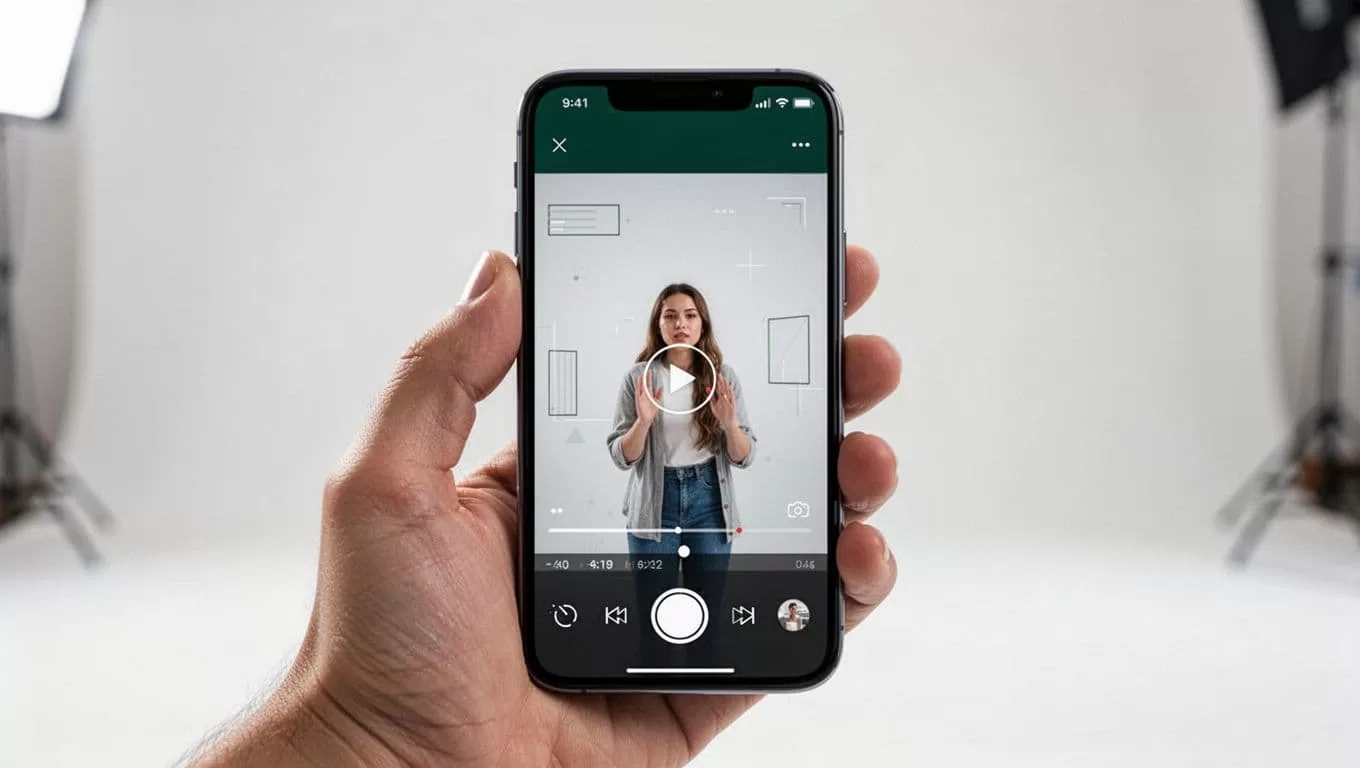
Use these rules when you style the clip:
- Put the hook first. Start the clip on the sentence that creates tension or curiosity. Do not waste three seconds on greetings or setup.
- Keep each caption chunk short. One idea per screen is easier to follow than a long block of text.
- Leave room for app controls. TikTok, Reels, and Shorts all crowd the edges. Keep captions in the middle third of the frame.
- Use strong contrast. White text on a dark field, or dark text on a light field, works better than soft colors.
- Match the platform. Shorts can handle a little more context. Reels and TikTok usually need a tighter cut and faster rhythm.
- Do not animate every word the same way. If everything bounces, nothing stands out. Keep the motion clean.
The best podcast clips feel edited, not overdesigned. If the caption style fights the speaker, the viewer notices the caption first. That is the wrong order.
If you want a practical test, post one clip with a plain subtitle style and one with a more animated treatment. Watch which one gets watched longer. The answer usually tells you where your audience sits.
When the tools do not connect cleanly
No direct integration means you should build a small manual workflow and stop waiting for a connector that does not exist. That sounds clunky on paper. In practice, it is fast once you repeat it a few times.
If the episode already exists in Zoom, Loom, Google Drive, Dropbox, or YouTube, use that file as your source. Opus accepts those inputs, so you do not always need to download and re-edit from scratch. If the episode only exists as audio, make a simple visual version first, then upload that file into Opus.
Keep the naming clean. Use the episode title, date, and clip angle in the filename. Save the original file, the clipped export, and the final social version in separate folders. That keeps review simple when you return to the same show next week.
This is also the point where workflow choice matters. If you only need one or two test clips, stay on the free path. If you need more volume, team seats, brand templates, or scheduling, the paid layer is there. The tool split stays the same either way. Transistor keeps the show moving. Opus handles the social cut.
Conclusion
If you want animated subtitles for a Transistor.fm show, do not wait for a native bridge. Export the episode, send it to Opus, and let the subtitle layer do the work on the first few seconds. That is where the clip wins or loses.
The free tools are enough to prove the format. Once you see which hooks hold attention, you can decide whether the extra credits and brand controls are worth paying for. Start with one episode, one clip, and one clean caption style. Then repeat what works.

