Auto Crop Video Layouts for Transistor.fm with Opus
If you publish long-form podcast video through Transistor.fm, the fastest way to get social clips is not manual editing. It is auto crop video layouts in Opus, where one recording turns into multiple vertical clips without rebuilding every...
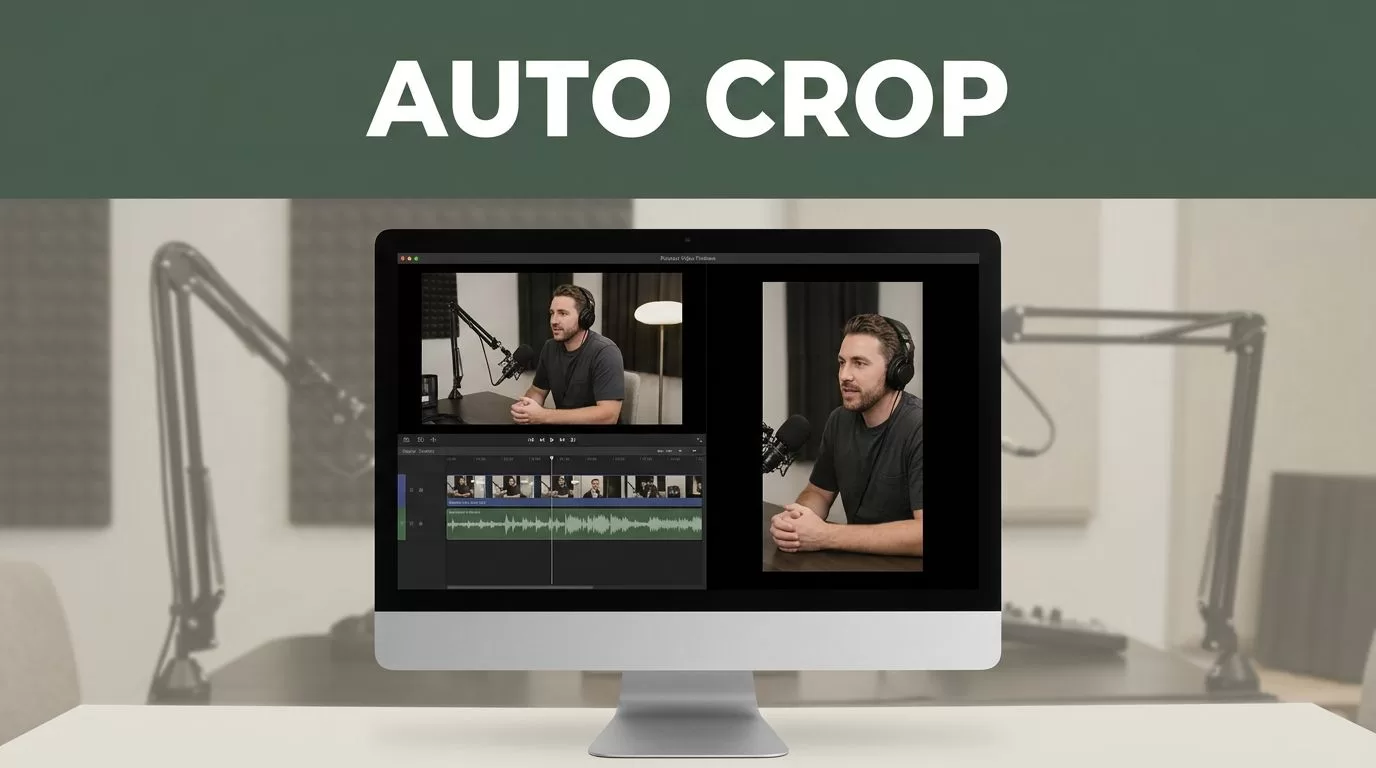
If you publish long-form podcast video through Transistor.fm, the fastest way to get social clips is not manual editing. It is auto crop video layouts in Opus, where one recording turns into multiple vertical clips without rebuilding every frame by hand.
The catch is simple. Opus needs a real video source, not just an audio file, and the first pass is never the final pass. If you set the source correctly, choose the right clip length, and check framing before export, the workflow is fast, repeatable, and easy to scale.
Key Takeaways
- Opus works best with video sources. If your Transistor.fm episode is audio-only, add video before you try to crop it.
- Set language and clip length first. That gives Opus a cleaner first pass and fewer bad clip suggestions.
- Auto-crop gets you close, not finished. You still need to fix framing, captions, and speaker placement.
- 9:16 is the default target. It fits Shorts, Reels, and TikTok without extra resizing.
- Batching pays off. A long episode can produce enough clips to cover several posts from one recording.
Why Transistor.fm Episodes Need Auto Crop Layouts
Transistor.fm is the home base. It holds the episode, the feed, and the publish record. Opus is the repurposing layer.
That split matters. If you only have audio, there is nothing for an auto crop to frame. If you publish a video podcast, though, one master file can feed short clips for every major social channel. That is where the time savings happen.
Creators compare this workflow all the time in podcasting tool efficiency threads. The pattern is always the same. Keep one clean master, let the tool find the best moments, then polish only the clips worth posting.
In 2026, OpusClip can take a long source file or a supported URL, then build vertical clips with captions and speaker reframing. It also supports direct links from YouTube, Zoom, Loom, Google Drive, Dropbox, and Twitch, which makes it easy to work from a finished master rather than a fresh edit every time.
If the source file is weak, the crop will be weak too. Clean the input first.
Build the Opus Workflow in the Right Order
Start with the source file from your Transistor.fm episode. If your show is video-first, export the master MP4 you want to repurpose. If it is audio-only, stop there and add video before you try to clip anything.
Then move through the Opus setup in a fixed order.
- Upload the video or paste the source URL. Opus accepts direct URLs and file uploads, so use the path that gets you the cleanest master.
- Set the language before analysis. This helps the transcript and clip detection stay accurate.
- Choose the clip length. Opus supports roughly 15 to 180 seconds. For most social posts, 15 to 60 seconds is the practical range.
- Pick the content type. Podcast is the right choice for interview-led episodes and talking-head segments.
- Let Opus score the moments. It looks for strong opinions, emotional peaks, and actionable tips, then ranks clips by likely engagement.
- Review the short list. Trim the start, trim the end, split weak sections, and turn on the AI hook only when the opening line needs help.
That first run is a filter. It is not a final cut. The goal is speed, not blind trust.
A 45-minute episode costs 45 credits in the current Opus model, and the same episode can return 10 to 20-plus clips. That makes batch repurposing practical. One recording can cover several posts if the content has enough sharp moments.
A simple repurposing order also shows up in public clip workflow examples. Upload, set length, enable the hook, add captions, then export. That is the core sequence. The rest is cleanup.
Fix Speaker Framing and Captions After the First Pass
Auto crop is useful because it finds the speaker fast. It is not perfect because it does not know what your audience needs to see first.
Look at three things before you export anything. Check the eyes. Check the chin. Check the captions. If any of those sit too close to the edge, the crop needs work.
Use a tighter crop for solo speakers. Keep more space around the face in an interview. If two people are talking, check which speaker carries the point. The active speaker should get the visual priority.
This table keeps the main fixes clear.
| Crop problem | What it looks like | Fast fix |
|---|---|---|
| Speaker is too low | Forehead clipped, eyes near the top edge | Raise the crop and re-center on the face |
| Captions cover the mouth | Text sits across lips or cheeks | Move captions lower and shorten line breaks |
| Two-person shot feels off | One speaker dominates, the other shrinks | Switch to a split layout or trim the scene |
| Frame feels empty | Too much blank space around the subject | Tighten the crop and reduce padding |
The main rule is simple. Keep the viewer on the speaker, not on the frame edges. If the crop distracts, the clip loses force.
Captions need the same discipline. Short lines read faster on a phone. Long blocks bury the quote. If the line is too dense, split the sentence or cut the clip earlier. Good captions should support the point, not compete with it.
A few more practical checks help here:
- Keep the subject inside the safe center area.
- Leave space for platform UI at the bottom.
- Keep the caption font and size consistent across clips.
- Recut dead air at the start, since weak openings hurt retention fast.
- Add B-roll only when the speaker shot gets stale or visually flat.
That is enough to turn a rough auto crop into a clip that feels deliberate.
Export Versions That Match Each Platform
Opus outputs vertical 9:16 clips by default, which fits Shorts, Reels, and TikTok cleanly. That is the right starting point for most Transistor.fm repurposing jobs.
If you post on LinkedIn or X, keep the same rule. Make the clip readable on a phone first. If it also works in a feed or desktop view, fine. If it does not, fix the crop and captions before you publish.
For teams that finish edits elsewhere, Pro also includes XML export to Premiere Pro and DaVinci Resolve. That matters when a marketing team wants the speed of AI clipping, but still needs a final human polish in a familiar editor.
Direct scheduling is useful too. Opus can publish to YouTube Shorts, TikTok, Instagram Reels, Facebook, LinkedIn, and X. That cuts one more handoff from the process.
Watch the platform connections as well. TikTok auth can drop and need re-authentication. Build that check into your weekly routine so scheduling does not fail on publish day.
If you need a final decision rule, use this one. Export the cleanest version you can watch on a phone without squinting. If the quote is strong but the face is off-center, fix the face. If the framing is good but the caption blocks the mouth, fix the caption. The clip should read in one glance.
Conclusion
The fastest Transistor.fm clipping workflow is not about making every frame perfect. It is about giving Opus a clean source, letting the auto crop do the first pass, then tightening what matters most.
If you keep the speaker centered, the captions short, and the export target matched to the platform, one long episode becomes a usable set of short clips with far less manual work. That is the whole job.
The best results come from good source video plus strict review. When those two pieces are in place, auto crop video layouts stop being a shortcut and start being part of the publishing system.
