Speechify as a Bionic Reading Alternative: What to Know
Reading fatigue usually starts before the first page ends. Your eyes lose their place, dense paragraphs blur together, and a simple document takes twice as long to finish. A Bionic Reading format can make text easier to scan by emphasizing...
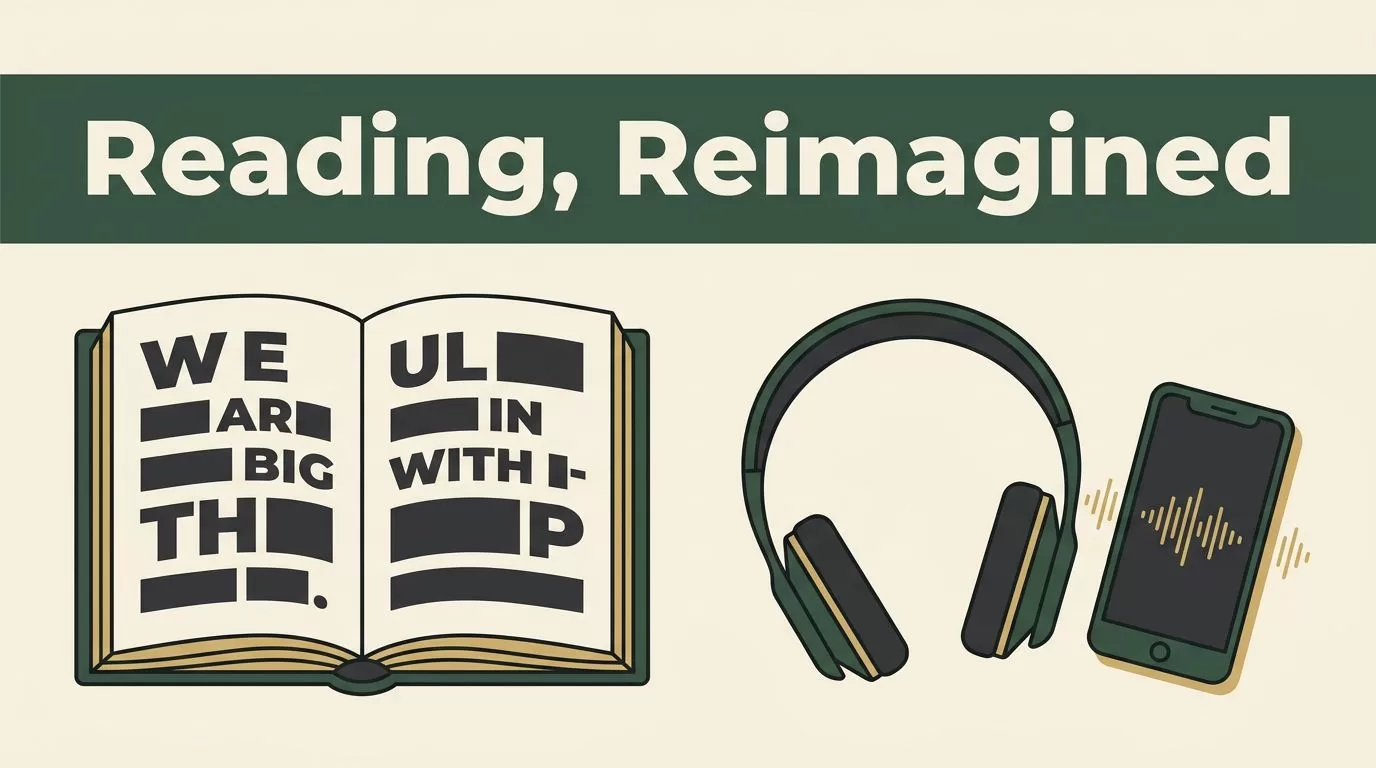
Reading fatigue usually starts before the first page ends. Your eyes lose their place, dense paragraphs blur together, and a simple document takes twice as long to finish.
A Bionic Reading format can make text easier to scan by emphasizing parts of words. Speechify takes a different route. It converts text into spoken audio so you can listen instead of relying on continuous visual reading.
The right upgrade depends on how you process information, what you read, and how much control you need over the reading experience.
Key Takeaways
- Bionic Reading changes the visual format of text. Speechify converts text into speech.
- Speechify is useful for long documents, commuting, multitasking, and severe reading fatigue.
- Premium costs $139 per year or $29 per month as of July 2026.
- Free Speechify access is limited to basic voices and 1.5x playback.
- You don’t need to abandon Bionic Reading. Use both tools for different reading tasks.
Understand What You Are Replacing
Bionic Reading and Speechify solve different problems.
Bionic Reading adjusts text visually. It bolds the initial parts of words so your eyes get stronger recognition points. You still read the document yourself. The app or extension changes the presentation, not the delivery method.
Speechify is a text-to-speech platform. It reads web pages, PDFs, documents, ebooks, and scanned physical pages aloud. You control the voice, speed, playback position, and device.
The distinction matters. Someone with dyslexia may prefer Bionic Reading because the text remains visible and familiar. Someone with ADHD may prefer Speechify because audio reduces the temptation to skip around the page. A student with reading fatigue may need both.
Bionic Reading supports visual scanning. Speechify supports audio-based comprehension. They aren’t interchangeable features.
Speechify also adds tools that aren’t part of a visual formatting system. Premium includes OCR for scanning printed text, cloud sync, offline listening, document summaries, and question-and-answer features for imported content. These tools expand the workflow beyond reading a browser page.
The trade-off is control. Audio moves in a sequence. You can’t scan three headings in two seconds or compare two paragraphs side by side while listening. You can pause and rewind, but visual reference remains faster for some tasks.
A comparison of Nook and Speechify makes this difference clear. Speechify addresses focus by shifting reading into audio, while visual tools keep the reading activity on screen.
Compare Bionic Reading With Speechify
Use the following comparison before you change your setup.
| Requirement | Bionic Reading-style formatting | Speechify |
|---|---|---|
| Main function | Changes how words appear | Reads content aloud |
| Best for | Skimming and visual focus | Listening and reduced eye strain |
| Reading speed | Controlled by your eyes | Adjustable playback speed |
| Long PDFs | Useful if formatting works | Useful with document import |
| Printed books | Usually requires text conversion first | OCR can scan physical pages |
| Multitasking | Limited | Strong fit for walking, travel, or routine work |
| Side-by-side review | Easy | Requires pausing and returning |
| Accessibility support | Visual reading assistance | Text-to-speech and audio access |
| Cost | Depends on the app or extension | Free tier, Premium plans, and separate products |
Speechify Premium supports playback between 0.75x and 5x. Start below your normal pace if you need comprehension. Increase speed only after your retention stays stable.
The platform also supports more than 1,000 voices across over 60 languages, based on its current product information. Voice quality matters because a robotic or poorly matched voice can create a new distraction.
For physical material, Speechify’s OCR 4.0 scans pages through a mobile camera. The current product information lists accuracy up to 99.8% and describes automatic handling for elements such as headers and footers. Scan quality still depends on lighting, page condition, and camera position.
Bionic Reading remains the better choice when you want to control the visual layout. It lets you inspect the original words, mark passages, compare sources, and move through a page without waiting for audio.
Speechify is the better Bionic Reading alternative when the main problem is sustained visual effort. It also fits users who absorb spoken information more easily than written information.
Don’t judge the tools by speed alone. A 3x playback setting is useless if you remember less. Test your comprehension with a short document before adopting a faster pace.
Check Speechify Features and Pricing
Speechify has separate products, so choose the reader app rather than the creator tools if your goal is accessible reading.
As of July 2026, the reader plans are structured around Speechify Limited and Speechify Premium:
| Plan | Current price | Main use |
|---|---|---|
| Speechify Limited | Free | Basic text-to-speech testing |
| Speechify Premium monthly | $29 per month | Short-term or flexible use |
| Speechify Premium annual | $139 per year | Regular reading and accessibility |
| Speechify Audiobooks | $9.99 per month | Audiobook subscription access |
The free tier includes 10 basic voices and limits playback to 1.5x. It doesn’t include Premium features such as AI summaries, AI podcasts, or advanced voice options. Some current listings also describe a three-day trial period, while others show a continuing free tier with restrictions. Check the offer shown in your account before relying on a trial.
Premium includes a 150,000-word monthly allowance, unlimited MP3 downloads, and synchronization across iOS, Android, Mac, Windows, Chrome, and Edge. It also connects with Google Drive, Dropbox, OneDrive, and Kindle.
The app can summarize long documents before you listen. Its question-and-answer tools can help you locate information inside imported material. These features are useful for research, but they shouldn’t replace source review when accuracy matters.
Speechify Audiobooks is separate from Premium. The audiobook subscription costs $9.99 per month in the current pricing snapshot. It isn’t automatically included with the Premium reader plan.
Speechify Studio is a different product again. It focuses on voiceovers, dubbing, voice cloning, and audio production. You don’t need Studio to listen to a PDF or web article.
A student discussion about Speechify can help you compare real study workflows, but don’t use individual reports as proof of guaranteed results. Your response to audio speed, voice tone, and document formatting will determine whether the subscription pays off.
Move Your Reading Workflow to Speechify
There isn’t a one-click migration that transfers your Bionic Reading preferences into Speechify. Treat the change as a workflow update.
Start with one document type. Use a web article, course PDF, or work report that you already understand. Don’t test the app on a difficult legal document or a technical paper you have never read.
1. Install Speechify on your active devices
Use the mobile app if you scan printed pages. Add the browser option if most of your reading happens online. Sign in across your devices so your library and listening position can sync.
2. Import one document
Connect Google Drive, Dropbox, OneDrive, or Kindle if those services hold your reading material. For a browser page, use the Speechify reading option rather than copying large sections into a separate file.
Check the imported text before pressing play. Tables, footnotes, citations, and multi-column PDFs can produce poor reading order. Fix the source file or use OCR when the text layer is incomplete.
3. Select a stable voice
Pick a voice that sounds clear at your target speed. Avoid changing voices between documents until you know what works. Consistency lowers the amount of attention spent adjusting the player.
4. Set a practical speed
Begin at 1x or 1.25x. Move to 1.5x after you can explain the main points without replaying every paragraph. Premium supports higher speeds, but maximum speed isn’t the target.
5. Use visual and audio modes together
Keep Bionic Reading available for headings, definitions, tables, and source comparison. Use Speechify for long passages, first-pass reviews, and documents that cause eye strain.
A Speechify reading walkthrough can help you see the basic listen-and-follow workflow before you commit to Premium.
Track the result for one week. Record how many pages or documents you finish, how often you rewind, and whether you can recall the material later. Those measures tell you more than a feature list.
Decide When Speechify Is the Better Fit
Speechify is a strong choice when your reading problem comes from eye strain, slow decoding, poor focus, or limited time. It also helps when you need access to printed material that isn’t available as an ebook.
Students can listen to assigned readings while reviewing notes. Professionals can process reports during a walk or routine commute. People with ADHD may use audio to reduce visual distractions and maintain a fixed reading path.
The app won’t solve every reading problem. Audio can make dense sentences harder to inspect. It can also reduce retention when you listen passively while doing demanding work.
Keep Bionic Reading as your primary tool when you need to scan, compare, annotate, or inspect exact wording. It may also be the better choice when you prefer visible text and don’t want a subscription.
You can run a simple split workflow:
- Use Bionic Reading for research, editing, and rapid review.
- Use Speechify for long passages and first-pass comprehension.
- Use both for study, with audio first and visual notes second.

Conclusion
Speechify is a practical Bionic Reading alternative, but it isn’t a replacement for the same feature. Bionic Reading changes the text on your screen. Speechify changes the way you receive the content.
Test Speechify with one familiar document, a moderate playback speed, and a clear retention check. Keep Bionic Reading for visual tasks that require scanning and precision.
The best setup may not be a full switch. Use each tool where it removes the largest barrier to finishing your reading.
