Child Care Automation Workflows With Twin.so
Most center teams need child care automation when staff spend too much time copying data, sending reminders, checking forms, and updating multiple systems. These tasks are necessary, but they don’t need manual attention every time. Tw...
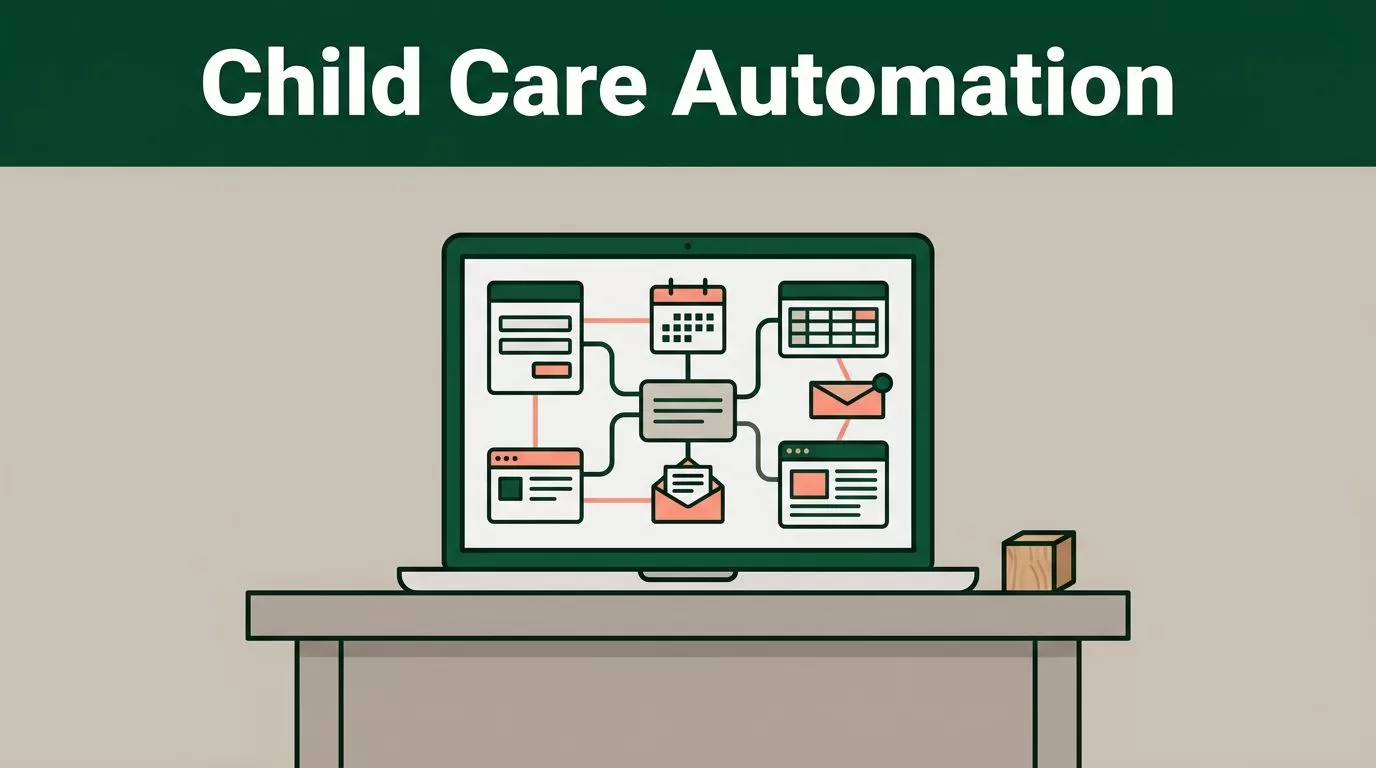
Most center teams need child care automation when staff spend too much time copying data, sending reminders, checking forms, and updating multiple systems. These tasks are necessary, but they don’t need manual attention every time.
Twin.so gives operations teams a way to build AI-powered workflows around existing tools. The practical approach is simple: automate repeatable actions, keep sensitive decisions with staff, and preserve one approved system as the source of truth.
How child care automation with Twin.so should work
Twin.so is a general-purpose AI automation platform. It isn’t a child care management suite with built-in attendance, tuition, licensing, or classroom features.
Instead, Twin.so can help you build workflows that work across websites, forms, spreadsheets, inboxes, and supported applications. Its documented capabilities include natural-language workflow creation, scheduled runs, webhook triggers, API connections, and browser automation. Browser automation can complete actions on websites even when a direct API isn’t available.
That flexibility makes Twin.so useful as an automation layer around your existing child care systems. It can move information, prepare updates, create reminders, and flag exceptions. It shouldn’t replace the system that stores official enrollment, attendance, billing, or staff records.
If you need those functions inside one purpose-built platform, compare products such as Procare’s child care management software, iCare Childcare Software, or Digital Childcare’s management platform. These products target core child care operations directly.
Use Twin.so to handle routine movement and preparation of information. Keep final authority over children, families, payments, schedules, and compliance records with approved staff.
Start with work that has a clear trigger, a defined set of rules, and an obvious output. Avoid broad instructions such as “manage enrollment.” Build one small workflow first.
Automate inquiry follow-up and enrollment intake
Enrollment creates many repetitive tasks before a family ever joins the center. A parent submits an inquiry, staff record the details, someone sends a reply, and administrators follow up again when the family doesn’t respond.
Twin.so can help organize these steps without giving an automated agent control over admission decisions.

Inquiry follow-up
A practical inquiry workflow can begin when a form submission enters an inbox, spreadsheet, or customer relationship system. The workflow can then:
- Check whether the parent provided a name, email address, phone number, and requested start date.
- Add the inquiry to an approved tracking system.
- Draft a response using the center’s current availability and tour information.
- Create a follow-up reminder if the parent doesn’t reply.
- Flag unusual questions for a director or administrator.
The message should use an approved template. A staff member should review the first set of messages before automatic sending begins.
Don’t allow the agent to invent availability, promise a place, or answer questions about allergies, custody arrangements, medical needs, or special accommodations without human review.
Enrollment intake
Enrollment intake is another strong child care automation use case because the workflow has defined fields and document requirements.
Twin.so can check whether required fields are complete, identify missing documents, organize submissions, and notify staff when an application needs attention. If the center uses a web portal, browser automation may help transfer approved information between screens. Test this process with sample data before using live family records.
The agent should never decide whether a child is accepted. It can prepare the file and show what remains incomplete. The director makes the decision.
Add reminders, billing notifications, and family messages
After enrollment, administrators handle recurring communications every week. These messages often follow a predictable schedule, which makes them suitable for child care automation.

Use a workflow table to define the automation boundary before you configure anything.
| Workflow | Twin.so can prepare or trigger | Staff should control |
|---|---|---|
| Payment reminders | Draft notices using approved due-date data | Balance changes, refunds, disputes |
| Family communications | Schedule approved reminders about forms, closures, or events | Sensitive child-specific messages |
| Staff scheduling | Collect availability and prepare a draft schedule | Final assignments, ratios, coverage |
| Reporting | Gather approved data and format a report | Accuracy checks and official submissions |
| Attendance follow-up | Flag missing entries for review | Corrections to attendance records |
Billing notifications need particular care. A workflow can read an approved due date and draft a reminder. It shouldn’t change an invoice, calculate a new balance, issue a refund, or send a collections message without authorization.
Family communication follows the same rule. Use automation for calendar reminders, missing-form notices, holiday closures, and general announcements. Route messages about incidents, health information, payment disputes, or family complaints to a person.
Staff scheduling can also start with preparation rather than automatic publishing. Twin.so may collect availability from approved sources, identify gaps, and prepare a proposed schedule. The administrator reviews staffing requirements, local ratio rules, leave status, and qualifications before publishing.
Reporting workflows should return organized information, not unverified conclusions. An agent can collect attendance totals, enrollment counts, open inquiries, or missing records. A staff member checks the report against the source system before using it for an internal meeting, subsidy record, or licensing submission.
Build the workflow in Twin.so
A reliable child care automation workflow starts with a narrow process. Use this build sequence.
- Choose one repetitive task. Pick a workflow such as inquiry follow-up, missing-document reminders, or weekly reporting. Don’t combine enrollment, billing, and staff scheduling in one first deployment.
- Write the trigger and output. State what starts the workflow and what it must produce. For example, “When a new inquiry arrives, create a tracking record and draft an approved reply.”
- Define the source of truth. Identify where the workflow reads information. This could be an approved enrollment database, billing platform, staff schedule, or shared operations file. Don’t let multiple systems compete over the same field.
- Set approval points. Require human approval before sending sensitive messages, changing records, publishing schedules, charging a payment method, or submitting a report.
- Test with controlled data. Use fake names and non-sensitive records during the first test. Check missing fields, duplicate entries, incorrect dates, failed logins, and unexpected responses.
- Run a limited pilot. Start with one administrator or one center location. Review each completed action. Record failures and adjust the instructions before expanding access.
A useful Twin.so instruction should name the source, action, restrictions, and escalation path. “Review new inquiries, draft replies using the approved template, don’t state availability, and send incomplete records to the enrollment director” is better than “respond to leads.”
Set a schedule only after the manual version works. A daily reminder may be appropriate for inquiries. A weekly report may be sufficient for operations data. Use webhooks or other triggers only when the event source is reliable.
Protect family information and keep review in the loop
Child care records can contain names, birth dates, health details, emergency contacts, payment information, custody documents, and staff credentials. Treat this information as sensitive at every stage.
Start with data minimization. Give the workflow only the fields it needs. An inquiry follow-up agent may need a parent name, contact method, and inquiry status. It doesn’t need medical records or full enrollment documents.
Use separate permissions for administrators, teachers, finance staff, and automation accounts. Store credentials through approved security controls. Don’t copy family data into personal spreadsheets, personal email accounts, or unapproved AI tools.
Review Twin.so’s current security, access, retention, and integration settings before deployment. Policies must also match your local privacy requirements, licensing rules, contracts, and internal procedures. A workflow tool doesn’t remove the center’s responsibility for how information is collected, stored, shared, or deleted.
Keep an activity log that shows the trigger, data used, action taken, and person who approved the result. This record helps staff investigate a failed reminder or incorrect update.
Human review is required for high-impact decisions. That includes admissions, subsidy information, incident communications, medical details, staff discipline, staffing coverage, payment changes, and regulatory reports.
A workflow that can send a reminder shouldn’t automatically decide who is admitted, charged, scheduled, or reported to a regulator.
Conclusion
Child care automation with Twin.so works best as a controlled layer around your current systems. Use it to collect information, prepare messages, create reminders, move approved data, and flag exceptions.
Start with inquiry follow-up or enrollment intake because both processes have clear triggers and measurable outputs. Add billing notifications, family communications, staff scheduling, and reporting after the first workflow performs consistently.
The strongest setup keeps human review at every sensitive decision point. Automation should reduce repetitive work without removing accountability for children, families, staff, or official records.
