How I Use Chrome Profiles to Keep Client Work Separate
When I juggle several clients, the biggest risk is not slow work. It’s opening the wrong account, saving the wrong bookmark, or mixing two logins in one browser. That’s why I treat chrome profiles client work as a clean boundary...

When I juggle several clients, the biggest risk is not slow work. It’s opening the wrong account, saving the wrong bookmark, or mixing two logins in one browser.
That’s why I treat chrome profiles client work as a clean boundary, not a nice-to-have. With the right setup, each client gets its own browser space, its own tools, and its own habits.
Why I use Chrome profiles instead of one crowded browser
Chrome profiles keep my work tidy because they separate the things that usually get tangled. Google explains the basics in Manage Chrome with multiple profiles, and that separation is exactly what I want when I move between clients.
Here’s how the main options compare:
| Option | What stays separate | Best use |
|---|---|---|
| Chrome profile | Bookmarks, history, passwords, extensions, cookies, settings | One client, one workspace |
| Google account sign-in | Sync inside that profile | Tying a client account to one workspace |
| Incognito mode | Temporary session data | One-off private checks |
| Separate browser windows | Almost nothing meaningful | Short-term tab juggling |
That table is the whole story for me. A new window looks organized, but it still shares the same browser life. Incognito hides the traces of a session, yet it doesn’t build a stable client workspace. A Chrome profile does both jobs I need, separation and repeat use.
If I need a real boundary, I use a profile. Everything else is just a lighter layer on the same browser.
I also like the privacy side of it. If I keep a client’s bookmarks, extensions, and saved logins inside one profile, my other work stays untouched. That makes handoffs cleaner and mistakes less likely.
How I create a profile on Windows and Mac

The setup is almost the same on Windows and Mac, so I don’t need a different process for each system. I open Chrome, click the profile icon in the top-right corner, and start from there.
- I click my profile avatar in Chrome.
- I choose Add or Create new profile.
- I name it for the client, not for myself.
- I pick a color or icon that stands out fast.
- If the client uses Google Workspace or Gmail, I sign into that account in this profile.
- I turn on only the extensions that belong in that workspace.
That last step matters more than it sounds. A profile is only helpful if it stays clean. If I let every extension follow me into every client account, the separation gets muddy fast.
When I’m doing prospecting work, I keep the research profile tied to tools like my Hunter.io Chrome Extension prospecting guide. That way, email research stays in one place instead of bouncing across personal tabs.
I also keep a simple rule in mind. If the client has a shared login, I put it in the right profile first. If the client wants a fresh setup, I build the profile before I sign in.
How I switch profiles without losing focus
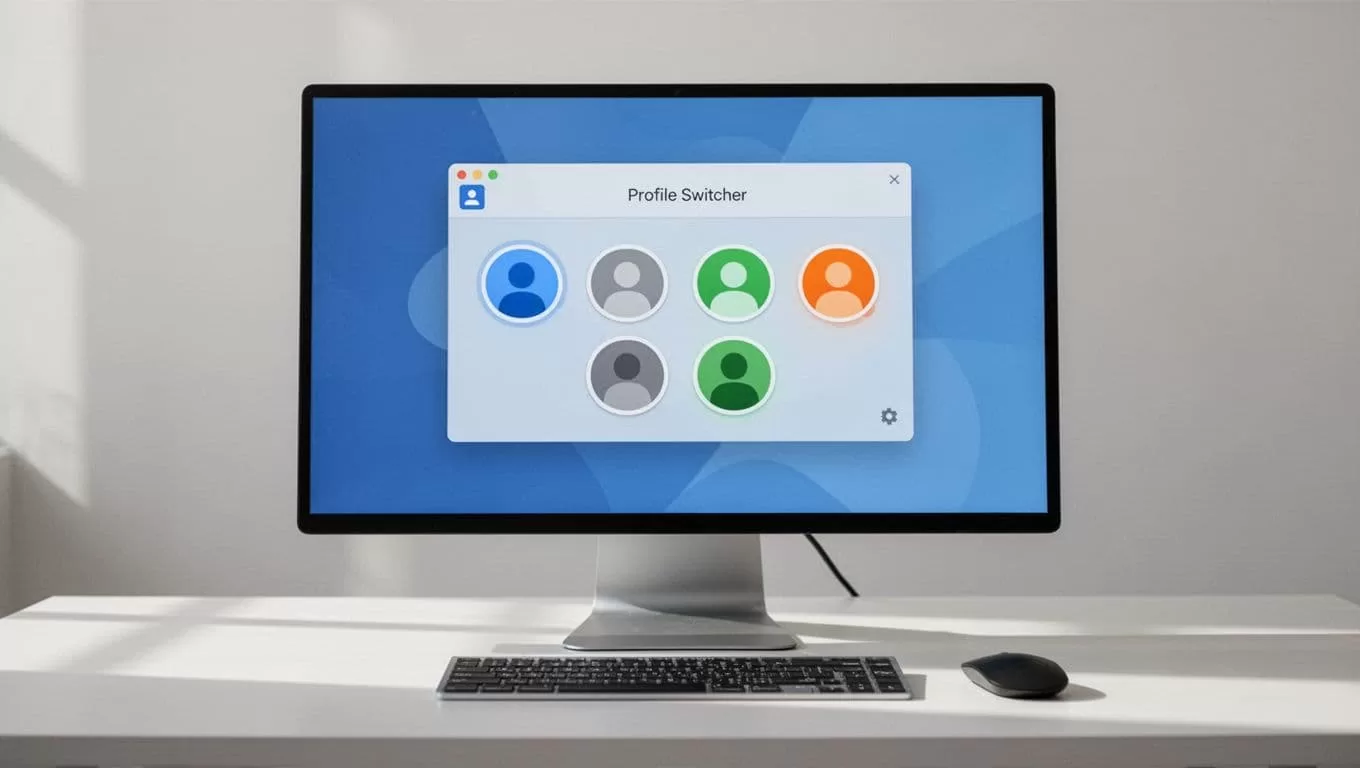
Once the profiles exist, the real win is speed. I don’t want switching to feel like a chore. I want it to feel as normal as opening a notebook.
So I use colors and icons as visual shortcuts. One client might be blue, another green, another gray. At a glance, I know where I am before I click anything important. That tiny habit saves me from opening the wrong inbox or the wrong ad account.
I also keep separate browser windows in their proper place. They help me arrange tabs, but they do not protect me from overlap. Incognito is useful for a quick public check or a search I don’t want saved, yet it ends when I close the window. For real client work, I need a repeatable workspace.
When browser research turns into client follow-up, I move the work into my Recruit CRM headhunter software review. That keeps the browser profile clean while the client notes live where they belong.
Best practices that keep profiles useful instead of messy
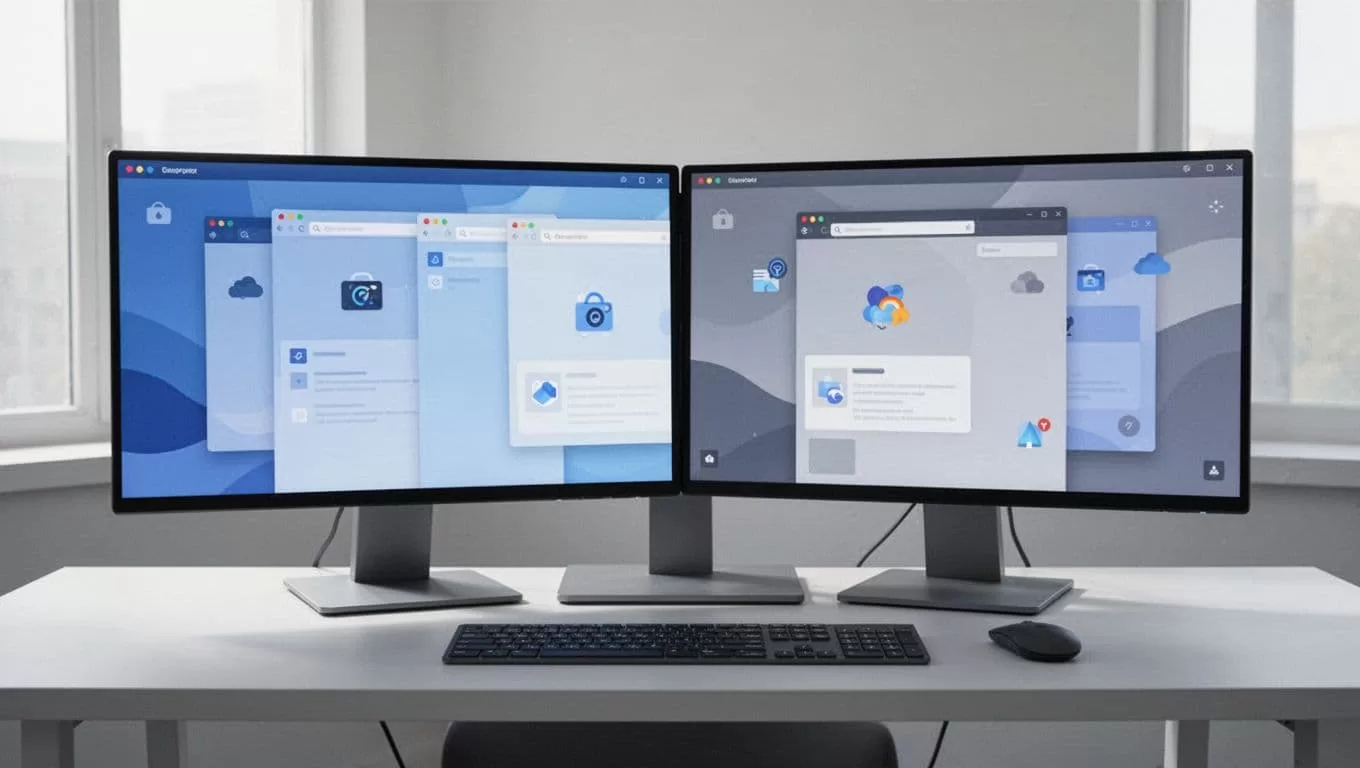
A profile only helps if I keep it simple. I use a naming system that works months later, not just on day one.
- I name profiles with the client and the function, such as “Northstar | Ads” or “Mosaic | Ops”.
- I match each profile to a clear color or icon, so I can spot it fast.
- I keep passwords in the right password manager vault, and I avoid saving client logins in my personal vault.
- I create a new profile when a client has separate logins, ad accounts, or extension needs.
- I reuse an existing profile only when the same client team already lives there and the setup still fits.
A team-focused guide like Teamfluence’s help center on managing Chrome profiles for multiple clients makes the same point for agency work. Separate profiles reduce confusion when one machine handles several accounts.
I also keep one more rule in place. If a profile starts collecting unrelated bookmarks, random extensions, or old logins, I stop and clean it up. A cluttered profile can slow me down as much as a cluttered desktop.
Chrome profiles give me something simple and valuable, a browser I can trust. I waste less time hunting for passwords, and I make fewer account mistakes.
That matters when my day is full of client work. Clean profiles keep my focus where it belongs, on the work itself, not on fixing browser mix-ups.
