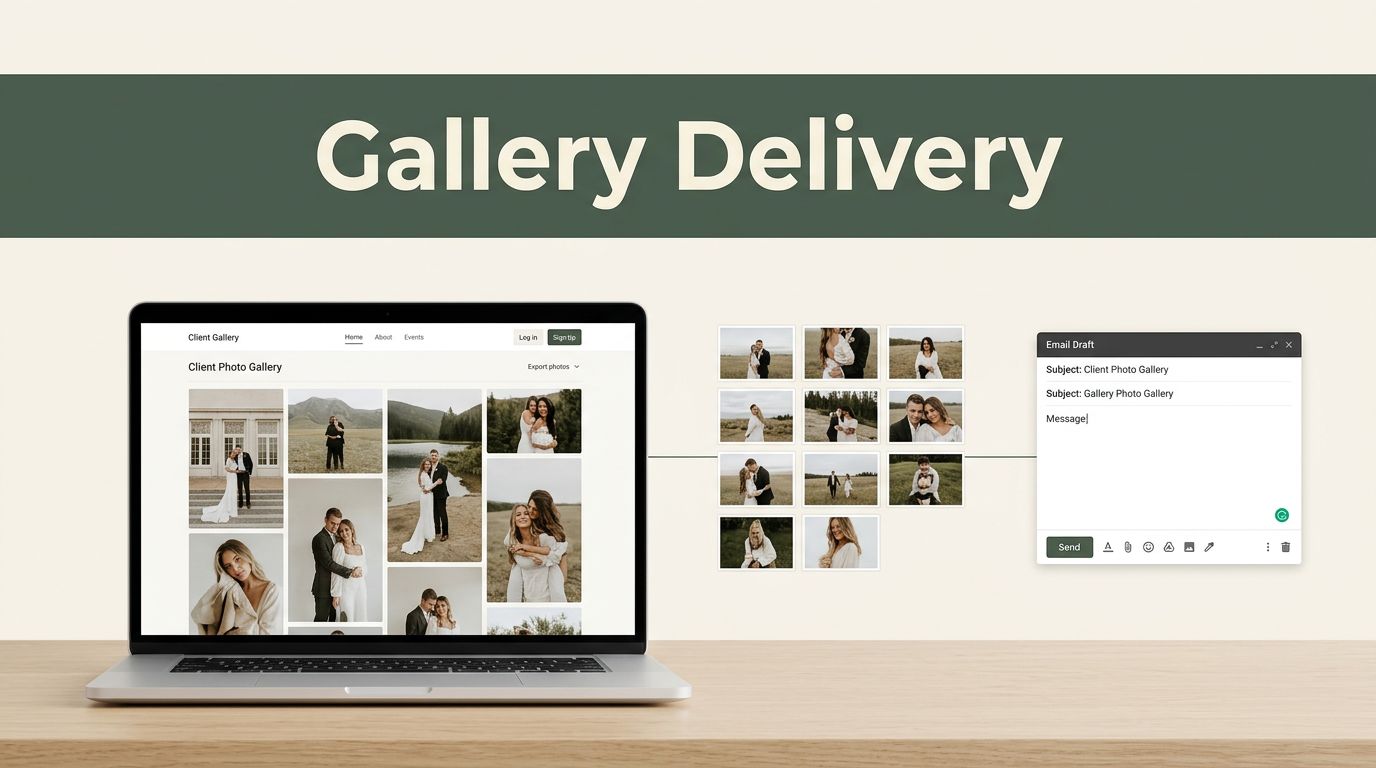
A finished gallery should not sit in your export folder while you manually prepare every client email. A well-built client gallery delivery workflow can handle the routine work while you stay focused on shooting, editing, and client decisions.
Twin.so can act as the automation layer between your production system, gallery platform, email, and team notifications. The goal isn’t to remove personal service. The goal is to remove repeated admin without sending a cold, generic message. Start with a clean workflow, then automate each predictable step.
What to automate before the gallery reaches the client
Gallery delivery usually contains more steps than the client sees. You export the final images, upload them, check the gallery, copy the link, write an email, notify the client, wait for feedback, send reminders, and close the project.
Manual handling creates three common problems:
- Galleries remain ready but undelivered.
- Clients receive inconsistent instructions or incomplete links.
- Your team can’t see which projects need attention.
Twin.so should manage status changes and repeatable actions. It shouldn’t decide which images belong in the final gallery or replace your judgment on sensitive client communication.
A practical automation can cover:
- Detecting when a gallery is marked ready.
- Checking that the client name, email address, gallery URL, and project status exist.
- Sending a branded delivery email.
- Recording the delivery date and message status.
- Sending a reminder only when the client hasn’t responded.
- Alerting your team when approval, revision, or payment is required.
- Closing the delivery task after approval.
The workflow needs a clear source of truth. Choose one system where the project status lives. Twin.so can then use that status to start the next action instead of relying on a team member to remember it.
If your gallery host already provides client-facing delivery tools, keep those tools in the process. Platforms such as Pixieset’s client gallery software can handle the gallery presentation, while Twin.so coordinates the surrounding tasks.
Build a client gallery delivery workflow in Twin.so
Before creating automations, define the fields Twin.so needs to read and update. A simple project record is enough for most studios.
Use fields such as:
- Project name
- Client or company name
- Primary contact email
- Gallery URL
- Gallery access code, if applicable
- Gallery status
- Delivery date
- Approval status
- Revision status
- Assigned team member
- Follow-up date
Use consistent status values. For example, Editing, Ready for Review, Ready to Deliver, Delivered, Changes Requested, Approved, and Closed are easier to automate than free-form notes.
Folder and file names also matter. Use one project naming format across your storage system, such as Client_Project_Date. This prevents Twin.so from matching the wrong gallery when two clients have similar names. The same rule applies to email addresses. Copy the approved client record instead of asking the automation to guess from a file name.

Your first Twin.so workflow should have three parts:
- A trigger that detects a project entering
Ready to Deliver. - Conditions that confirm the required delivery data exists.
- Actions that send the gallery and update the project record.
Add a failure path before you activate the workflow. If the gallery URL or client email is missing, stop the send and notify the assigned team member. A failed automation should create a visible task, not disappear into an error log.
Automate the send without losing the human touch
The delivery email is the most visible part of the automation. Keep the process automated, but keep the message personal.
Use a template with dynamic fields for the client name, project name, gallery link, access instructions, and next step. The body should sound like your studio wrote it. Avoid a message that looks like a system notification.
A useful delivery email answers four questions:
- What is ready?
- Where does the client access it?
- What should the client do next?
- When should they respond?
For example, the message can explain that the final gallery is ready, provide the private link, tell the client how to review or approve the work, and include a response date. If the project requires a revision request, explain where the client should leave comments.
Twin.so can personalize the message using your project fields. Keep the personalization limited to information you have verified. A correct project name and clear next step are more useful than a long paragraph assembled from uncertain data.
Use the workflow to update the status immediately after the message is sent. Record the timestamp, recipient, and delivery URL. This gives your team a reliable activity record and prevents someone from sending the same gallery twice.
Add an internal notification after the client message. The notification can include the project name, client, delivery time, and next follow-up date. Don’t include sensitive gallery credentials in a broad team channel. Send private access details only through the approved client communication path.
Security needs a place in the workflow. Use private or access-controlled gallery links when available. Check whether links expire, whether downloads can be restricted, and whether the gallery host supports password protection. Never place a client access code in a public task title or shared spreadsheet.
Handle approvals, reminders, and follow-up
Delivery isn’t complete when the email leaves your system. The next stage is client action.
Create separate branches for the main outcomes:
- The client approves the gallery.
- The client requests changes.
- The client opens the gallery but takes no action.
- The message fails to deliver.
- The project needs manual review.
An approval event should update the project record and notify the person responsible for the next step. If the client requests changes, create a revision task with the original feedback attached. This keeps the request connected to the gallery instead of burying it in a long email thread.
Reminders need limits. A simple schedule might send one reminder after three business days and a final reminder after seven. Stop the sequence as soon as the client approves, requests changes, or replies through the designated channel.
The reminder should add useful information. Restate the gallery link, explain the pending action, and provide a direct contact option. Don’t send repeated messages that only say, “Following up.”
Photographers often build different delivery sequences for weddings, portraits, commercial shoots, and recurring brand work. Review real workflow discussions, such as this photographer gallery delivery conversation, before standardizing your own process. The useful point isn’t to copy another studio. It is to identify where handoffs and delays usually occur.

Keep a human review path for exceptions. A client who reports a privacy concern, requests a major change, or misses a contractual deadline shouldn’t receive another automatic reminder. Twin.so should route that case to a person and pause the standard sequence.
A sample end-to-end gallery delivery workflow
The following workflow fits a small studio that uses a gallery platform, a project database, email, and Twin.so.
| Stage | Trigger or condition | Twin.so action | Result |
|---|---|---|---|
| Production complete | Project status changes to Ready to Deliver | Read the project record | Automation starts |
| Preflight check | Client email, gallery URL, and access settings exist | Continue if all fields are present | Gallery is ready for sending |
| Missing data | One required field is empty | Create an internal task and stop | No incomplete email is sent |
| Client delivery | Preflight passes | Send the branded gallery email | Client receives clear instructions |
| Internal update | Email action completes | Set status to Delivered and save the timestamp | Team sees the current state |
| Client response | Approval or revision event arrives | Update approval status and route the next task | Production work continues |
| No response | Follow-up date arrives with no action | Send one approved reminder | The project stays visible |
| Final state | Client approves or staff closes the job | Stop reminders and mark the workflow complete | No unnecessary messages are sent |
The main control is the status field. Every action depends on a known state, so the workflow can stop, continue, or route the project without guesswork.
You can also connect the workflow to reporting. Track delivery time, approval time, reminder count, revision rate, and failed sends. These metrics show whether the bottleneck is editing, client review, or follow-up.
Client gallery automation checklist
Use this checklist before turning on the live workflow:
- Create one standard project record with required delivery fields.
- Define fixed status values for delivery, approval, revision, and closure.
- Confirm that Twin.so reads the correct gallery URL.
- Test the email with an internal address before using a client address.
- Add a missing-data condition that stops incomplete sends.
- Use branded copy with a clear client action.
- Record delivery time and message status.
- Set a maximum number of reminders.
- Stop reminders after approval, revision requests, or a manual hold.
- Protect private links, passwords, and client information.
- Add a human review path for exceptions.
- Review failed runs and update the workflow after each real test.
Run at least one test project through every branch. Check the normal delivery, missing email, missing URL, approval, revision request, and no-response paths. A workflow is ready when each outcome produces a visible next step.
Conclusion
Automating client gallery delivery in Twin.so works best when the workflow uses clear project states, verified client data, and limited communication branches. Twin.so can handle the repeated handoffs while your team controls image selection, exceptions, and sensitive conversations.
Build the preflight check first. Add the branded send second. Then connect approvals, reminders, and closeout. The result is less manual admin and a client experience that still feels deliberate, personal, and controlled.