Automate Grocery Delivery Tracking With Twin.so
A missed delivery window creates support tickets, refund requests, and extra work for operations teams. Manual order checks make the problem worse because status data sits across retailer portals, emails, spreadsheets, and customer records....

A missed delivery window creates support tickets, refund requests, and extra work for operations teams. Manual order checks make the problem worse because status data sits across retailer portals, emails, spreadsheets, and customer records.
With grocery delivery tracking, Twin.so can monitor connected sources, capture status changes, update a central record, and trigger notifications. The setup depends on how your grocery platform exposes order data. Start with the data source, then build the status workflow around verified events.
How grocery delivery tracking works in Twin.so
Twin.so uses autonomous agents to read data, write updates, and take actions across connected applications. You describe the outcome in plain language, then configure the tools, triggers, and schedules the agent needs.
As of August 2026, Twin advertises 41,706 app integrations. It also supports scheduled runs, event-based triggers, API connections, and browser automation. Twin’s documented Supabase workflows include monitoring tables for new records, sending emails, syncing data, and running database operations on a schedule.
That makes Twin useful as an automation layer. It isn’t automatically a grocery retailer database. Your order information still needs to come from an approved source.
Set the integration assumption first
Use these assumptions before you start:
- Your grocery platform provides an API, webhook, email notification, export, or accessible order portal.
- You can store tracking records in Supabase or another connected data system.
- You have permission to access the order account and send customer or internal alerts.
- You haven’t assumed a native Twin.so integration with a specific grocery retailer.
Do not assume Twin has an official Instacart, Walmart, Kroger, or local grocer connector. A native integration for a named retailer must be verified in Twin’s current integration directory and tested with your account.
If no direct connector exists, use an approved API or webhook. Browser automation is another option when the retailer portal allows it and the account can be accessed reliably.

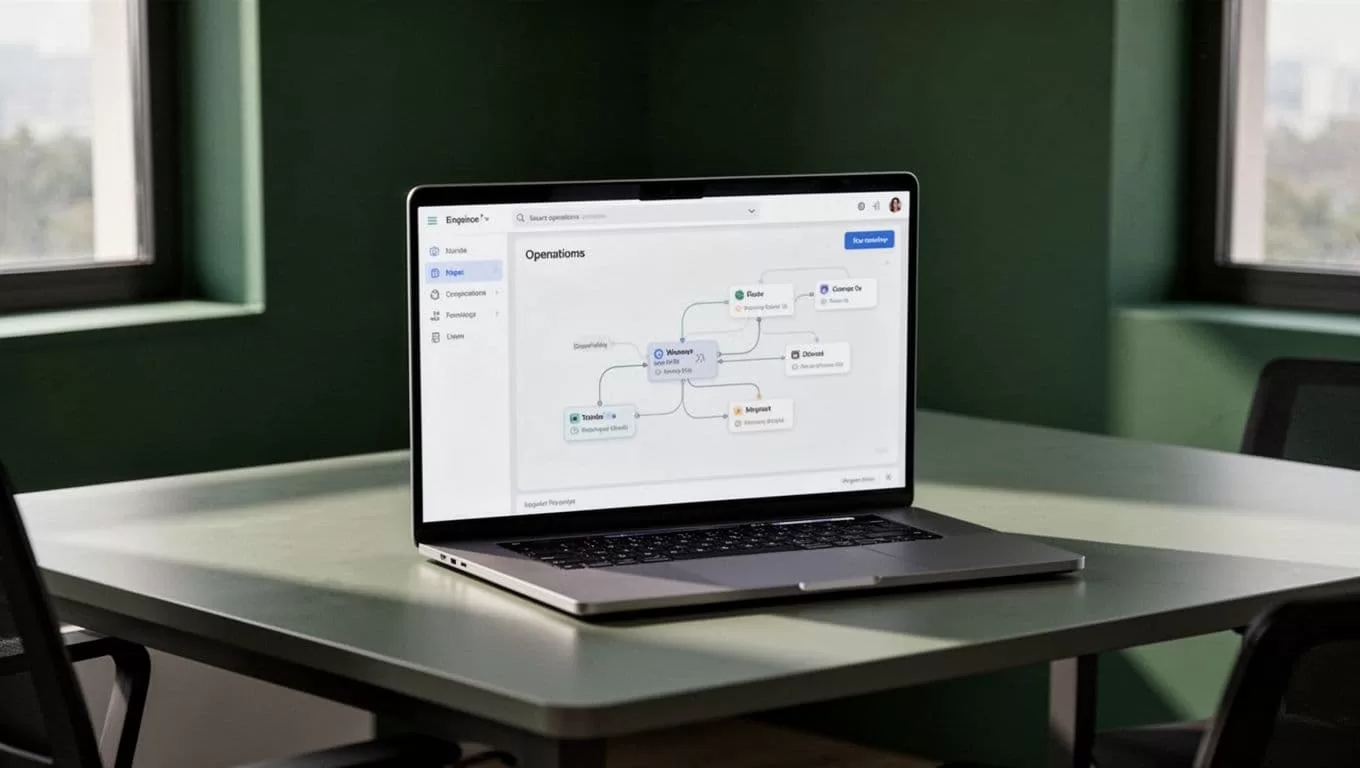
Connect the order source before building alerts
A tracking workflow starts with a reliable status source. Do not build notifications around a spreadsheet that someone updates manually unless the spreadsheet is only a temporary test environment.
The best option is an event sent when the order changes. A webhook is an automated message sent by one application when an event occurs. Review these webhook basics before configuring the trigger.
A webhook can send Twin the order ID, current status, timestamp, estimated delivery window, and exception reason. Twin can then write the update to your database and notify the right person.
If the platform doesn’t provide webhooks, use scheduled polling. Twin checks the source at a defined interval, compares the new status with the stored status, and acts only when something changed. A ten-minute schedule may work for active delivery windows. A longer interval may be enough for orders that are still being prepared.
If your retailer requires an intermediary endpoint, review Make’s webhook integration reference. The exact design depends on the retailer, the available authentication method, and the data fields returned.
Store a normalized order record with fields such as:
order_idplatformstatusstatus_atestimated_delivery_startestimated_delivery_endlast_checked_atlast_notified_statusexception_reason
Avoid storing a full delivery address when a zone or internal customer ID is enough. Keep personal information out of prompts, logs, and notification text unless the workflow requires it.
A consistent schema gives your grocery delivery tracking process one reliable state. Every source can use different words, but your internal system should use one status vocabulary.
Build the Twin.so workflow step by step
Create the workflow in small stages. Test each stage before adding the next action.
- Connect the source account. Add the retailer API, webhook endpoint, email inbox, database, or permitted browser session. Confirm that Twin can read one order and return the required fields.
- Define the status map. Convert source-specific labels into internal values such as
received,shopping,ready,out_for_delivery,delivered,delayed,canceled, andaction_required. Keep the map short. Too many statuses create inconsistent alerts. - Set the trigger. Use an event trigger when the source sends status changes. Use a schedule when Twin must check the source. Add the order filter so the agent doesn’t scan unrelated records.
- Write the update. Tell Twin to locate the matching
order_id, update the current status, save the source timestamp, and record the latest ETA. Use an upsert pattern so the workflow creates missing records without duplicating existing ones. - Add the notification rule. Notify only when the normalized status changes or an exception appears. A delivered order shouldn’t trigger a second delivery message because the agent ran again.
- Log every run. Store the run time, order ID, source response, action taken, and error message. A tracking workflow without logs is difficult to audit when a customer says an alert never arrived.
Your Twin instruction should describe the process in operational terms. For example:
Check new grocery order events. Match each event to the order ID in Supabase. Normalize the delivery status. Update the record only when the status or ETA changes. Notify the assigned operations channel for delays, cancellations, or delivery completion. Save the run result and any error.
Avoid vague instructions such as “keep orders updated.” The agent needs clear conditions, fields, and exception rules.
A concrete status-to-notification workflow
Consider an order record that enters Supabase with the status shopping. Twin receives a new event or reaches its scheduled check. The agent reads the source response and finds that the order is now out_for_delivery.
The workflow should then:
- Match the source order ID with the existing database row.
- Change the status to
out_for_delivery. - Save the new estimated delivery window and status timestamp.
- Compare the new status with
last_notified_status. - Send one notification to the assigned team or customer channel.
- Update
last_notified_statusand record the notification time.
The notification should contain useful operational data, not a raw API response. Include the order reference, new status, delivery window, and next action.
A customer message might say: “Your grocery order is out for delivery. The current delivery window is 11:30 AM to 12:15 PM.” An internal alert can include the exception reason, source name, and assigned owner.
When a second check returns the same status, Twin should update last_checked_at without sending another message. When the source changes the order to delayed, the workflow should send a new alert and store the reason.
A useful rule is to separate status changes from status checks. Every run can be logged. Only meaningful changes should reach a customer or operations team.
Configure alerts without creating notification noise
Not every status deserves a message. Customers usually need updates for order confirmation, out-for-delivery status, delays, substitutions, cancellations, and completion. Internal teams may need earlier alerts when an order misses its expected preparation time.
Create separate rules for customer and internal notifications. Customer alerts should use plain language and avoid raw platform labels. Internal alerts can include technical details such as source status, response codes, and retry counts.
Use a notification record or fields such as last_notified_status and last_notified_at. These values stop repeated alerts when Twin polls the same order several times.
Set a delay threshold before escalating. For example, a small ETA change may only update the database. A missed delivery window or a status that remains unchanged beyond the allowed period can create an exception for an operations owner.
Keep the workflow reversible. Start with internal notifications only. Review several successful runs, then enable customer messages after the status mapping and duplicate protection work correctly.
Troubleshoot common Twin.so tracking failures
Most failures come from the data source, status mapping, authentication, or notification logic. Check the run log before changing the agent instruction.
- The workflow finds no orders. Confirm the account connection, date filter, timezone, pagination, and order-state filter. A source may return only active orders while your database expects historical records.
- Twin sends duplicate alerts. Compare the new status with
last_notified_status. Add an idempotency key built from the order ID and normalized status. Store the key after a successful notification. - The ETA is stale. Record
last_checked_atseparately fromstatus_at. The source may return an old estimate even after a successful check. Don’t present an old ETA as a confirmed delivery time. - The browser workflow stops working. Reconnect the account and inspect whether the retailer changed its page layout, login process, or verification step. Twin says its connectors can adapt to integration changes, but you still need to validate the returned fields after a site update.
- The source rejects requests. Reduce polling frequency, respect API limits, and add retry delays. Don’t create multiple agents that check the same account.
- The alert contains the wrong status. Review the normalization map. Terms such as “in progress,” “being prepared,” and “ready for pickup” may not mean the same thing across platforms.
Protect the workflow with restricted credentials, limited data access, and short notification content. Never place API keys in order notes or customer-facing messages. Review failed runs daily until the process produces stable results.
Conclusion
Twin.so can automate grocery delivery tracking when it has a dependable source, a clear status map, and a controlled notification process. Use webhooks when available. Use scheduled checks when they aren’t. Store normalized order data in a system such as Supabase, and log every run.
Don’t assume a retailer integration exists until you verify it. Test one order, confirm duplicate protection, review the alerts, and then expand the workflow. Reliable tracking comes from accurate source data and precise rules, not from adding more automation steps.

