How I Embed a MemberSpace Checkout Form
A checkout page works best when it stays close to the promise that brought the visitor there. If I make people leave the page to pay, I add one more chance for them to hesitate. When I use MemberSpace, I want the purchase step to feel like...
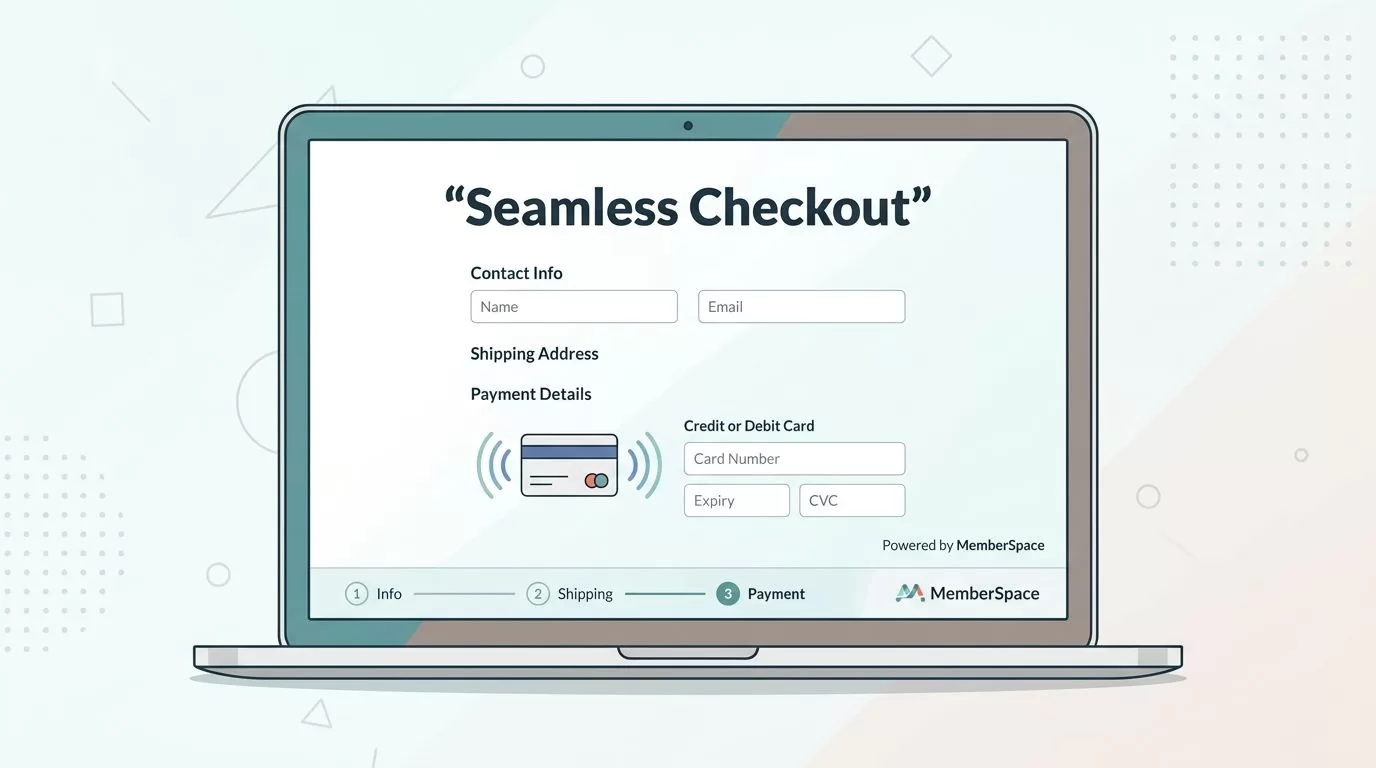
A checkout page works best when it stays close to the promise that brought the visitor there. If I make people leave the page to pay, I add one more chance for them to hesitate.
When I use MemberSpace, I want the purchase step to feel like part of the page, not a side trip. So I set up the plan first, place the form where it fits the page, and test the full flow before I let real members in.
Set up the plan before I paste anything
I always start with the plan itself. If the billing model is wrong, the best-looking embed won’t help.
First, I make sure Stripe is connected to MemberSpace and that the plan has a clear price, billing cycle, and access rule. If I’m building a simple paid offer, I often follow my monthly subscription setup notes before I touch the page. That keeps the checkout clean and avoids surprises after launch.
I also keep the plan name short and specific. “Pro Access” is clearer than a vague label that makes people guess. If I plan to offer more than one level later, I map that out early so the embedded form does not turn into a cluttered menu.
A quick preflight helps too:
- I confirm the plan is active.
- I check the payment processor connection.
- I decide where the buyer should land after checkout.
- I test the member access rules once, before publishing.
That last step saves me from a lot of cleanup later.
Embed the checkout form on the page
MemberSpace gives me a direct path for this. I go to Customize > Integrations > my website CMS > MemberSpace Link, then I choose MemberSpace Embed and copy the code into the page where I want the form to appear.
If I want one offer to open right away, I use the plan-specific signup link. If I want visitors to compare options, I use the All-Plans Link instead. I keep MemberSpace signup and login link options open while I decide, because that choice shapes the whole checkout flow.
The steps are simple:
- Open the plan inside MemberSpace.
- Choose the MemberSpace Embed option.
- Paste the embed into an HTML, code, or embed block on the page.
- Publish the page and test the form in a private browser window.
I place the form in a section with enough breathing room. Tight columns make the form feel cramped, especially on mobile. A little spacing around the block goes a long way.
I also pay attention to the current MemberSpace interface. Their plan display and checkout redesign notes are useful when older tutorials or screenshots no longer match what I see in the dashboard.
If the form loads but nothing happens when I click, I check the script first. A missing widget is a more common problem than a bad plan.
No-code and custom-code paths
I treat the no-code route as my default. It is faster, and it works well when the page builder already gives me a clean content block.
The custom-code route is for times when I need tighter control over layout. I use it when the form has to sit inside a branded landing page, a two-column section, or a hero area with specific spacing rules.
| Approach | Best for | What I do |
|---|---|---|
| No-code embed | Quick launches and standard pages | Paste the MemberSpace block into the editor |
| Custom-code layout | Branded pages and precise spacing | Wrap the embed in my own section and adjust the container |
| Plan link instead of embed | Simple funnels | Send people straight to one membership offer |
I usually start with the no-code version, then move to custom code only if the page design fights me. That keeps the build simple without giving up control later.
Fix styling and checkout problems fast
Most issues I see fall into three buckets. The form does not show, the form looks off, or the checkout behaves in a way I did not expect.
When the form does not appear, I check whether the MemberSpace script is installed on the site. I also look for caching tools, script blockers, or cookie banners that delay loading. If the page builder strips embeds during publish, I move the block to a more basic HTML area.
When styling feels wrong, I look for CSS conflicts. A theme can override font sizes, button colors, or container width. I avoid heavy custom styles around the form until I know the embed works on its own. Then I add spacing, width limits, and background color carefully.
Checkout behavior needs its own test. I click through as a new visitor, not as an admin. I watch for the redirect, the confirmation page, and the access handoff after payment. If a plan sends people to the wrong place, I go back to the plan settings and the link choice before I blame the page.
If I need a useful comparison point, Memberstack’s docs on checkout redirects and Stripe checkout custom fields show how much the post-click path matters. Different tools handle that path differently, but the lesson is the same. The buyer should know what happens next.
I also test on mobile. A form that looks fine on a laptop can feel awkward on a phone if the section is too narrow or the button drops below the fold. I check it in a private browser, on a real device, before I call it done.
Conclusion
When I embed a checkout form with MemberSpace, I care about three things: the plan, the placement, and the test. If those line up, the page feels natural and the sale path stays clear.
I start with the simplest setup that works, then add custom layout only when the page needs it. That keeps the checkout easy to trust, which is exactly what a buying page should do.
