Flight Scheduling Automation With Twin.so
Flight scheduling automation only helps when the data and approval rules are clear. Twin.so can run recurring tasks across connected apps and authorized websites, but it shouldn’t receive unchecked authority over an operational schedu...
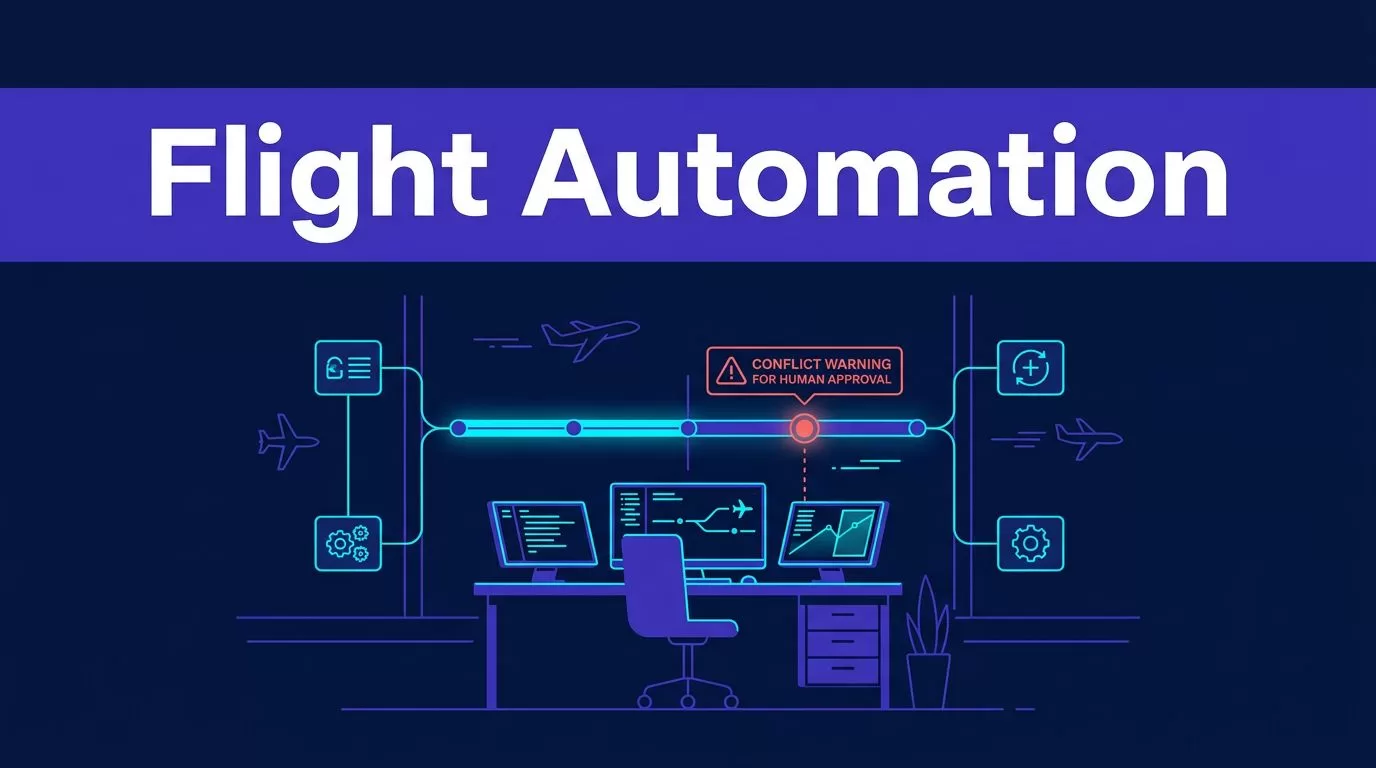
Flight scheduling automation only helps when the data and approval rules are clear. Twin.so can run recurring tasks across connected apps and authorized websites, but it shouldn’t receive unchecked authority over an operational schedule.
The practical model is simple: collect approved schedule data, compare it with availability, prepare updates, notify the right people, and stop when a conflict needs qualified review. This guide shows how to build that workflow without treating an AI agent as a dispatcher or compliance system. Start with the workflow boundary, not the prompt.
What Flight Scheduling Automation Can Do With Twin.so
Twin.so agents can plan tasks, use connected tools, browse authorized websites, and run workflows on schedules or triggers. Its autonomous AI agent overview describes agents that break goals into steps, use tools, and complete recurring business workflows.
Twin’s operations agents page also focuses on synchronizing tools, reconciling records, and reporting exceptions. Those capabilities fit the administrative side of flight scheduling.
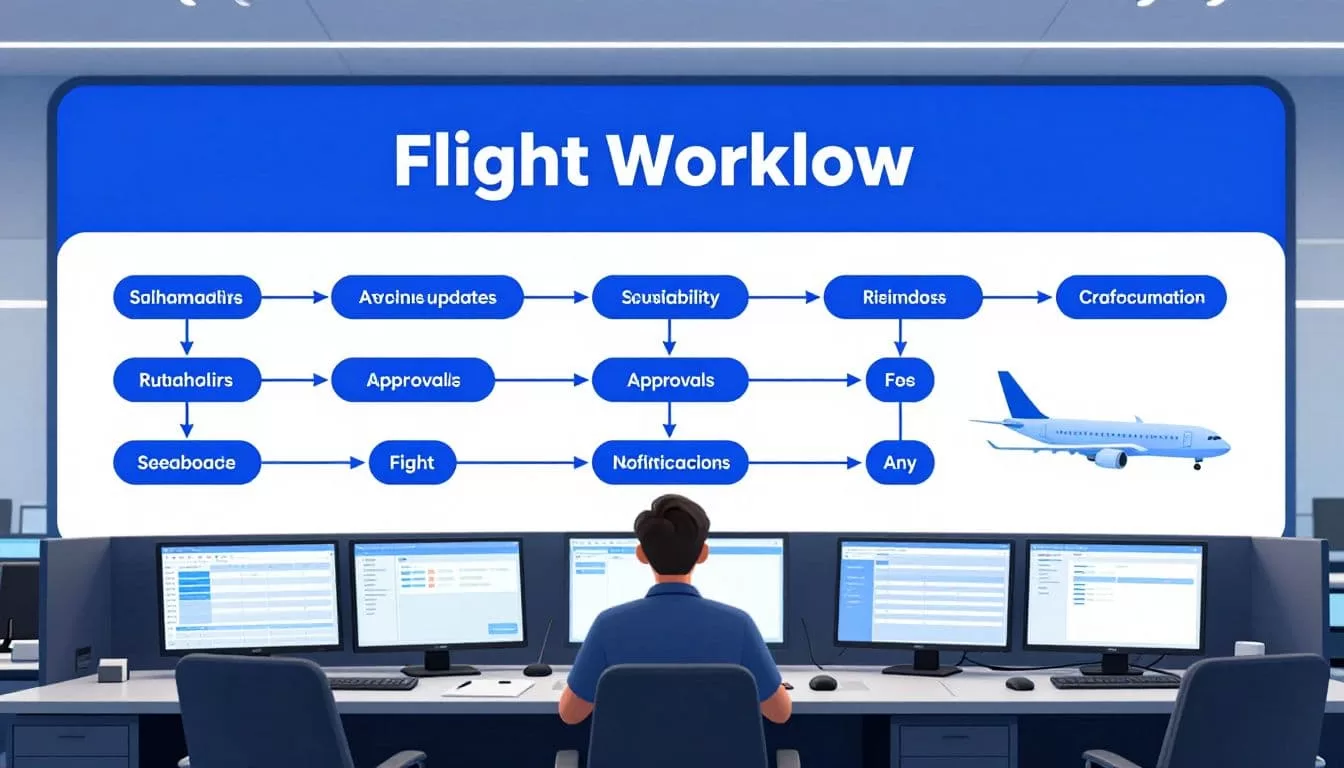
Start with low-risk scheduling tasks
Good first workflows handle repetitive coordination work:
- Read schedule changes from an approved source.
- Compare flight records with aircraft and crew availability data.
- Prepare proposed updates for a calendar or spreadsheet.
- Send reminders about missing information or pending review.
- Notify an authorized stakeholder when a conflict needs attention.
Each action depends on the connected tool, account permissions, and Twin.so plan. Don’t assume that a calendar, spreadsheet, airline portal, crew system, or messaging tool is available until you confirm the connection.
Keep operational authority outside the agent
Twin.so shouldn’t independently decide whether a flight can legally or safely operate. It shouldn’t replace a qualified dispatcher, approve duty-time decisions, or guarantee regulatory compliance.
Use the agent as a coordination layer. Let it collect records, identify differences, and prepare work for review. Keep final operational decisions with the people and systems that already own them.
Build the Data Contract Before Connecting Tools
A reliable workflow starts with a defined data contract. This is the list of fields Twin.so must read, compare, preserve, and update.
Define required fields and source priority
Use a stable flight identifier as the primary match key. Depending on your operation, the record may also need the flight date, departure and arrival airports, scheduled times, time zone, aircraft identifier, crew references, status, last-updated timestamp, and approval state.
Define which system is authoritative for each field. The schedule system may own departure time. A fleet system may own aircraft availability. A crew platform may own assignment status. A spreadsheet may be useful for coordination, but it shouldn’t silently override a source system.
Keep original source values beside normalized values. If one system shows a status as “open” and another shows “available,” preserve both values before applying an internal mapping.
Don’t ask Twin.so to guess missing information. A blank aircraft identifier, stale availability timestamp, or incomplete crew record should create an exception, not an automatic assignment.
Restrict access and use APIs first
Give the agent read access before write access. Start with a staging spreadsheet, draft calendar, or review queue. Move to production updates only after the workflow passes testing.
Use an API-backed connection for stable, high-volume data when one is available. Reserve browser automation for authorized systems that lack a usable API. Twin’s Quickstart documentation covers scheduled agents, event triggers, OAuth connections, and browser-based workflows.
Browser automation can handle logins, dynamic pages, and multi-step forms. Twin’s Web Agent documentation also warns that browser execution is more expensive and less reliable than other execution modes. Treat it as a controlled fallback, not the default for every schedule check.
Set the Run Pattern for Updates and Alerts
Twin.so supports scheduled and event-driven workflows. Choose the trigger based on how quickly the source data changes and how quickly your team must respond.
A daily schedule may work for a routine planning report. A webhook or more frequent trigger may fit a system that publishes updates during the operating day. The available trigger method depends on the source connection and your plan.
Use one clear sequence
Write the workflow as a fixed sequence:
- Read new or changed records from the approved source.
- Match each record by flight identifier and scheduled date.
- Compare aircraft, crew, timing, status, and required fields.
- Write proposed changes to the staging destination.
- Send a notification only when the record passes validation.
- Route conflicts and missing data to a human review queue.
This sequence prevents the agent from treating every changed row as an instruction to update production systems. It also gives reviewers a clear place to intervene.
A good flight scheduling automation workflow records what changed. Include the old value, new value, source timestamp, affected flight, reason for the change, and next owner.
Synchronize calendars and spreadsheets carefully
Calendar synchronization creates a common duplicate problem. Before creating an event, search for an existing event using a stable flight identifier, date, and route. Update the matching event instead of creating another one.
Use a staging tab for proposed spreadsheet changes. Store the run timestamp, source record ID, validation result, and approval state with each row. If the source data is incomplete, leave the affected field blank and mark the row for review.
Stakeholder notifications should contain enough information to support a decision. Include the flight identifier, affected resource, old and new schedule values, source timestamp, conflict type, and review owner. Avoid sending a vague message such as “Schedule changed.”
Add Approval and Aviation Controls
Automation should prepare a decision, not hide one. The agent can detect a mismatch and route it through an approved channel when the required messaging or task tool is connected.
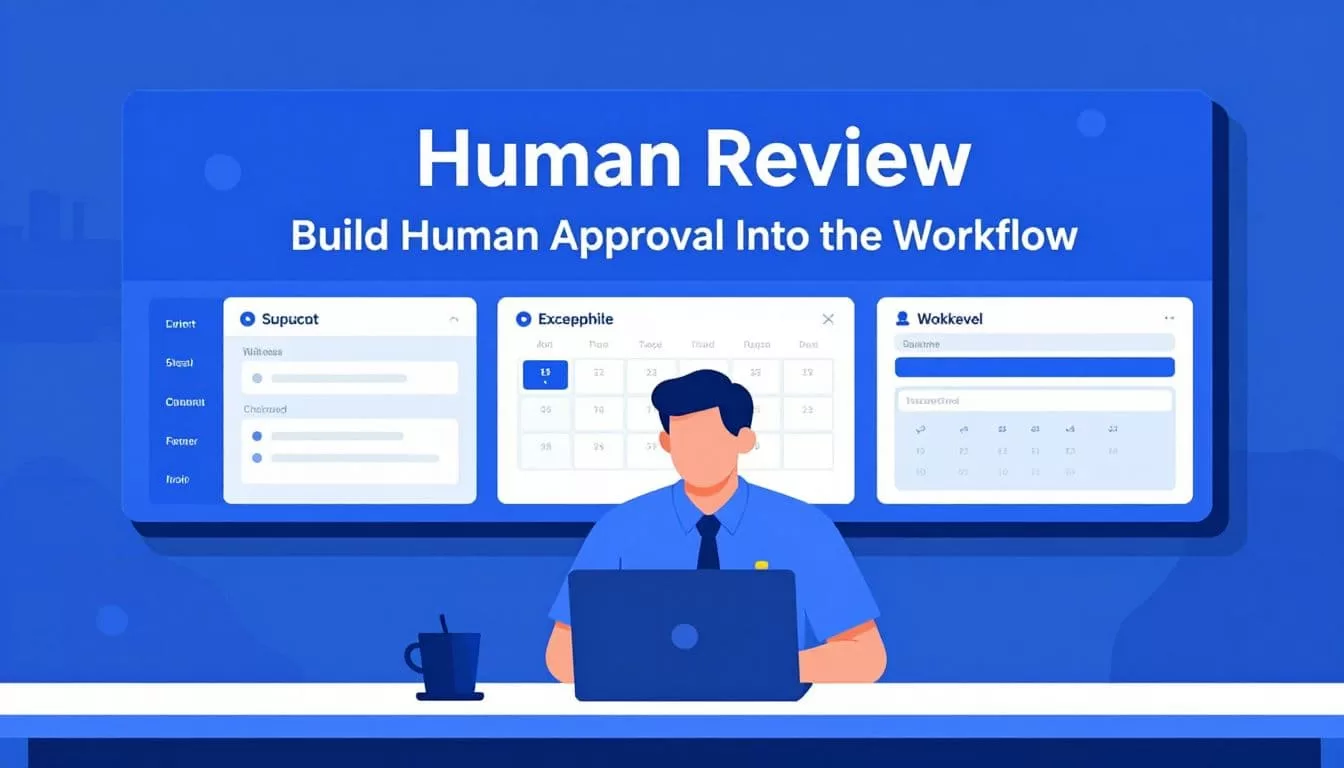
Route conflicts with evidence
Define the conditions that stop the workflow. Common examples include:
- Two flights match the same aircraft at overlapping times.
- A crew record is missing or has an outdated timestamp.
- The scheduled time changed but the calendar event did not.
- The source system returns different values for the same flight.
- A browser page changes and a required field cannot be verified.
- A write action fails after some records have already been processed.
When a conflict appears, Twin.so can flag it and send the details through a supported, authorized connected tool. If no approved notification route exists, write the exception to a review queue instead. Don’t claim escalation exists natively unless you have confirmed it in your account and plan.
The escalation message should include the evidence used by the agent. Reviewers need the source records and proposed change, not only a confidence label.
Make human approval explicit
A qualified dispatcher or operations manager should approve changes that affect aircraft assignment, crew assignment, operating times, customer commitments, or safety-related constraints.
Twin’s workflow guidance describes agents that continue routine work and ask for help when permission or human judgment is required. That principle should guide the flight workflow, but don’t assume every action has a built-in approval step.
Create the approval point in the connected system your team already uses. The agent can prepare a draft, create a task, or send a review request when those actions are supported. The reviewer then approves, rejects, or corrects the proposed change.
Store the reviewer, decision time, approved values, rejected values, and reason. If Twin.so doesn’t provide the audit detail your operation needs, record it in the destination system.
Test, Troubleshoot, and Measure Results
Don’t activate the workflow across the full schedule on the first run. Use a small approved sample that includes normal records and known exceptions.
Test a changed departure time, a duplicate flight ID, a missing aircraft, a stale crew record, a time-zone difference, a rejected calendar write, and a temporary source outage. Compare the expected result with the actual result after every test.
Handle failed and incomplete runs
A failed source read should stop downstream writes. The agent shouldn’t update a calendar with partial data because one connected system responded while another failed.
An incomplete record should remain incomplete. Mark the missing field and route the row for review. Never let the agent infer an aircraft, crew member, airport, or operating status from an old record unless your rules explicitly permit that source.
If a write fails, record the attempted action and retry only under a defined rule. Check whether the first action succeeded before trying again. This prevents duplicate calendar events, repeated notifications, and conflicting spreadsheet rows.
A successful browser run doesn’t prove that the schedule is complete. Validate required fields and record counts before any production write.
Browser pages can change without warning. If a required field moves, disappears, or returns a different value, pause the workflow and send the run to review. Don’t weaken validation to force the process through.
Track cost, accuracy, and rework
Twin.so uses credits, and browser-heavy workflows consume more than simple automations. Twin’s documented planning examples place simple automations around 15 to 30 credits and a browser session of roughly 20 steps around 100 to 200 credits. Actual use depends on actions, lookups, pages, and generated output.
Benchmark a small sample before forecasting monthly usage. Track credit cost per successfully reviewed schedule update, not cost per run. Also track failed runs, duplicate actions, missing-field rates, manual review minutes, rejected changes, and time spent correcting records.
A workflow that runs quickly but creates incorrect assignments is not saving time. Calculate the result after review and rework are included.
If the process crosses several systems, Book A Call to map permissions, exception paths, approval points, and ownership before a wider rollout.
Conclusion
Twin.so can handle repetitive flight scheduling coordination when the workflow has clear inputs, restricted access, defined validation rules, and a human approval point. Use it to compare records, prepare changes, synchronize approved destinations, send reminders, and route exceptions.
Keep safety-critical decisions with qualified aviation staff. Start with a small sample, use APIs where possible, treat browser automation as a controlled fallback, and preserve the evidence behind every proposed change. The strongest flight scheduling automation setup is not the one that acts without people. It’s the one that removes repetitive work while keeping operational control visible.
