How I Set Up Gmail Filters for Lead Replies
A lead reply can disappear in minutes. If it lands beside receipts, newsletters, and internal chatter, I may not see it until the trail has gone cold. I use Gmail filters to pull those messages into a clean lane, so I can respond faster and...
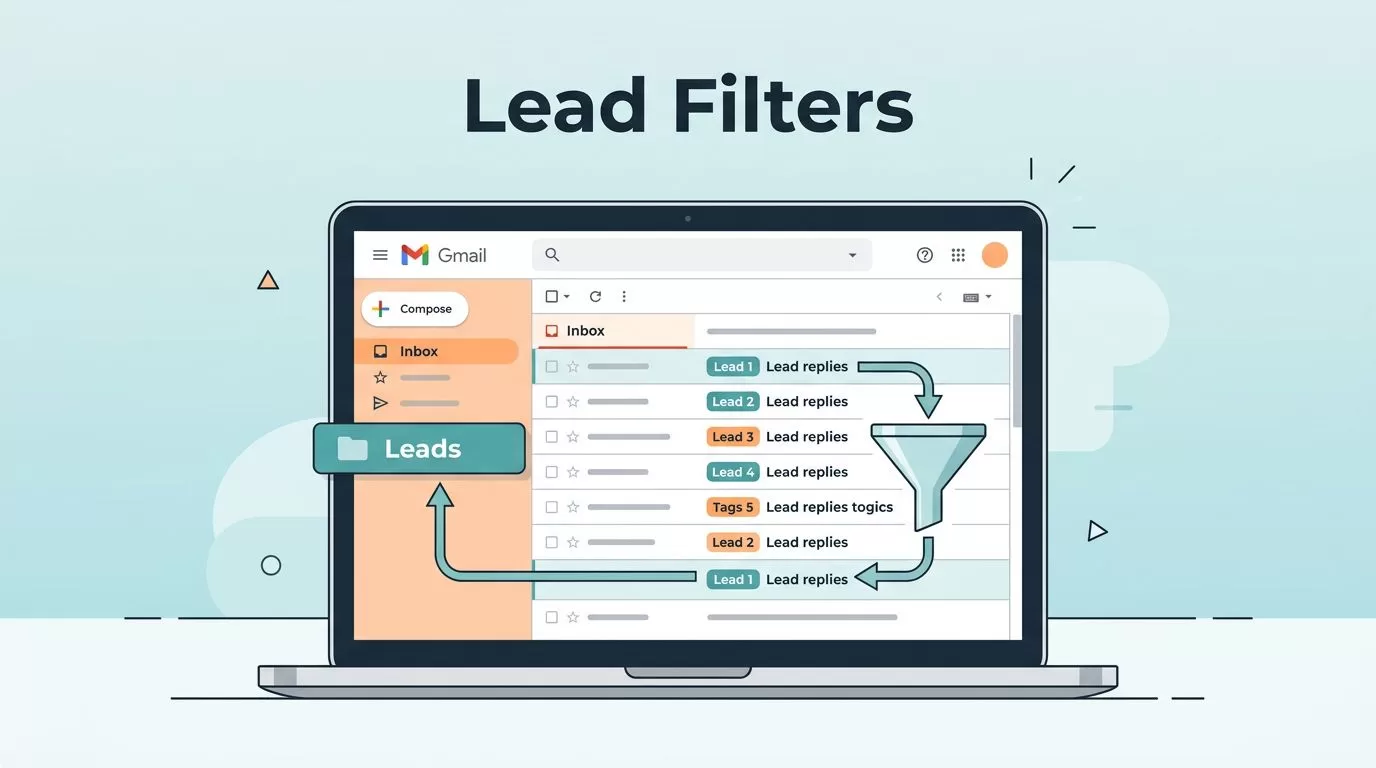
A lead reply can disappear in minutes. If it lands beside receipts, newsletters, and internal chatter, I may not see it until the trail has gone cold. I use Gmail filters to pull those messages into a clean lane, so I can respond faster and keep warm prospects warm.
The setup is simple once I know what to catch. Gmail labels and menu names shift a little over time, but the general path stays the same. I follow the search first, then the filter, then the action, because that keeps the inbox working like a triage desk instead of a junk drawer.
Start with the exact replies I want to catch
Before I build anything, I decide which replies deserve attention. A contact form submission needs a different rule than a cold outreach reply, and an inbound pricing request deserves more urgency than a newsletter sign-up.
I also keep list quality in mind. If my outbound data is messy, I fix that upstream with Hunter.io email verification workflow and reduce cold email bounces, because filters can organize mail, but they can’t rescue bad targeting.
| Lead scenario | Gmail search example | What I do |
|---|---|---|
| Contact form reply | from:forms@yourdomain.com OR from:no-reply@formtool.com | Label it Inbound Leads, then star it |
| Cold outreach reply | from:prospectcompany.com ("interested" OR "pricing" OR "demo") | Label it Outbound Replies and keep it in the inbox |
| Inbound sales request | to:sales@yourdomain.com subject:(quote OR proposal OR demo) | Mark it important and route it fast |
| Thread with files | from:clientcompany.com has:attachment | Label it Proposal Review |
I treat these as starting points, not rigid formulas. The trick is to match the sender, the subject, or the body words that show buying intent. If I’m unsure, I search first and watch what Gmail returns. One giant rule for everything usually turns into a mess.
If the search is wrong, the filter will be faithfully wrong too.
Create the filter in Gmail, then test it
For the setup itself, I follow Google’s Gmail filter instructions. The button names may vary a bit, but the flow feels the same.

- I open Gmail and click the search-options icon in the search bar.
- Next, I fill in the sender, recipient, subject line, or the Has the words field.
- I run the search first and check the results.
- Then I click Create filter, choose the action, and save it.
- If I want old lead replies sorted too, I turn on the option that applies it to matching conversations.
If I need to match text inside the message, I use the filter form’s Has the words box. That’s where I catch phrases like “let’s book a call,” “send over pricing,” or “can you quote this” without guessing the sender. Gmail understands simple logic too, so I can use OR in caps when I want more than one trigger.
My favorite actions are label, star, and forward. I keep archive as a later step, after I trust the rule. If I’m routing replies to a shared inbox or a sales teammate, forward is useful. If I need a quick visual flag, star works well.
Match the filter to the kind of lead
A filter should feel like a small assistant, not a blunt instrument. For cold outreach, I often use from:prospectcompany.com with body phrases like "interested in pricing" or "can we talk". For contact forms, I watch for sender domains from the form tool and words like "new inquiry" or "contact us".
I also like filters for reply intent. A message with "demo", "quote", "budget", or "proposal" usually needs faster action than a general reply. That’s where Gmail’s search box helps me think like a sorter, not a catcher of everything.
The to: field is handy when lead replies land in an alias, not just a main inbox. I also use has:attachment for proposal threads, because those files usually need a same-day look. That matters when I’m moving fast between sales calls and follow-ups.
If I’m building larger lead flows, I keep the inbox tidy with labels first. I’ve found the same idea in using Gmail labels to organize cold outreach, because labels make handoff and follow-up much easier. The best filter doesn’t just move mail around. It tells me what deserves my next minute.

Keep replies visible with a few simple rules
I’ve learned that filters work best when I keep them boring and strict. I label every lead path clearly, so Inbound Leads, Outbound Replies, and Hot Leads never blur together. I star anything that smells like urgency, especially demo requests and direct buying questions.
I also test every new rule before I trust it. That means I send myself a sample message, check where it lands, and only then turn on archive or forwarding. I never send lead replies to spam, and I don’t auto-archive a new rule until I know it behaves.
A few habits keep me out of trouble:
- I use labels for source and stars for priority.
- I keep one filter per lead type whenever possible.
- I review filters after a form change or a new campaign.
- I leave the inbox visible for anything that needs a same-day reply.
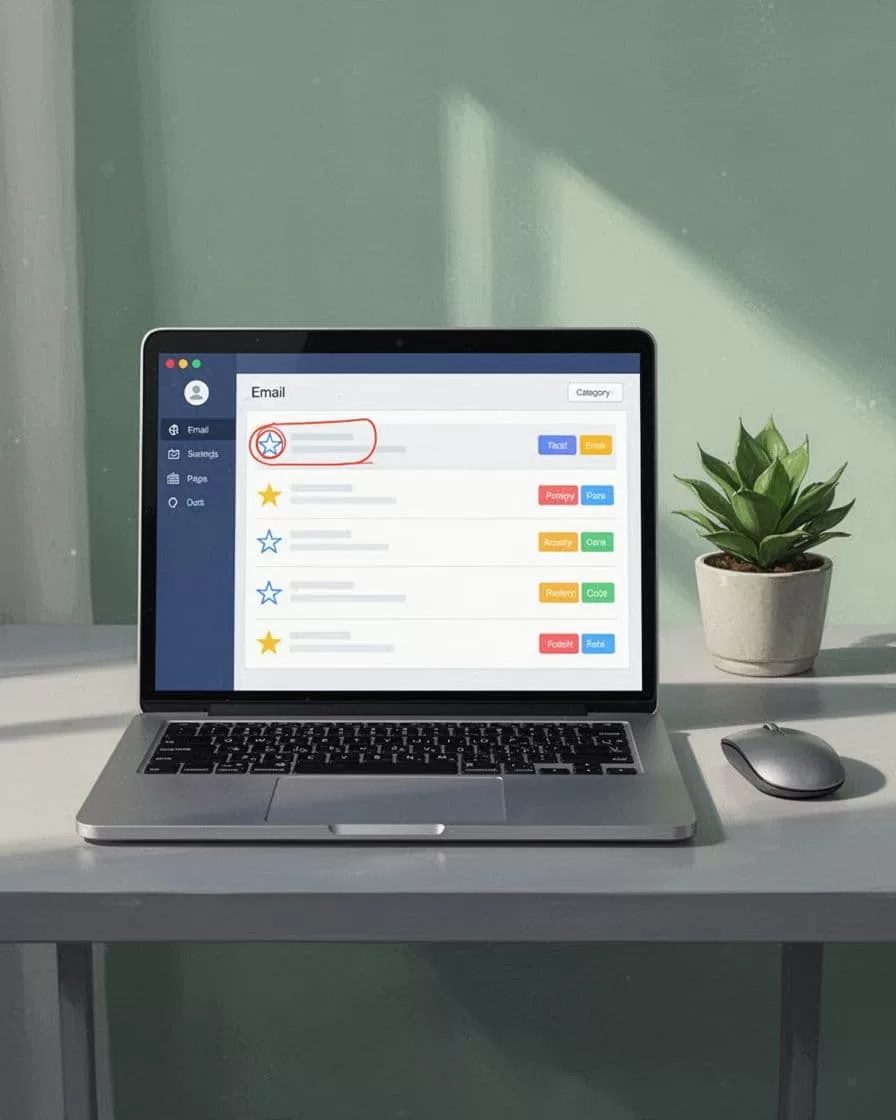
The inbox I want every day
When I set up Gmail filters well, I stop treating the inbox like a pile and start treating it like a queue. Lead replies stand out, follow-ups happen sooner, and fewer opportunities slip through.
The real win is speed without panic. A good filter doesn’t make email magical, it makes the right message hard to miss. It also gives me a cleaner rhythm for sales work, which is the part that pays off.
