How To Manage Multiple Gmail Signatures For Teams
When a team grows, signatures start to drift. One person adds a banner, another changes a title, and a third sends from mobile with a totally different footer. I keep gmail signatures for teams under control by separating brand rules from p...

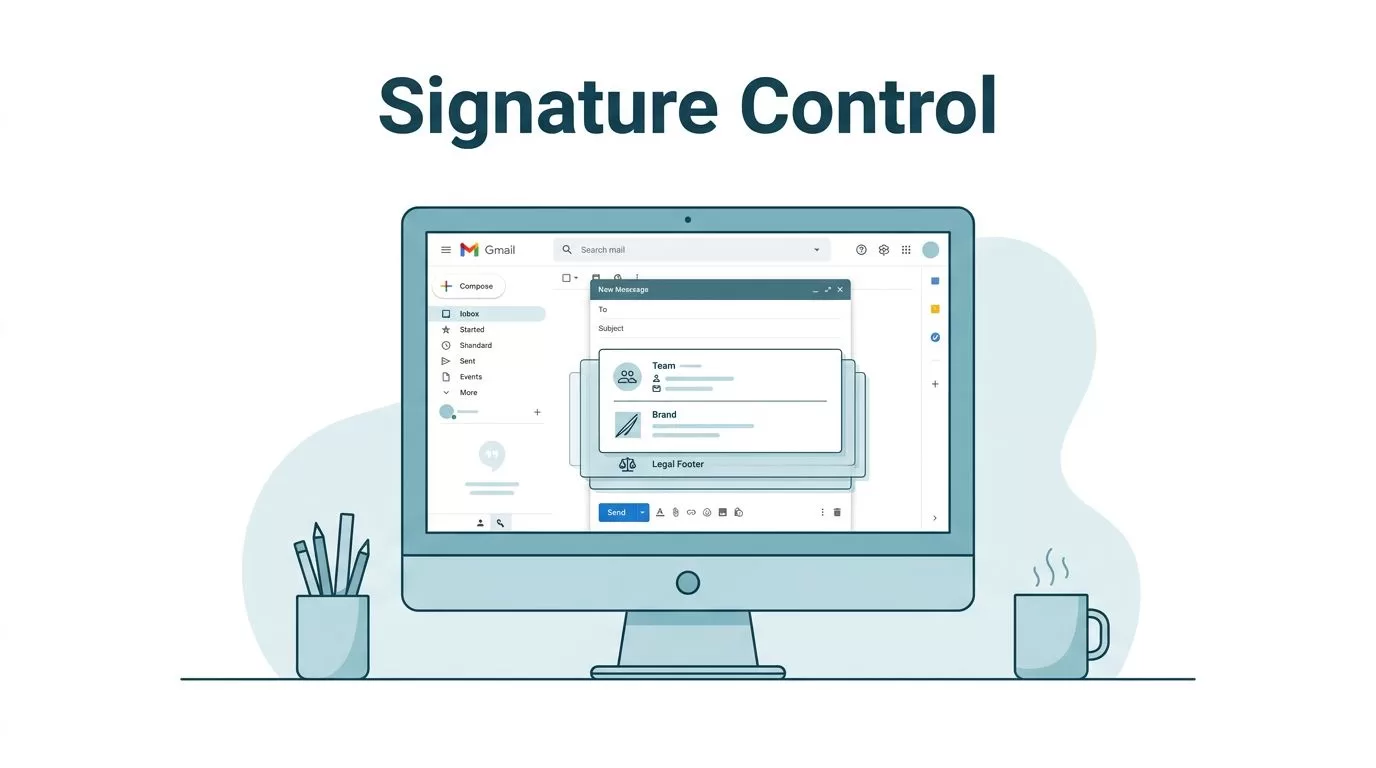
When a team grows, signatures start to drift. One person adds a banner, another changes a title, and a third sends from mobile with a totally different footer.
I keep gmail signatures for teams under control by separating brand rules from personal details. That means I decide who can edit what, where legal text lives, and how updates roll out across departments, locations, and devices.
Start with the signature layer that matters
I treat email identity in layers. The personal signature carries the person’s name and job title. The team signature carries the brand. The legal footer carries the stuff nobody wants to rewrite by hand.
That matters because the wrong setup creates noise fast. If I’m still organizing the mail system, I begin with Google Workspace email hosting for business, then I sort out shared addresses and aliases. For departments like sales or support, I also connect the plan to setting up team email aliases in Google Workspace, because signature rules and mailbox rules usually travel together.
I also keep the structure simple:
- one owner for each department signature
- one source of truth for logos, colors, and links
- one rule for legal text
- one review process before rollout
That approach keeps me from fixing the same problem twice.
Pick the right control model for your team
As of April 2026, Google still gives me two native paths: user-level signatures in Gmail and a standard footer in Admin. The official Google Workspace user signatures help page is the first thing I check when I want to confirm current behavior.
When I need more control, I compare the native setup with a dedicated signature platform like Google Workspace signature management software. That decision usually comes down to scale, not taste.
| Setup | Best for | What I control | Main limit |
|---|---|---|---|
| Gmail user signature | Small teams, local flexibility | Name, title, phone, small logo | Users can edit it |
| Admin footer | Legal disclaimers, fixed notices | Hidden footer text for everyone | Limited design options |
| Third-party signature manager | Multiple departments and offices | Templates, roles, branding, updates | Extra cost and setup |
For a small team, native Gmail tools are enough. For a larger Workspace org, I want control that doesn’t depend on each employee remembering the rules.

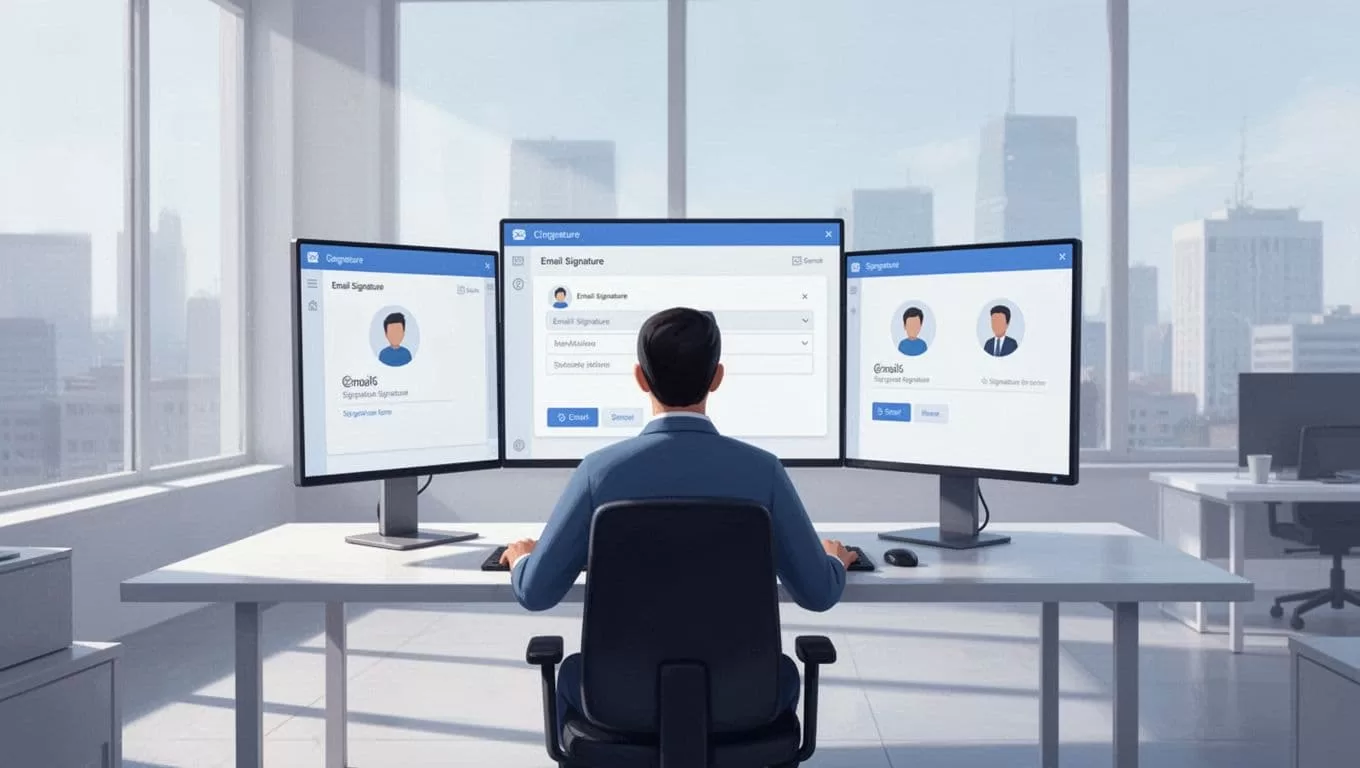
I use the admin footer for fixed legal text, and I leave personal details in the user signature.
Build signatures by role, not by individual taste
When I roll this out, I build signatures around the job, not the person. Sales needs different contact fields than finance. Support needs different calls to action than leadership. Regional teams may also need local phone numbers or office names.
I usually set it up in this order:
- I define the core fields first, like name, title, company, and phone.
- I create one template for each role or department.
- I lock the parts that should not change, such as logo, disclaimer, and tracking links.
- I test each template in desktop Gmail and on mobile before full rollout.
If a department uses shared mailboxes, I keep the signature plan aligned with the address structure. For example, a support team that sends from shared mail often needs a clean naming system behind it, and my Google Workspace aliases guide for support and sales addresses helps with that piece.

The biggest win is consistency. Each team still looks like itself, but the brand stays steady.
Avoid the problems that break signatures
This is where most teams get stuck. The signature looks perfect in one inbox, then falls apart somewhere else.
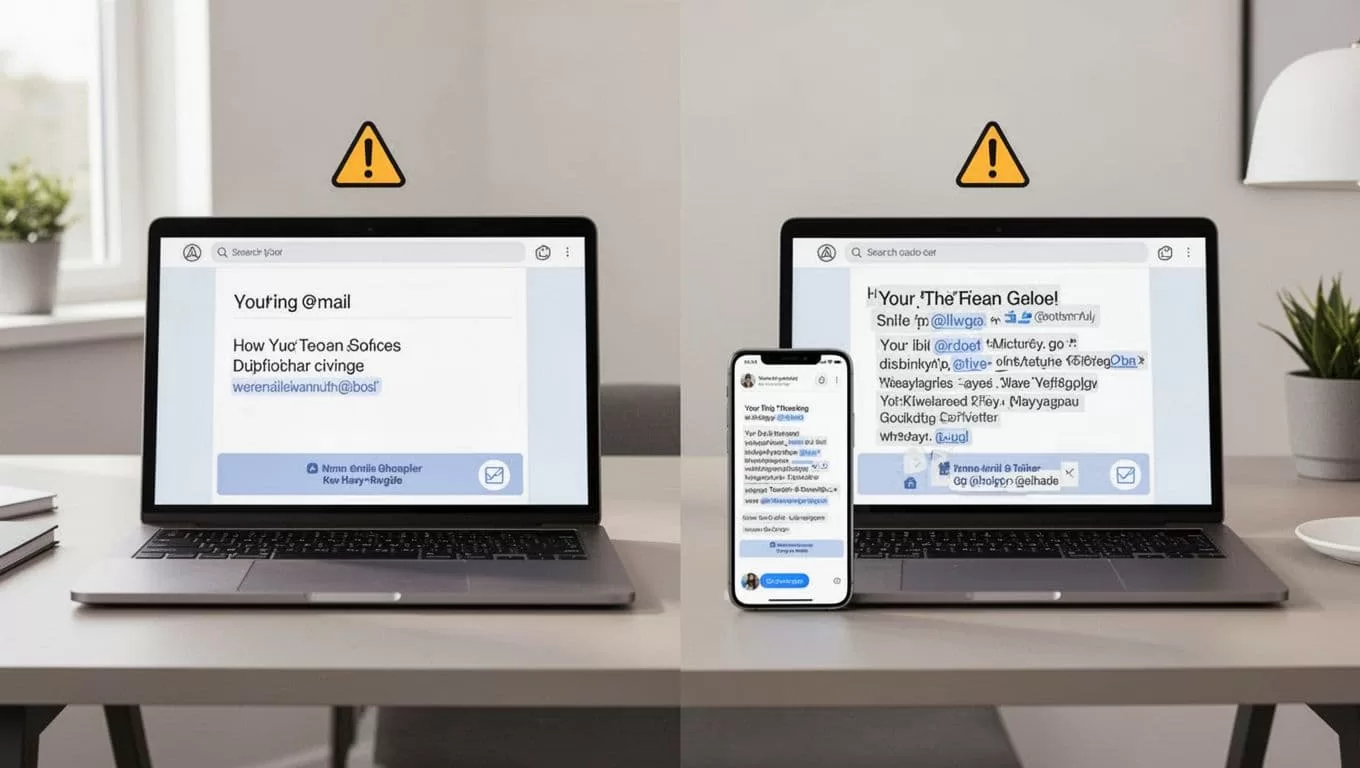
I watch for five common failures:
- Inconsistent formatting: Fonts, line spacing, and logo sizes drift when users edit their own signatures.
- Mobile overrides: Gmail on phones can show a different version if staff rely on app-level edits.
- Banner overload: Too many promo images make the footer heavy and distracting.
- Legal disclaimer mistakes: A disclaimer buried in a user signature can get deleted by accident.
- Deliverability concerns: Large images and link-heavy signatures can add clutter, so I keep them light.
If I suspect the signature setup is adding weight or noise, I review my Google Workspace SPF DKIM DMARC setup guide. That helps me keep mail trust separate from design choices.
I also remember one practical limit from Google’s help docs, Gmail signatures can be long, but long doesn’t mean useful. I keep them short enough to scan on a phone.
Keep one source of truth after rollout
The real work starts after launch. I assign one person or team to own updates, then I review signatures on a schedule. That includes new hires, title changes, office moves, and seasonal campaigns.
I also test the same message in a few places. Desktop Gmail, mobile Gmail, reply threads, and external inboxes all matter. A signature can look fine in one view and break in another.
For larger Google Workspace organizations, I update by org unit or department first, then expand. That keeps mistakes small. For smaller teams, I still use the same habit, just with fewer templates.
The cleanest signature system is the one people barely notice. It feels boring in the best way, because every email looks like it came from the same company, even when five teams are sending it.

