How To Recover Deleted Google Drive Files Before They Expire
A deleted file in Google Drive often isn’t gone yet. The clock starts running the moment it lands in Trash, and that window can close faster than people expect. When I need to recover deleted Google Drive files, I move fast and I use...

A deleted file in Google Drive often isn’t gone yet. The clock starts running the moment it lands in Trash, and that window can close faster than people expect.
When I need to recover deleted Google Drive files, I move fast and I use the official paths first. That matters for personal accounts, Google Workspace accounts, shared files, and files that live inside Shared Drives.
Check the Trash first, because that buys you the most time
My first stop is always Trash in the web version of Drive. Google’s own computer recovery steps walk through the same basic move, and it’s the safest place to begin.
I use this order:
- Open Google Drive in a browser.
- Click Trash on the left.
- Find the file, then right-click it.
- Choose Restore.
That puts the file back where it came from. If I’m working on a busy account, I sort by the trash date so I don’t waste time hunting.

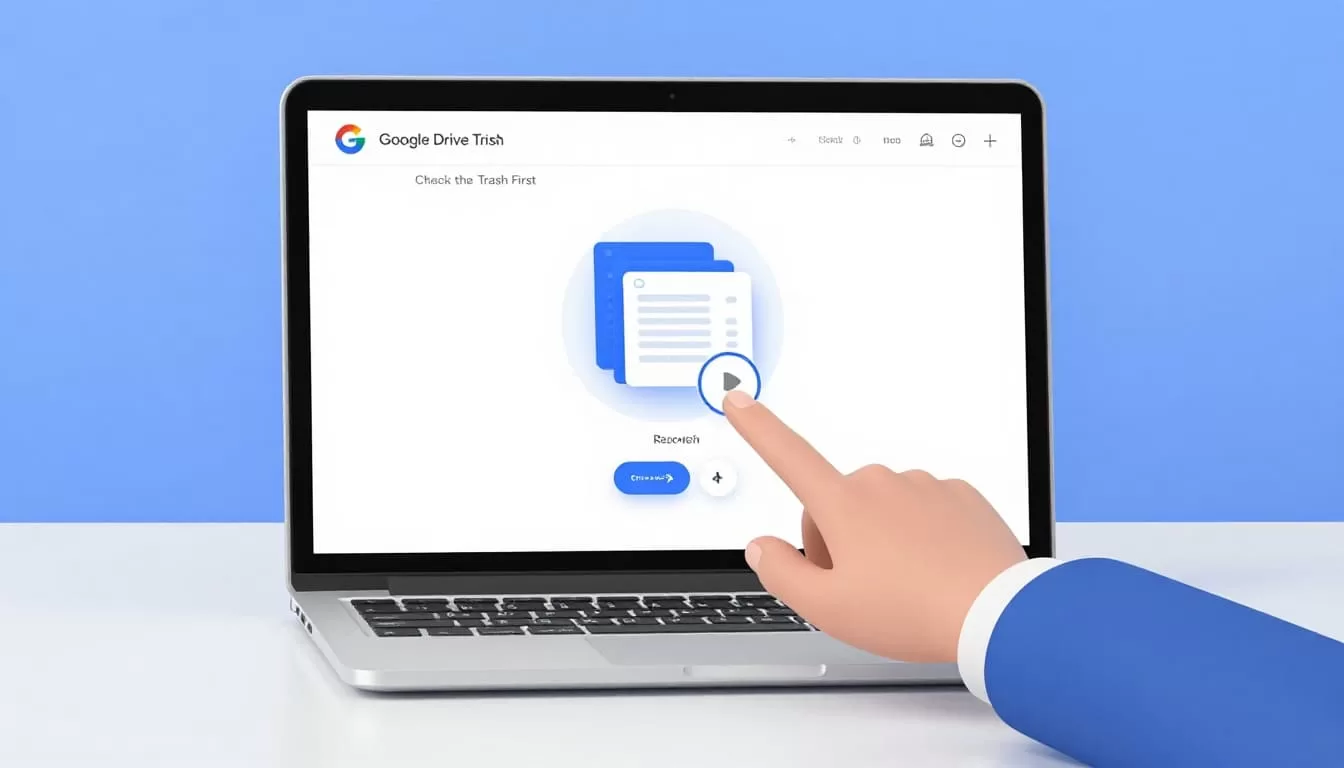
For Drive for desktop, I still check the browser first. Sync can make a local deletion look final when it isn’t. If I deleted the file before sync finished, I also check my computer’s Trash or Recycle Bin.
Know the recovery window before it closes
Google doesn’t keep deleted files forever. For most accounts, files stay in Trash for 30 days. After that, Google removes them from the normal restore path.
For Google Workspace, there can be a short extra window for admins after a file leaves Trash. I treat that as a last chance, not a second life.
Here’s the timeline I plan around:
| Situation | What I can do | Typical window |
|---|---|---|
| Personal Google account | Restore from Trash | 30 days |
| Google Workspace user | Restore from Trash | 30 days |
| Google Workspace admin | Recover some deleted files after permanent deletion | About 25 more days |
| After the window closes | Recovery usually ends | No official restore path |
If I wait until the window closes, the file is usually beyond normal recovery. Acting on the same day gives me the best odds.
Once a file is permanently deleted, recovery gets harder fast. If Trash is empty and the retention window has passed, I stop expecting a hidden fix. Google’s help system is built around those time limits, not around manual rescue after the fact.
Recover on Android, iPhone, iPad, and desktop sync
On Android, I use the Google Drive app and follow Google’s Android recovery steps. I open the app, tap the menu next to the file in Trash, and choose Restore.
On iPhone and iPad, I use the same basic path in the Drive app. I open Drive, go to Trash, find the file, and restore it. The screen labels may look a little different, but the workflow stays simple.
Desktop sync users need one extra check. If I deleted a file from a synced folder on my computer, I look at both Drive Trash and my local trash bin. That covers the cases where the sync lagged or the file was removed before Drive fully registered the change.
Shared files need a different check
Shared files can confuse people because ownership matters. If someone else owns the file, I may not be able to restore it myself, even if I can still see it in a shared folder.
That’s why I keep my team files in Google Workspace Shared Drives for small teams. Shared Drives keep ownership with the team, which reduces the risk of losing files when someone leaves.
I also keep secure Google Workspace document sharing in mind, because access rules shape recovery. If a file was shared with me and then deleted by the owner, I may need that owner or an admin to act. If the file sits in a Shared Drive, the right role matters just as much as the file itself.
When I help a team recover something, I ask three quick questions. Who owned the file? Was it in My Drive or a Shared Drive? Did anyone empty Trash already? Those answers usually point to the right path faster than guessing.
When a Workspace admin is the last useful option
If I’m in Google Workspace and the file is gone from Trash, I move to the admin path immediately. Admin recovery only works inside Google’s retention window, so I don’t wait until the end of the week.
The admin usually checks the Google Admin console, then looks at the user’s Drive activity and deletion timing. If the file belonged to a departed employee, the admin path matters even more. That’s one reason I like planning storage around ownership first, which is why I also follow Google Workspace file storage planning.
The hard line is simple. If the file is outside Google’s retention window, official recovery usually ends there. I don’t rely on random browser tricks, browser extensions, or unsupported “recovery” tools when the file is already beyond the window.
The fastest recovery is the one you start right away
When I lose a Drive file, I don’t start with panic. I start with Trash, then I move straight to the right account type, device, and owner.
The pattern is consistent. Personal files have a short restore window. Workspace files may give admins a little more room. Shared files and Shared Drives add ownership rules that can help or hurt recovery.
I keep one rule in mind: the clock matters as much as the file. If I act before Trash expires, I usually have a clear path back. If I wait too long, even Google’s official recovery options run out.

