Google Calendar Appointment Schedules: Setup, Features, Limits, and Alternatives
Clients should not need a long email chain to book one meeting. An appointment scheduler solves that problem by showing open times, collecting booking details, adding the appointment to a calendar, and guiding both sides through the next st...

Clients should not need a long email chain to book one meeting. An appointment scheduler solves that problem by showing open times, collecting booking details, adding the appointment to a calendar, and guiding both sides through the next steps.
Google Calendar appointment schedules can handle that workflow well for a solo consultant, freelancer, coach, recruiter, or small business that already works in Google Calendar. You create a booking page, choose your availability, share the link, and let clients select a time.
This guide explains how the feature works, how to set it up, what to test, where account and plan limits matter, and when a dedicated tool such as Calendly or Zoom Scheduler may be a better fit. I checked the current Google documentation and product pages on September 22, 2026. Google can change plan features, so check the linked pages before making a purchase or promising a client a specific feature.
What is an appointment scheduler?
An appointment scheduler is a booking system for one-to-one or group appointments. You define the type of meeting, your available hours, the time zone, and any booking rules. You then share a booking page or link. A client chooses a slot, enters the requested information, and receives the appointment details.
- You set available hours and meeting rules.
- You share a booking page.
- A client selects an open time.
- The appointment is added to the calendar.
- The system sends the available confirmation and reminder messages.
- The client can use the available cancellation or rescheduling controls.
This is different from a meeting poll. A poll asks several people which time works for them. An appointment schedule shows your open times so another person can book directly. Google Calendar appointment schedules are designed for the second use case.
What Google Calendar appointment schedules do
Google describes appointment schedules as a way to manage availability and let people book time with you through a booking page. A booked appointment is added to your calendar, and the page blocks times that are unavailable based on the calendars and rules connected to the schedule.
You can set a title, appointment duration, availability, meeting location, and custom questions. Google also supports sharing a booking page as a link or embedding it on a website. The exact controls shown can depend on the account and plan, so I do not treat every item as universal.
How to create a Google Calendar appointment schedule
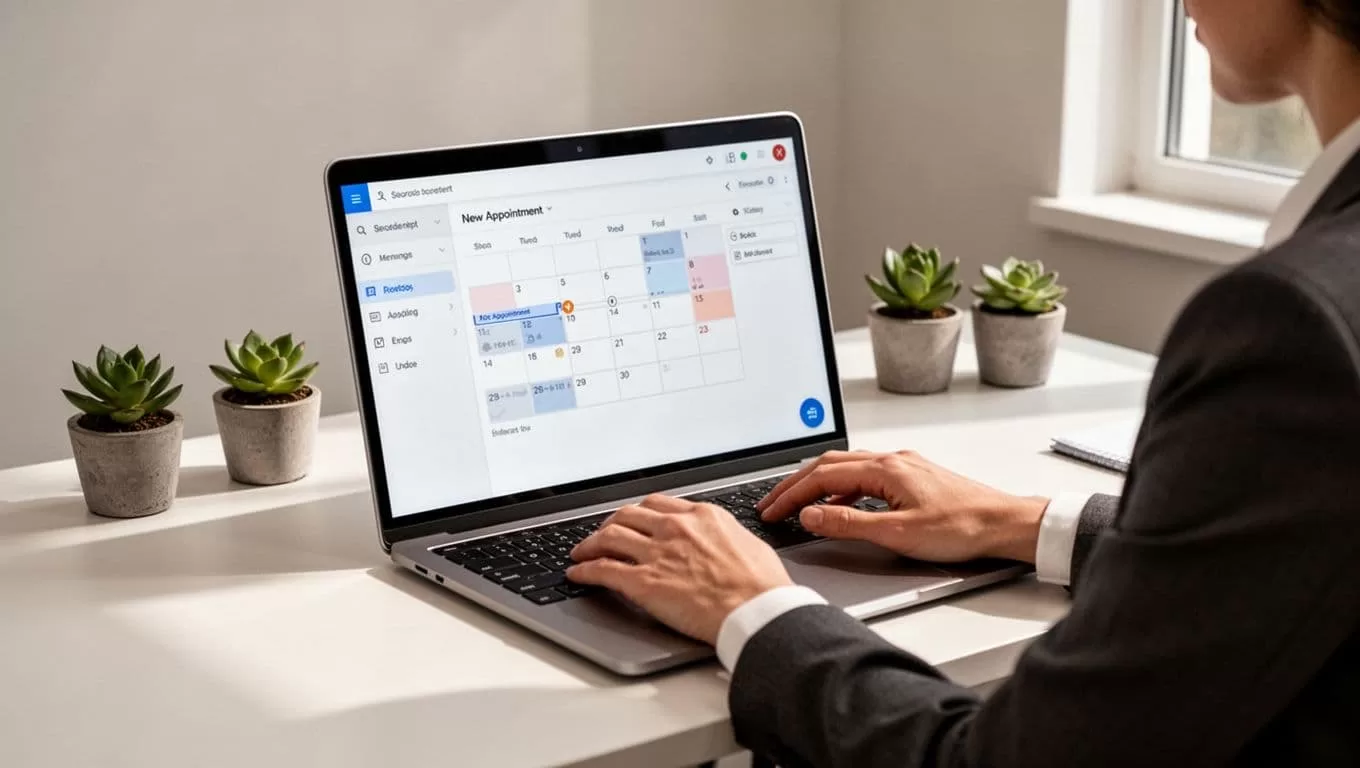
Google’s current help documentation says appointment schedules are created from Google Calendar on a computer. The mobile app can be useful for viewing your calendar, but I use the web version for the initial setup.
- Open Google Calendar in a desktop browser.
- Click Create, then choose Appointment schedule.
- Give the schedule a clear name, such as “Client Discovery Call” or “30-Minute Consultation.”
- Choose the appointment length.
- Set the days and hours when people can book.
- Choose the meeting location, such as Google Meet, a phone call, or an in-person location.
- Add booking questions and any instructions the client needs before the meeting.
- Review the schedule, save it, and use the booking page controls to copy the link or embed it on your site.
Use one schedule for one clear meeting type. A vague page called “Book time with me” makes clients guess what they are choosing. A page called “15-Minute Project Fit Call” sets a better expectation.
Configure availability, buffers, and booking rules
The default availability is only a starting point. Before sharing the page, configure the rules around the real work involved in the meeting.
| Setting | Practical advice |
|---|---|
| Duration | Use 15 or 30 minutes for qualification calls. Use 45 or 60 minutes when the meeting needs preparation or detailed advice. |
| Availability | Offer specific windows instead of opening the whole workday. Keep lunch, deep work, travel, and personal time blocked. |
| Buffer | Add time before or after appointments when you need notes, preparation, or travel time. |
| Minimum notice | Do not allow last-minute bookings if you need time to prepare. |
| Booking window | Decide how far into the future clients can book. A shorter window keeps your calendar flexible. |
| Questions | Ask only for information that helps you prepare, such as the company, goal, budget range, or issue to discuss. |
For example, a 15-minute sales qualification call may need a name, company, and one question about the project. A 60-minute consulting session may need a short brief, relevant files, and a clear statement of the desired outcome. More questions are not always better. Long forms reduce completed bookings.
What happens after a client books?
The complete client journey matters more than the booking link itself. Test it from the client’s point of view:
- The client opens the booking page.
- The client chooses a date and available time.
- The client enters contact details and answers your questions.
- Google Calendar creates the appointment on the host calendar.
- The client receives the appointment information available for that schedule and account.
- The host checks the new event and any submitted answers.
- Any supported reminder, cancellation, or rescheduling controls are used before the meeting.
Do not assume that every account has the same reminder, payment, calendar, or cancellation options. Google has a current appointment schedule feature comparison that identifies premium capabilities. Review it for your account, then complete a real test booking.
Test the booking page before sharing it
Opening the link once is not enough. I use a private browser window or a separate test account and check the full flow.
- Open the page while logged out of Google, if your audience may be logged out.
- Book a test slot from a phone.
- Check the page from another time zone.
- Try to book a time that should be blocked by an existing event.
- Submit every intake question.
- Confirm that the host receives the event and the client receives the expected details.
- Check the meeting link or location.
- Test cancellation and rescheduling if those controls are shown.
- Change availability, then confirm the public page updates.
Time zones deserve special attention. A 10:00 a.m. Eastern appointment should appear as 7:00 a.m. Pacific for a client in California, subject to the time zone selected by the booking page and device. Daylight saving changes can also affect future bookings. Ask a test client in another region to confirm the displayed time before you publish the link widely.
Account types, plans, and current limits
Appointment schedules are not identical across personal Google accounts, Google Workspace accounts, and work or school accounts. Organization administrators can also restrict external sharing or other account features.
Google’s documentation confirms that some advanced appointment schedule features are premium. The current comparison page lists capabilities such as checking availability across multiple calendars and accepting payments among the features that can depend on an eligible paid plan. Because Google changes plan packaging, I recommend checking your account’s feature panel instead of relying on a general statement that all Google Calendar users have the same tools.
| Account situation | What to check | Best fit |
|---|---|---|
| Personal Google account | Whether appointment schedules and the features you need are available in the current account. | Simple individual bookings. |
| Google Workspace account | Workspace edition, premium features, external sharing, and administrator policies. | Business scheduling inside Google. |
| Work or school account | Whether an administrator permits external booking pages and client access. | Internal meetings or approved external appointments. |
Do not include Focus Time, Work Location, or Time Insights in a booking guide unless they directly support the scheduling problem you are solving. They can help with calendar management, but they are not substitutes for appointment schedule settings.
Team scheduling, payments, embeds, and integrations
Google Calendar appointment schedules are a strong match for simple one-person booking. Team workflows need closer checking. Ask whether the schedule can find availability across every required host, assign a booking to the right person, support round-robin rotation, and prevent duplicate events. If those controls are not available on your account, a shared calendar is only a visibility aid, not a complete routing system.
Google supports sharing a booking page by link and embedding it on a website. A link in an email signature, proposal, contact page, or social profile is often enough. Test an embed on mobile because a booking page that works on a laptop may be difficult to use inside a narrow frame.
Payment collection is another dividing line. Google’s current feature comparison lists accepting payments as a premium appointment schedule capability. If your account does not show it, use a separate payment page and explain when payment is due. Do not treat a calendar event as proof that a client has paid.
For Outlook, Apple calendars, CRM routing, SMS reminders, advanced reporting, and automation workflows, verify whether Google offers a native connection for your plan. A third-party service may be required. Keep the distinction clear: a native integration is not the same as a Zapier-style workaround.
Google Calendar vs. Calendly vs. Zoom Scheduler
The best scheduler depends on the workflow, not the number of features. Here is the practical difference based on the current product pages checked on September 22, 2026.
| Need | Google Calendar appointment schedules | Calendly | Zoom Scheduler |
|---|---|---|---|
| Simple personal booking | Strong fit if you already use Google Calendar. | Free plan is available, with limits on event types and connections. | Basic includes one personal booking page and one calendar. |
| Multiple event types | Available, subject to account limits. | Paid plans add broader event-type options. | Paid Scheduler supports unlimited booking pages. |
| Team and round-robin scheduling | Verify current account support before promising it. | Teams plans support team scheduling and routing features. | Paid Scheduler supports round-robin and group meetings. |
| Payments | Listed as a premium appointment schedule capability. | Paid plans support payment connections such as Stripe and PayPal. | Paid Scheduler supports Stripe payments. |
| Reminders | Verify the reminder controls shown for your account. | Paid plans support automated workflows and reminders. | Paid Scheduler advertises email and SMS reminders. |
| Website booking | Google supports a shareable link and website embed. | Booking pages and embeds are available, with plan limits. | Paid Scheduler includes branded booking page controls. |
| Best fit | Solo users who want a simple Google-based workflow. | Businesses that need broader scheduling, routing, and integrations. | Teams already centered on Zoom that need group scheduling and payments. |
Calendly’s official pricing page currently lists an always-free plan and paid per-seat plans. Zoom’s official Scheduler pricing lists a free Basic tier and a paid Scheduler option, with the paid tier adding features such as multiple booking pages, round-robin and group meetings, payments, and automated reminders. Prices and packaging can change, so use the official Calendly pricing page and Zoom Scheduler pricing page for a final check.
When Google Calendar is enough
- You are the only host.
- You need one or a few simple meeting types.
- Your calendar and meeting links already live in Google.
- You want a straightforward booking page instead of a full sales funnel.
- You do not need complex lead routing, reporting, or payment rules.
When you need a dedicated scheduler
- Several hosts must share or rotate appointments.
- Leads must be routed by region, service, or team member.
- You need built-in payments, SMS reminders, or detailed workflows.
- You use several calendar providers.
- You need stronger branding, analytics, CRM connections, or team permissions.
- You run paid consultations, classes, interviews, or high-volume support calls.
Troubleshoot common booking problems
- Appointment schedule is missing: Check that you are using Google Calendar on the web, then verify the account type and administrator settings.
- No available times appear: Review availability, minimum notice, booking window, existing events, and the selected time zone.
- A busy time is still available: Confirm that the calendar containing the event is included in conflict checking and that the event is marked busy.
- The time looks wrong: Check the booking page time zone, browser time zone, calendar time zone, and daylight saving changes.
- The Meet link is missing: Review the selected meeting location and test a new booking. Do not promise a video link until the event confirms it.
- External clients cannot book: Check sharing restrictions, required sign-in settings, and work or school administrator policies.
- The embed looks broken: Test the direct link first, then check the frame size and mobile layout.
- Bookings overlap: Make one calendar the source of truth and confirm that all relevant calendars are checked.
FAQ
Is Google Calendar appointment scheduling free?
Some appointment schedule features are available without a paid Workspace plan, while Google’s current feature comparison lists premium capabilities such as multiple-calendar availability checks and payments. Check the account you plan to use before publishing a feature list or choosing a plan.
Can someone book without a Google account?
Often, a client can use the booking page without joining your Google account. Work or school policies and account settings can change that experience, so test the page while logged out before sharing it.
Can clients cancel or reschedule?
Check the controls shown on the booking page and in the confirmation for your account. If cancellation rules are important to your business, test the process and add your policy to the description or confirmation instructions.
Can Google Calendar collect payments?
Google’s current comparison page lists payment collection as a premium appointment schedule capability. If it is not available on your account, use a separate payment service and track payment status outside the calendar event.
Can I use Outlook or Apple Calendar?
Do not assume that every calendar provider works natively with every appointment schedule plan. Check Google’s current feature comparison and your account settings. A third-party connection may be needed for cross-platform availability.
What is the best appointment length?
Start with 15 or 30 minutes for an initial call. Use 45 or 60 minutes when the client needs advice, preparation, or a detailed review. Add buffer time when the work continues after the meeting.
How do I prevent double-booking?
Keep all relevant busy events on calendars that the schedule checks, mark those events as busy, and test a blocked time from the public booking page. If you need several calendars checked, verify that your plan supports it.
Final recommendation
Choose Google Calendar appointment schedules when you want a simple booking page connected to one person’s Google calendar. It is a practical choice for discovery calls, office hours, consultations, interviews, and recurring client check-ins.
Choose Calendly when you need broader scheduling workflows, team routing, or more integrations. Choose Zoom Scheduler when your team already works in Zoom and needs group scheduling, round-robin assignments, payments, or automated reminders. Before you commit, compare the current plan limits with the exact booking workflow you need.
The strongest setup is not the one with the most features. It is the one that gives clients a clear way to book, gives you honest availability, and handles changes without creating extra work.
For more calendar planning ideas, see my guide to setting up a shared team calendar in Google Calendar.
