How I Set Google Drive Link Expiration for Client Files
Client files shouldn’t sit in Drive forever. When I send drafts, reports, or contracts, I want access to end on its own. That’s why I use Google Drive link expiration whenever a file has a short life. It keeps old links from han...
Client files shouldn’t sit in Drive forever. When I send drafts, reports, or contracts, I want access to end on its own.
That’s why I use Google Drive link expiration whenever a file has a short life. It keeps old links from hanging around, and it saves me from chasing people later.
The setup is simple once I know where Google put the controls. I also keep my sharing rules tight, which I cover in my guide to secure Google Workspace document sharing.
Table of contents
- Why I expire client links instead of leaving them open
- What I need before I start
- The exact steps I use in Google Drive
- Checks I make before sending the file
- Mistakes I avoid with expiring client files
- FAQs
Why I expire client links instead of leaving them open
I use expiration dates for client files because projects end, even when links do not. A link that stays active for months can turn into a loose thread in a jacket pocket, easy to forget and hard to find later.
For contracts, design proofs, audit docs, or one-off reports, I usually set a deadline that matches the work window. That gives the client enough time and keeps the file from living longer than it should.
Google’s basic sharing controls are still the starting point, so I keep this page handy: Google Drive file sharing help. Google also added sharing expirations for files and folders in shared drives in late 2025, which makes the process cleaner for team folders too. I checked the rollout notes in Google Workspace Updates.

What I need before I start
Before I touch the share settings, I check two things. First, the account type matters. Second, the file location matters.
Here’s the current picture in April 2026:
| Account type | Expiration available? | Where I find it | What I do instead |
|---|---|---|---|
| Free personal Google account | No | N/A | I remove access manually later |
| Google Workspace account | Yes | Share dialog | I set a date and let access end automatically |
For team folders, I often pair this with Google Workspace Shared Drives setup, because ownership stays with the business instead of one person.
If I can’t see the expiration option, I treat it as a plan or permission issue first.
The exact steps I use in Google Drive
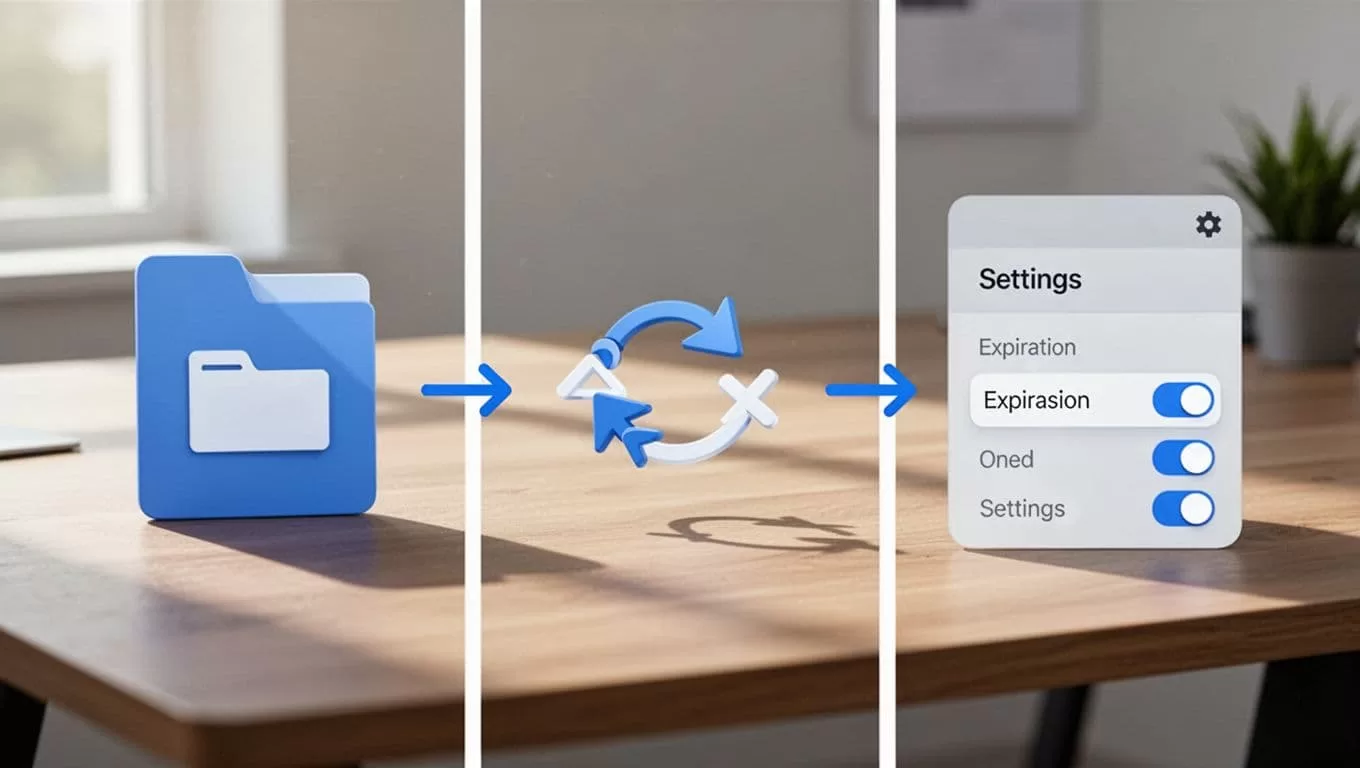
The current Google Workspace flow is easy enough once I know where to look. The label may say Add expiration or Set expiration date, depending on the account and UI version, but the path is the same.
- I open Google Drive in a browser on my computer.
- I right-click the client file or folder, then choose Share.
- I add the client’s email address. I avoid public links for files that need a deadline.
- I pick the right role. Viewer works for read-only access, Commenter fits review work, and Editor is for active collaboration.
- I click Add expiration or Set expiration date.
- I choose the date I want access to end, then confirm it.
- I send the invite and keep a copy of the deadline in my project notes.
For shared drive folders, Google’s late-2025 update made this much nicer. I can set expiration from the same share dialog instead of hunting through extra menus. That change also fixed a few old permission quirks, which helps when I share temporary access for reviews or approvals.
One thing I watch closely, though, is public sharing. Anyone with the link does not get the same expiration behavior. For client work, I stick to named email access whenever possible.
I also like to keep files in the right storage setup. If the work belongs to a team, I review my structure with Google Workspace file storage for business, then I share the file from there.
Checks I make before sending the file
I do a quick pass before I hit send. It takes less than a minute, and it prevents messy follow-up work.
I confirm the client’s email is correct. I verify the access level too, because a temporary viewer link should not turn into edit rights by mistake. Then I check the expiration date one last time.
For sensitive files, I also test the link from a separate account. That tells me whether the file opens the way I expect. If the file lives in a shared drive, I make sure the folder rules match the file rules.
If I need the client to keep working after the deadline, I change the date before it expires. If the job is done, I leave it alone and let access close on its own.
Mistakes I avoid with expiring client files
The biggest mistake is using a public link for a private job. It feels quick, but it makes expiration harder to control.
I also avoid sharing the wrong folder. A file may have the right date, while the parent folder stays open. That defeats the point. Another common slip is using the wrong Google account, which hides the expiration option or blocks the invite.
I’ve learned to watch for one more issue. Some companies lock down sharing at the admin level, so the setting may not appear even in Workspace. When that happens, I check the account rules before I assume the feature is broken.
FAQs
Can I set Google Drive link expiration on a free Gmail account?
No. Free personal accounts don’t have built-in expiration dates for shared links. I remove access manually when I need the file to close.
Does expiration work for folders?
Yes, if I use a Google Workspace account. Google now supports expirations for files and folders in shared drives, and the setting appears in the sharing dialog.
Do public links expire automatically?
No. I don’t rely on Anyone with the link for client work. Named email sharing gives me much better control.
What happens when the expiration date arrives?
Access ends automatically. The file stays in Drive, but the person can’t open it anymore unless I share it again.
When I use Google Drive link expiration the right way, client files stop lingering in the background. The link ends when the work ends, and I don’t have to babysit it.
That small habit keeps sharing cleaner, especially when I’m handling contracts, drafts, or any file that should only live for a short time.
