How I Use Google Drive Version History for Client Edits
Client edits can get messy fast. One wrong overwrite, and yesterday’s approved draft turns into guesswork. I use Google Drive version history as my safety net. It helps me track who changed what, when they changed it, and how I can ro...


Client edits can get messy fast. One wrong overwrite, and yesterday’s approved draft turns into guesswork.
I use Google Drive version history as my safety net. It helps me track who changed what, when they changed it, and how I can roll a file back without rebuilding it from scratch. When a project lives longer than one review cycle, I also keep the file in a shared space, so ownership stays clear. That pairs well with Google Workspace Shared Drives storage guide and Google Drive sharing guardrails.
Here’s how I use it in real client work.
Open version history the right way
I start in the file itself, not in Drive search. For Google Docs, Sheets, and Slides, I open the file, then go to File > Version history > See version history. The labels can shift a little as Google updates the interface, but the path stays close.
Once the timeline opens, I scan for three things: the time of the edit, the name tied to the change, and whether the edit was tiny or structural. That last part matters. A quick typo fix is easy. A deleted section or broken formula needs more care.
- Open the client file in Docs, Sheets, or Slides.
- Click File in the top menu.
- Choose Version history.
- Select See version history.
- Click an older version to preview it.
- Confirm the editor name and timestamp before you restore anything.
When I need tighter access rules before sharing a draft, I keep secure Google Workspace document sharing in mind. Good permissions make version history easier to trust, because fewer people can edit the wrong file in the first place.


I never restore a version until I compare it with the client note that triggered the change.
Review client edits without losing my original draft
When a client sends feedback, I treat version history like a map of the road behind me. I can see where the draft changed, where a comment turned into an edit, and where a client replaced my wording with their own.
My usual workflow is simple. I open the latest version, then step back through earlier saves until I find the point before the revision went sideways. If the client made a helpful change, I keep it. If the edit breaks tone, structure, or numbers, I restore the earlier version and copy only the useful part forward.
This matters most when several people touch the same file. A marketer might adjust headlines, a designer might update labels, and a client might tweak pricing. Version history gives me a clean way to confirm who changed what without playing detective in email threads.
I also keep file type in mind. Google’s activity and file versions help page explains that Docs, Sheets, and Slides have richer version history than PDFs, images, and other files in Drive. That distinction saves me from expecting more detail than the file can provide.
For longer client projects, I often keep the work inside small team guide to Google Drive Shared Drives. It keeps the approved file with the team instead of one person’s account, which makes later edits much easier to trace.
Name approved versions before the next round
If a client signs off on a draft, I name that version right away. I don’t wait until the next round of edits starts, because then the clean copy gets buried.
In Docs, Sheets, and Slides, I go to File > Version history > Name current version. I use short names that tell me exactly where the file stood. “Client Approved v1” works. So does “Final Before Handoff.” I keep the wording plain because I want future-me to find it in seconds.
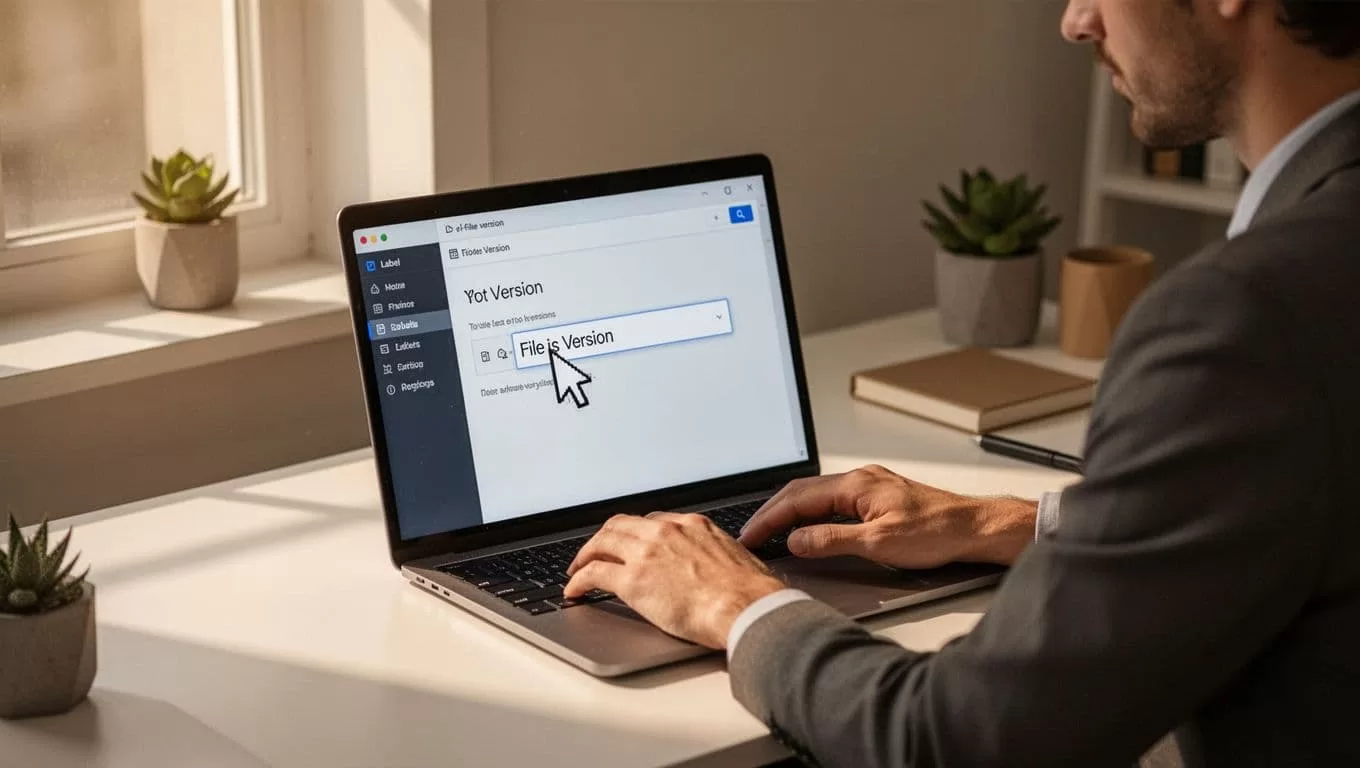
Named versions help in three common client situations. First, they protect a milestone before more feedback comes in. Second, they make handoff easier when a client wants a record of the approved draft. Third, they save time when I need to compare a late change against the signed-off copy.
I use this habit on shared files too. In a project folder, clear version names work like labeled envelopes. No one has to guess which draft is safe to build on. That’s one reason I like keeping active work inside Google Workspace file storage deployment, where version control and file ownership stay tied together.
Fix missing or limited version history
Sometimes version history looks thin, or it seems to vanish. I don’t assume the file is broken. I check the file type, the permission level, and the account I’m signed into.
If I can’t find the history, I usually check these things first:
- The file may not be a Google Doc, Sheet, or Slide. Uploaded PDFs and images often have limited history.
- I may only have view access. Without edit rights, I can read the file but not manage versions.
- The file may live in a shared drive with tighter controls. In that case, the drive settings can limit what I see.
- The draft may have been copied or converted. That can break the trail I expected.
If the version list looks incomplete, I refresh the page, reopen the file, and confirm I’m in the right account. I also check whether the interface moved the option somewhere else. Google changes menus from time to time, so the button placement can shift.
If the file type is the issue, I stop trying to force full history out of it. Instead, I keep Google-native working files for active editing and save exports only for final delivery. That workflow gives me a better edit trail and fewer surprises later.
Keep the draft trail easy to read
Version history works best when I use it early, not only after something goes wrong. I open it to review client feedback, restore the clean draft when needed, and name approved versions before the next round starts.
That small habit saves time and keeps client work calm. When the feedback pile grows, I still know which draft is current, which one was approved, and which edit belongs in the recycle bin.

