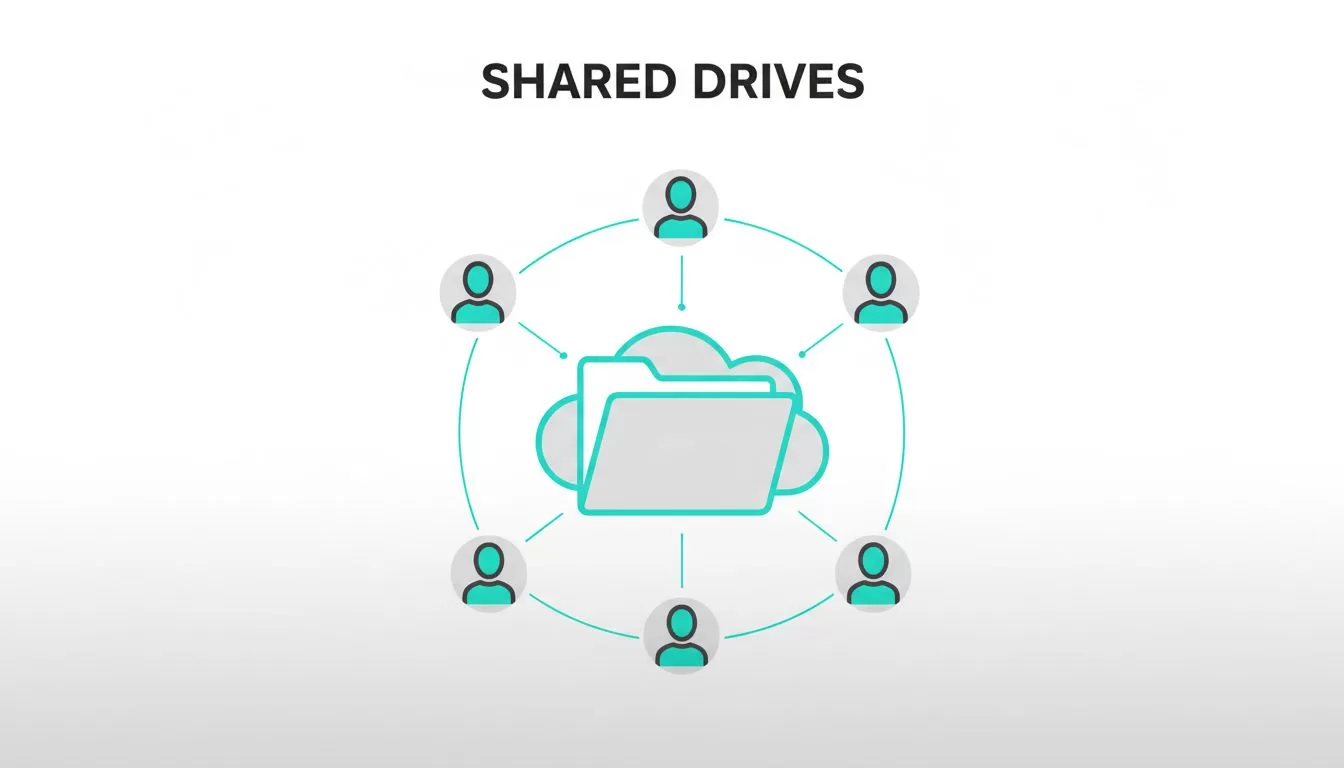
You’ve got a small team juggling files across personal Drives. Chaos builds fast. One person leaves, and key documents vanish into their account. I fixed that mess by switching to Google Workspace shared drives. They keep files owned by the team, not individuals. Small teams like yours gain control without big admin headaches.
In this guide, I share my exact steps. You’ll set up shared drives quickly, handle permissions right, and dodge pitfalls. Plus, best practices keep things smooth. Let’s get your files organized today.
Table of Contents
- Why Use Google Workspace Shared Drives for Small Teams?
- Prerequisites Before Setup
- Step-by-Step Setup Guide
- Managing Permissions in Shared Drives
- Common Mistakes to Avoid
- Best Practices for Small Teams
- FAQs
Why Use Google Workspace Shared Drives for Small Teams?
Shared drives changed how my small teams handle files. Files live in a central spot. No more hunting through “My Drive” folders. When staff turns over, nothing gets lost. Ownership stays with the group.
Pooled storage fits tight budgets. Business Standard gives 2 TB per user as of April 2026. Everyone draws from the same pool. That works great for uneven file needs. Sales might hoard proposals, while marketing shares images lightly.
Collaboration flows better too. Multiple people edit Docs or Sheets at once. Comments stay contextual, no email chains needed. Gemini AI even sorts Sheets during team sessions.
I compared options in my Google Workspace vs Microsoft 365 guide for small business email. Shared drives tip the scale for browser-first teams. They cut friction in daily workflows.
Security tightened in 2026. Admins set expiration dates on shares. That prevents old links from lingering. For small outfits, this means less worry over leaks.
Prerequisites Before Setup
Check your edition first. Shared drives work on Business Starter and up, plus Enterprise plans. Education and Nonprofits too. Confirm in the Admin console under Billing.
Enable the feature if off. Go to Apps > Google Workspace > Drive and Docs > Sharing settings. Turn on Shared drives. Save changes. Propagation takes minutes.
Verify users have licenses. Add any missing via Directory > Users. Groups help later. Create ones like “sales-team@yourdomain.com” under Groups.
Update MX records if new to Workspace. Test Gmail flow. Smooth email means clean Drive invites.
Review storage. Pooled limits apply. Business Plus offers 5 TB per user now. Plan growth to avoid surprises.
Back up old files. Use Google’s official setup guide for shared drives. It covers basics well.
Step-by-Step Setup Guide
I start simple. Log into drive.google.com as admin or user with create rights.
Click “Shared drives” on the left. Hit “New.” Name it clearly, like “Marketing-Projects-2026.” Keep it short. Descriptions add context.
Add members next. Search emails or groups. Assign roles during invite. Start with Content manager for most.
Move files in. Select from My Drive. Right-click > Move to > pick the drive. Bulk works too.
Test access. Open a Doc. Edit with a teammate. Confirm changes sync.

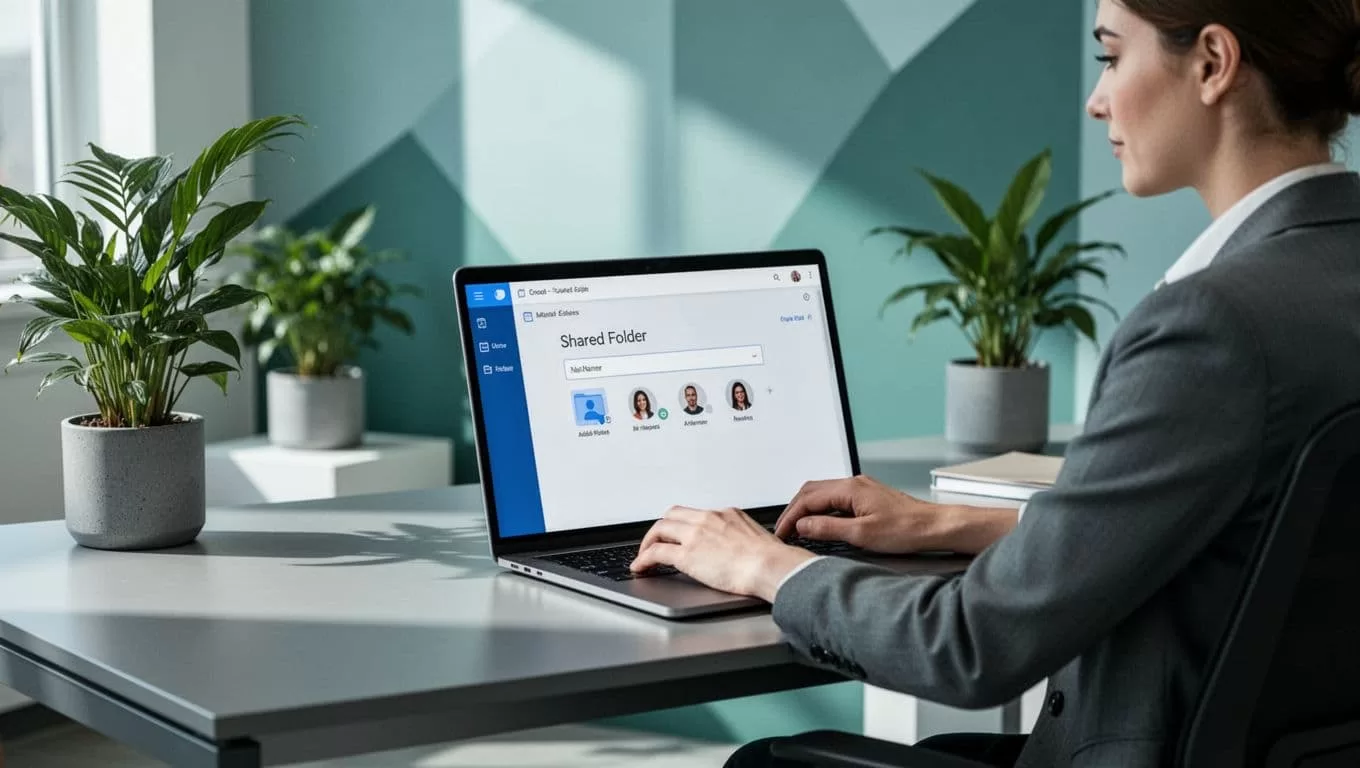
Scale up. Create drives by department: Sales, HR, Ops. Limit to five for small teams. Too many scatter focus.
In my Google Workspace file storage deployment, I map drives to functions first. That prevents overlap.
Managing Permissions in Shared Drives
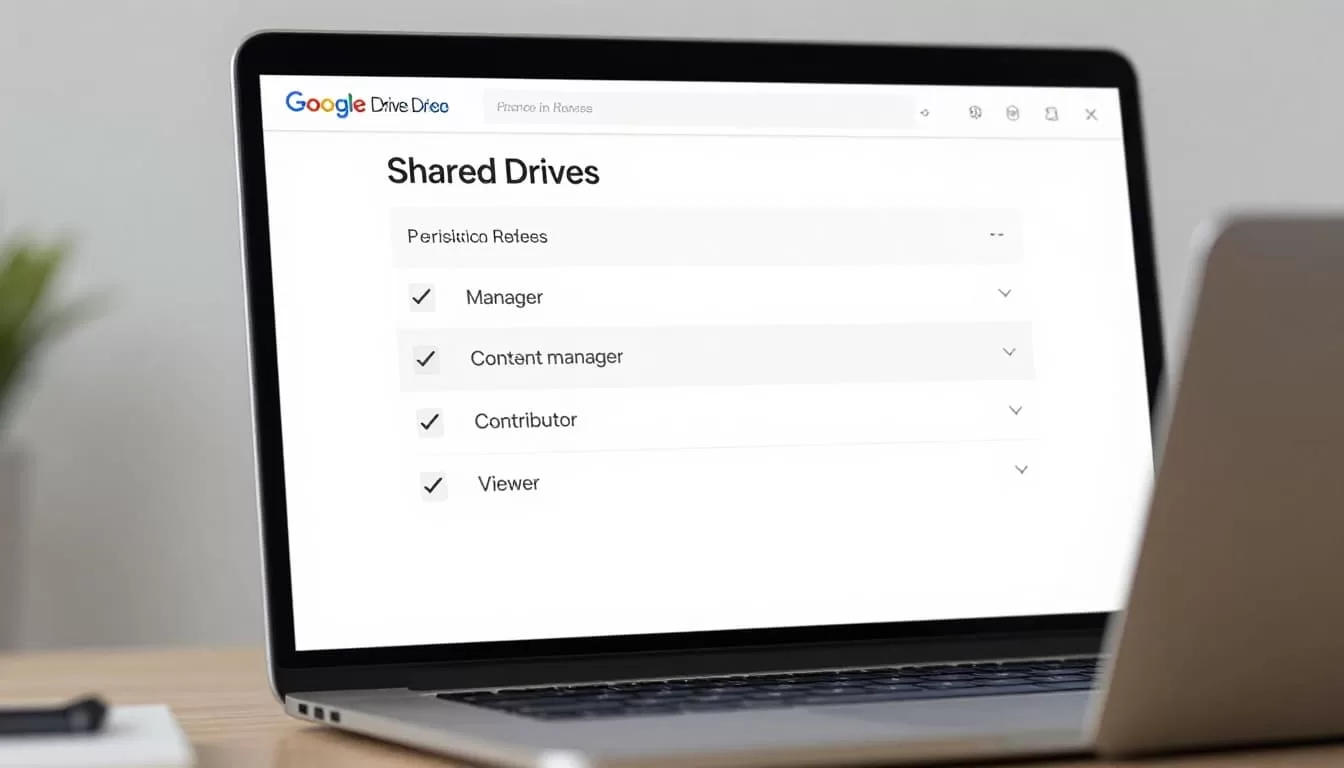
Permissions make or break setup. Four roles exist: Manager, Content manager, Contributor, Viewer.
Managers add/remove members and change settings. Limit to one or two per drive. Content managers add files, edit permissions on content. Contributors add and edit. Viewers read only.
Access the panel. Right-click drive > Manage members. Add via email or group. Set role. Notifications go out.
In 2026, share single files outside the drive. Non-members see just that item. Set expirations for temp access.
Use groups for ease. Ties to my secure document sharing setup. Changes propagate fast.
Disable downloads on sensitive folders. Right-click > Share > Viewer settings. Blocks prints too.
Common Mistakes to Avoid
Don’t dump everything in one drive. Creates clutter. Segment by team or project instead.
Skip personal Drives for team files. Ownership shifts on exit. Always use shared.
Over-permit early. Start tight, expand as needed. Audit quarterly via Admin console.
Ignore storage alerts. 2026 rules flag inactive drives. Respond to owner emails.
Forget mobile sync. Drive for desktop helps offline. But lock unmanaged devices.
No backups? Version history saves, but ransomware hits hard. Pair with external tools.
Best Practices for Small Teams
Name drives consistently. “Dept-Project-Year” works. Folders mirror: Active, Archive, Templates.
Train once. Short session: where files go, roles mean what. Champions per team enforce.
Integrate with Chat or Spaces. Pin drive links. Cuts “where’s the file?” asks.
Review quarterly. Remove stale members. Merge quiet drives.

Link to Google Workspace collaboration for remote teams. Builds on drives with Spaces.
Cap managers at two. Delegate content roles. Keeps admin light.
FAQs
Can I create shared drives on Business Starter?
Yes. But storage pools at 30 GB per user. Upgrade for more.
How do I move files back to My Drive?
Right-click > Move to. Works both ways.
What if storage fills?
Buy add-ons for some drives in summer 2026. Monitor via Admin.
Do guests need Workspace?
No. Share links work externally with limits.
How to audit activity?
Admin console > Reports > Drive audit log.
Shared drives turned my team’s file chaos into calm order. Files stay put, access stays tight. Set yours up today. Your small team will thank you. What’s your first drive name?