How To Set Up Google Groups As A Shared Inbox In Google Workspace
Team emails pile up like unopened mail on a kitchen counter. One person misses a reply, and customers wait longer than they should. I fix that chaos with a Google Groups shared inbox. It lets my support or sales teams read, assign, and answ...
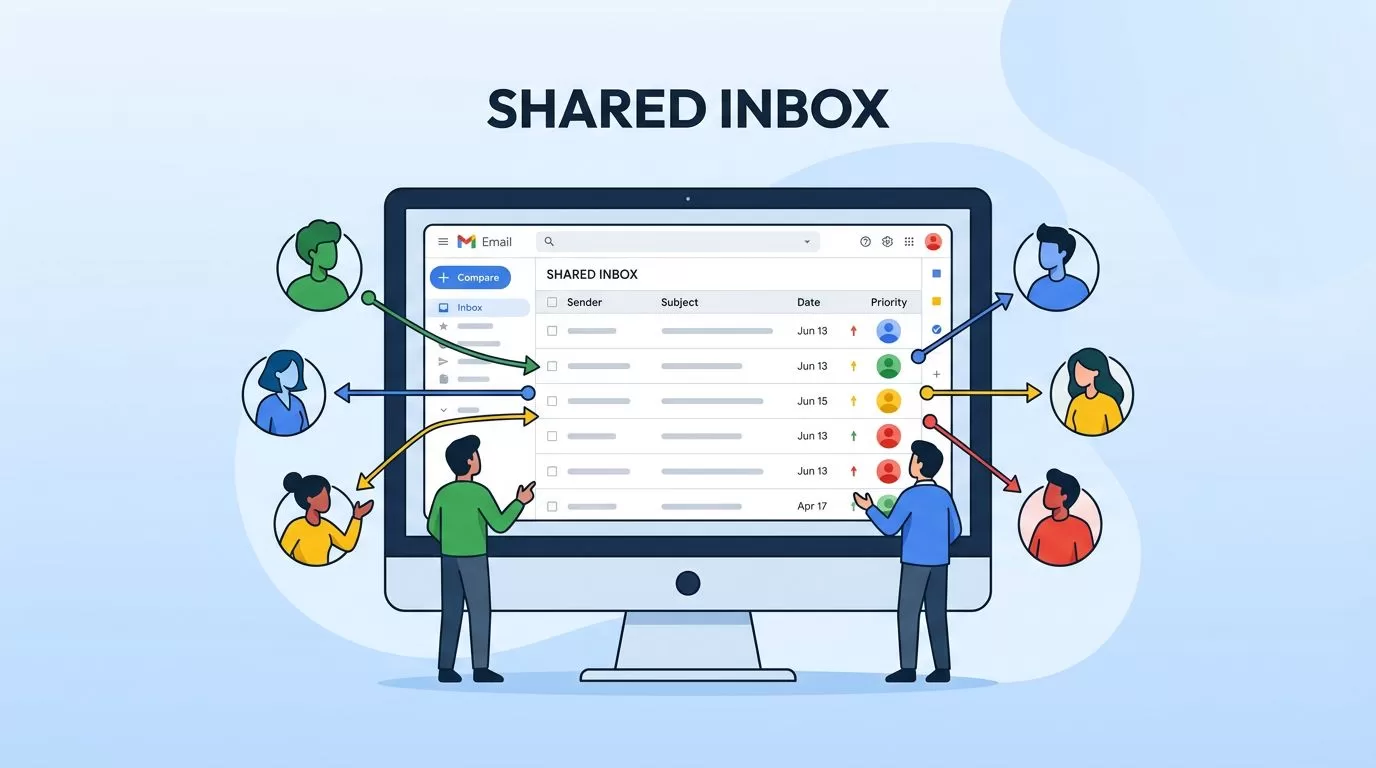
Team emails pile up like unopened mail on a kitchen counter. One person misses a reply, and customers wait longer than they should. I fix that chaos with a Google Groups shared inbox. It lets my support or sales teams read, assign, and answer from one address, like support@yourdomain.com. No more forwarding chains or reply-all floods.
In Google Workspace, this setup stays free and simple. I use it for low-volume teams who need basic collaboration without extra tools. Follow my steps, and your inbox turns into a team hub by afternoon.
Why Google Groups Works as a Shared Inbox for Teams
Small teams handle support tickets or sales leads best with a shared spot. Google Groups pulls emails to one place. Members assign threads, add notes, and mark them done. That cuts confusion.
Sales reps grab leads fast. Support staff spot duplicates before wasting time. Internal notes stay private from customers. Everyone sees status at a glance.
I pick this over personal inboxes because ownership sticks with the team. No lost emails when someone leaves. For a five-person crew, it beats buying seats in pricier apps. Check Google’s guide on collaborative inboxes for official details.
In my Google Workspace collaboration for remote teams setup, Groups ties right into Chat and Drive. Emails spark discussions without app switches.
Check Prerequisites First
Start with admin access or group owner rights. Your Workspace edition matters. Business Starter, Standard, or Plus all support it. Enterprise works too.
Head to admin.google.com. Go to Apps > Google Workspace > Groups for Business. Turn it on if off. That unlocks full features.
Verify your domain sends to Gmail. Test by emailing a user account. Everyone needs a Workspace license to join. Groups cap at 1,000 members, so scale fits small ops.
I create groups early in my Google Workspace email aliases for teams flow. It pairs aliases with Groups for clean addresses.
Create Your Google Group Step by Step
Log into groups.google.com. Click Create group up top.
Name it clear, like “Support Team Inbox.” Set the email as support@yourdomain.com. Add a short description. Hit Next.
Choose post settings. Let members post. Allow external emails in, but restrict views to insiders. Next.
Add members by email. Set roles later. Owner gives full control. Manager edits settings. Member reads and replies. Finish with Create group.
Emails now land there. Test by sending one. Replies come from the group address.
Configuring the Collaborative Inbox
Open your new group. Click its name. Pick Group settings from the left.
Turn on Conversation history first. It groups threads, key for collaboration.
Scroll to Enable additional Google Groups features. Check Collaborative Inbox. Save.
Members now assign emails. They mark as Complete, Duplicate, or No Action. Notes appear for the team only.

Picture your sales team around a screen. Threads show assignees. One grabs a hot lead. Others skip duplicates. That flow saves hours weekly.
For video steps, watch this Google Workspace shared inbox setup.
Managing Permissions and Members
Permissions control the flow. Back in Group settings, go to Members.
Add via email or another group. Assign Owner to leads. Manager for deputies. Member for reps.
Posting access matters. Owners post anything. Members post to members only. That blocks spam.
View who posts where. Adjust if needed. Remove old members clean.
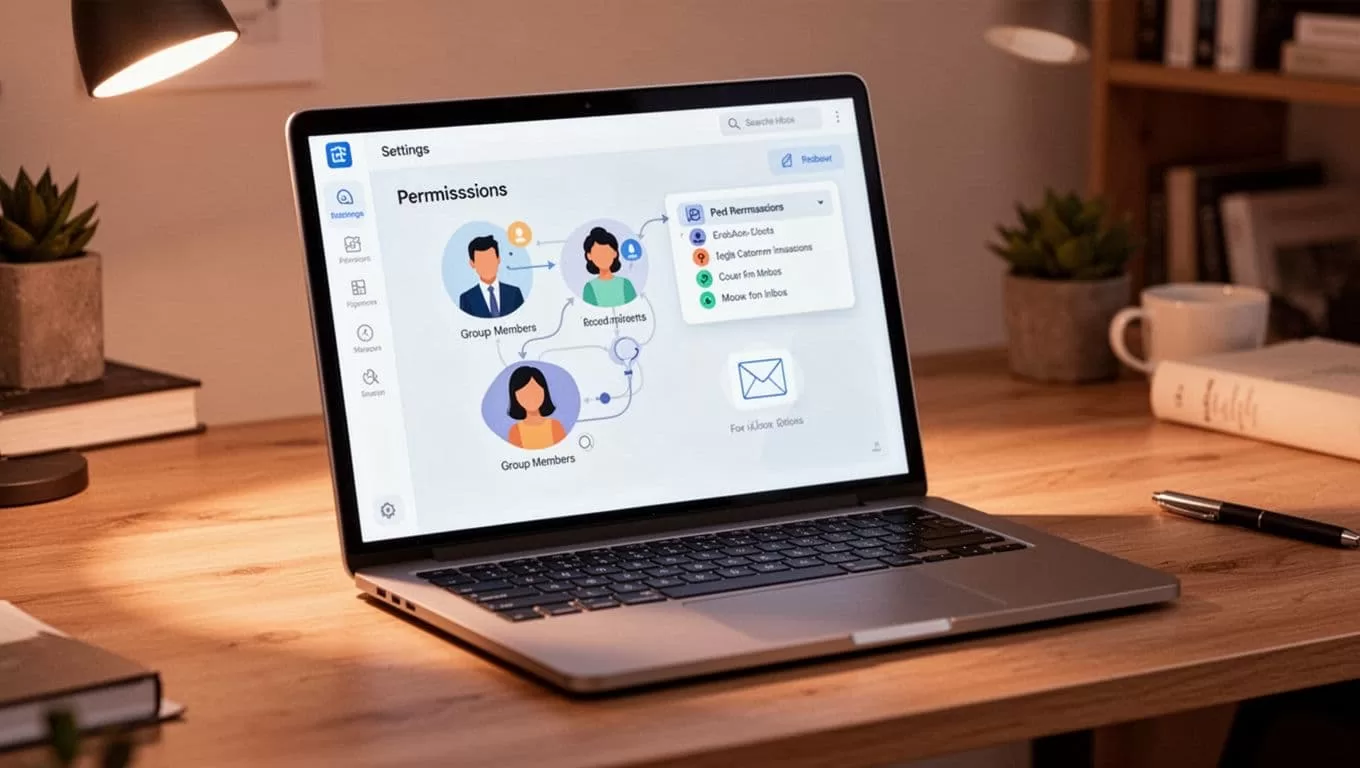
I tighten these in high-stakes teams. Sales sees leads only after assignment. No early poaching.
Link to my setting up shared drives in Google Workspace for file ties.
Google Groups vs. Dedicated Shared Inbox Tools
Groups suits starters. But paid tools shine for volume.
| Feature | Google Groups | Tools like Front |
|---|---|---|
| Cost | Free | $20+ per user/month |
| Assignment | Basic | Rules, auto-assign |
| Notes | Internal only | @mentions, tasks |
| Channels | Chat, SMS too | |
| Scale | Low volume | High support |
Groups lacks SLAs or CRM links. Front adds them, per their Gmail shared inbox guide.
I stick with Groups for internal requests. Switch for customer-facing scale.
Troubleshoot Missing Features or Restrictions
Options grayed out? Enable Conversation history. Check Admin Console for Groups toggle.
No emails? Verify routing in Gmail settings. Allow externals.
Permissions fail? Re-add members. Confirm licenses.
| Issue | Quick Fix |
|---|---|
| Option missing | Turn on history, Groups for Business |
| No access | Check roles, licenses |
| Emails vanish | Routing rules, external posts |
Admins lock features sometimes. Contact support. Propagation takes minutes.
See Google’s shared inbox admin help for more.
Groups shared inboxes keep my teams aligned without cost. Setup takes under 30 minutes. Test yours today. What address will you share first?
(Word count: 978)
