How to Share Google Workspace Documents Safely
Need to share a Google Drive file with a coworker, client, or group? Open the file, choose Share, add the person or group, and select Viewer, Commenter, or Editor. For private files, keep General access set to Restricted and invite only the...
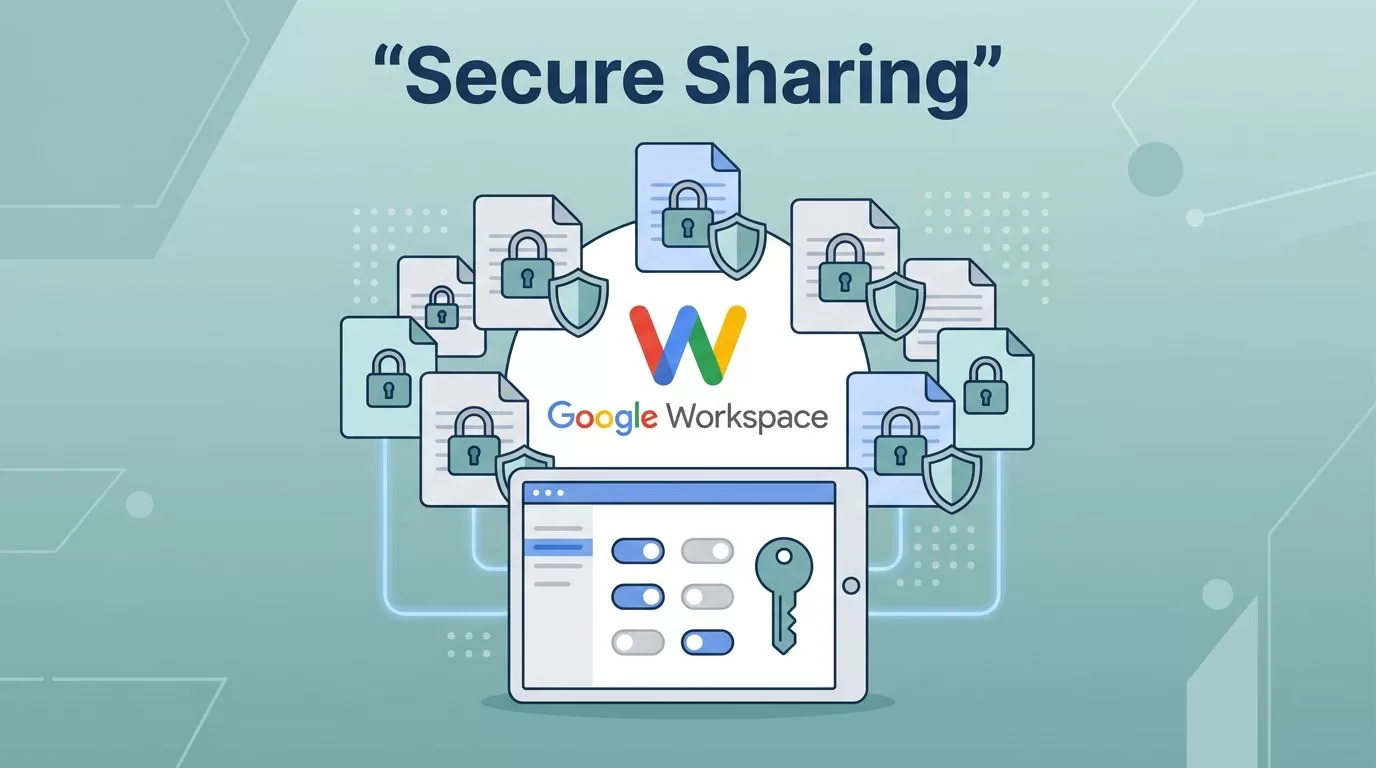
Need to share a Google Drive file with a coworker, client, or group? Open the file, choose Share, add the person or group, and select Viewer, Commenter, or Editor. For private files, keep General access set to Restricted and invite only the people who need it. Workspace admins can add organization-wide rules, but everyday users can manage access from the Drive sharing dialog.
This guide covers both tasks: sharing, changing, and stopping access as a Drive user, then setting safer sharing rules as a Google Workspace admin. Menu names can vary slightly by account or device. The steps below describe the current desktop Drive workflow. For Google’s own walkthrough, see Share files and folders in Drive.
How to Share a Google Drive File
To invite a specific person or Google Group, follow these steps:
- Open Google Drive and select the file you want to share.
- Click Share. You can also open the file’s share dialog from the Drive toolbar or its context menu.
- Enter the recipient’s email address or the address of a Google Group.
- Choose a role. Use Viewer for read-only access, Commenter for feedback without editing the file’s main content, or Editor when the person needs to make changes.
- Decide whether to send an email notification. Leave Notify people checked to tell invitees about the share. Uncheck it if you do not want Google to send that notification.
- Click Send or Share to finish.
Use the role that fits the task, not the role that feels easiest. A reviewer usually needs Commenter, not Editor. A person who only needs to read a report should be a Viewer. Group invitations save time, but remember that everyone in the group may receive the access granted to it.
Share a Link Without Opening Access Too Far
To share a link, select the file and click Share. In the dialog, find General access and open its menu. Choose Restricted to limit the file to people who already have permission, or select an available link option, such as Anyone with the link. Choose a role for link recipients, then click Done and copy the link.
- Restricted is the safer choice for private work. A person who receives the URL still needs permission to open the file.
- Anyone with the link allows people who get the link to open the file without being individually added. Depending on the role you choose, they may view, comment, or edit.
- Organization-wide options may appear in Workspace accounts. They limit access to people in the organization, but your organization’s policy determines which options users can select.
A link can travel beyond the people in the folder or email where you first shared it. If the setting allows anyone with the link, do not assume that folder membership keeps other link holders out. Before sending a link, open the sharing dialog and check both the audience and the role. Google’s guide to sharing files from Drive explains the available access choices.
Change or Stop Sharing a File
You can update access after a file has been shared. In Drive, select the file, click Share, and find the person or group in the access list. Open the role menu next to their name to change Viewer, Commenter, or Editor access. Save the change when prompted.
To remove one person’s direct access, open the role menu beside their name, choose Remove access, then save. To turn off public or broad link access, go to General access, change the setting to Restricted, and click Done. The link may still exist, but people who do not have permission will no longer be able to use it.
If a person still has access after you remove them, check where that access comes from. They may be a member of a Google Group, have permission from a parent folder, or belong to the Shared Drive. Removing a direct file invitation does not remove access granted through those other routes. Google provides steps for stopping, limiting, or changing sharing.
What Happens When You Share a Folder?
Folder sharing affects more than the folder name. People with access can work with the files inside according to their folder role. A person with permission to organize, add, and edit can add, move, edit, or delete items in the folder. A viewer can open the folder and its files.
Drive applies parent-folder permissions to files and subfolders inside it, including items added later. This makes shared project folders convenient, but it can also expose a new file to everyone who can access the parent. Check the folder’s access list before adding sensitive material.
There is an important limit: a file inside a shared folder cannot always be made more private than the folder’s inherited access. If one document needs a smaller audience, move it to a suitable location or use a limited-access folder when available. A person may also keep a higher level of access that was granted directly to an individual file. See Google’s current instructions for sharing folders in Drive.
Can You Share With Someone Without a Google Account?
Sometimes. Google Workspace organizations can allow visitor sharing, which lets eligible users invite people who do not have Google Accounts. Availability depends on the organization’s settings. If visitor sharing is off or restricted, a file owner may not be able to invite that person this way.
When visitor sharing is enabled, the recipient can be asked to verify their identity through the invitation email. The organization may limit visitor sharing to trusted domains. If the option is missing or the invitation fails, ask the Workspace admin to check the organization’s visitor-sharing policy. Read Google’s guide to sharing documents with visitors before choosing this route.
When to Use a Shared Drive
Use a Shared Drive for files that belong to a team or organization rather than one person’s personal work. Files in a Shared Drive are owned by the organization, so they remain with the team when an employee leaves. Use My Drive for personal drafts and files that are not meant to be team-owned.
Add someone as a Shared Drive member when they need ongoing access to the drive’s work. Share an individual file or folder with a non-member when they only need that item and the drive’s settings allow it. Membership can provide access across the drive based on the person’s role; direct sharing is narrower. For sensitive material, check whether a limited-access folder is appropriate.
Shared Drive rules can restrict external sharing, link access, or sharing with non-members. So, if someone cannot open a file, check both their direct file permission and their drive membership or the drive’s sharing settings. Google’s guides explain how file access works in Shared Drives and how to use Shared Drives.
Workspace Admin Controls: Set the Organization’s Guardrails
Admins control the boundaries users work within. In the Admin console, review Apps > Google Workspace > Drive and Docs > Sharing settings. Google may adjust labels, so use the Admin console search if a menu name has changed.
- Select the organizational unit or configuration group that needs the rule. Avoid applying a special policy to the entire company if only one team needs it.
- Set whether users can share files and folders outside the organization. If external collaboration is allowed, decide whether to limit it to trusted domains.
- Review visitor sharing separately if staff need to work with people who do not have Google Accounts.
- Review Shared Drive settings for external users, non-members, and link sharing. These controls can differ from a file owner’s individual choices.
- Explain the approved sharing path to staff, then review access when a project or contract ends.
Admin policies can be applied by organizational unit or group, and a group rule can take priority over an organizational unit rule. A blocked option in an employee’s share dialog may therefore reflect an admin policy, not a Drive error. See Google’s guide to managing external sharing for current controls and policy details.
Do not assume every Workspace account has the same advanced features. Google says only eligible accounts can add an expiration date to a shared file. Check its current Drive sharing instructions before relying on expiration, especially for files in a Shared Drive. Other data-protection features can depend on the Workspace edition and Admin console settings, so confirm them with your admin before building a process around them. This guide focuses on sharing options a user can verify in Drive rather than treating optional controls as universal.
Quick Troubleshooting: Find the Source of the Access Problem
If someone sees “Access denied”: First, ask them to check which Google Account is signed in. Then check the file’s direct permissions and role. Next, review access from the parent folder, any Google Group, and the Shared Drive. If the person is outside the organization, ask the admin whether external sharing or visitor sharing is allowed.
If someone can still open a file after removal: Check whether they have another route to it, such as group membership, inherited folder access, Shared Drive membership, or an anyone-with-the-link setting. Remove or narrow the permission at its source.
If you cannot share outside your company: Check whether the recipient’s domain is allowed and whether the right organizational unit or group permits external sharing. In a Shared Drive, review the drive’s own rules too. Ask an admin to change policy only when the business need is approved.
A Safer Sharing Checklist
- Choose named people or groups when the audience is known.
- Keep private files set to Restricted.
- Give each person the lowest role that supports their task.
- Check parent-folder and Shared Drive access before adding sensitive files.
- Use link access only when the wider audience is intentional, and check its role.
- Remove access when the work ends, including group or inherited access where needed.
- Ask your Workspace admin about blocked options and edition-dependent controls.
Secure Google Workspace document sharing starts with a simple habit: check who can open the file before you send it, and check again when the work is over. For a personal file, manage people and links in Drive. For company-wide rules, use Workspace admin controls. Keeping those two jobs separate makes sharing easier to understand and harder to overdo.
